Partner branding
Partner branding in Partner Center lets you white-label the platform with your own company name, logo, favicon, and primary color, with no mention of Vendasta. Your branding appears everywhere customers see the platform, including Business App and email campaigns.
Where to customize
- Name and logos –
Partner Center→Administration→Partner branding - Business App name –
Partner Center→Accounts→Manage Business App→Customize Business App
Some white-label options may depend on your subscription.
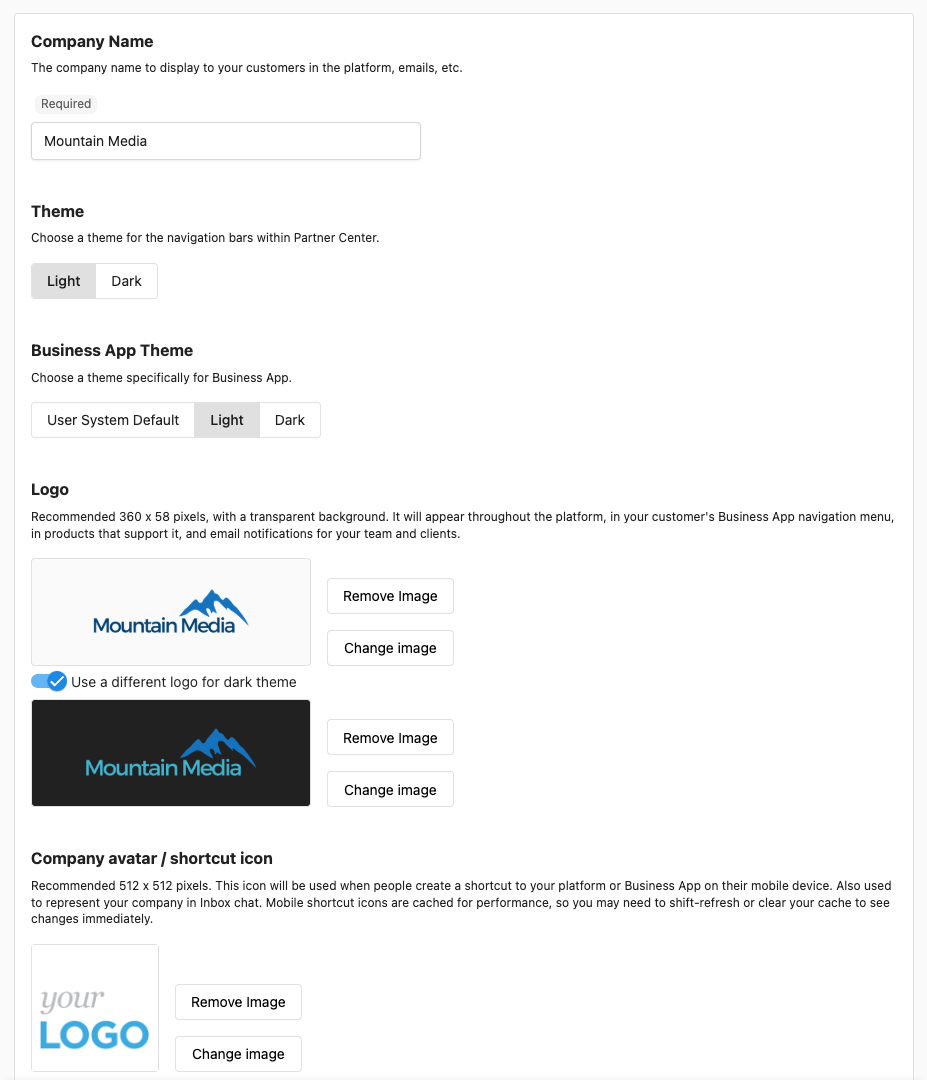
Customizable brand elements
Under the Partner branding tab you can configure:
Company name
The name shown to customers on the platform and in emails. This field is required.
Theme
Choose a theme (light or dark) for your team in Partner Center. This applies to the navigation only.
Business App theme
Set the default theme for customers in Business App (light or dark). User System Default matches each user's system settings; users can also change it in the app.
Logo
Your logo appears wherever white-labeling is used, including in emails. Use versions that work in both light and dark mode; you can upload separate logos for each.
Favicon
The small graphic in the browser tab for Business App, so users can tell your app apart from other tabs.
Recommended size: 16×16 px. Format: ICO only.
Company avatar / shortcut icon
The shortcut icon is used when users save Business App to their home screen on mobile, and for your company in Conversations chat.
Recommended size: 512×512 px. Formats: GIF, JPG, or PNG.
Primary color
Your brand color is used as an accent in the platform and in some client emails.
Custom branding for markets
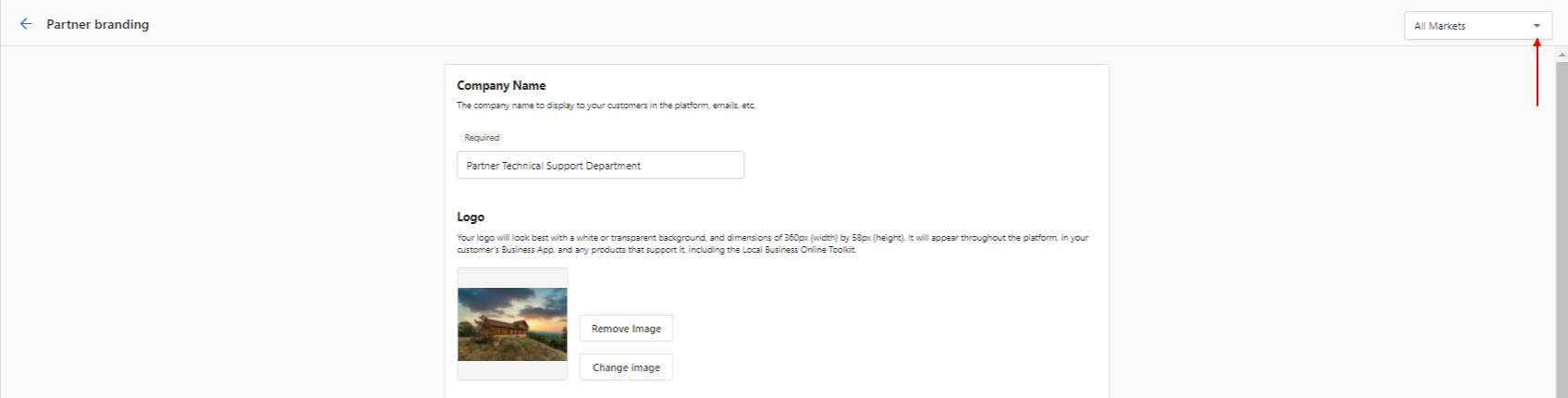
By default, Partner branding settings apply to all markets. If a market has its own customization (under the Markets tab), Partner branding changes may not apply to that market.
To customize by market: open the All Markets tab and select the market.
"Powered by" text in Business App products
Some products in Business App display a "Powered by [Your Company Name]" label in the product UI. This text comes from the Market Name configured in your Partner branding settings, specifically the Company Name set for each market.
How to update the "Powered by" name:
- Go to
Partner Center→Administration→Partner branding. - Open the
All Marketstab and select the market whose "Powered by" text you want to update. - Update the
Company Namefield for that market and save.
The new name will appear in Business App products for accounts in that market.
"Powered by" branding applies to all accounts in the selected market. It is not possible to suppress or customize the label for individual accounts. The setting is market-wide.
If you have renamed your company and the old name is still appearing, check each market's Company Name separately. Markets with their own branding configuration inherit that market's name, not the global default.
Web chat
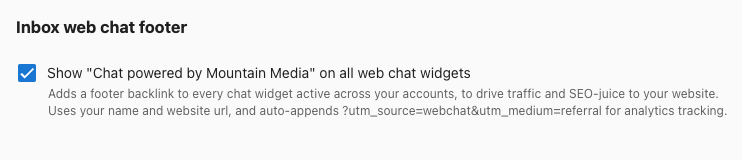
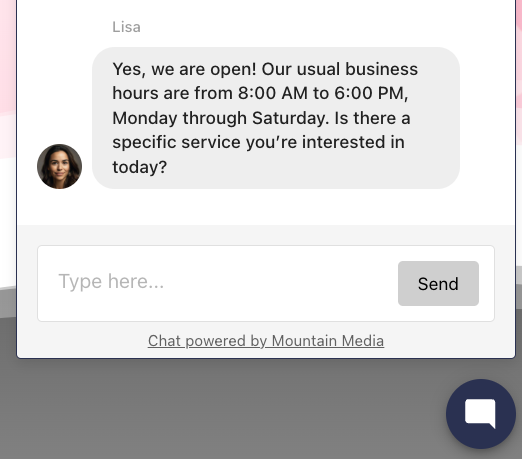
You can add a footer to all client web chat widgets: "Chat powered by [Your Company Name]" with a link to your site, for SEO and lead generation. The link includes a UTM parameter so you can track engagement in Google Analytics.
To enable: Partner Center → Accounts → Manage Business App → Customize Business App → Branding, then enable Show 'Chat powered by [Your Company Name]' on all web chat widgets.
Frequently asked questions
Why does a Business App product say "Powered by" with the wrong company name?
The "Powered by" label comes from the Company Name set for each market. Go to Partner Center → Administration → Partner branding, open the All Markets tab, select the market, and update its Company Name. Check each market separately, because markets with their own branding use that market's name, not the global default.
Can I change the "Powered by" label for a single account?
No. "Powered by" branding applies to all accounts in the selected market and can't be suppressed or customized for individual accounts.
How do I show "Chat powered by" my company name on web chat widgets?
Go to Partner Center → Accounts → Manage Business App → Customize Business App → Branding, then enable Show 'Chat powered by [Your Company Name]' on all web chat widgets. The footer links to your site and includes a UTM parameter for tracking in Google Analytics.
Which brand colors can I set?
You can set one primary color, which is used as an accent in the platform and in some client emails. You can also choose a light or dark theme for Partner Center navigation and a default theme for Business App.
Where do I change the Business App name?
Go to Partner Center → Accounts → Manage Business App → Customize Business App.
Can I remove all Vendasta branding?
The platform is white-label, so you can brand it as your own. Some white-label options may depend on your subscription.
What are Markets?
Markets is a paid add-on. Each additional market is a separate brand in one Partner Center, with its own branding and marketplace pricing. Every partner gets one default market created at signup and named after the company, plus the built-in "All markets" which cannot be removed. If you have more than one market, a dropdown appears in the top-right of the partner branding page. Partner Center sends from one email domain. When assigning users, choose All markets, because users scoped to a single market lose some admin features.
Articles in this section
- Visual Branding and Identity – Logos, colors, favicon, login page options, multi-market branding, and FAQs