Snapshot Report – complete guide
The Snapshot Report in Partner Center is an automated assessment of a prospect's online marketing across eight areas: listings, reviews, social, website, SEO, advertising, ecommerce, and AI optimization. Each area gets a letter grade you can use to open a sales conversation.
What is Snapshot Report?
The Snapshot Report is a marketing needs assessment that gives sales reps automated insights into a business's online marketing performance. Use the Snapshot Report to start conversations with your prospects, highlight gaps in their marketing, and propose optimal solutions.
The Snapshot Report is used before you've formed a business relationship to pitch your services and products to prospects, while the Executive Report is used after you have a business relationship to provide ongoing insights.
Sample Snapshot Report

You can also download a sample Snapshot Report PDF.
Why is Snapshot Report important?
With 97% of consumers looking for businesses on the web, it's crucial to have accurate listings, positive reviews, regular social activity, a well-built website, and successful ad campaigns. The Snapshot Report gives you the ability to assess and present these attributes of your prospects' online presence.
Our partners have experienced as much as a 500% increase in their close rate using the Snapshot Report and hot lead notifications! The Snapshot Report helps you:
- Start informed conversations with prospects
- Highlight gaps in their digital marketing
- Position yourself as a trusted expert
- Propose optimal solutions backed by data
- Overcome prospecting challenges with automated insights
What's included with Snapshot Report?
The Snapshot Report analyzes a business's digital presence across eight key categories:
1. Business listings
Evaluates how accurately and consistently a business is listed across online directories, measuring both listing presence and accuracy.
2. Reviews
Analyzes online reputation including review volume, average ratings, monthly review frequency, and number of review sources.
3. Social media
Assesses social media presence across platforms like Facebook, Instagram, and X, including follower counts and posting frequency.
4. Website performance
Uses Google's Core Web Vitals to evaluate website speed, mobile-friendliness, and user experience on both desktop and mobile devices.
5. SEO (Search engine optimization)
Examines organic keyword performance, search result visibility, and website optimization factors.
6. Advertising
Analyzes online advertising presence and performance using top industry keywords.
7. Ecommerce
Evaluates online sales capabilities including storefront presence, payment processing, lead engagement tools, and online scheduling.
8. AI optimization
Assesses whether a business appears in AI-powered search results from Google AI Mode and ChatGPT, including AI readiness (robots.txt, llms.txt) and AI visibility testing across different customer personas and search queries.
Each section receives a letter grade (A-F) and contributes to an overall Digital Score (0-100%).
How do I create and send Snapshot Reports?
Creating Snapshot Reports
You can create Snapshot Reports in several ways:
Via the CRM
- Navigate to
Partner Center→CRM→Companies - Click on the Reports section on the right side-bar
- Select 'Create Snapshot Report'
When generating reports through the CRM, ensure these key data points for best results:
- Business Name: Clear and accurate business identification
- Business Address: Complete address for localized analysis
- Business Phone Number: Valid contact information
- Business Website: For analysis of the business's online presence
- Accurate Business Category: Critical for industry-specific benchmarks
Via 'Snapshot Create Icon'
- Go to
Partner Center→Accounts→Manage Accounts - Beside the desired account, click the
 to create Snapshot Report
Via forms integration
You can embed CRM Forms on your website allowing prospects to request business assessments that automatically generate Snapshot Reports. When someone completes a form, the platform automatically:
- Creates contact and company records in CRM
- Triggers Snapshot Report generation through automation workflows
- Assigns a salesperson to the prospect
- Sends notifications to the salesperson
- Initiates follow-up email campaigns and automations
- Captures lead data for better qualification
Learn more about setting up Forms for Snapshot Report generation in the Forms documentation.
Via email campaigns
Use Snapshot Report Creation events with email marketing campaigns to generate reports automatically:
- Go to
Partner Center→Marketing→Campaigns - Select the campaign you want to add Snapshot Creation to
- Click Add Snapshot Report
Snapshot Reports will be created for accounts added to campaigns. If an existing report is less than 30 days old, the campaign uses that report. If older than 30 days, it automatically refreshes. Standard fees apply for creation or refresh.
Sending Snapshot Reports
Why the Email Report button might not appear
The Email Report button (paper-plane icon) is only visible when you are in Edit Report mode, not in View Full Report mode. If you can't find the send option:
- Open the Snapshot Report
- Make sure you are in Edit Report mode, not View Full Report
- The email/send icon will appear in Edit mode
A salesperson must be assigned to the account for the Email Report button to function. Without an assigned salesperson, the send option may not appear.
Changing the sender email address
By default, Snapshot Reports are sent from noreply@snapshotreport.biz. To change the sender address:
- Open the Snapshot Report in Edit Report mode
- Find the email settings within the send workflow
- Update the sender email to your preferred address
AI-generated suggested content
When sending a Snapshot Report via Edit Report mode, the platform can generate suggested email copy using AI. This feature is only available in Edit Report mode and generates suggested subject lines and body text based on the report data. You can edit the suggestions before sending.
Finding a previous Snapshot Report URL
If you need to locate the URL of a previously sent Snapshot Report:
- Check the email notification history for the prospect — the original send email contains the report link
- Go to
CRM→Companies→ select the company → Reports section to find existing reports
Snapshot Report URL
- Go to
Partner Center→Accounts→Manageand select the desired account - Click
Snapshot Report→View Snapshot - Copy the URL at the top of the page
- Send the URL to your prospect
Email campaigns
Create email marketing campaigns with Snapshot Creation Events. You can use pre-built campaigns like:
- Local Marketing Snapshot
- Local Marketing Snapshot w/ Citation Builder
Or create custom campaigns that include Snapshot Reports.
Report timing
- For the most accurate results, wait up to 24 hours before checking the report to ensure all data has been gathered.
- Reports continue gathering data for up to 7 days for maximum accuracy
- The most accurate time to present is at the 7-day mark
- After 7 days the report stops gathering new data. It stays shareable, but the grades and figures in it are fixed from that point. To bring it up to date, refresh the report rather than sending the old one.
A report you ran but never sent goes stale quietly. If more than a month has passed since it was generated, refresh it before you present it — the client's listings, reviews and rankings will have moved, and presenting outdated grades undermines the conversation you are trying to open.
Business category and competitors
How the business category is set
The Snapshot Report pulls the business category from the Account Group's primary category in Partner Center. This drives the industry benchmarks used throughout the report — a wrong category leads to inaccurate grades.
To check or update the category:
- Go to
Partner Center→Accounts→Manage Accounts - Open the account and edit the business details
- Update the Primary Category to the most accurate business type
Avoid setting the category to "Other". When "Other" is selected, the Local Search Results section cannot retrieve meaningful data and will produce inaccurate results.
Can I use a Snapshot Report to show a client's progress?
The Snapshot Report is a sales tool: a deliberately critical audit of a prospect's online presence (listings, reviews, social, website, ecommerce, advertising, local SEO, AI readiness) designed to open a sales conversation. It is not meant for proof of performance. A re-run will still be critical because it is designed to surface every gap. For current customers, use the Executive Report in Business App instead.
Why your report might auto-fill "Marketing Agency"
If the Snapshot Report keeps defaulting to "Marketing Agency" as the business category, the likely cause is a default Local SEO keyword set on the template. To fix it:
- Go to
Administration→Customize→Sales→Edit Default Snapshot Template - Find the Local SEO section
- Clear or update the default keyword
Once cleared, new reports will use the correct business category from the account.
Adding competitors
You can add competitors to the Snapshot Report so prospects can see how they compare:
- Account-based competitors: The competitor must share the same primary business category as the prospect to appear in the comparison. Competitors created as Accounts in Partner Center follow this rule.
- Google-pulled competitors: When the system automatically pulls competitors from Google, the same-category restriction does not apply.
To add competitors manually, open the Snapshot Report in Edit Report mode and add competitor names or URLs in the Competitors section.
Industry Average and Industry Leader benchmarks
The Industry Average and Industry Leader benchmarks shown throughout the report use a 6-month lookback period. This means the benchmarks reflect aggregate data from the past 6 months, not real-time comparisons.
How do I customize Snapshot Reports?
Basic customization options
Reordering report sections
- Navigate to your Snapshot Report
- Select the report to customize
- Click Configure
- Use Rearrange to drag and drop sections
Editing messaging
- In report configuration, find the section to edit
- Click Edit for the message field
- Modify text as needed
- Save changes
Language settings
Change report language for international clients:
- Locate language settings in report configuration
- Select preferred language from dropdown
- Report content updates automatically
Removing sections
- For all accounts: Go to
Partner Center→Customize→Partner Defaults→Sales→Edit Default Snapshot Templateand toggle off unwanted sections - For specific markets: Go to
Partner Center→Customize→Markets, select the market, then go toSales→Edit Default Snapshot Templateand check the boxes to remove sections
Frequently asked questions (FAQs)
Can I use the Snapshot Report to show a client the progress I have made for them?
Use the Executive Report for that instead.
The Snapshot Report is built to find gaps and make them impossible to ignore, which is what makes it effective for opening a sales conversation. That same design works against you as a progress report: it stays deliberately demanding, so a client can see real improvement in their listings and reviews and still be shown a grade that reads as a failure.
The Executive Report is the proof-of-performance tool. It reports on the products the client actually has active, rolls up results over a period you choose, and is designed to show the value you are delivering.
How do I deactivate a Snapshot Report?
Snapshot Reports are tied to the Reputation AI product on an account. To deactivate a Snapshot Report, deactivate Reputation AI for that account. This stops the report from being active and accessible. If you need to remove a report without deactivating the product, contact support.
How do I get notified when a Snapshot Report is ready?
Set up Snapshot Ready notifications in Administration → Client Notifications. Enable the Snapshot Report notification type to receive an alert when a report finishes generating — typically within 24 hours of creation.
Does the automation trigger "a Snapshot report was created" fire when I refresh a report?
No. The Snapshot Report Created automation trigger fires only when a new Snapshot Report is created — not when an existing report is refreshed. If you need to trigger an automation after a refresh, you will need a separate workflow or manual follow-up.
Can I combine multiple clients' Snapshot Reports into one?
No. Snapshot Reports are generated per business and cannot be merged or combined across multiple clients. Each report is specific to a single business's online presence data.
Can I customize the grade descriptions in the Snapshot Report?
No. The letter grade descriptions (A–F) and their explanations are system-controlled and cannot be customized or edited.
How long does a Snapshot Report take to be ready?
We recommend waiting a minimum of 24 hours before viewing the Snapshot Report. The platform scans the internet for business information and matches it across various directories. This process can take up to 24 hours to avoid being identified as malicious software. The report continues looking for data for up to 7 days, with the most accurate presentation time being at the 7-day mark.
Why am I charged for refreshing Snapshot Reports?
Snapshot Reports are prospecting tools typically generated once during the prospecting phase. Creating and refreshing are separate products, both charging $2. Some subscription tiers include 'free' reports that can only be used for creating new reports, not refreshing existing ones.
What's the difference between Snapshot Report and Executive Report?
A Snapshot report is a prospecting diagnostic. You run it for a prospect or client and it returns an audit of gaps across listings, reputation, social, website, and related online presence. An Executive report is ongoing proof of performance from connected product data, with weekly, monthly, or custom date ranges. Use Snapshot to start the sales conversation; use Executive to show results over time.
Can I create a Multi-Location Snapshot Report?
The Snapshot Report is not available for multi-location businesses. However, the Multi-Location Executive Report provides similar insights tailored for businesses with multiple locations, offering consolidated performance overviews and actionable insights.
How do I remove sections from the Snapshot Report?
For a single report: open the report in Edit Report mode and uncheck the box beside any section you do not want the client to see. For all accounts: go to Partner Center → Customize → Partner Defaults → Sales → Edit Default Snapshot Template and toggle off sections. For specific markets: go to Partner Center → Customize → Markets, select the market, go to Sales, then edit the template and check the boxes to remove sections.
Why does the SEO score seem inaccurate?
SEO scores are based on industry percentiles and multiple factors including keyword usage, meta data, content, architecture, links, social presence, and trust signals. The score reflects how the business compares to others in their industry, not absolute performance.
How can I create a sample Snapshot Report?
You can create sample reports for demonstration purposes using test business information. Ensure you use realistic business details for accurate demonstration data. Sample reports help familiarize your team with the platform and provide examples for prospect presentations.
Where does the Snapshot Report find organic SEO keywords?
The platform automatically scans the prospect's website content and business information to identify the top keywords in our database. The system analyzes website content, business category, and location to determine the most relevant keywords for that business.
Can I change the voice-over type in the Snapshot Report?
Yes, you can customize voice-over options in the report configuration settings. Navigate to the customization options within your Snapshot Report settings to select different voice-over styles that match your brand and presentation preferences.
What is reported in the social section?
The social section analyzes presence across Facebook, Instagram, and X. It evaluates follower counts, posting frequency, engagement levels, and profile completeness. The system checks for business pages and provides grades based on social media activity and audience size.
Who are the industry leaders in the Snapshot Report?
Industry leaders vary by business category and location. The report compares businesses against others in their specific industry and geographic area to provide relevant benchmarks. This ensures comparisons are meaningful and actionable for that particular business type.
Can I rename the Snapshot Report?
Yes, you can customize report names through the report configuration settings. This helps organize multiple reports and makes them easier to identify when managing several prospects or different report versions.
Why did a Reputation AI trial activate on my client's account when I ran a Snapshot Report?
The Snapshot Report generates the listing section from insights scraped by the Listing section within Reputation AI. The trial will run for 7 days, the same number of days the Snapshot Report will be live.
Screenshots or videos
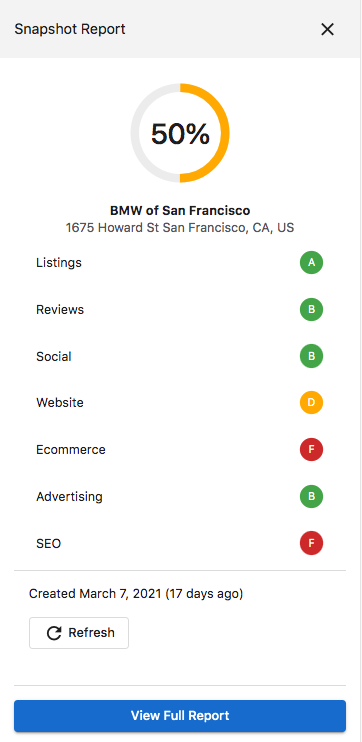
Quick view scorecard
The Quick View Scorecard provides a summarized view of digital presence with letter grades for key components and an overall Digital Score.
Cheat sheet resources
- Snapshot Report Cheat Sheet PDF
- Generate Revenue with the Snapshot Report PDF
- Generate Revenue with the Snapshot Report PowerPoint
- Google Drive Cheat Sheet