How do I turn off the Conversations tab in Business App?
Conversations settings in Partner Center control chat, response templates, routing, and who can see the Conversations tab in Business App. To hide the tab, turn it off for specific users under Tab Access, or for all accounts in a market in Customize Business App.
How do I turn off the Conversations tab?
The Conversations tab in Business App can be hidden from clients, for specific users or for all accounts in a market.
Removing user access to Conversations also removes access to Conversations Pro, Lead capture, and SMS messaging. Turning it off is not recommended unless you have a specific reason.
For specific users
-
Go to
Partner Center→Accounts→Manage Users -
Select the user(s) to change, then click
Bulk Update x users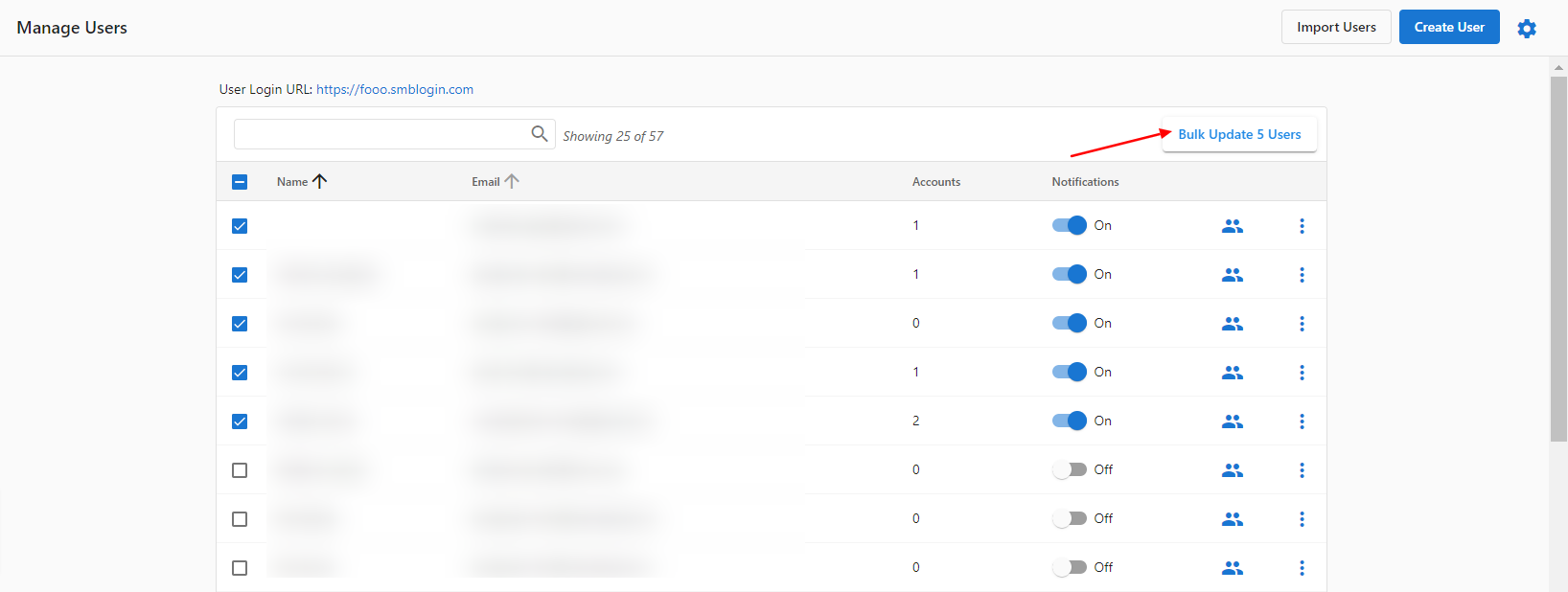
-
Under
Tab Access, open theConversationsdropdown, selectTurn Off, thenApply Changes to Users
For all users in a market
-
Go to
Partner Center→Administration→Customize Business App→Pages→Conversations -
Clear the
Show this pagecheckbox and save to remove Conversations from all clients in that market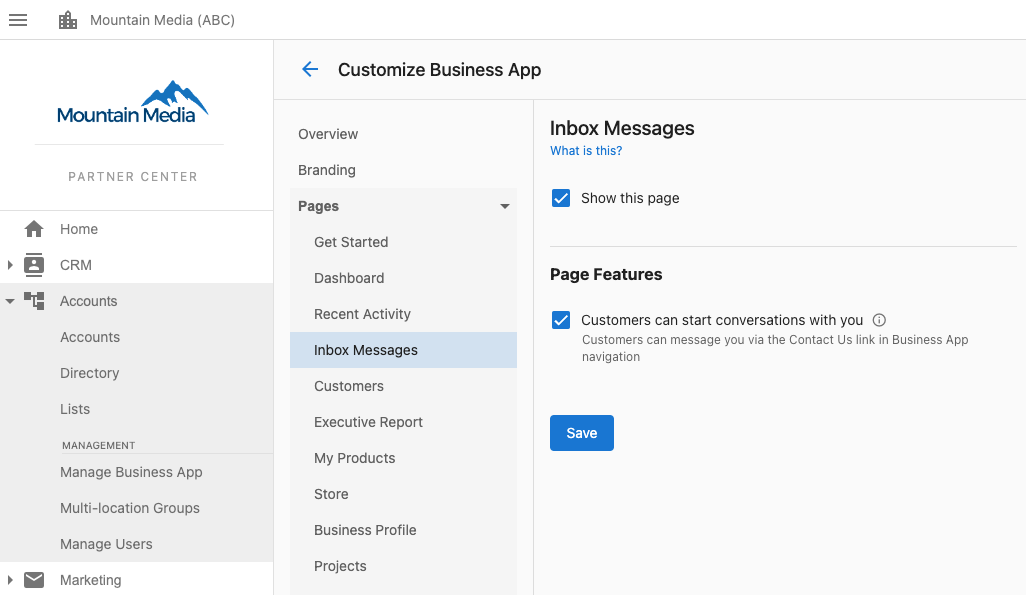
What you can configure
- Chat settings – Live chat and messaging preferences
- Response templates – Quick response templates
- Auto-responses – Automated replies for common inquiries
- Conversation routing – How conversations are assigned to team members
- Integrations – External communication platforms
- Tab visibility – Which users or markets see the Conversations tab (see above)
Who gets notified about a conversation
Conversation notifications are not set on this page, and they are not part of Partner Center notification settings either. They follow the conversation itself: anyone who sends a message in a conversation, or who is assigned as Salesperson on the account, is automatically set to follow it and will be notified about it.
For the full picture, including who is notified, why someone unexpected is receiving Inbox email, how to stop notifications for a conversation, and how to be alerted on follow-up messages rather than only new leads, see Lead capture notifications.
Frequently asked questions
How do I stop my clients from using the Conversations tab in Business App?
Turn the tab off for specific users in Partner Center → Accounts → Manage Users (Bulk Update x users → Tab Access → Conversations → Turn Off). To remove it for every client in a market, clear Show this page in Partner Center → Administration → Customize Business App → Pages → Conversations.
What happens if I turn off Conversations for a user?
Removing user access to Conversations also removes access to Conversations Pro, Lead capture, and SMS messaging. Turning it off isn't recommended unless you have a specific reason.
Where do I turn off the Conversations page for all clients in a market?
Go to Partner Center → Administration → Customize Business App → Pages → Conversations, clear the Show this page checkbox, and save.