Conversations Overview
Conversations in Partner Center is where you and your team send and receive messages with your clients in Business App, marketplace vendors, and Vendasta representatives. It also includes a complimentary AI-assisted web chat widget that captures leads from your website.
Get started with Conversations
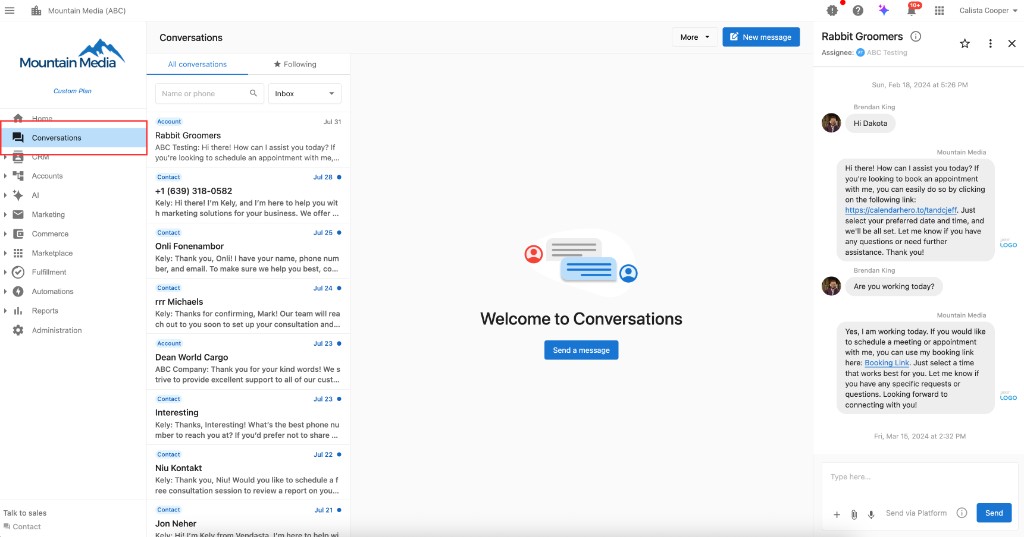
Start messaging clients through Partner Center and enable your complimentary AI-assisted web chat widget for lead capture.
What is the Conversations feature?
Conversations gives you one place to send and receive messages with your clients, vendors, team members, and Vendasta. In Conversations, you can:
- Communicate with clients through Business App with shared team access
- Connect with vendors for product support and sales assistance
- Message with Vendasta representatives for account support
- Use AI-powered chat widgets to capture leads and respond to website visitors
- Create message templates with dynamic components for consistent communication
- Enable notifications to stay on top of all communications
Why is Conversations important?
Conversations solves the common challenges of email-based business communication by providing shared channels that your entire team can access. Unlike email threads that become unwieldy and lose context, Conversations ensures no message goes unanswered and any team member can provide consistent, high-quality service.
Key benefits:
- Unified communication - All business messaging in one centralized platform
- Team collaboration - Shared channels ensure smooth handoffs and consistent service
- AI-enhanced efficiency - Automated responses and lead capture with AI assistance
- Professional consistency - Message templates maintain brand voice across all communications
- Always available - Notifications help you avoid missed messages
What your customers can do
Through Conversations, your customers can:
- Contact you directly through the
Contact Usbutton in Business App - Receive prompt responses from your entire team, not just individual team members
- Get AI-powered assistance when visiting your website through the chat widget
- Experience consistent service through templated responses and team access
- Engage across channels with unified messaging regardless of communication method
- Access conversation history for continuity and context in all interactions
- Receive notifications and updates through their preferred communication channels
What's included
Core features
- Conversations in Partner Center - Messaging setup and usage
- Messaging Templates - Create reusable message templates with dynamic components
- Team Communication - Shared channels for smooth collaboration
AI-powered tools
- AI-Assisted Web Chat Widget - Complimentary AI-powered lead capture widget for partners
- Automated Responses - AI-powered assistance for common inquiries
- Lead Capture - Intelligent conversation routing and contact collection
Automation & efficiency
- Automations for Conversations - Workflow automation and triggered communications
- Dynamic Templates - Personalized messaging with automated components
- Notification Management - Alert and reminder settings
Integration & communication
- Client Messaging - Direct communication with Business App users
- Vendor Support - Connect with marketplace vendors for product assistance
- Vendasta Support - Direct access to Vendasta representatives
- Cross-Platform Sync - Unified messaging across all Vendasta platforms
Getting help
For additional resources and detailed configuration guides:
- Conversations setup guide - Complete setup and usage instructions
- AI widget installation - Step-by-step AI chat widget setup
- Partner Center overview - Access admin controls and platform management
- Business App documentation - Complete client-side communication guides
Communication best practices
For optimal Conversations implementation:
- Enable notifications - Set up alerts for both "All events" and "Only my events" to never miss messages
- Use templates - Create consistent, professional responses with dynamic personalization components
- Team training - Ensure all team members understand shared channel access and response protocols
- AI integration - Leverage the complimentary AI chat widget for 24/7 lead capture and initial response
Each Conversations feature is designed to streamline your business communications while maintaining professionalism and efficiency. Click on any section above to learn more about specific features, setup requirements, and best practices.
Frequently asked questions
Getting started
How do I start a conversation with my clients in Partner Center?
To initiate conversations with your clients:
- Start a conversation by clicking the message icon next to any account in Partner Center
- Choose the recipient from the pop-up menu showing available accounts
- Send your message - your clients will receive it in
Business App→Conversationsalong with an email notification - Enable notifications in Partner Center to stay on top of replies
Your clients can also reach you through the Contact Us button in Business App for two-way communication.
How do I enable notifications so I don't miss any messages?
Stay on top of all communications by enabling notifications in Partner Center:
- Click the
Bell Iconin Partner Center - Select the
Settings Gear - Enable both
All eventsandOnly my eventsto ensure you receive all message notifications - Configure your preferred notification methods (email, browser, etc.)
This ensures you never miss important client communications or support requests.
Can my team members see and respond to client conversations?
Yes! Conversations provides shared channels that your entire team can access:
- Team Access: All team members can view and respond to conversations
- Handoffs: Any team member can pick up and continue conversations
- Consistent Service: Clients receive responses from your team, not just individual members
- Context Preservation: Full conversation history is available to all team members
This eliminates the problem of email threads where team members miss important context.
Can I use my own custom domain for sending emails in Conversations?
Conversations sends emails from each business account's assigned @businessapp.io address. A custom sender domain can be configured at Business App → Administration → Email Configuration for use with Campaigns and other integrated services, but Conversations outbound email uses the assigned address.
To give customers a familiar point of contact, set up email forwarding from a business-owned email address (like support@yourdomain.com) so that inbound messages arrive in Conversations.
AI chat widget
Is the AI chat widget really free for Partners?
Yes! The AI-assisted web chat widget is complimentary for all Partners. This widget:
- Captures leads from your website visitors 24/7
- Answers common questions with AI assistance
- Gathers contact information and delivers new leads to your CRM
- Acts as first responder to website visitors when you're unavailable
The widget is similar to the Conversations AI product you can sell to customers, but provided free for partner use.
How do I install the AI chat widget on my website?
Installing your complimentary AI chat widget is straightforward:
- Access the widget code through
Partner Center→Conversations - Copy the provided script for your website
- Add the script to your website's header or before the closing
</body>tag - Customize the appearance and responses through Partner Center settings
- Test the widget to ensure it's capturing leads properly
The widget will immediately start capturing leads and delivering them to your Conversations panel.
How do I create a link that opens the web chat with a predefined message?
You can create widget action links that automatically open the chat widget with predefined messages:
- Navigate to
Partner Center→Conversations→Settings→Web Chat Configuration→Widget Actions - Select an action type (
Prefill messageorSend message) - Choose
Anchor link listeneras the implementation method - Enter an optional message
- Copy the generated code (e.g.,
#webchat-send-message?webchat-widgetId=...) - Use this code as an anchor link on your website, in emails, or as a redirect target
The widget will automatically detect the hash and trigger the action when the page loads or when the hash changes.
What's the difference between prefill message and send message actions?
Prefill message: Opens the widget and pre-fills the message field with your predefined text. The visitor must click Send to actually send the message. This gives visitors control over when to send the message and allows them to edit it if needed.
Send message: Opens the widget and automatically sends the predefined message without requiring any user interaction. This is ideal for immediate engagement and when you want the message sent automatically.
Choose prefill message when you want visitors to review or edit the message before sending. Choose send message when you want immediate, automatic engagement.
Can I trigger web chat actions programmatically with JavaScript?
Yes! You can use the JavaScript API implementation method to trigger widget actions programmatically:
- Navigate to
Partner Center→Conversations→Settings→Web Chat Configuration→Widget Actions - Select
JavaScript APIas the implementation method - Configure your action and copy the provided code
- Use JavaScript to trigger the action, for example:
window.location.hash = '#webchat-send-message?webchat-widgetId=your-widget-id';
This is useful for custom integrations, dynamic content, or triggering actions based on user interactions or conditions.
Templates & automation
How do I create message templates for consistent communication?
Create professional, consistent message templates:
- Go to
Partner Center→Conversations→Settings→Customize Templates - Create new templates or edit existing ones
- Add dynamic components by clicking the dynamic component icon in the editor
- Choose components like client name, business name, or custom fields and click
Add - Save your templates for easy reuse
To use templates while messaging, click the + button in your message composer and select Insert Templated Message.
What automations are available for Conversations?
Conversations supports several automation workflows:
- Auto-responses when messages are received
- Triggered messages when specific events occur (form submissions, new leads, etc.)
- Follow-up sequences for lead nurturing
- Notification automation for team alerts
- Integration triggers with CRM and other platform tools
These automations help maintain consistent communication and ensure no leads fall through the cracks.
Can I personalize messages with client information automatically?
Yes! Use dynamic components in your templates to automatically personalize messages:
- Client Name: Automatically insert the recipient's name
- Business Name: Include their business name
- Custom Fields: Add any available CRM data
- Account Information: Include relevant account details
- Date/Time: Insert current date or time stamps
This ensures every message feels personal while maintaining efficiency through templates.
Team management
How do I manage which team members can access conversations?
Conversations access is managed through Partner Center user permissions:
- Go to
Partner Center→Users & Permissions - Select team members to modify access
- Configure conversation permissions based on role requirements
- Set notification preferences for each team member
- Train team members on shared channel protocols and response standards
This ensures appropriate access control while maintaining team collaboration benefits.
How do I remove a user's access to the Conversations tab?
To prevent a user from seeing the Conversations tab in Partner Center:
- Go to
Partner Center→My team - Find the user and click their row action menu
- Select
Edit member - Under
Admin permissions, locate the Conversations permission and disable it
The user will no longer see the Conversations tab after saving.
Can I restrict a user so they only see conversations from their assigned market?
No. Conversations access in Partner Center is all-or-nothing: a user either has access to all conversations or none. There is no way to filter a user's view to only their assigned market's conversations. If you need to limit access, the only option is to remove Conversations access entirely for that user.
Why does my multi-location user have a different Conversations view than a single-account user?
Multi-location users and single-account users see different views in Conversations AI, particularly in how AI Webchat configuration appears. This is a known difference in how the product handles multi-location account structures. If this difference is causing confusion for your team, contact support for guidance on your specific setup.
How does the "Following" feature help me manage conversations?
The ★ Following feature helps you focus on priority conversations:
- Follow important conversations by clicking the star button (★) in the conversation header
- Personal following view shows only conversations you're actively following
- Targeted notifications - enable "Only My Events" to get alerts only for followed conversations
- Priority management - ensures critical client communications get immediate attention
This is especially useful for busy teams managing many client conversations simultaneously.
Integration & vendor communication
Can I communicate with marketplace vendors through Conversations?
Yes! Conversations enables direct communication with Vendasta marketplace vendors:
- Product Support: Get help with vendor products and services
- Sales Assistance: Ask questions about pricing, features, and implementation
- After-Sales Support: Resolve issues and get ongoing assistance
- Direct Access: Click
Contact Uson any vendor's product details page to start chatting
This provides immediate access to vendor expertise without leaving the platform.
How do I contact Vendasta support through Conversations?
Reach Vendasta representatives directly through Conversations:
- Click the contact card in the bottom left of Partner Center navigation
- Select
Send Messageto start a conversation - Describe your question or issue - our team will respond promptly
- Access conversation history for ongoing support context
This provides faster, more contextual support than traditional email or phone support.
Troubleshooting
What should I do if clients aren't receiving my messages?
If clients aren't receiving messages, check these common issues:
- Email notifications: Ensure client email notifications are enabled in Business App settings
- Spam filters: Messages might be going to spam/junk folders
- Account access: Verify the client is logging into the correct Business App account
- Notification preferences: Check client's notification settings in
Business App→Settings - Platform status: Verify there are no platform-wide issues affecting message delivery
Contact support if issues persist after checking these items.
Why aren't I receiving notifications for new messages?
If you're missing message notifications:
- Check notification settings: Ensure "All events" and "Only my events" are enabled in Partner Center
- Browser permissions: Allow notifications from Partner Center in your browser settings
- Email notifications: Verify your email address is correct in your Partner Center profile
- Following settings: If using Following view, ensure you're following the relevant conversations
- Platform permissions: Check that Conversations notifications aren't blocked by your organization's IT policies
How do I resolve issues with the AI chat widget not appearing on my website?
If your AI chat widget isn't displaying:
- Check script placement: Ensure the widget script is properly installed in your website's HTML
- Verify code: Compare the installed code with the code provided in Partner Center
- Clear cache: Clear your browser cache and refresh the website
- Test different pages: Check if the widget appears on different pages of your website
- Check conflicts: Look for JavaScript conflicts with other website plugins or scripts
- Review settings: Ensure the widget is enabled and configured properly in Partner Center
Contact support if the widget still isn't functioning after these checks.