Business App Overview
Business App is the client-facing dashboard you give your clients under your brand. It gives them one place to access their products, services, reporting, and communication tools.
Your clients can access everything you provide from Business App, including automated proof-of-performance reporting and product management.
Get Started with Business App
Ready to set up Business App for your clients?
- Setting up Business App - Configure branding, features, users, and permissions.
- Demoing Business App to Clients - Learn how to walk clients through their dashboard.
What is Business App?
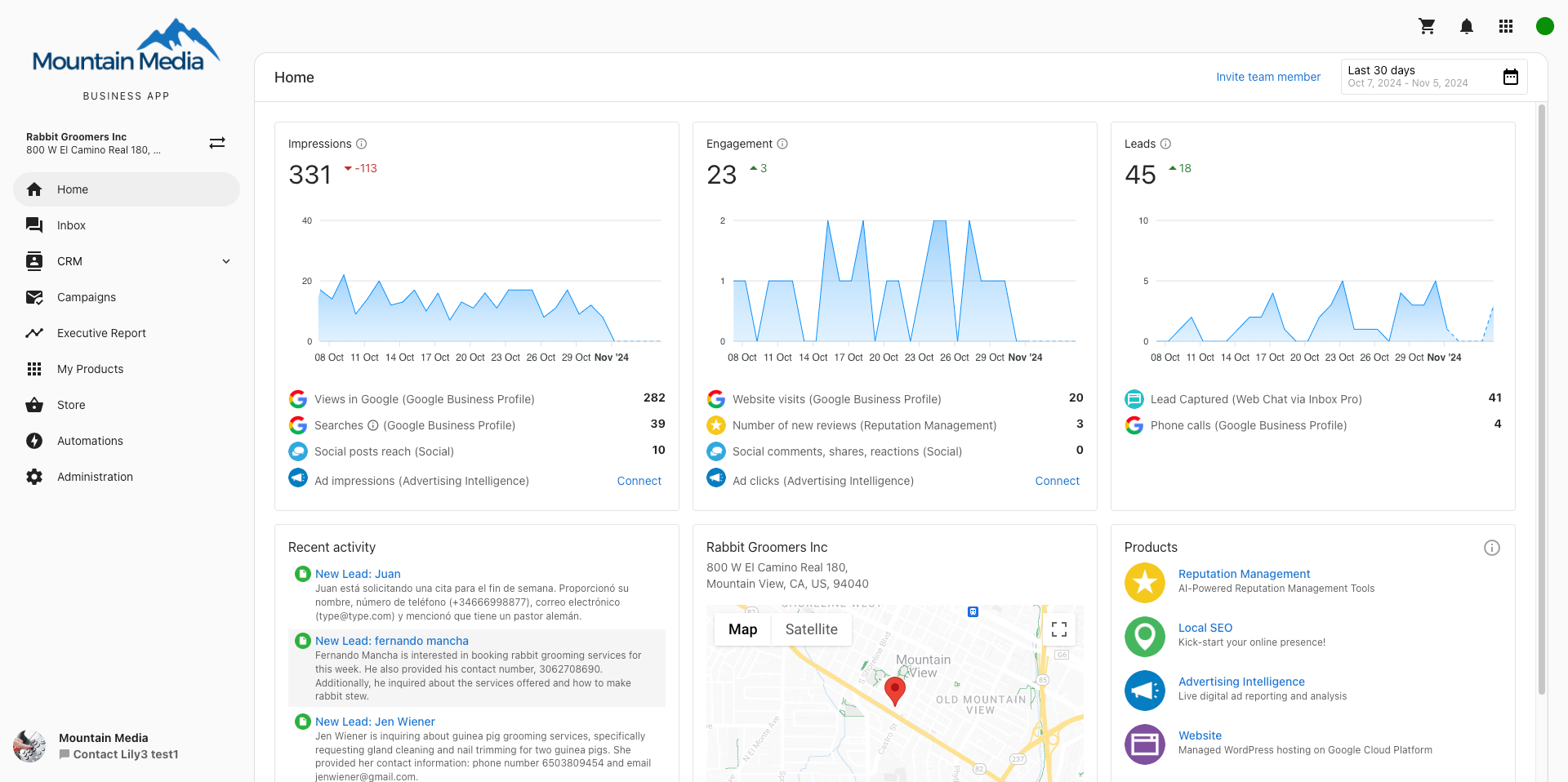
Business App is your client-facing dashboard. This white-labeled platform consolidates all client touchpoints into a single, branded experience where customers can:
- Access their personalized Executive Report with business analytics
- Launch and manage their active products and services
- Communicate directly with your team through integrated messaging
- Purchase additional products through your branded store
- Configure their online business profile and presence
- Monitor performance across multiple business locations
Why is Business App Important?
Business App centralizes all client interactions and services in one branded platform. The platform streamlines client onboarding, improves engagement rates, and helps convert prospects into paying customers through guided workflows and value demonstration.
Key Benefits:
- Unified Client Experience - All services accessible through one branded dashboard
- Increased Engagement - Centralized communication and service management
- Professional Branding - Fully customizable white-label solution
- Scalable Growth - Built-in store and acquisition tools
- Multi-Location Support - Manage multiple business locations from one dashboard
What Your Customers Can Do
In Business App, your customers can:
- See their business analytics from across the web in their personalized Executive Report
- View their online business activity and performance metrics
- Configure their online Business Profile and how their business appears online
- Launch active products and services
- Purchase new products and services through your branded store
- Send and receive messages with customers through Conversations
- Manage email notifications and communication preferences
- Monitor and manage online data for multiple businesses with Multi-Location Business App
- Install the unbranded app on mobile devices (iOS and Android) or white-labeled Progressive Web App (PWA)
- Access AI-powered tools and automations to streamline their workflows
What's Included
Core Features
- Setup Guide - Complete onboarding and setup guide
- Home Dashboard - Client dashboard overview and navigation
- Mobile App - Mobile app installation and features
Communication & Customer Management
- Conversations - Unified messaging, chat, email, SMS, and social media management
- CRM - Contact management, forms, opportunities, and sales pipeline
- Campaigns - SMS and email marketing campaigns
Analytics & Reporting
- Executive Report - Business performance analytics
- My Products - Product usage and performance tracking
E-commerce & Sales
- Store - Client-facing product and service marketplace and configuration
Administration & Configuration
- Administration Overview - Complete administration and setup guide
- Business Profile Setup - Configure client business information and online presence
- Administration - Configure email, integrations, billing, and other Business App settings
- Integrations Overview - Connect Business App with external tools and services
- QuickBooks Integration - Financial data integration and setup
- Google Analytics Connection - Website analytics integration
Automation & Efficiency
- Automations - Workflow automation, templates, and triggers
- Automation Templates - Pre-built workflow templates (Business App docs)
- Review Requesting - Automated review collection workflows (Business App docs)
Getting Help
For additional resources and detailed configuration guides:
- Business App Documentation Site - Complete in-application guides and user tutorials
- Developer API Documentation - Technical integration guides and API references for custom Business App development
- Partner Center Overview - Access admin controls and client management tools
- Setup Guide - Step-by-step setup and configuration instructions
Developer Resources
For partners building custom integrations or extending Business App functionality:
- Vendasta Developer Portal - API documentation, SDKs, and integration examples
- Administration Guide - Technical setup and integration configuration
Each Business App module works with your existing client management workflows. Click on any section above to learn more about specific features, setup requirements, and configuration options.
Frequently Asked Questions
Setup & Configuration
How do I set up branding and customize Business App for my clients?
To configure Business App branding and customization:
-
Configure Partner Branding:
- Go to
Partner Center→Administration→Partner Branding - Upload your logo and customize the domain
- Set a shortcut icon for mobile web app installation
- Configure market-specific branding if needed
- Go to
-
Customize Features and Access:
- Navigate to
Partner Center→Administration→Customize Business App - Enable or disable specific tabs and features
- Configure the Home page cards, including the Next steps checklist
- Set default notification preferences
- Navigate to
For detailed setup instructions, see the setup guide.
How do I control which tabs and features are available to clients?
You can customize tab access in two ways:
For Individual Users:
- Go to
Partner Center→Accounts→Manage Users - Select users to modify
- Click Bulk Update x Users
- Configure tab access permissions
For Global Settings:
- Navigate to
Partner Center→Administration→Customize Business App - Toggle pages on and off for all Business App accounts
Available tabs include: Home, Conversations, CRM, Campaigns, Executive Report, My Products, Store, Automations, and Administration.
How do I hide the setup checklist on the Business App Home page?
To hide the Next steps checklist:
- Go to
Partner Center→Administration→Customize Business App→Pages→Home - Clear the "Next steps" card checkbox
- Save your changes
This hides the checklist for all of your clients. The "AI has done the work" and "Recommended for your business" cards have their own checkboxes in the same place — see the AI onboarding experience.
Mobile App & Access
How do clients install the Business App mobile app?
Clients can install the Business App mobile app from:
iOS Devices:
- Download "BusinessApp.io" from the Apple App Store
- Login using their email and one-time password (OTP)
- Select the correct partner account if multiple are available
Android Devices:
- Download "BusinessApp.io" from Google Play Store
- Login using email and OTP authentication
- Choose their partner account during login
Progressive Web App (PWA):
- Navigate to Business App URL in mobile browser
- Follow device-specific "Add to Home Screen" prompts
Market branding is not supported - the homescreen icon will utilize the all market logo.
Why am I not receiving the OTP email for mobile app login?
If you're not receiving OTP emails:
- Check spam/junk folders
- Verify email address is correct
- Wait 2-3 minutes for delivery
- Try resending the code
- Ensure your email address is associated with a Business App account
If issues persist, contact support for assistance with account verification.
Why do I see multiple partner accounts when logging in?
This is normal if your email is associated with multiple partners. Simply select the correct partner account for your business. Partners may also see a Vendasta account (used for partner communications). Choose the account that corresponds to your business relationship.
Why am I not getting push notifications when I test the mobile app?
Push notifications from BusinessApp.io go to business users only. If you sign in with your Partner Center login or as an administrator, you don't receive push notifications. To test, sign in as a business user on the account.
If a business user still doesn't receive push notifications:
- Check that notifications are allowed for BusinessApp.io in the phone's settings
- In Business App, go to
Settings→Notification Settingsand make sureInstant email and In-App (when available)is enabled, along withNew Leads from Conversations AIandConversations AI Message Received - If the user has access to more than one account, check the notification settings for each account
- For a test lead, make sure the visitor shares a name, phone number, or email, since chats without contact details don't create a new lead
For the full client-facing steps, see Mobile App troubleshooting.
Conversations & SMS
Which countries can use SMS messaging in Business App?
SMS messaging in Business App is available for businesses located in the United States and Canada only. International businesses can use:
- Web chat
- Email messaging
- Facebook Messenger
- Instagram messaging
- WhatsApp (where available)
How is a business assigned an SMS number?
When activating Conversations AI Pro or Premium, businesses automatically receive an SMS number:
- The system first attempts to assign a local number based on the business profile address
- If unavailable, a neighboring area number is assigned
- View the assigned number in Business App under
Administration→Conversation→Your SMS number - Contact support for 800-number assistance if needed
Do US businesses need to register before sending SMS messages?
Yes, US-based businesses are required to register before sending SMS messages:
- Registration can take several weeks to complete
- Once registered, users receive a notification and can start messaging
- Canadian businesses do not require registration
Integrations & Connections
How do I connect external services and integrations to Business App?
Business App supports several integration types:
API-Key Based Integrations:
- Navigate to
Administration→Integrations - Find the service you want to connect
- Enter your API key and follow setup instructions
SSO-Based Integrations:
- Go to the Connections tab
- Click Connect on the desired service
- Complete the Single Sign-On authentication process
Vendor-Managed Integrations:
- Contact the vendor directly for setup
- Follow vendor-specific documentation
- Monitor status through Business App
Connection status indicators show: Connected, Connection Issue, or Pending.
Why is my integration showing a "Connection Issue" status?
Common causes and solutions for integration issues:
- Invalid API Key: Verify the API key is correct and hasn't expired
- Permissions: Ensure the API key has necessary permissions
- Service Downtime: Check if the third-party service is experiencing outages
- Authentication Expired: Re-authenticate your connection
Try disconnecting and reconnecting the integration. Contact the service provider or Vendasta Support if issues persist.
Store & Products
How do clients purchase products through the Business App Store?
Clients can browse and purchase products directly from Business App:
- Navigate to the Store tab in Business App
- Browse available packages and products
- Click on any package to view details, pricing, and features
- Choose Contact Sales or Add to Cart depending on package settings
- Complete the purchase or inquiry process
The store displays all products and packages you've published with full marketing materials, pricing, and product details.
Can clients organize and favorite their products in Business App?
Yes, clients can pin favorite products for easier access:
- Navigate to the My Products tab
- Click the pin icon beside desired products
- Pinned products move to the top of the Products Card, Navigation, and My Products page
- The first four pinned items display on their dashboard
This helps clients with many products organize their most-used services.
Notifications & Email
What types of email notifications does Business App send?
Business App sends two types of notifications:
Instant Emails (when available):
- Business App activation and file uploads
- New messages and reviews
- Social media activity and leads
- Website and domain status updates
Daily Digest Emails:
- Summary of previous day's activity including messages, reviews, listings, social posts, and advertising updates
Partners control default notification settings, and clients can modify their preferences at Settings → Notification Settings.
How do clients manage their notification preferences?
Clients can customize their notifications:
- Click their name dropdown in Business App
- Select Edit Profile
- Go to Notification Settings
- Choose between instant emails, daily digest emails, or both
- Select specific notification types to receive
Partners can also set default notification preferences in Partner Center → Administration → Customize Business App.
Multi-Location Management
How do clients switch between multiple business locations?
For clients with multiple locations:
-
Switching Locations:
- Click the business name in Business App
- Choose the desired location from the dropdown
- The interface updates to show data for that location
-
Setting Default Location:
- Select three dots next to the desired location
- Choose Make default
- This location will load automatically when accessing Business App
Should clients connect social accounts in Business App first?
Yes, connecting social accounts (Facebook, Google Business Profile) in Business App first provides several benefits:
- Automatically connects accounts to other platform areas like Social AI, Reputation AI, and Local SEO
- Enables valuable stats throughout Executive Report product sections
- Powers Marketing Funnel data even without active products
- Streamlines the overall setup process across multiple products
Troubleshooting
What do I do if my Google Business Profile is suspended?
If a Google Business Profile is suspended:
- Review Requirements: Check Google's Business Profile guidelines
- Fix Issues: Update your profile to meet all guidelines requirements
- Request Reinstatement: Use Google's official form
- Appeal if Denied: Contact Google directly if incorrectly denied
Important: Submit only one request per account to avoid delays. Vendasta cannot appeal suspensions on behalf of businesses.
Why are some Business App features missing on mobile?
Not all web features are available on mobile:
- Core communication and CRM features are prioritized
- Some complex features open in mobile browser automatically
- Additional features are added in regular updates
- Mobile features include: Home, Conversations, Executive Report, CRM, AI Workforce, Reputation AI, and Listings
How do I troubleshoot login issues in Business App?
Common login troubleshooting steps:
Web App Issues:
- Clear browser cache and cookies
- Try an incognito/private browser window
- Verify correct login URL for your partner
- Check for browser compatibility issues
Mobile App Issues:
- Ensure app is updated to latest version
- Check OTP email delivery (including spam folders)
- Verify correct partner selection during login
- Restart app and try again
Contact support if issues persist after trying these steps.