Automations overview
Automations in Partner Center run actions for you when a trigger happens, such as assigning a salesperson when a new client account is created. You build each workflow from a trigger, optional conditions, and the actions to perform.
An automation workflow is a set of instructions: when this trigger happens, then perform this action.
What's in this section
Create, configure, and build custom workflows with triggers, actions, logic, and data expressions
Pre-built workflows provided by Vendasta — enable or disable per account
Pre-built templates to get started quickly, plus partner-made templates for your clients
Monitor runs, troubleshoot errors, retry failed automations, and fix permissions
What can you do with automations?
Welcome new clients
When an account is created, send a welcome email campaign, assign a salesperson, and create a task for the salesperson to connect with the client.
Drive product upgrades
When a client activates a Standard product, send an email campaign about Pro edition benefits and notify your team when they open or click.
Keep track of failed payments
When a customer has a failed payment, receive a notification so you can follow up quickly.
How do automation triggers work?
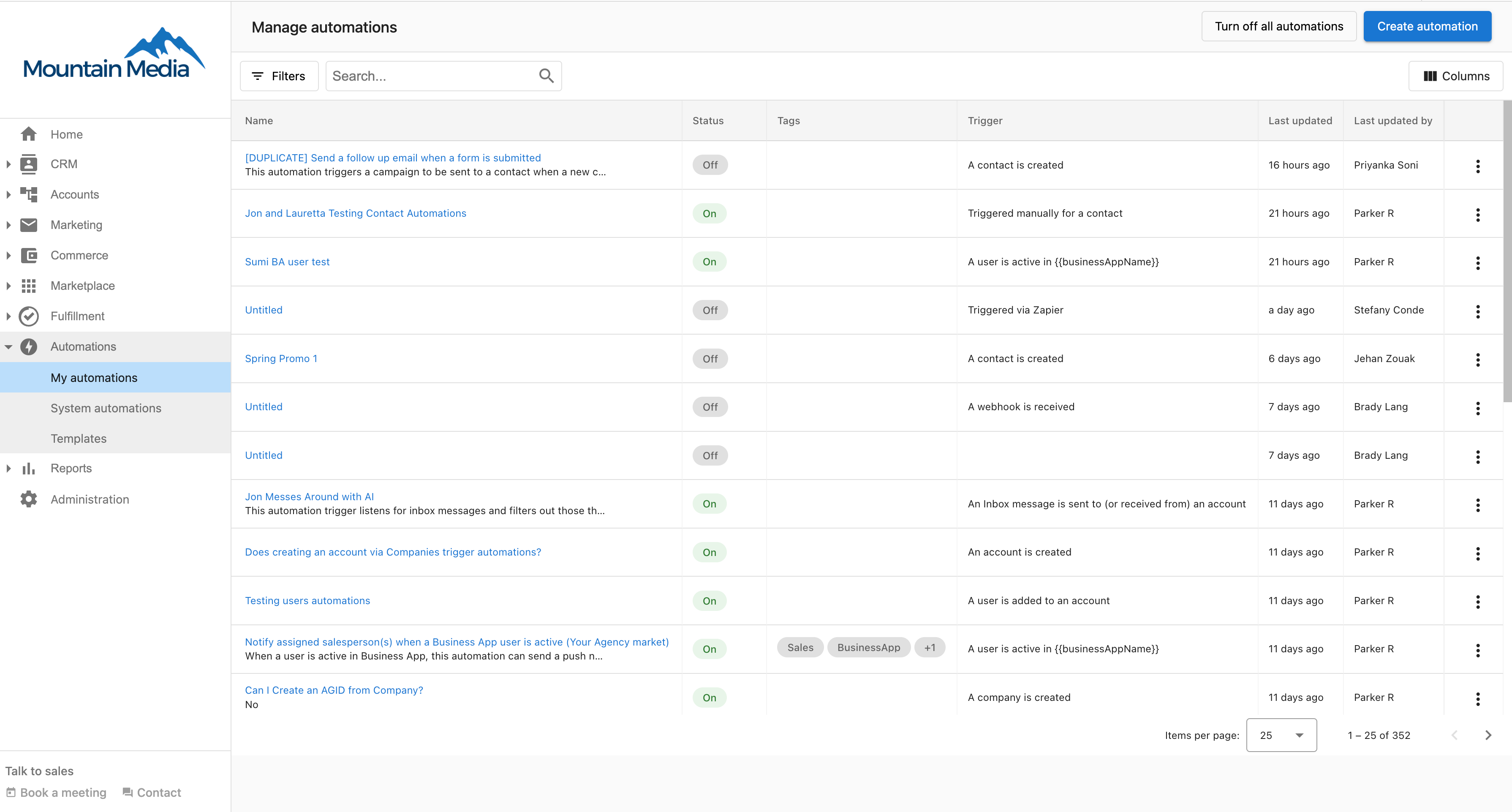
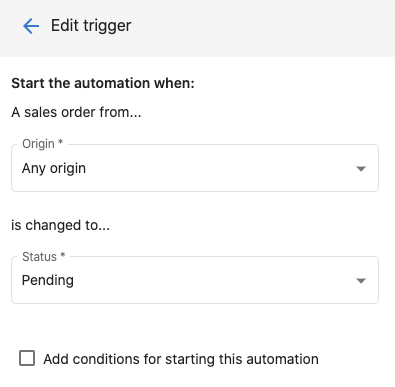
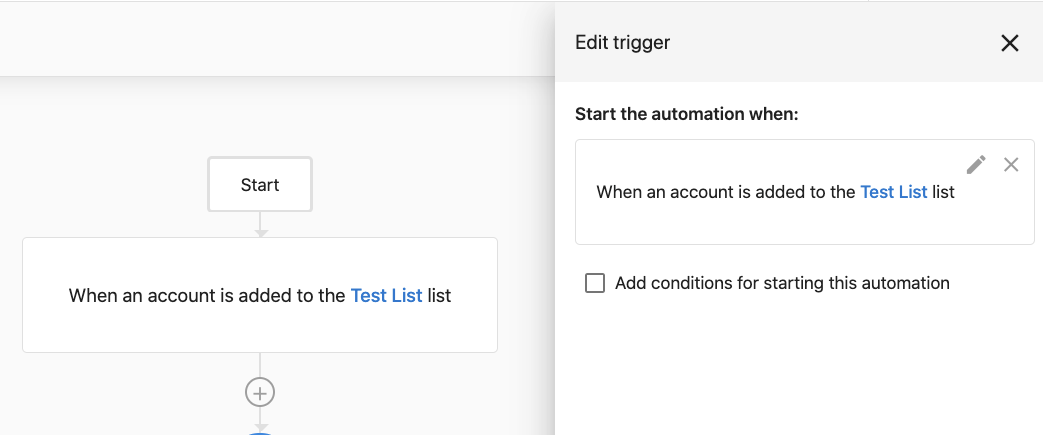
Triggers are the events that start a workflow. Some are ready to use (e.g. An account is created). Others need trigger options — for example, A sales order status is changed requires you to set the order origin and the status it changes to.
Trigger conditions
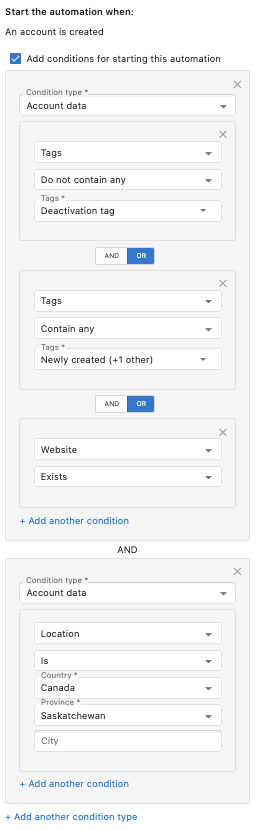
Conditions filter when the workflow runs. You can filter on tags, salespeople, account location, account categories, active products, and more. When you add multiple conditions, choose AND or OR:
- OR — The trigger runs when any condition in the group is met.
- AND — The trigger runs only when all conditions in the group are met.
When you choose a CRM field while building a condition, its field description appears below the field selector so you can confirm you've picked the right field, including any expected format or unit. The description only appears for fields that have one set. See CRM Objects to add or edit field descriptions. For a complete list of triggers and how to choose the right one, see Triggers overview.
How do I create my first automation?
- In Partner Center, go to Automations.
- Click Create (top right).
- Enter Name, optional Description, and Status (on/off).
- Define the trigger (When) and optional conditions (If).
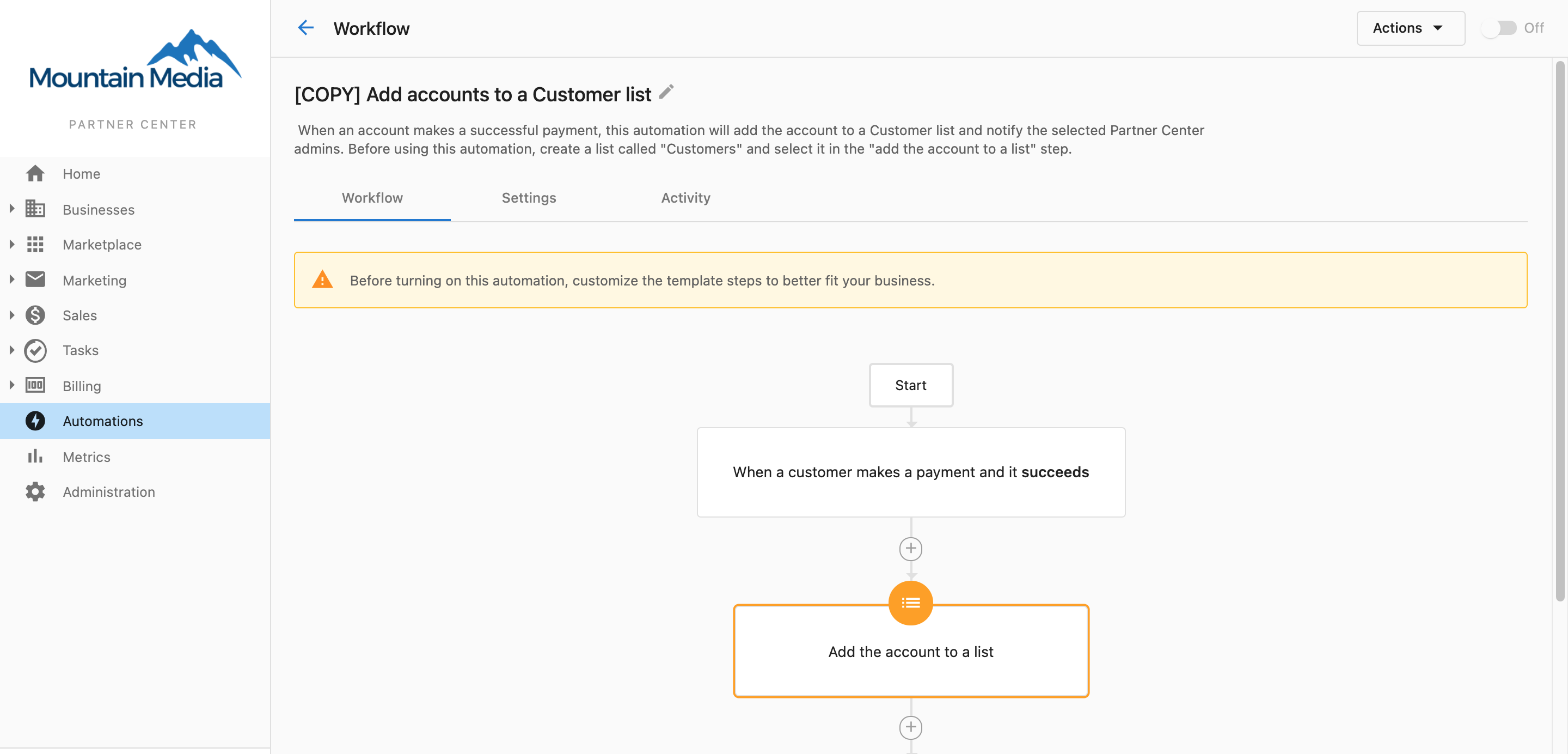
- Set up the action that runs when the trigger and conditions are met.
- Review and click Create Automation.
The automation runs whenever the trigger conditions are met (if it's turned on).
Who an automation runs as
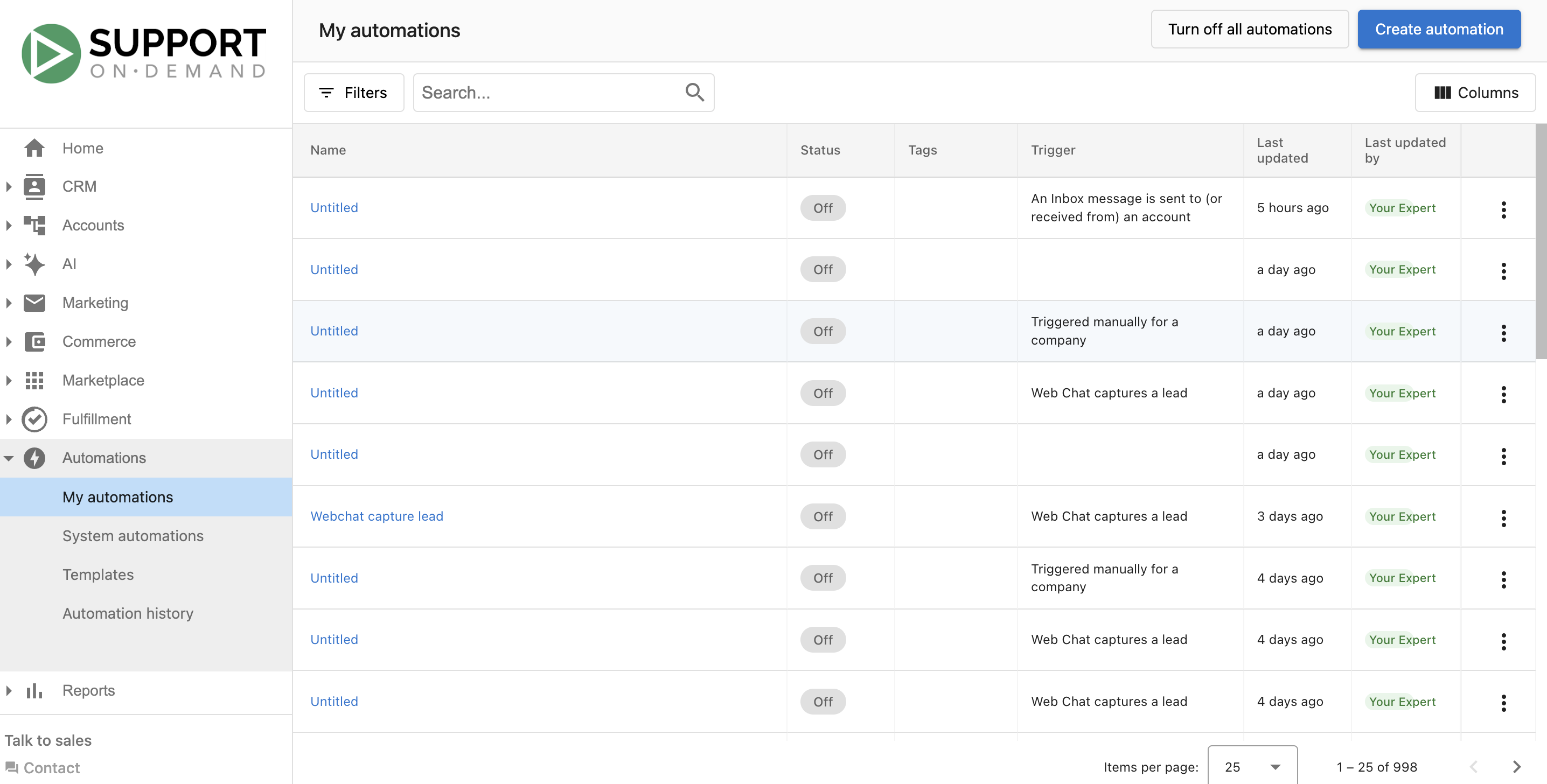
An automation runs on behalf of the person who turned it on. It uses that person's permissions to send emails, update CRM records, and take other actions.
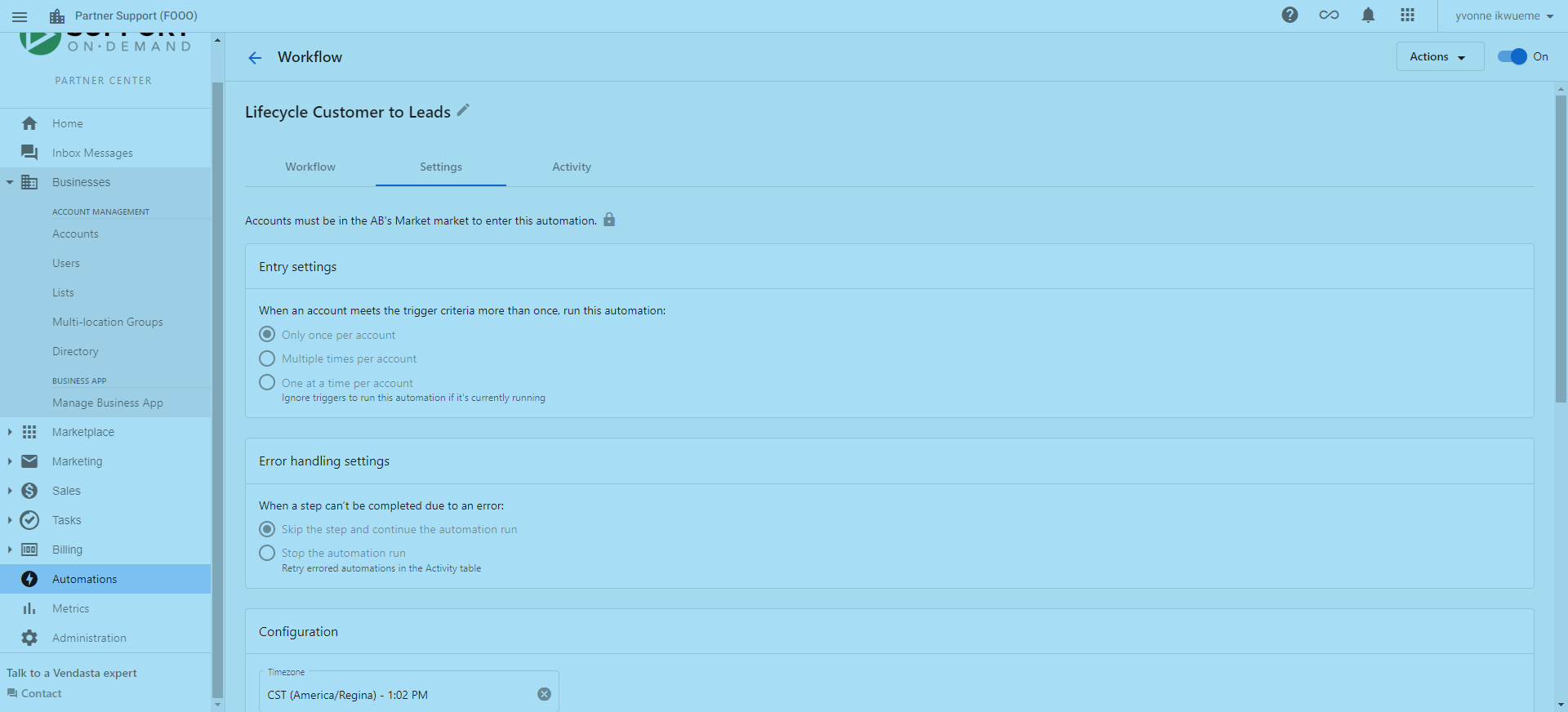
If that person's role or permissions change, or they leave your team, the automation can no longer act. A banner appears saying "Automation requires valid permissions to run." While the banner is showing, the automation keeps receiving triggers, but every run fails, and failed triggers are not replayed when you fix it.
To avoid lost runs:
- Before removing or changing a team member's access, check whether they own any running automations, and transfer them.
- For business-critical automations, have an admin turn them on from a shared admin account rather than a personal one.
See Fixing "Automation requires valid permissions to run".
Best practices
- Start simple — Build and test simple automations before complex workflows.
- Use clear names — So your team understands each automation's purpose.
- Monitor regularly — Check that automations are running as expected.
- Consider impact — Think through how automations affect the rest of your workflow.
- Test first — Run with a small group before enabling for all accounts.
Frequently asked questions
What is an automation?
An automation is a workflow that follows a set of instructions: when this trigger happens, then perform this action. For example, when a new client is added, assign a salesperson to the account.
How do I add a trigger to an automation?
When you create an automation, define the trigger (When) and any optional conditions (If), then set up the action. Some triggers are ready to use, such as An account is created, while others need trigger options, such as the order origin and status for A sales order status is changed.
Can I limit which accounts an automation runs for?
Yes. Add trigger conditions to filter on tags, salespeople, account location, account categories, active products, and more. With multiple conditions, choose OR to run when any condition is met or AND to run only when all conditions are met.
Can I start from a pre-built automation instead of building one?
Yes. Templates give you pre-built workflows to get started quickly, and System automations are pre-built workflows provided by Vendasta that you can enable or disable per account.
Does an automation run as soon as I create it?
The automation runs whenever its trigger and conditions are met, as long as its Status is turned on.
Where can I check whether my automations ran?
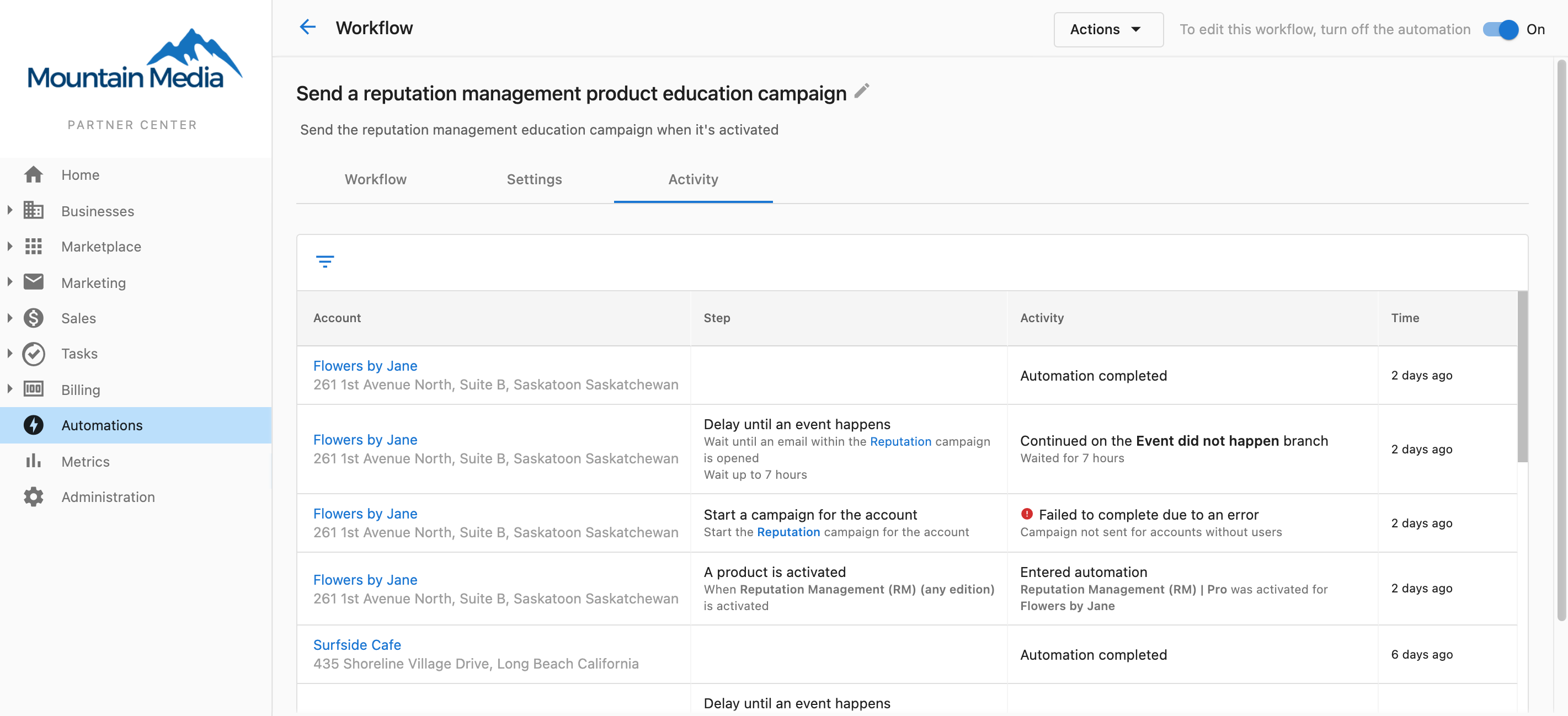
Use Automation history to monitor runs, troubleshoot errors, retry failed automations, and fix permissions.
How should I design a CRM follow-up automation?
Trigger on a clear event, such as opportunity creation or a defined pipeline stage change. Put the email or SMS sequence and its delays in the campaign, and let the automation handle enrollment, branching, pauses, and notifications. Prefer separate automations for separate goals over one deeply nested workflow.
Next steps
- Triggers overview — Understand trigger types and choose the right one
- Actions overview — Explore 130+ available action steps
- Creating and configuring automations — Entry settings, error handling, permissions
- Automation templates — Pre-built templates to get started quickly
Create an Automation (Partner Center)
New to how AI Employees work? Take the AI foundations course in Vendasta Learn — Beginner, 6 lessons.