Find custom object
Find custom object lets you search for a custom object record in your CRM based on field criteria you define. When a match is found, the custom object is brought into scope so downstream steps can reference its fields, branch on whether a match was found, or pass its data to later actions.
This is useful when your automation needs to locate a specific custom object record — for example, finding a project record linked to a deal, locating an asset tracker entry by serial number, or looking up a support case by ticket ID.
How it works
- You select the custom object type to search (e.g., Projects, Assets, Tickets — whatever custom object types have been defined in your CRM)
- You define one or more search fields — each with a field from that custom object type, the is operator, and a value to match
- If you add multiple search fields, you choose whether all criteria must match (And) or any criterion is enough (Or)
- When the automation runs, the step searches your CRM for records of that type matching your criteria
- The step outputs whether a match was found, whether multiple matches were found, and — if found — brings the custom object into scope
Set up the action
- Open the automation builder and add a new step
- Under Custom objects, select Find custom object
- Configure the search:
Select the custom object type
Choose the custom object type you want to search. The list shows all custom object types defined in your CRM. Once selected, the available search fields update to reflect the fields on that type.
Define search criteria
For each search field, provide:
| Field | Required | Description |
|---|---|---|
| Custom object field | Yes | A field from the selected custom object type to search on. |
| Operator | Yes | The comparison operator. Currently supports is (exact match). |
| Value | Yes | The value to match against. Can be a static value or dynamic content from a previous step. |
- Click + Add additional fields to add more criteria
- Click the X button to remove a criterion
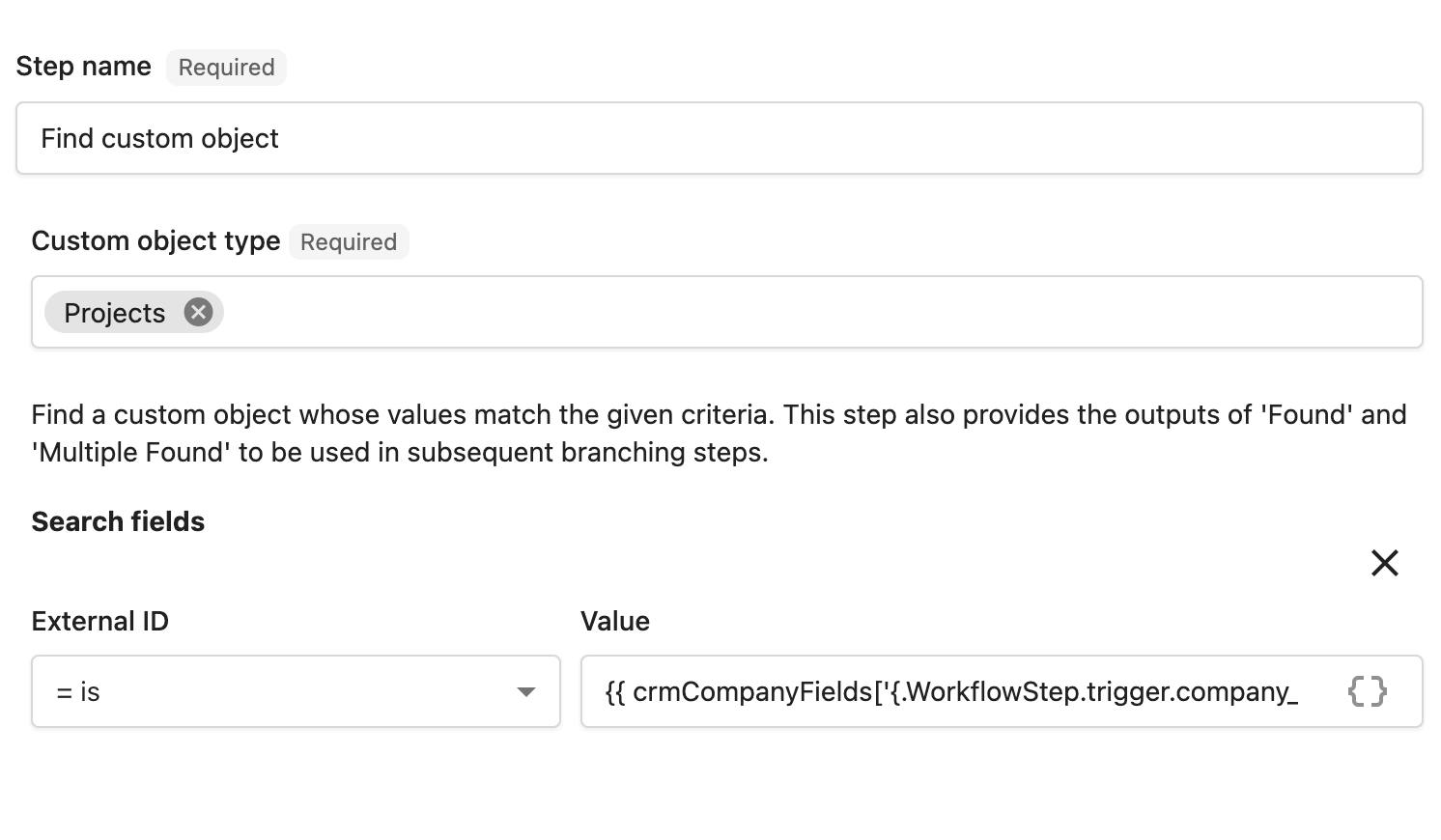
Use Add dynamic content to insert values from a previous step. For example, pull a field value from the trigger or from a contact or company brought into scope earlier. Dynamic values are resolved at runtime.
Multiple search fields
When you add more than one search field, choose how to combine them:
- And — all criteria must match (default)
- Or — any single criterion is enough
Outputs
After the step runs, three values are available to downstream steps:
| Output | Description |
|---|---|
| Custom object | The matched custom object record, brought into scope for downstream steps. |
| Found | true if at least one record matched the criteria, false otherwise. |
| Multiple Found | true if more than one record matched. The step uses the first match returned. |
Use Found and Multiple Found in an If/else step to branch your automation based on the search result.
Tips
- Start specific, broaden if needed — Search on a unique field like an external ID or reference number for the most reliable single match. Searching on a common field may return multiple results.
- Branch on the result — Add an If/else step after Find custom object to handle found vs. not-found scenarios separately. This prevents errors from running custom-object-scoped steps when no record is in scope.
- Handle multiple matches — If your criteria could match several records, add a second If/else branch for Multiple Found to flag duplicates or alert a team member.
- Combine with other lookup steps — Chain Find custom object with Find company, Find contact, or Get custom object from company to build up the context your automation needs.
Use case examples
Look up a project record when a company is updated
When a company record is modified, find the associated project custom object so you can update its status.
Step 1 — Set the trigger
Select A company is created or modified (under Companies). Add a trigger condition to filter for the specific field change you care about.
Step 2 — Add the Find custom object step
- Under Custom objects, select Find custom object
- Select your Projects custom object type
- Add a search field:
- Field: Company ID (or whichever field links projects to companies)
- Operator: is
- Value: select Add dynamic content and choose the company ID from the trigger
Step 3 — Branch on the result
Add an If/else step checking whether Found is true:
- Found — proceed with steps that act on the project record
- Not found — optionally create a new project or send a notification
Update a custom object when a company changes
When a company field is updated, find the related custom object by its external ID and update its status. If no matching record exists, add a note to the company as a fallback.
Step 1 — Set the trigger
Select A company is created or modified (under Companies). Add trigger conditions to filter for:
- Change type is Updated
- The specific field you care about is in the list of changed fields
Step 2 — Add the Find custom object step
- Under Custom objects, select Find custom object
- Select your custom object type
- Add a search field:
- Field: External ID
- Operator: is
- Value: the external ID value that links the custom object to the company (e.g.,
123)
Step 3 — Branch on the result
Add an If/else step checking whether Found is true:
- Found — Add an Update custom object step to set the relevant field (e.g., set a status field to "Closed")
- Not found — Add an Add a note to the company step to flag that no matching custom object was found, so the team can investigate
Detect duplicate custom object records
When a new custom object record is created, search for existing records with the same key field to flag potential duplicates.
Step 1 — Set the trigger
Select the appropriate trigger for when a custom object is created.
Step 2 — Add the Find custom object step
- Under Custom objects, select Find custom object
- Select the same custom object type as the trigger
- Add a search field using the key field you want to check for duplicates (e.g., a reference number or name)
- Set the value using Add dynamic content from the trigger
Step 3 — Branch on the result
Add an If/else step checking whether Multiple Found is true:
- Multiple found — send a notification to alert the team about a potential duplicate
- Single or not found — no action needed; the automation ends
Related resources
- Automation steps reference — Full list of available actions
- Automation triggers reference — Every trigger that can start a workflow
- Advanced automation features — Logic steps, delays, and branching
- Creating and configuring automations — Build and configure workflows