Managing your automations
Once an automation is turned on, use the Activity tab on the automation to see each run, diagnose errors, and retry failed runs.
Automation activity
The Activity tab lists every run of the automation, including errors.
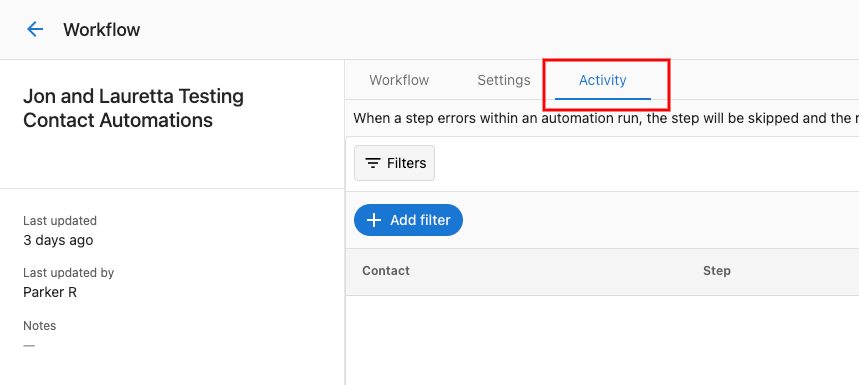
Activity filters
Filter the activity list to narrow down what you're looking at:
- Date range — when the activity occurred
- Automation — filter to a specific automation
- Status — success, error, in progress, or waiting
- Business — filter to a specific business or account
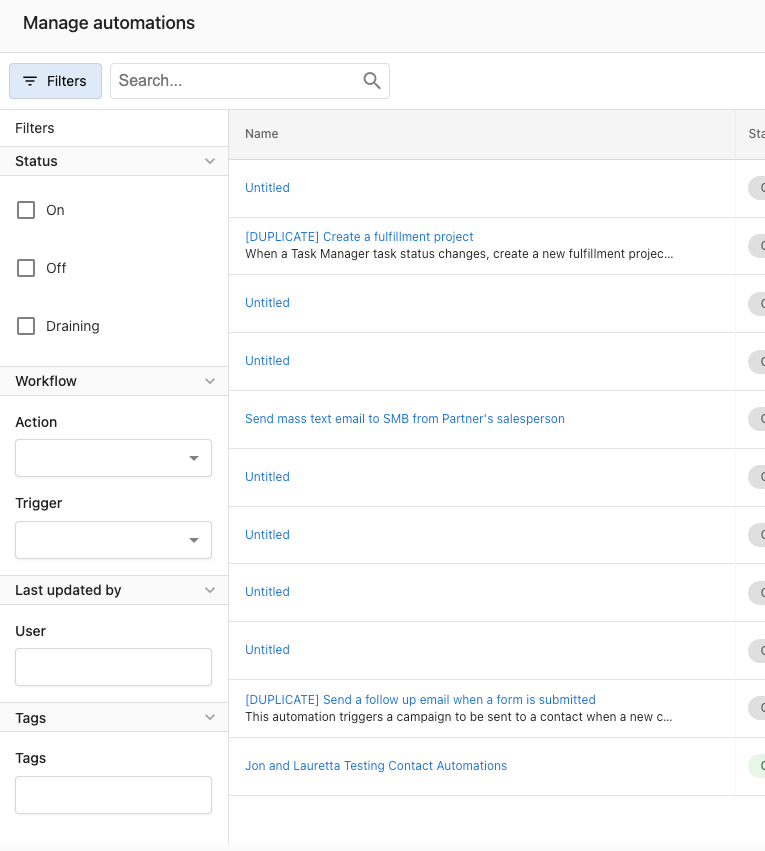
Filter by company
The Company filter requires a Company ID, not the company name. Entering a company name will return no results.
To find a Company ID:
- Go to Partner Center → CRM → Companies and open the company.
- Look at the browser URL:
.../companies/76543/details— the number is the Company ID. - Enter that number in the Company filter.
Adjusting the date range
Filters only return results within the selected date range. If an expected run isn't showing up, extend the date range to cover the period when the automation ran — the default window may not include older activity.
Filters are case-sensitive and will not match if there are leading or trailing spaces in the field. If you're not seeing results you expect, verify the ID is entered exactly and the date range is wide enough.
Activity statuses
Each run shows one of:
- Success — the automation completed
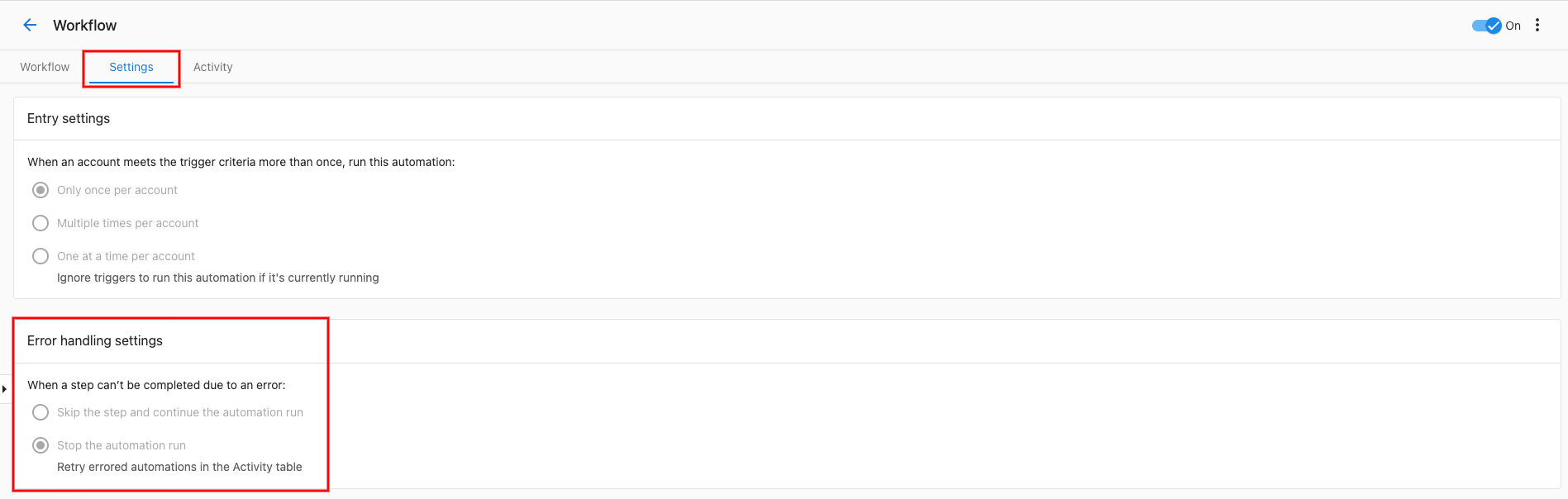
- Error — the automation hit an error and stopped (see error handling settings in Creating and configuring automations)
- In progress — the automation is currently running
- Waiting — the automation is paused (for example, waiting for a delay step to finish)
Error handling
View errors
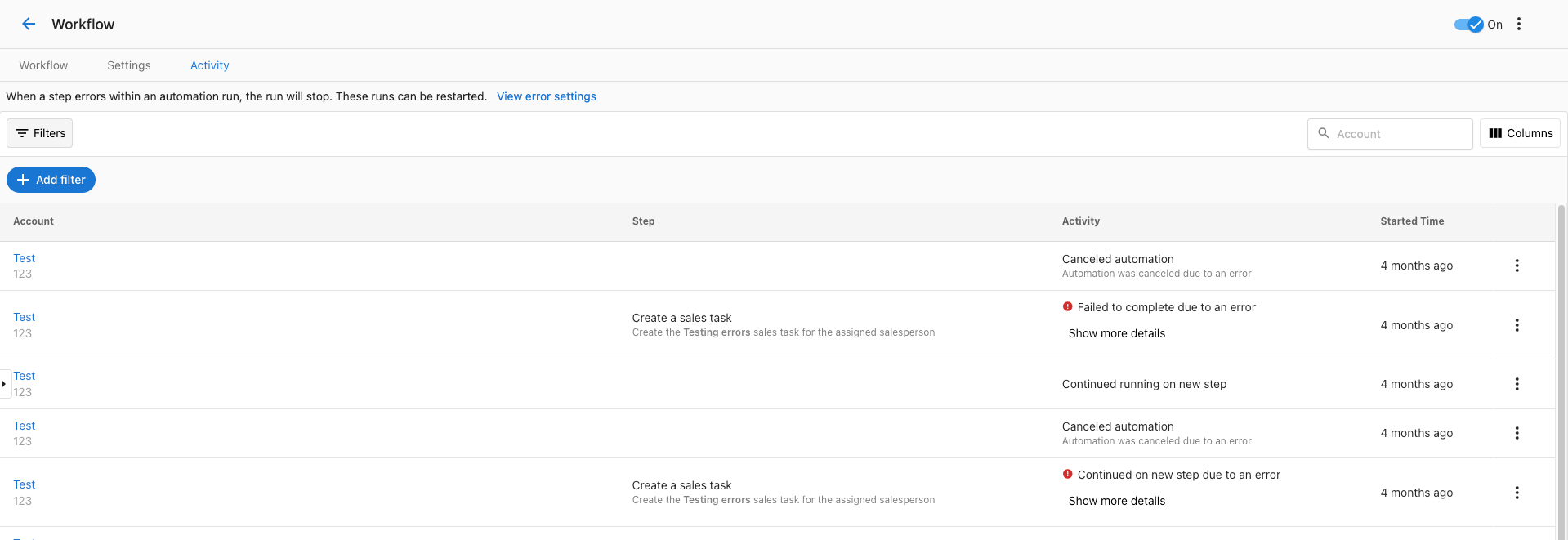
Errors appear in the Activity tab with an Error status. The row includes a short description of what went wrong.
Click the row to see details:
Retry a failed run
If an automation fails, you can retry the run from any step. Click Retry on the failed activity:
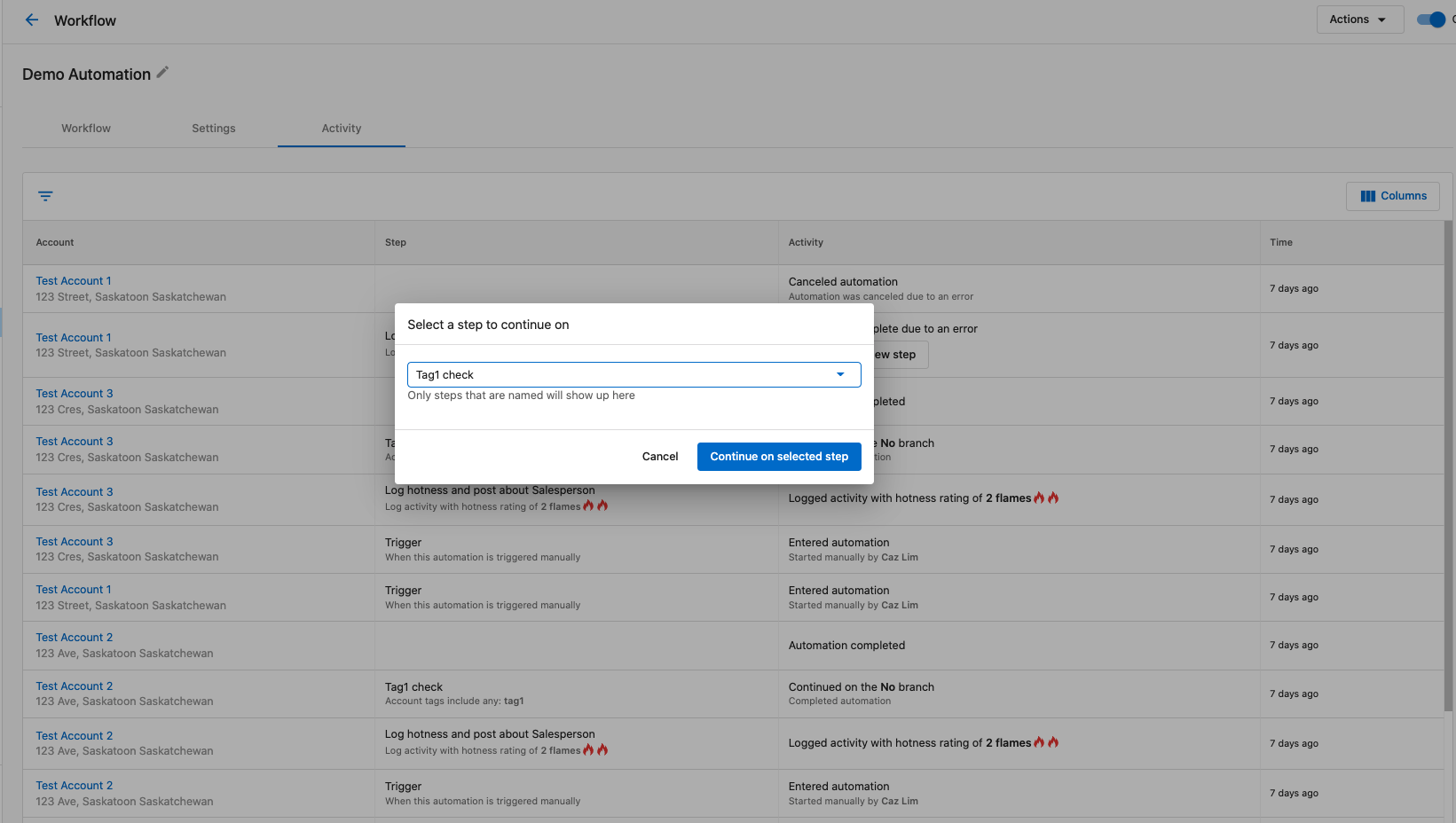
Then pick the step to retry from:

Use this to fix the underlying issue and resume the run without restarting it from the beginning.
Related resources
- Creating and configuring automations — entry settings, error handling, timezone
- Troubleshooting automations — common issues and fixes
- Automations overview