Find company
Find company lets you search for an existing company record in your CRM based on field criteria you define. When a match is found, the company is brought into scope so downstream steps can act on it — assign an owner, start a campaign, update fields, or branch based on whether a match was found.
This is especially useful when your trigger does not start with a company in scope. For example, a webhook from an external system, a contact-scoped trigger, or a scheduled automation can all use Find company to locate the right company record before running company-scoped steps.
How it works
- You define one or more search fields — each with a company field, a comparison operator, and a value
- If you add multiple search fields, you choose whether all criteria must match (AND) or any criterion is enough (OR)
- When the automation runs, the step searches your CRM for companies matching those criteria
- The step outputs whether a match was found, whether multiple matches were found, and — if found — brings the company into scope
- If multiple companies match, the most recently created company is used
Set up the action
- Open the automation builder and add a new step
- Under Businesses, select Find company
- Configure the search fields:
Define search criteria
For each search field, provide:
| Field | Required | Description |
|---|---|---|
| Company field | Yes | The CRM company field to search on (e.g., Salesperson, Company name, Industry). |
| Operator | Yes | The comparison operator (e.g., "is", "contains", "starts with"). |
| Value | Yes | The value to match against. Can be a static value or dynamic content from a previous step. |
- Click + Add additional fields to add more criteria
- Click the X button to remove a criterion
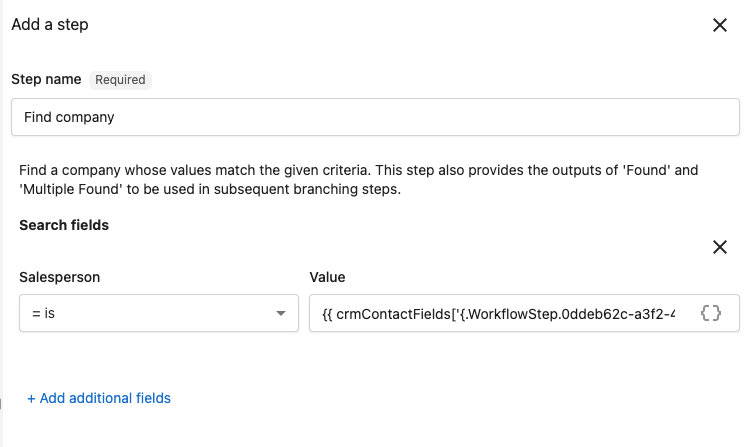
Use Add dynamic content to insert values from a previous step. For example, pull a salesperson name from the trigger or a contact field from an earlier step. Dynamic values are resolved at runtime, so the search always uses the actual data.
Multiple search fields
When you add more than one search field, the step combines them with AND logic by default — all criteria must match. Toggle to OR if any single match is sufficient.
Outputs
After the step runs, three values are available to downstream steps:
| Output | Description |
|---|---|
| Company | The matched company record, brought into scope for company-scoped steps. |
| Found | true if at least one company matched the criteria, false otherwise. |
| Multiple Found | true if more than one company matched. The step uses the most recently created match. |
Use Found and Multiple Found in an If/else step to branch your automation based on the search result.
Tips
- Start specific, broaden if needed — Searching on a unique field like email domain or external ID gives the most reliable single match. If you search on a common field like city or industry, expect multiple results.
- Branch on the result — Add an If/else step after Find company to handle found vs. not-found scenarios separately. This prevents errors from running company-scoped steps when no company is in scope.
- Handle multiple matches — If your criteria could match several companies, add a second If/else branch for Multiple Found to flag duplicates or alert a team member.
- Combine with other lookup steps — Chain Find company with Get contact from company or Get or create the associated account to bring additional records into scope.
Use case examples
Route a contact to their company's salesperson
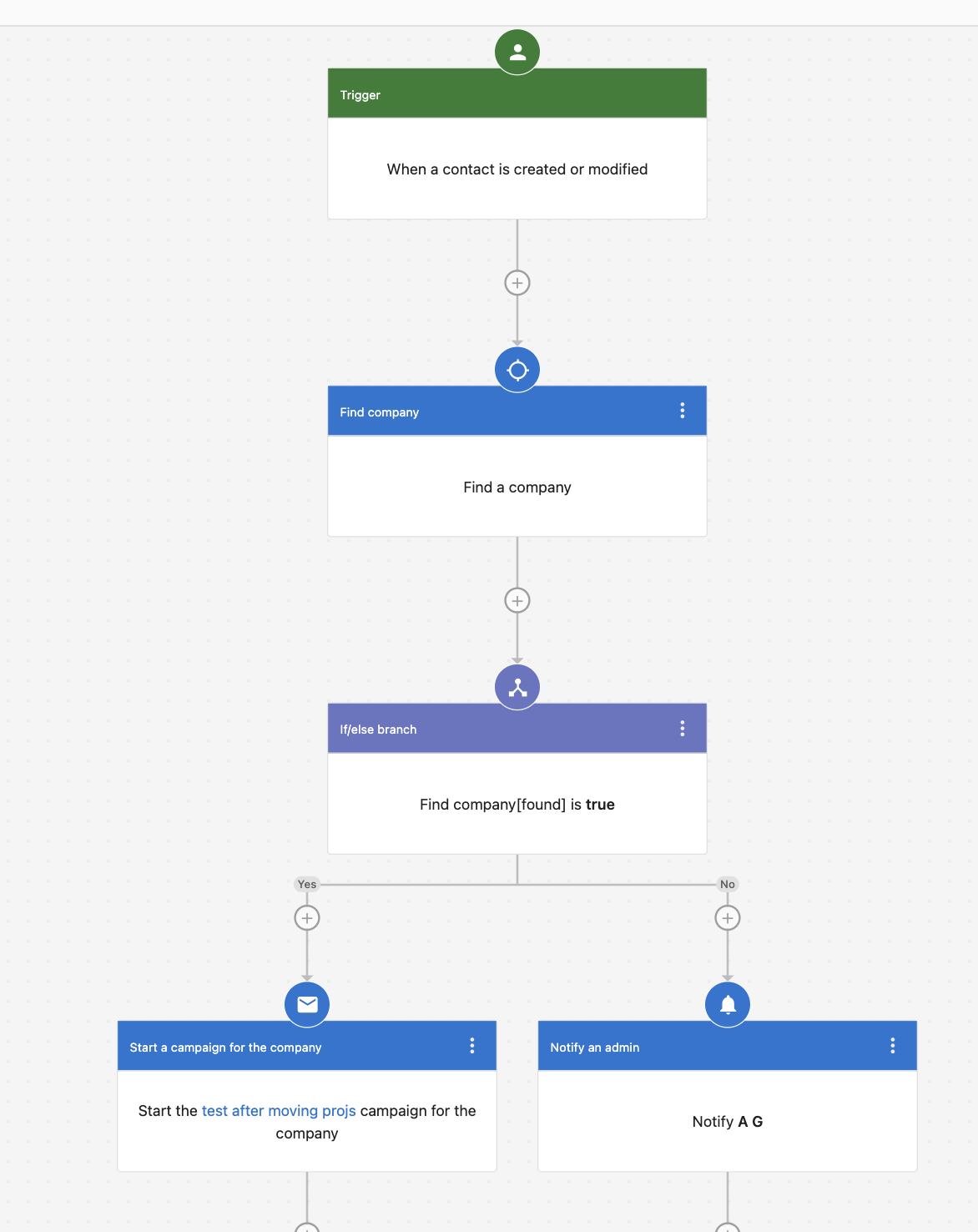
When a new contact is created, find the company that shares the same salesperson and add the contact to that company's active campaign.
Step 1 — Set the trigger
Select A contact is created or modified (under Contacts). Add a trigger condition to filter for newly created contacts only.
Step 2 — Add the Find company step
- Under Businesses, select Find company
- Add a search field:
- Field: Salesperson
- Operator: is
- Value: select Add dynamic content → From a previous step → Trigger → Salesperson
Step 3 — Branch on the result
Add an If/else step checking whether Found is true:
- Found → Add a Start a campaign for the company step to enroll the company in your onboarding sequence
- Not found → Add a Notify a salesperson step to alert the team that a contact was created without a matching company
Match incoming webhook leads to existing companies
When an external lead form sends data via webhook, find the matching company by name and create a follow-up task.
Step 1 — Set the trigger
Select A webhook is received (under Advanced). Configure the payload to include the company name and lead details.
Step 2 — Add the Find company step
- Under Businesses, select Find company
- Add a search field:
- Field: Company name
- Operator: is
- Value: select Add dynamic content → From a previous step → Trigger → the field containing the company name from the webhook payload
Step 3 — Branch on the result
Add an If/else step:
- Found → Add a Create a CRM sales task for the company step assigned to the company's salesperson with the lead details in the task description
- Not found → Add a Create a company step using the webhook data, then a Create a CRM sales task for the company step so the lead is not lost
If the external system sends data with inconsistent company names (e.g., "Acme" vs. "Acme Inc."), use the contains operator instead of is to improve match rates.
Detect duplicate companies on creation
When a new company is created, search for an existing company with the same name and flag potential duplicates.
Step 1 — Set the trigger
Select A company is created or modified (under Companies). Add a trigger condition to filter for newly created companies only.
Step 2 — Add the Find company step
- Under Businesses, select Find company
- Add a search field:
- Field: Company name
- Operator: is
- Value: select Add dynamic content → From a previous step → Trigger → Company name
Step 3 — Branch on the result
Add an If/else step checking whether Multiple Found is true:
- Multiple found → Add a Create a CRM sales task for the company step titled "Possible duplicate company — review and merge" assigned to a CRM admin
- Single or not found → No action needed; the automation ends
Sync accounts to companies by custom field
On a daily schedule, use an API trigger to pass account data and find the matching company by an external ID stored in a custom field.
Step 1 — Set the trigger
Select Triggered via API for an account (under Advanced).
Step 2 — Get the associated company
Add a Get the associated company step. If your account already has a linked company, this brings it into scope directly.
Step 3 — Find a company as fallback
If the account has no linked company, add a Find company step:
- Field: External ID (a custom company field you maintain)
- Operator: is
- Value: select Add dynamic content → From a previous step → the external ID from the API payload
Step 4 — Branch and act
- Found → Add an Update company step to sync the latest account data into the company record
- Not found → Add a Create a company step, then link it to the account
Related resources
- Automation steps reference — Full list of available actions
- Automation triggers reference — Every trigger that can start a workflow
- Advanced automation features — Logic steps, delays, and branching
- Creating and configuring automations — Build and configure workflows