Upgrading AI Employees
The AI Workforce page in Business App shows your customer every AI Employee available to them. Some of those employees are already active; others are locked because the product or edition that powers them isn't part of the customer's current plan.
Locked AI Employees offer a self-serve upgrade path: a locked card can open an in-app upgrade window that takes the customer straight to checkout for the product that unlocks the employee. This page explains what your customers see, how the platform decides which locked cards to show, and how you control the experience from Partner Center.
This experience lives on the AI Workforce page in Business App (the page your customers use), not in Partner Center. You configure the behavior from Partner Center. See Configure the upgrade experience below.
What your customer sees
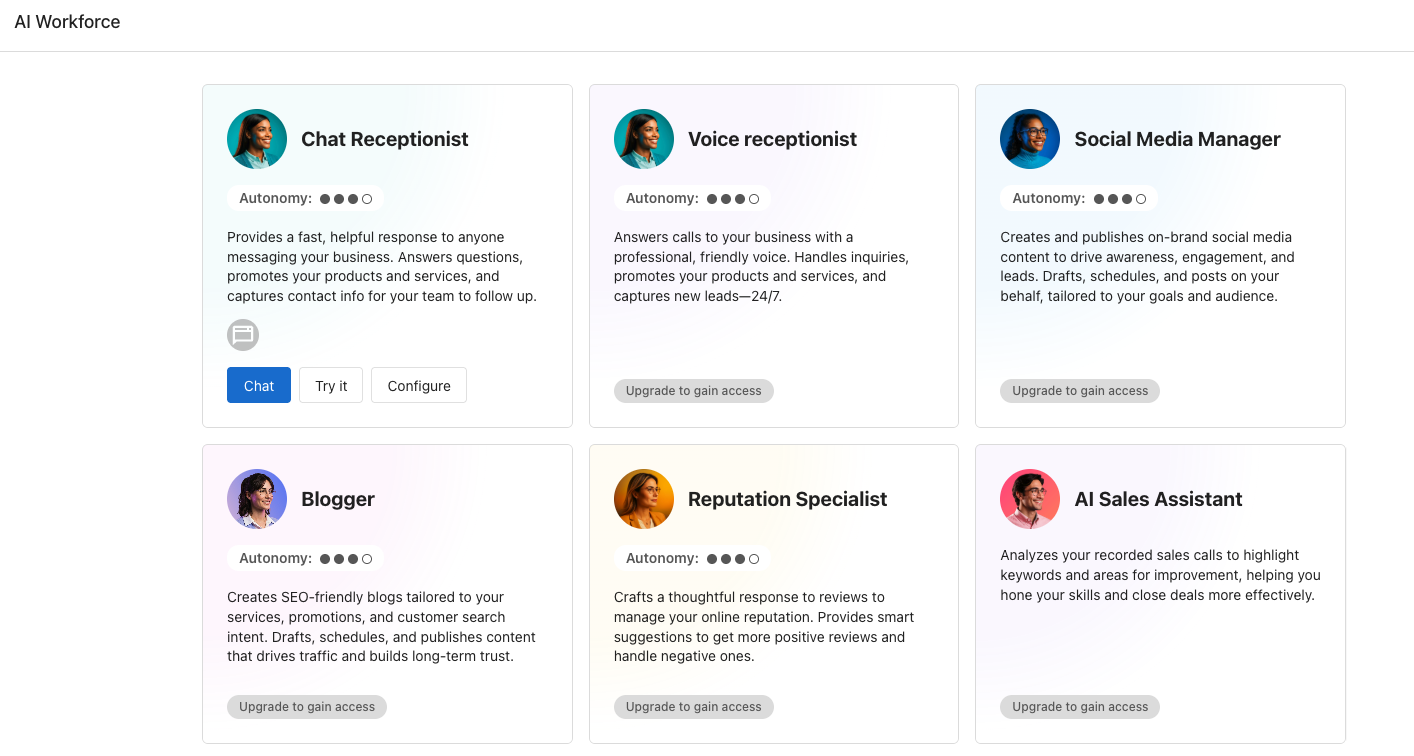
On the AI Workforce page, each AI Employee is shown as a card. A card falls into one of these states:
- Active: the employee is set up and running. Always shown.
- Locked with self-serve upgrade: the customer doesn't own the product yet, but you sell it in their market. The card shows a clickable
Upgrade to gain accesschip that opens the upgrade window. - Locked, no self-serve: the same locked card, but the upgrade window is turned off (for example, the product is sold through your sales team). The card keeps a non-clickable
Upgrade to gain accessbadge so the employee still reads as unavailable. - Coming soon: the employee shows a
Coming soonbadge and can't be enabled yet.
The label text is the same whether the chip is clickable or not. The difference is what happens on click.
How the self-serve upgrade flow works
When a customer clicks Upgrade to gain access on a locked card:
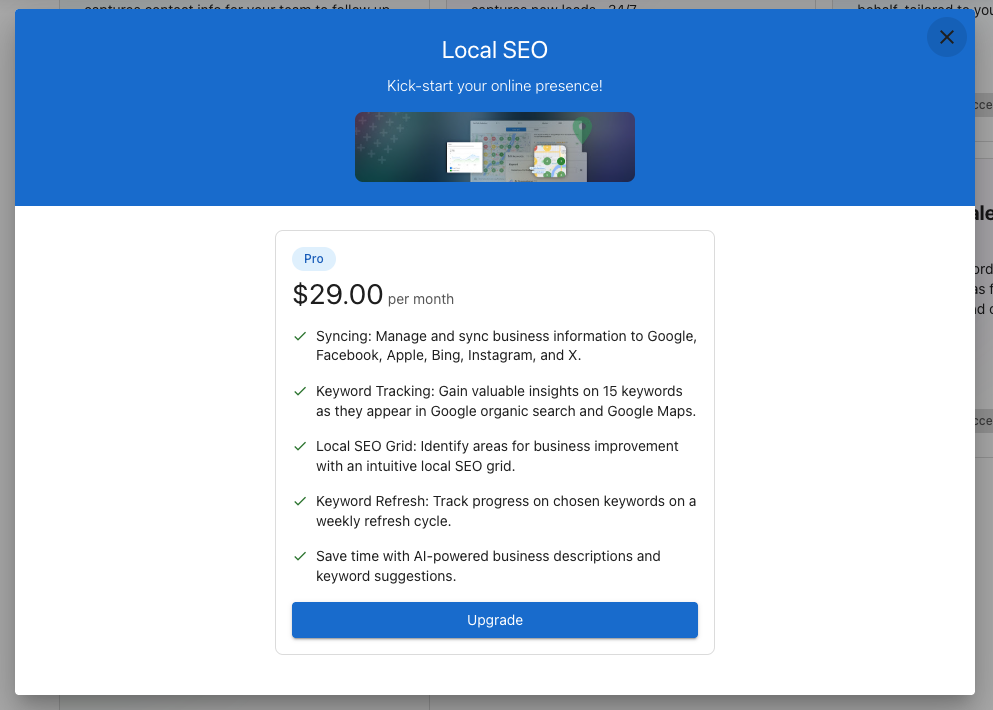
- An upgrade window opens for the product that powers that employee.
- The window shows the product's sellable editions (or packages), each with its name, price and billing frequency, and key selling points.
- The customer's current edition, if they already own a lower one, is labeled rather than offered for purchase.
- The customer selects an edition and clicks
Upgrade. - The platform creates an order and follows the flow you've configured for that product: if you have Vendasta Payments enabled, payment is collected during the upgrade; if you don't, an order is submitted for you to process.
Because the whole flow runs inside Business App, upgrades follow the same order, billing, and pricing rules as any other product purchase.
Which AI employees have an upgrade path
Each locked AI Employee is powered by a specific product. If a customer clicks upgrade, this is the product they're steered toward:
| AI Employee | Product that unlocks it |
|---|---|
| Voice Receptionist | Conversations AI |
| Social Media Manager | Social AI |
| Blogger | Social AI |
| Reputation Specialist | Reputation AI |
| AI Sales Assistant | CRM AI |
| AI Search Specialist | Local SEO / Listing Builder |
The exact edition a customer is offered is the one you've set to unlock that employee: its name and price reflect your own product catalog (for example, the Local SEO window above offers the Pro edition).
A few employees have no upgrade path and behave differently when locked:
- Chat Receptionist and AI Marketer have no upgrade product mapped. When they aren't available, their cards are simply hidden rather than shown with an upgrade CTA.
- Custom AI Employees you build are unaffected by upgrades.
If a customer already owns a lower edition of the product, the upgrade window offers the higher editions that unlock the employee. If they don't own the product at all, they see the full list of sellable editions.
Marketplace gating: which locked cards appear
Locked cards are filtered by what you actually sell, so customers are never shown an upgrade they can't buy from you:
- A locked employee card is hidden when you don't sell its backing product in that location's market.
- A locked card is hidden when its product has no sellable edition to upgrade to.
- Active employees and employees with no backing product are never hidden by this rule.
This means your stop-selling and market-availability decisions in the Marketplace directly control the AI Workforce page: stop selling a product in a market, and its locked AI Employee card disappears for customers in that market.
Gating only removes cards for products a customer can't buy from you. To remove an AI Employee's card whether it's locked or active, see Hiding AI Employees.
Configure the upgrade experience in Partner Center
You control the upgrade behavior per product from its settings in the Marketplace. Go to Partner Center → Marketplace → Products, open a product, and find the Upgrade section on its settings page.
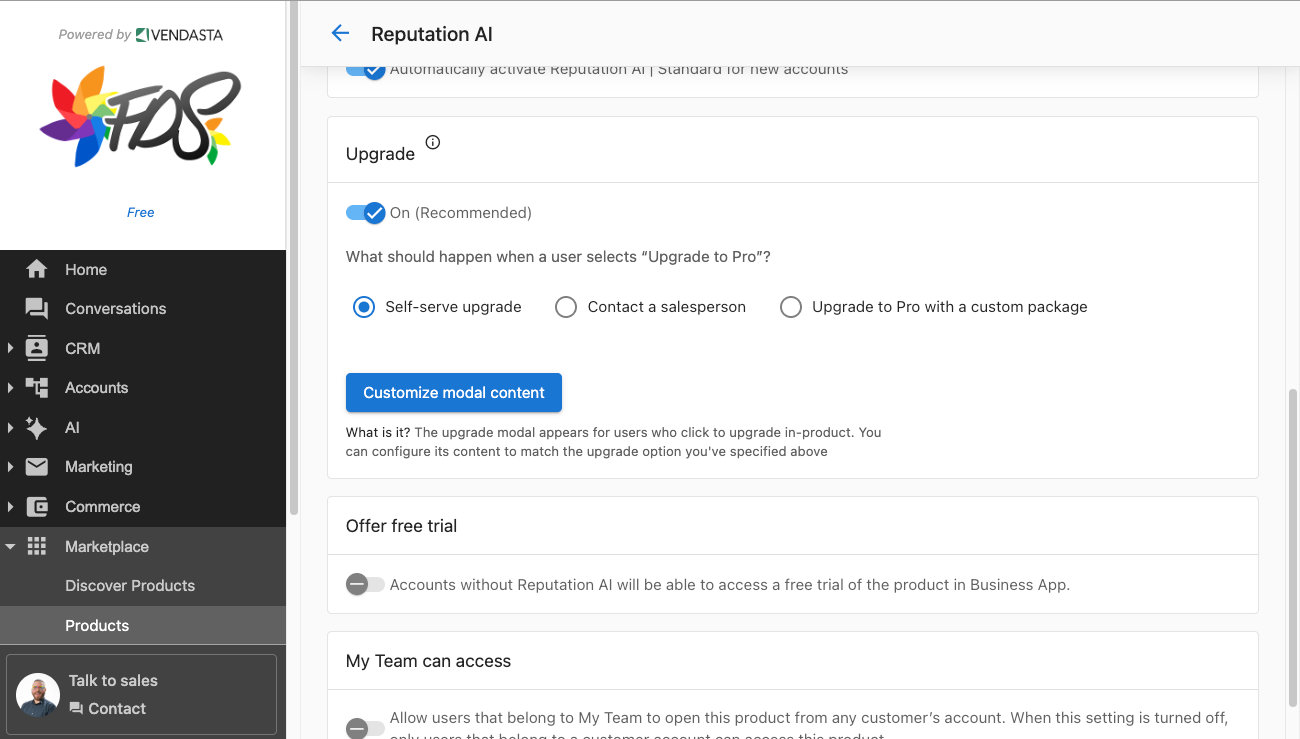
Turn the upgrade experience on or off
The Upgrade toggle controls whether locked cards for this product are clickable. Leave it On (recommended) to give customers the self-serve upgrade chip. Turn it Off and the locked card keeps a non-clickable Upgrade to gain access badge instead: the employee still reads as unavailable, but customers can't upgrade themselves.
Choose what happens when a customer clicks upgrade
Under What should happen when a user selects Upgrade?, pick one:
Self-serve upgrade: creates an order and follows your configured checkout. If you have Vendasta Payments enabled, payment is collected during the upgrade; otherwise an order is submitted for you to process.Contact a salesperson: opens a contact-sales window instead of a purchase flow, for products you don't sell self-serve.Upgrade with a custom package: offers your custom upgrade package instead of the standard editions.
Customize the modal content
Click Customize modal content to control how the upgrade window looks. You can set its title, image, selling points, and button text, and the window shows your retail price and billing frequency. Match the content to the upgrade option you chose above.