How do I integrate QuickBooks with Partner Center?
The QuickBooks integration in Partner Center is a one-way sync of contacts from QuickBooks to the Partner Center CRM, plus 3 automation triggers. To set it up, go to Administration → Integrations, click the QuickBooks card, and click Add Connection.
How do I set up the QuickBooks integration?
You can set up a connection with QuickBooks by navigating to the Integrations page of Partner Center.
- Click
Administration→Integrationsto navigate to the Integrations page. - Click on the
QuickBooks Integration Card.
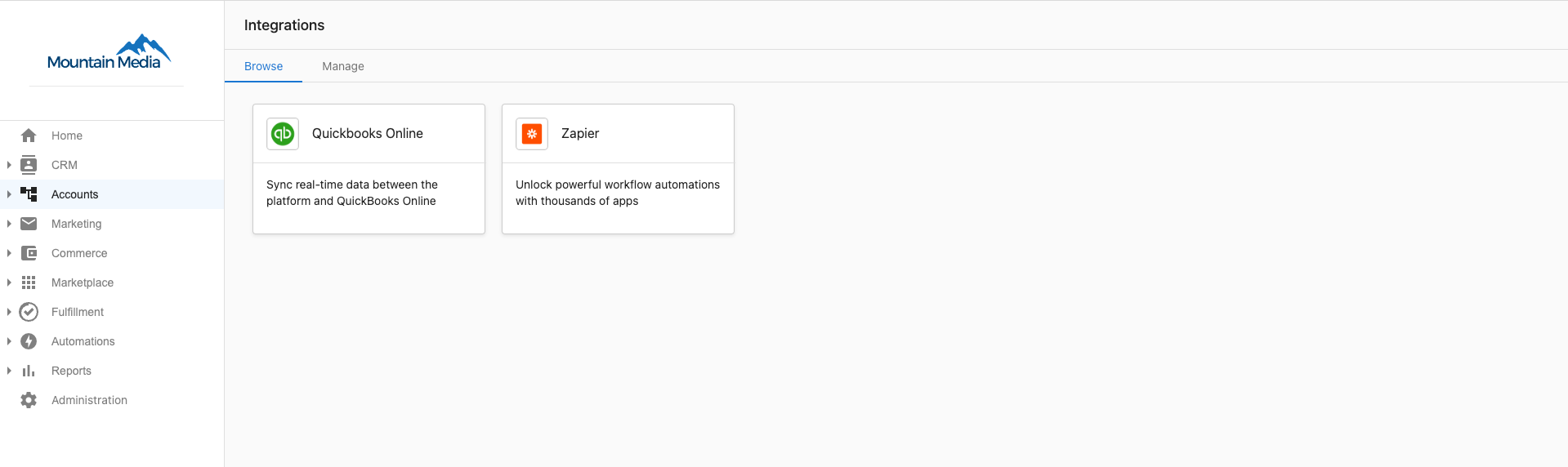
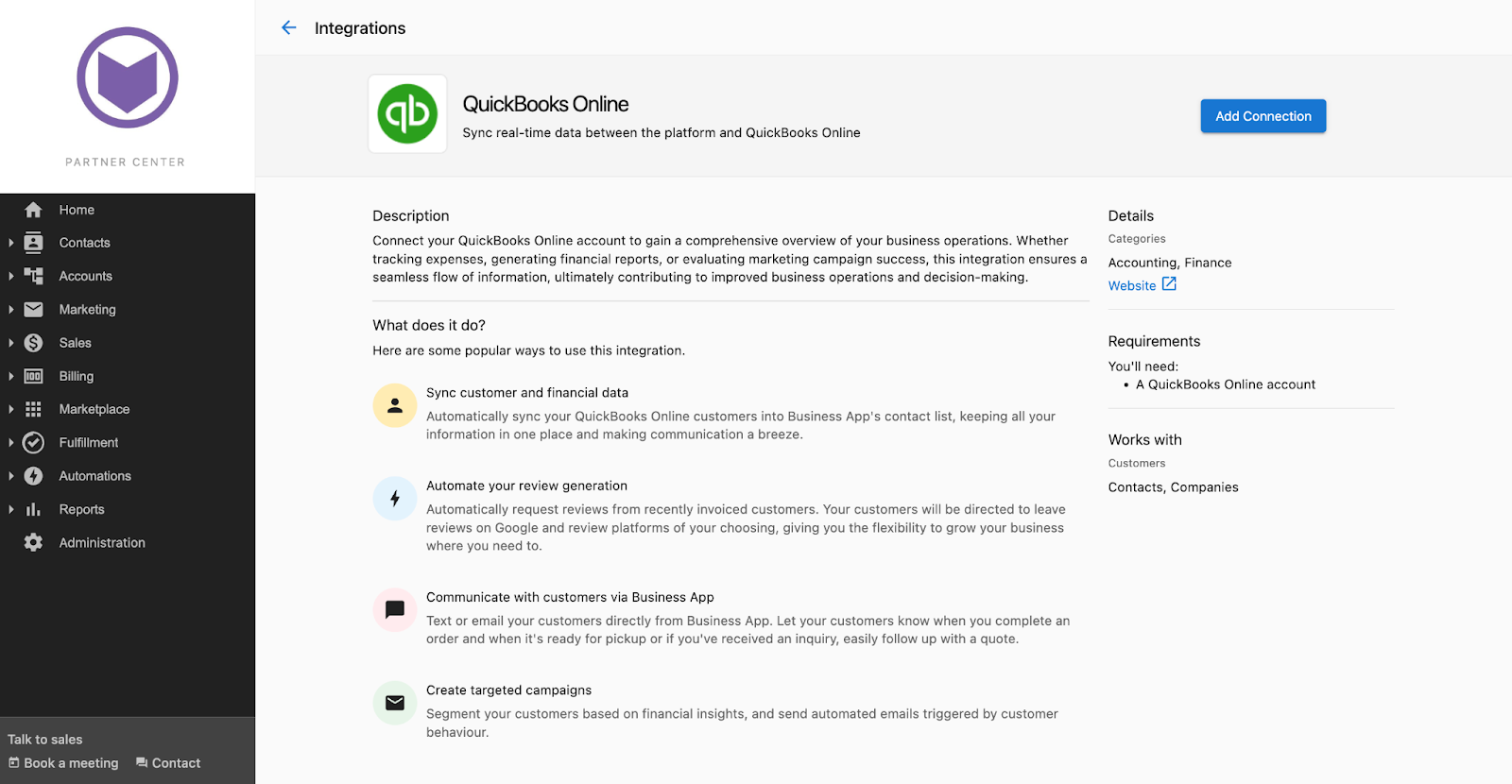
- You'll be taken to the QuickBooks marketing page, which provides information on what QuickBooks is and the possibilities an integration with QuickBooks provides. Click
Add Connection.
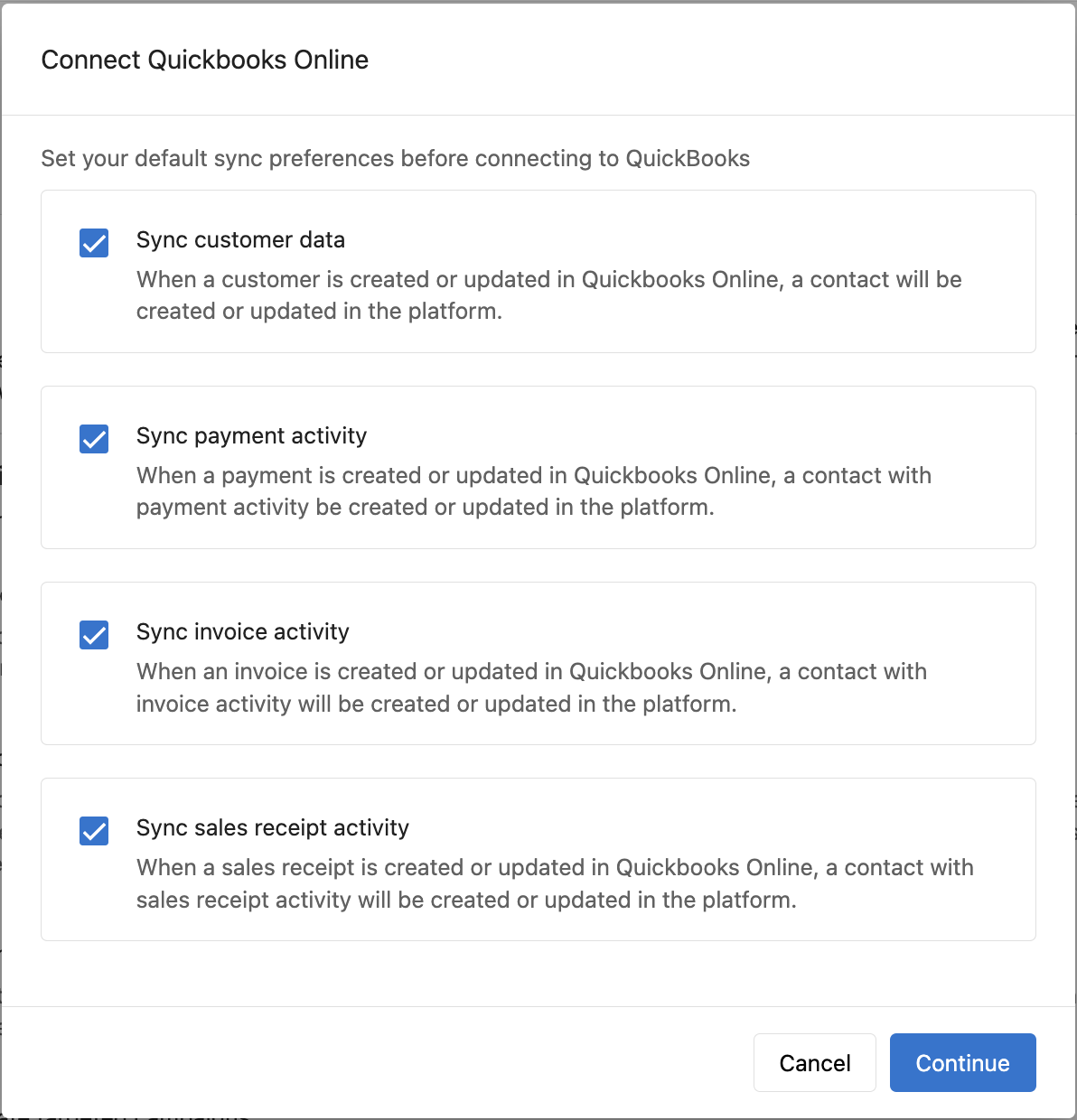
- This provides you with a Pre-Connect Form popup where you can define the data you want to synchronize between QuickBooks and the Partner Center CRM. The syncing options available are:
- Contact Data
- Invoice Data
- Sales Receipt Data
- Payment Data
Click Continue after choosing the options that apply.
- This leads to a single sign-on page where you can sign in to your QuickBooks account and provide permissions to establish the connection.
- Upon successful connection, you'll be automatically redirected to the
Managetab on the Integrations page where you can confirm the connection with QuickBooks. - The established connection is shown on the
Managetab and the marketing page, as shown below:
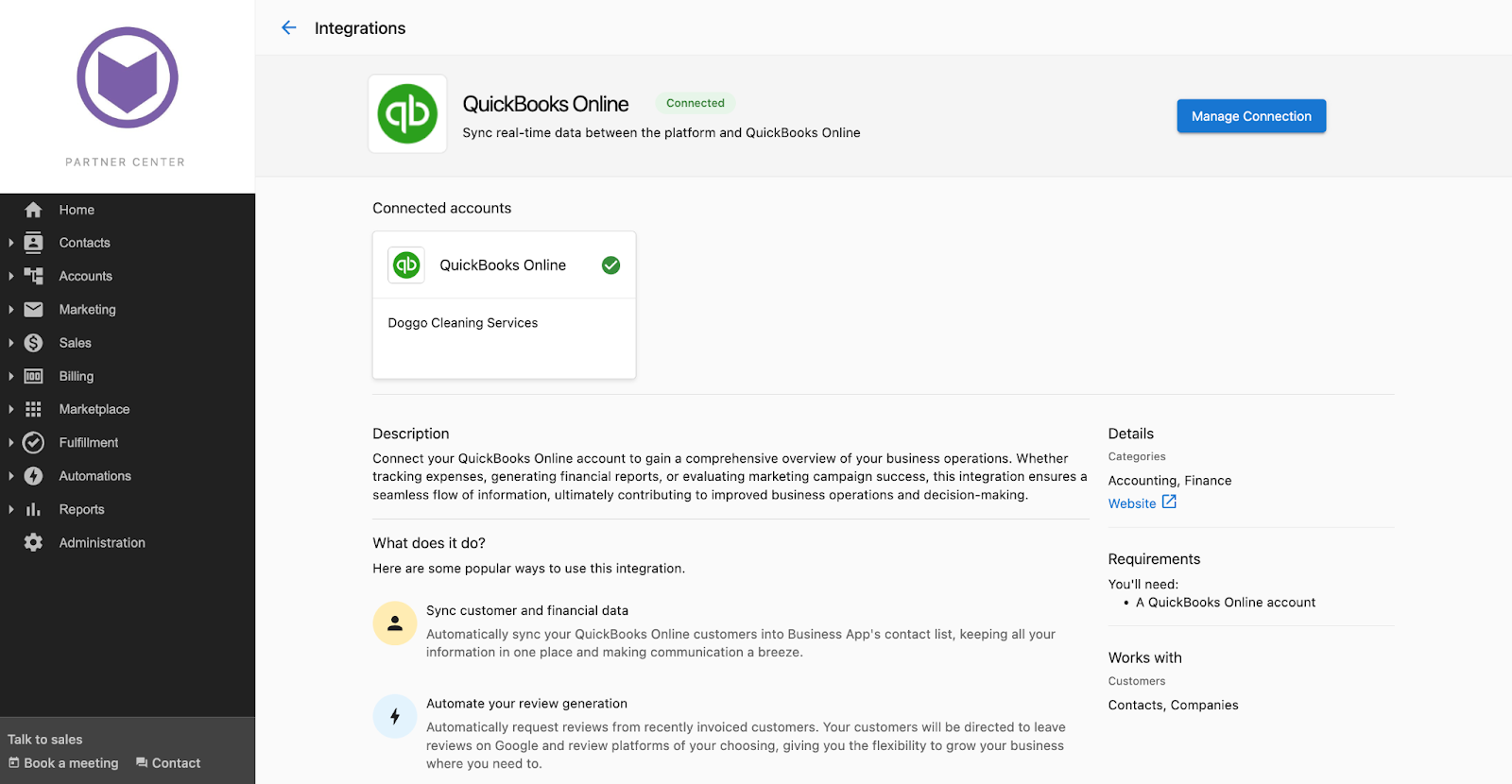
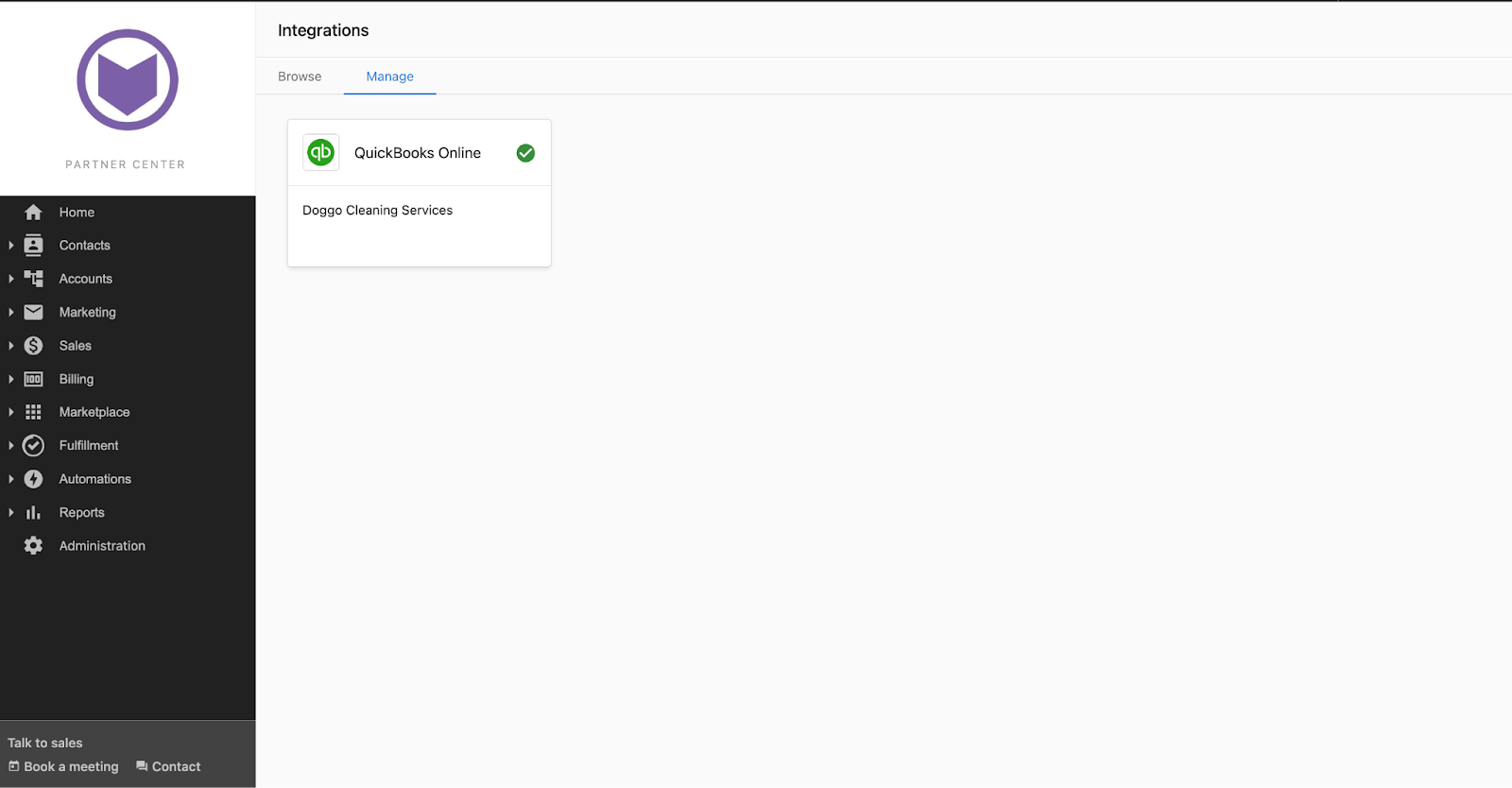
- Clicking either card will bring you to the
Connection Settingspage where you may specify what data to sync or choose to disconnect the integration.
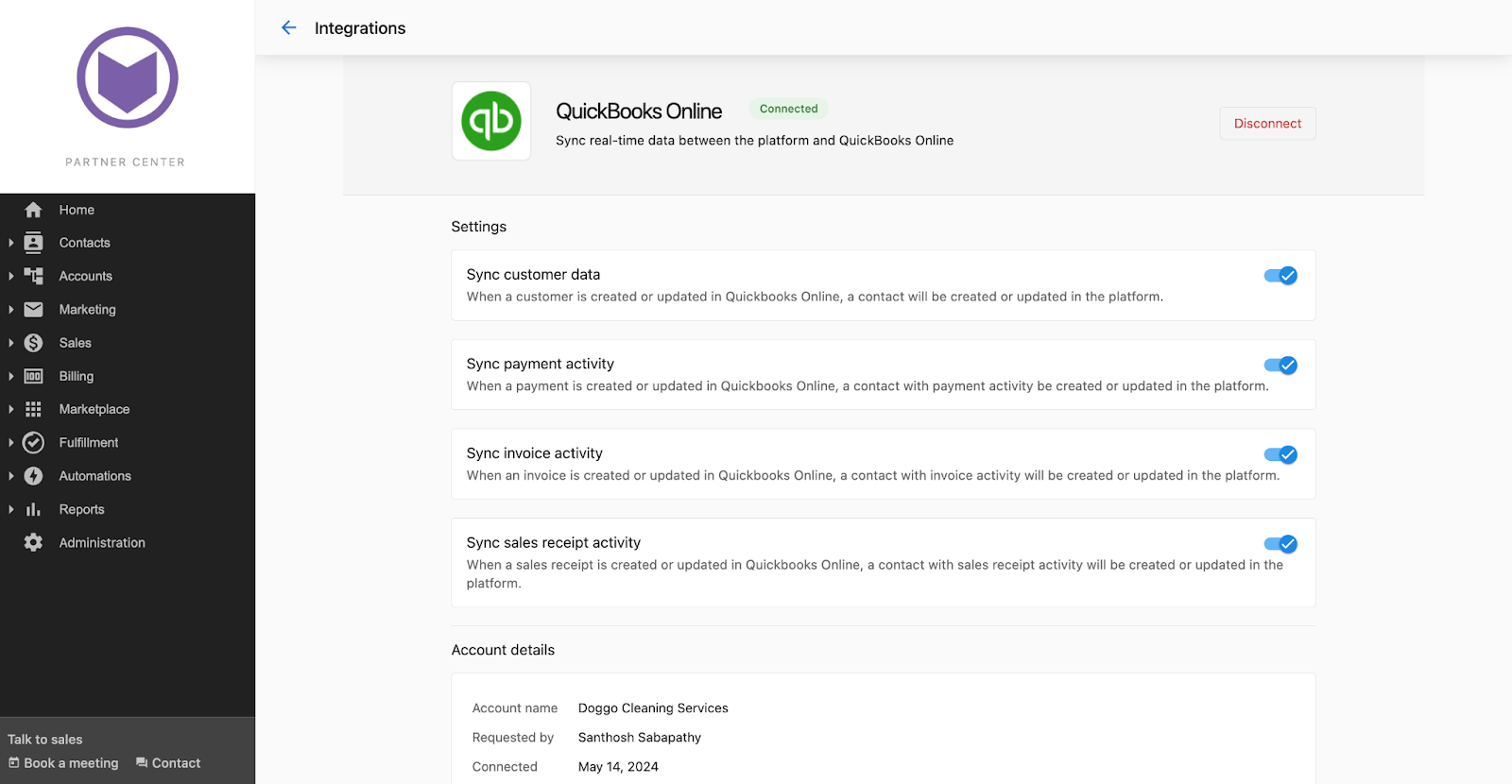
After the initial connection with QuickBooks, all contacts in QuickBooks are synced with the Partner Center CRM. You can opt out of this by deselecting the Sync Customer Data option on the form during the initial connection.
How do I choose which data syncs?
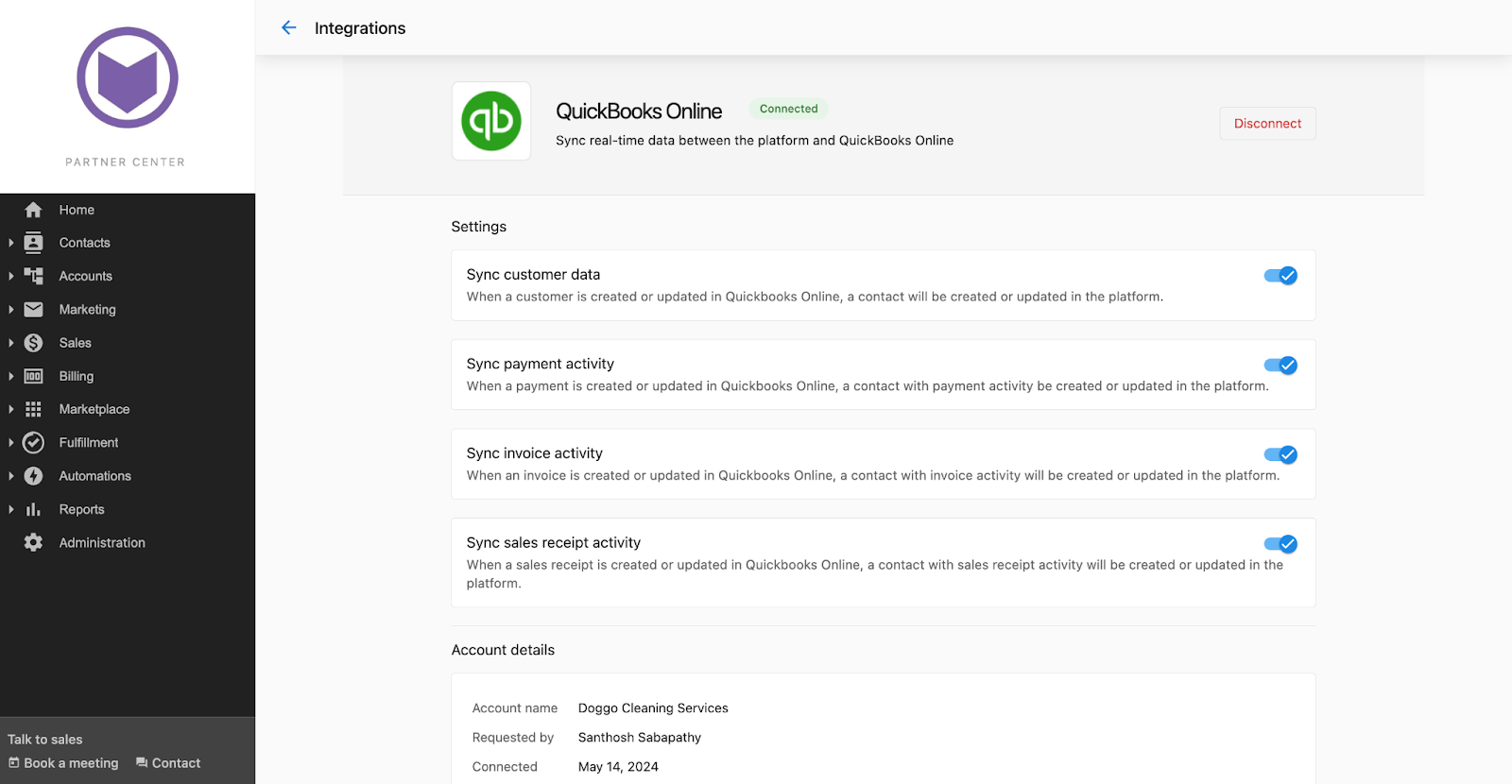
You can choose the data that you want to sync between QuickBooks and Partner Center CRM:
- Contact Data
- Invoice Data
- Sales Receipt Data
- Payment Data
Ensure that there is an active connection with QuickBooks by clicking on the Manage tab on the Integrations page and checking for the QuickBooks Connection card.
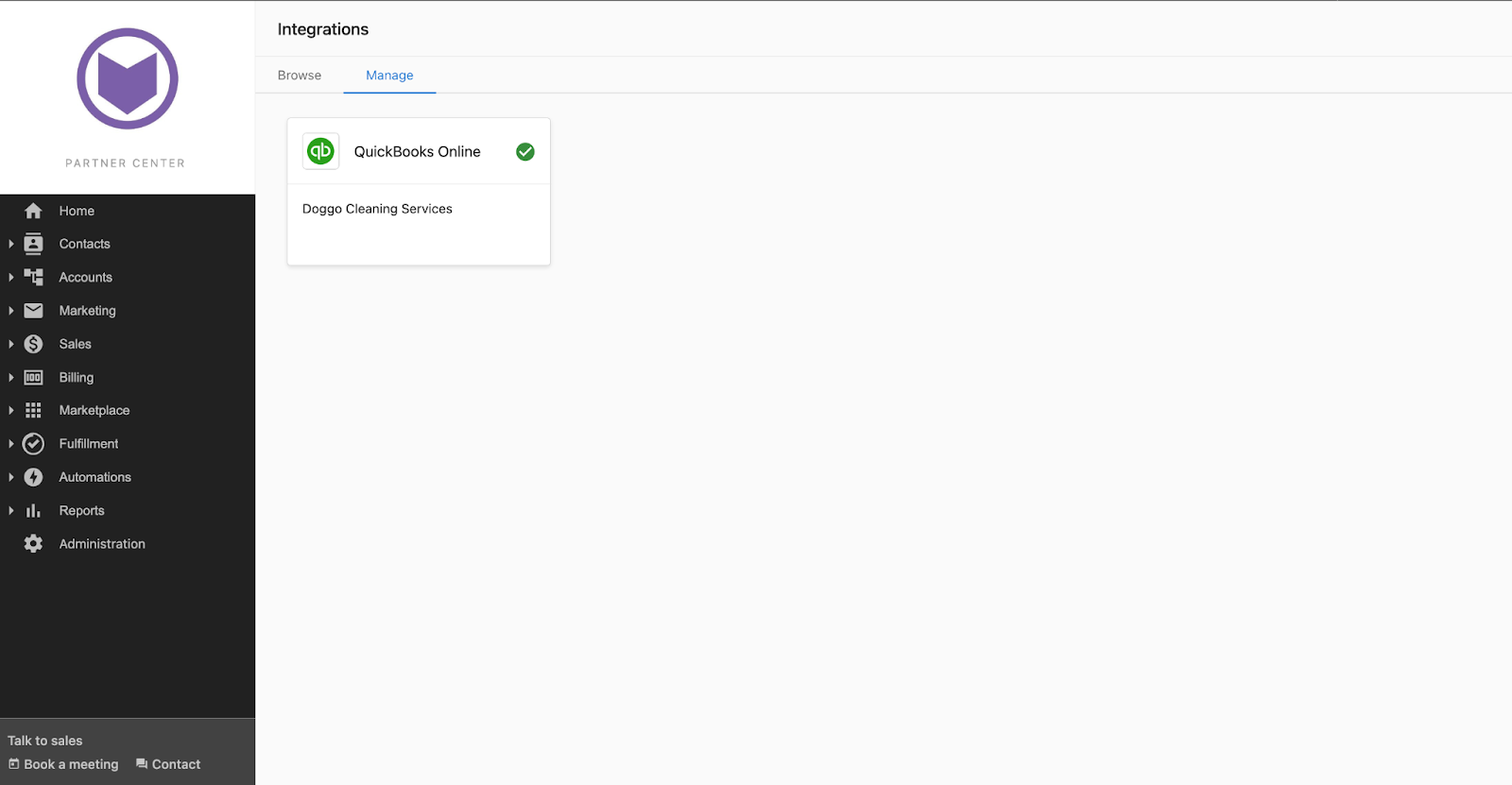
- Clicking on the
Connection Cardtakes you to theConnection Settingspage. Here, you can specify what data is to be synced.
What happens when I create an invoice in QuickBooks?
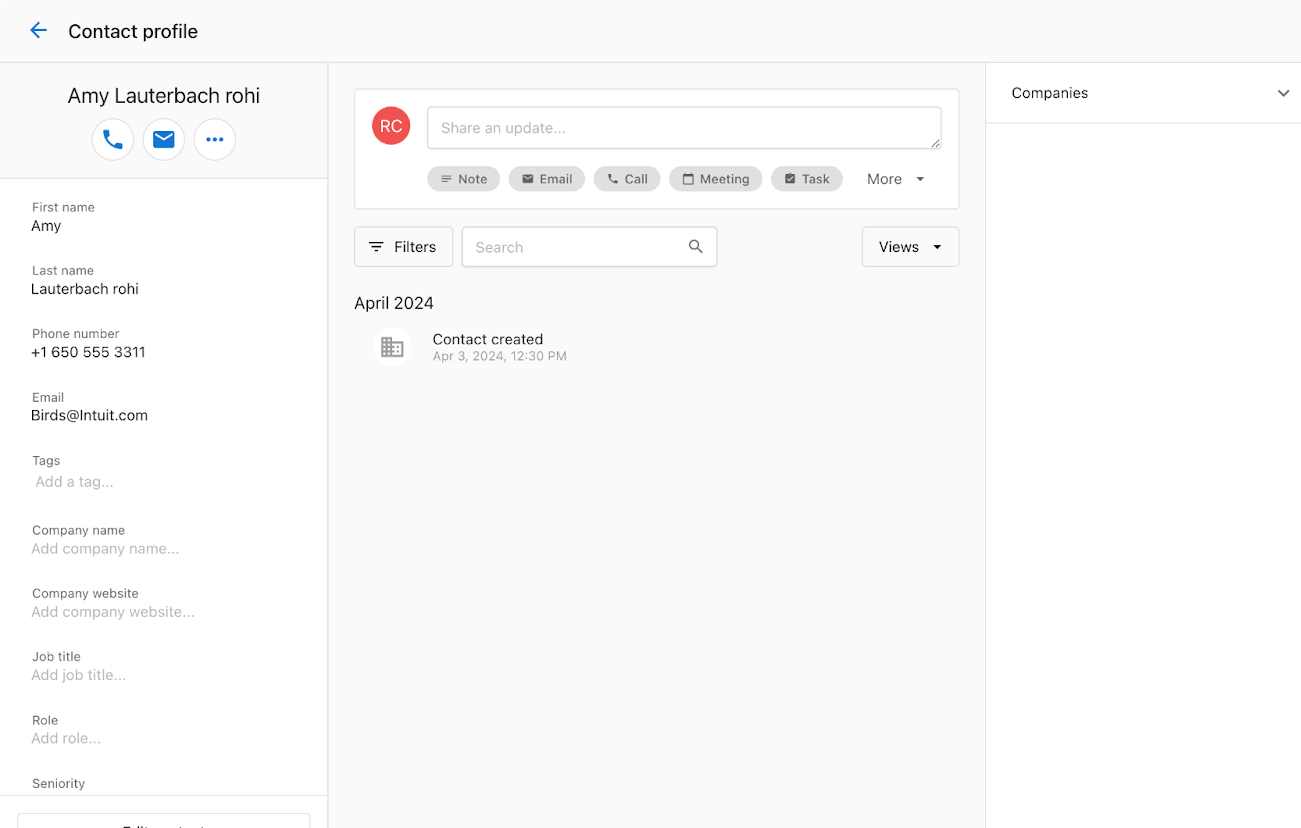
Consider, for example, a contact in Partner Center named Amy. Amy's contact profile in Partner Center shows no recent activities recorded.
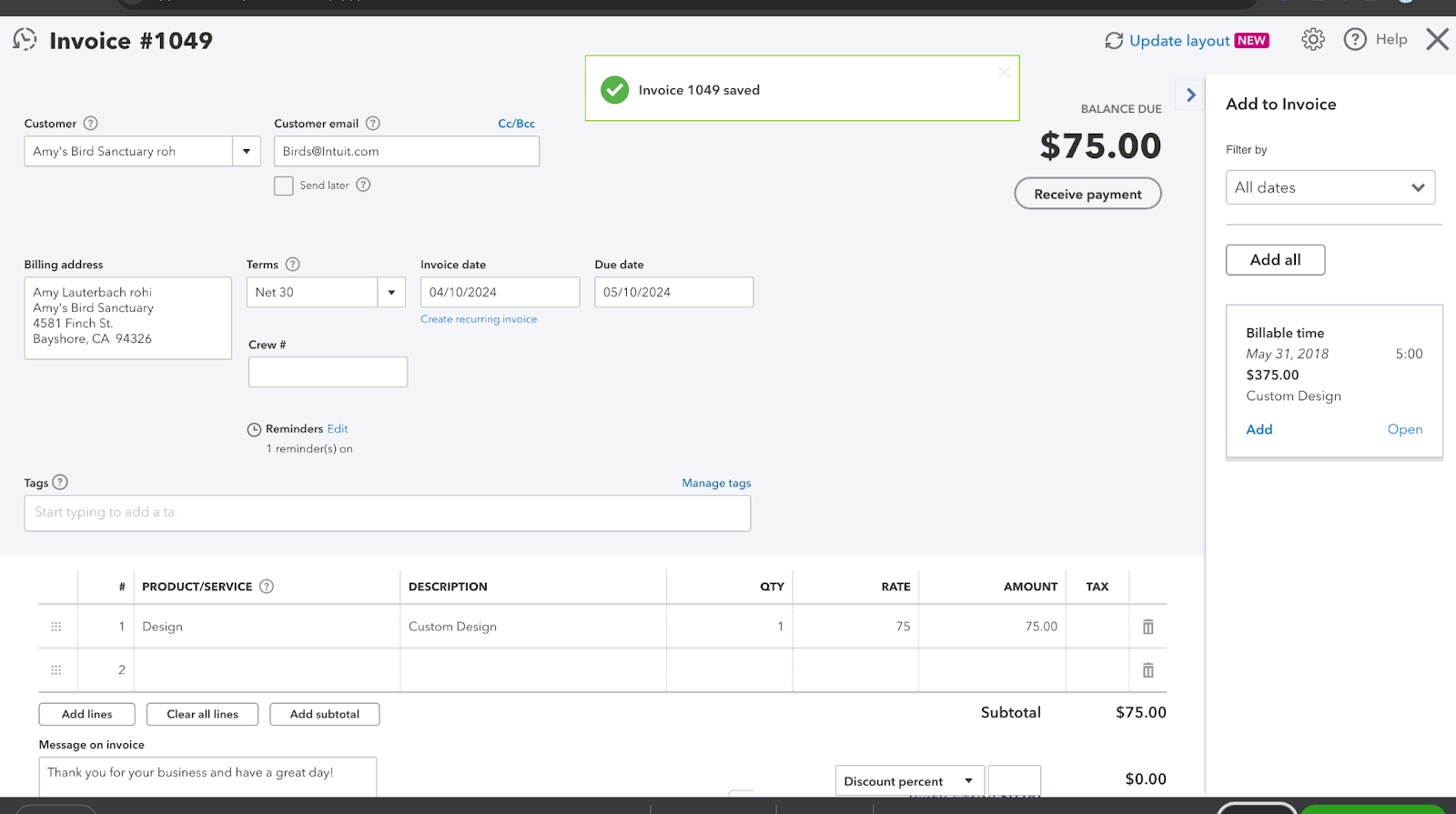
You create an invoice for Amy in QuickBooks.
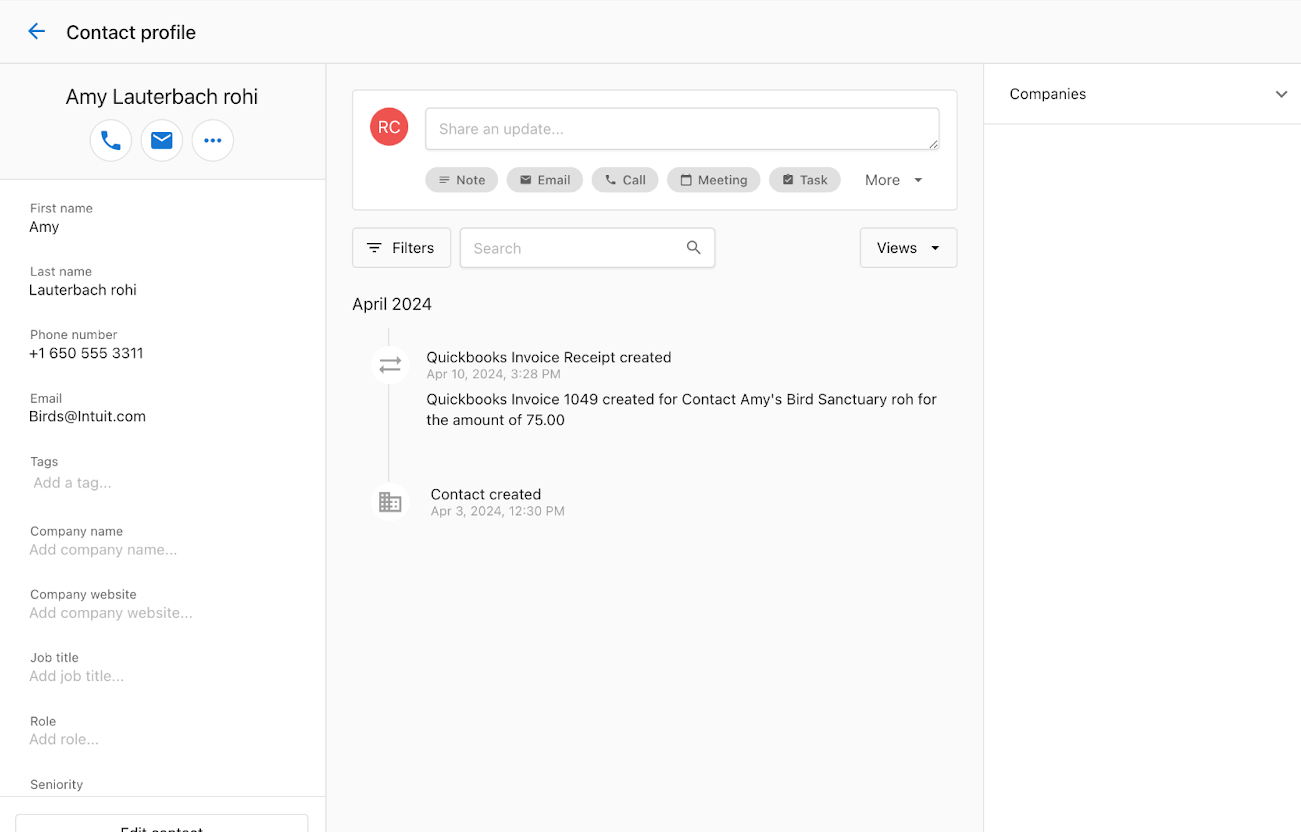
A note is created on Amy's contact profile in Partner Center with details from QuickBooks, including Invoice Number, Contact Name, and Invoice amount.
Frequently asked questions
Is the QuickBooks integration a two-way sync?
No. The integration is a one-way sync of contacts from QuickBooks to the Partner Center CRM.
What data can I sync from QuickBooks?
You can sync Contact Data, Invoice Data, Sales Receipt Data, and Payment Data. Choose the options on the Pre-Connect Form when you connect, and change them later on the Connection Settings page.
What happens in the CRM when I create an invoice in QuickBooks?
A note is created on the contact's profile in Partner Center with details from QuickBooks, including the invoice number, contact name, and invoice amount.
Can I stop all QuickBooks contacts from syncing when I first connect?
Yes. After the initial connection, all QuickBooks contacts sync to the Partner Center CRM unless you deselect the Sync Customer Data option on the form during the initial connection.
How do I disconnect QuickBooks?
Go to the Manage tab on the Integrations page and click the QuickBooks connection card to open the Connection Settings page. From there, you can choose to disconnect the integration.