Meeting summary notifications
Overview
When a recorded meeting finishes being analyzed, authorized users receive a notification that the summary is ready. Notifications are sent both as an in-app notification and by email, so you can review the meeting details as soon as they are available.
Conversation intelligence features (meeting recording, AI summaries, sales coaching, and conversation scoring) are available with CRM AI Pro. See CRM AI editions for details.
How it works
After a meeting is recorded and the AI analysis completes, each authorized user on the meeting automatically receives:
- An in-app notification in the notification center
- An email notification to their registered email address
Both notifications include the meeting title and a direct link to the Meeting Details page where you can review the summary, transcript, action items, and sales coaching insights.
Who receives notifications
Notifications are sent to authorized users within your organization who are associated with the meeting. You are an authorized user if you are one of the following:
- The host of the meeting
- The creator of the meeting record
- An authorized user added to the meeting
External participants, such as clients, prospects, or anyone outside your organization, do not receive notifications, even if they attended the meeting.
For example, if a sales rep at your company hosts a call with a prospect, only the sales rep (and any other internal team members added as authorized users) receives the notification. The prospect does not receive one, because they are outside your organization.
What the notification includes
Each notification contains:
- The meeting title so you can identify which meeting was analyzed
- A direct link to the Meeting Details page for that meeting
Clicking the link opens the meeting in the CRM, where you can review the full summary, transcript, action items, topics, and sales coaching scores.
Manage notification preferences
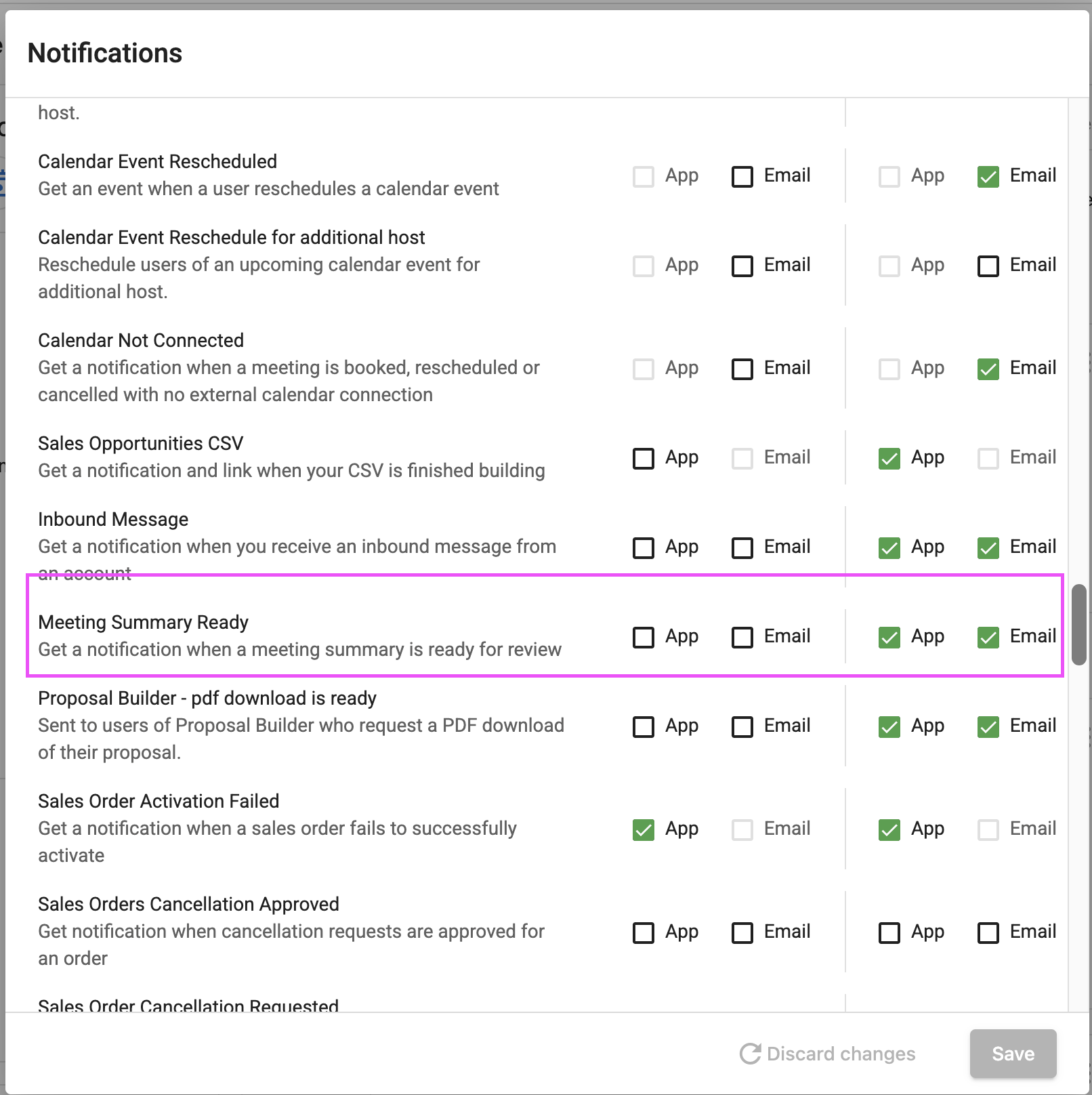
You can control whether you receive meeting summary notifications by app, email, or both.
- Go to
Notification Settings. - Find
Meeting Summary Readyin the list. - Check or uncheck
AppandEmailto choose how you want to be notified. - Select
Save.
By default, both App and Email are enabled. If you uncheck both, you will not receive any notification when a meeting summary is ready.
Frequently asked questions
Can I turn off meeting summary notifications?
Yes. Go to Notification Settings, find Meeting Summary Ready, and uncheck App and Email. Select Save to apply.
How long after recording does the notification arrive?
Notifications are sent as soon as the AI analysis is complete. This typically takes a few minutes after the meeting recording ends, depending on the length of the meeting.
Will I get a notification for every meeting I attend?
You only receive notifications for meetings where you are an authorized user (host, creator, or added as an authorized user). If you attended a meeting but are not an authorized user, you will not receive a notification.
What if the meeting analysis fails?
If the analysis fails, no notification is sent. You can check the status of your meetings from the Recordings tab in My Meetings.
Do I receive both an email and an in-app notification?
Yes. Both are sent by default when analysis completes. You can choose to receive only one or the other from Notification Settings by toggling the App and Email checkboxes for Meeting Summary Ready.