How do I verify my email address?
All Partner Center users, salespeople, Digital Agents, and Business App users must verify their email address. Users are verified when they set a password from their welcome email, reset their password, sign in with an identity provider like Google, or click a verification link.
Email verification helps keep your business data and your clients' data secure. It ensures that all users are genuine and have access to the email ID they provided. Any user added is automatically verified when they set their own password from the link in their onboarding or welcome email. If you or your users do not see a page asking you to verify your email ID, no action is needed, your email address is verified.
Please be assured that we have maintained all the white labels in place so Business App users will not see 'Vendasta' during the email verification process. They will be asked to verify their email address under your brand.
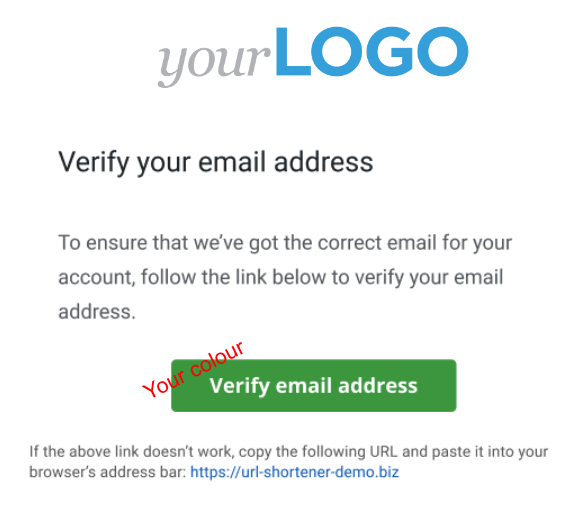
In order to maintain white label, we won't be sending any emails to your clients regarding email verification other than a white-labeled page, which they'll see when they login to Business App if their email ID is unverified. Therefore, it is your responsibility to nudge your clients to verify their email IDs.
There are a few ways users can verify their email IDs:
- Changing their password will verify the email as the password reset code is sent to the owner's email
- Setting a password via the new user onboarding or welcome email will verify the email, as that email is sent to the owner's address
- Signing in with any federated identity provider (Google, LinkedIn, Facebook, etc) will verify the email as that proves they own the email
- By sending a verification email from the page shown after logging in and clicking on the verification link sent to your email.
If you are an existing Partner (or Partner Center user, Salesperson, Digital Agent, or Business App user) and have never verified your email ID, there are a few simple steps that can be taken to complete the process:
- Log in to the Vendasta platform
- You'll see a page asking you to verify your email address.
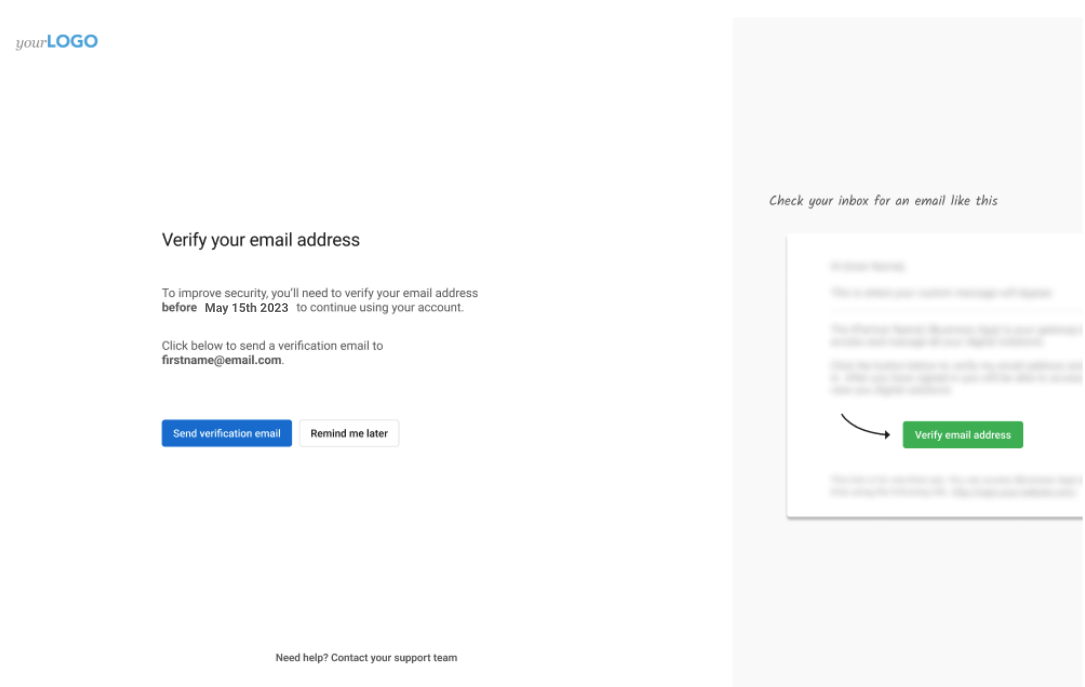
- Click the
Send verification emailbutton and you'll receive an email with a verification link - Click on that link, complete the verification process, and continue using the platform
- Your email ID is now verified.
Once you have completed these steps, nothing else is required.
When the email never arrives
This is the most common problem reported on this page, and it applies to all three platform emails a user might be waiting on: the welcome email for a newly created user, the verification email, and the password reset email. Work through these checks in order.
- Check spam and junk folders. These emails are sent under your brand, not Vendasta's, so a recipient who is watching for "Vendasta" in the sender may not spot them.
- Confirm the address on file is correct and active. Go to
Partner Center→Administration→My Team, open the user, and check the email address character by character. If it is wrong, correct it: updating the address triggers a new email. - Confirm the user actually exists and is active. A user who was never fully created, or who has been deactivated, will not receive anything.
- Trigger a password reset instead of waiting for the welcome email. A reset email and a welcome email both prove ownership of the address, so a reset achieves the same result and verifies the user. Use
Forgot passwordon the sign-in page, or have an admin send the reset. - Use a federated sign-in as a way around it. Signing in with Google, LinkedIn, or Facebook on an address that matches the one on file verifies the email without any message needing to arrive.
Your admin and the Vendasta Support team cannot set a password on a user's behalf. They can only send an email that lets the user set their own.
If the user no longer has access to the address they log in with, they cannot receive any of these emails and cannot self-serve. Contact Support to have the address changed.
If none of the above resolves it, contact Support with the user's email address, when the user was created, and which email is missing (welcome, verification, or reset). See also What to do when your team member or clients cannot log in for the wider set of login problems.
If you are locked out of the platform, please try any of the following:
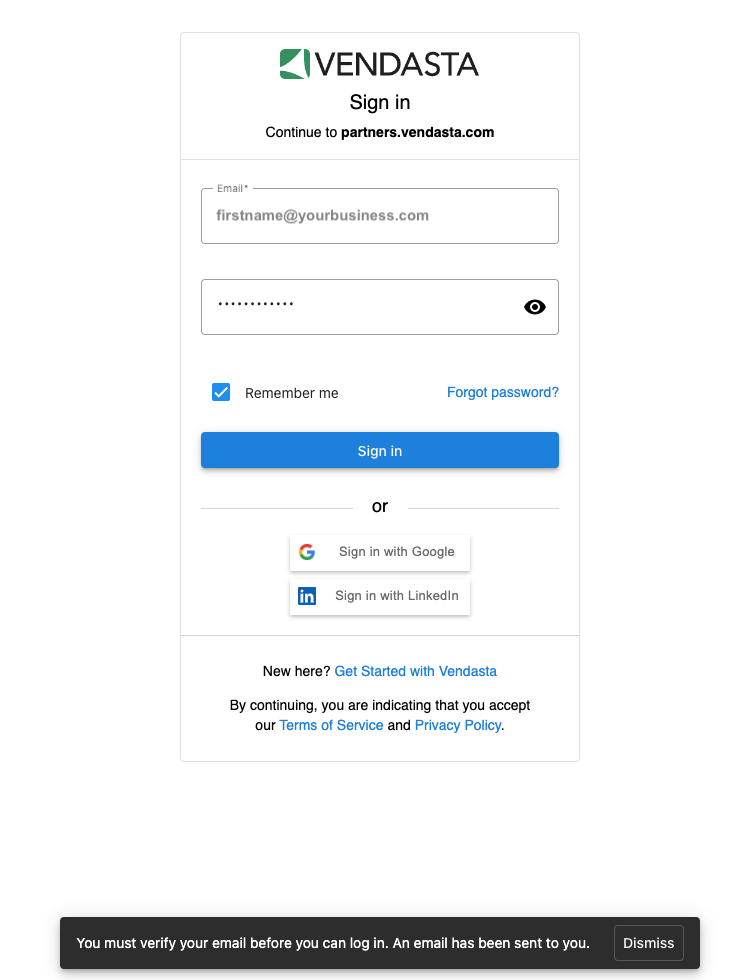
- Check your inbox for the verification email and click the link enclosed
- Reset your password using the forgot password option available on the sign-in page
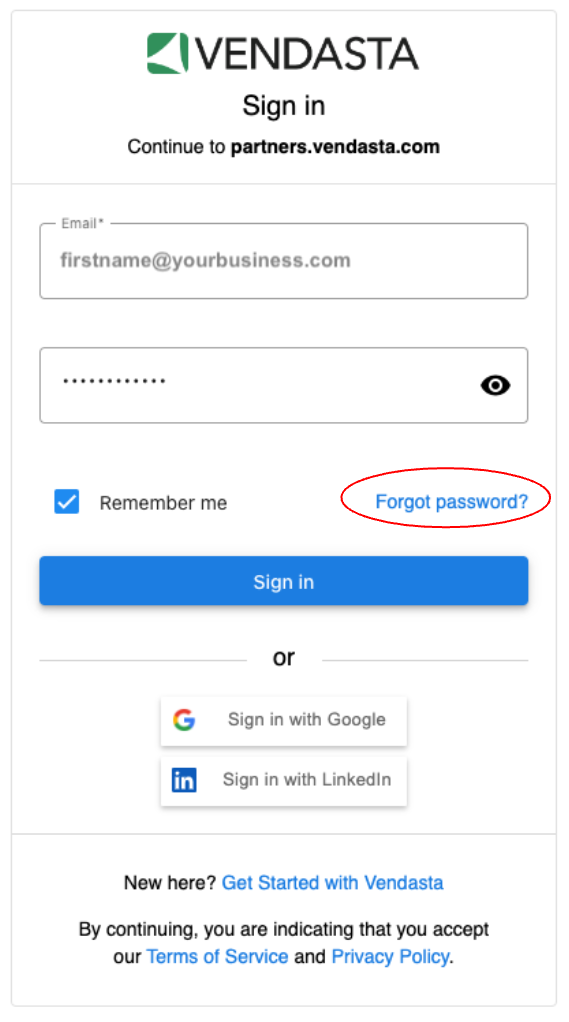
- Contact your admin to reset your password
Once you click on the verification link or reset your password, you will be able to log in as usual and your email ID will be verified. For more help with login issues, see What to do when your team member or clients cannot log in.
Your admin or the Vendasta Support team cannot set a password for you, however, they can send an email to reset your password.
If you have an SSO integration with Vendasta, here is some additional information:
- Your Business App users who log in to your platform using their email ID and password, and SSO into the Vendasta platform do not see anything and do not need to complete the email verification process. They are considered verified.
- Your team members, meaning Partner Center users, Salespeople, and Digital Agents who log in with an email address and password, need to complete the verification process if they're unverified and see the prompt.
Frequently asked questions
How do I know if my email address is verified?
If you don't see a page asking you to verify your email address when you log in, no action is needed. Your email address is verified.
Do my Business App clients receive verification emails from Vendasta?
No. To maintain white label, clients only see a white-labeled verification page when they log in to Business App with an unverified email address. It's your responsibility to nudge your clients to verify.
What do I do if I'm locked out of the platform?
Check your inbox for the verification email and click the link, reset your password using the forgot password option on the sign-in page, or contact your admin to reset your password.
Can my admin or Vendasta Support set a password for me?
No. Your admin or the Vendasta Support team can't set a password for you, but they can send you an email to reset your password.
Do SSO users need to verify their email address?
Business App users who log in to your platform and SSO into the Vendasta platform are considered verified. Partner Center users, salespeople, and Digital Agents who log in with an email address and password and see the verification prompt need to complete verification.