Files
Share sales decks, onboarding resources, and other collateral directly through Business App so clients always have the latest version.
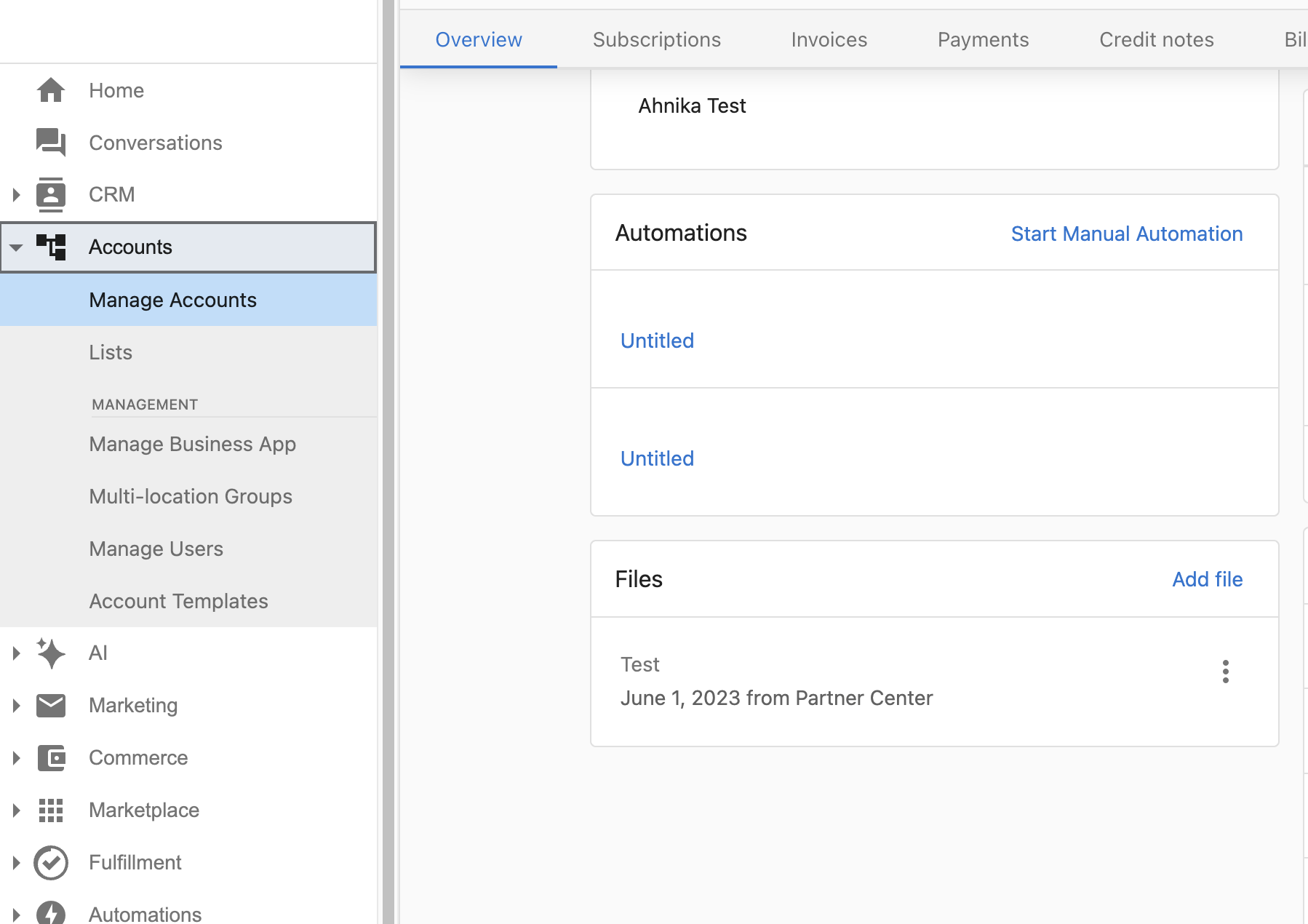
Upload files from Partner Center
- In
Partner Center, navigate toAccounts→Manage Accounts. - Select the account you want to upload a file for.
- Under the
Filessection, clickAdd file. - Upload your file. Once added, it is immediately visible to the client in
Business App→Administration→Files.
Show the Files page in Business App
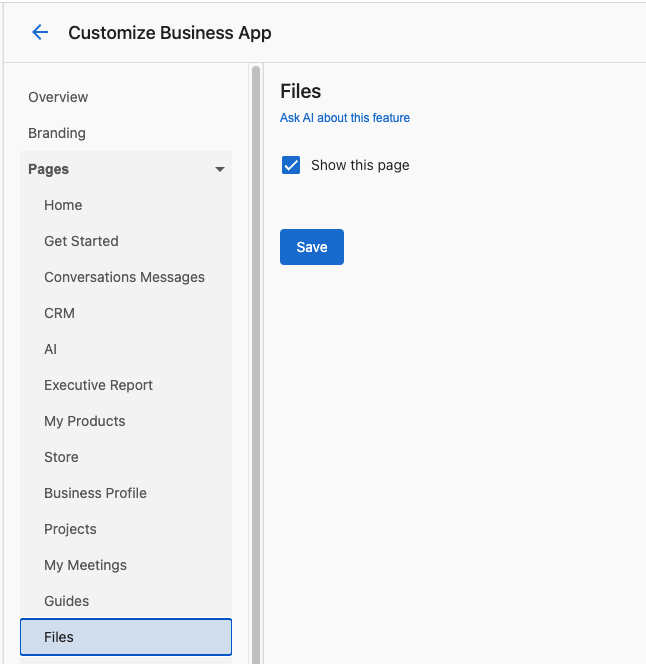
The Files page must be enabled globally before clients can see it in Business App. This is a one-time setup that applies to all accounts.
- In
Partner Center, navigate toAdministration→Customize Business App. - Go to
Pages→Files. - Check the
Show this pagebox.
Unchecking this box removes the Files section from Business App for all accounts.
As a partner, you will not see the Files section when browsing Business App yourself. To confirm it is visible, log in to Business App directly as a client user, or use the impersonate user feature.
Client experience
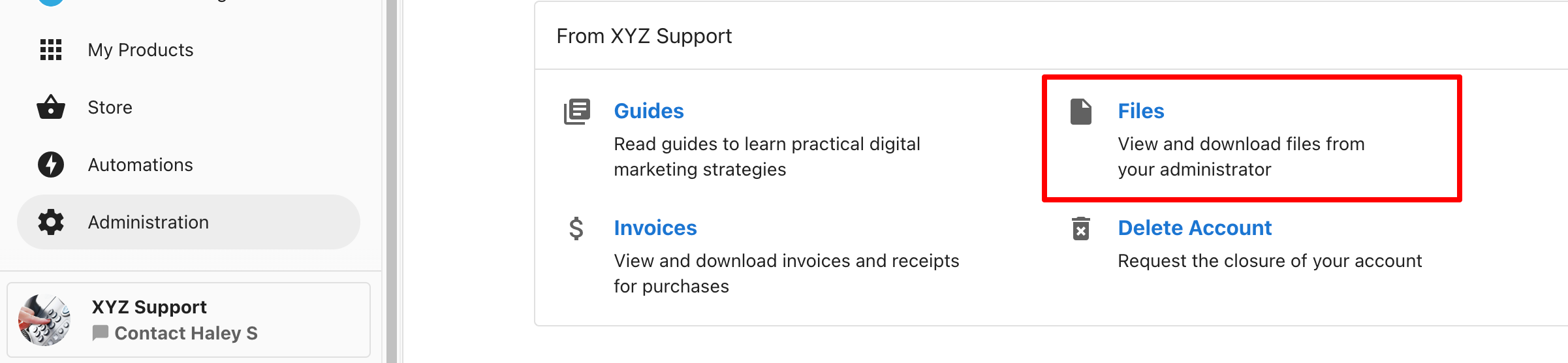
- Clients open
Business App→Administration→Filesto browse and download documents. - File metadata shows the upload date and source so teams can confirm freshness.
Best practices
- Maintain a "Getting Started" folder with onboarding checklists and service explanations.
- Replace outdated versions instead of renaming files, which keeps shared URLs consistent.
- Pair files with Guides to provide both high-level instructions and supporting documentation.
Fulfillment file attachments are different
Files attached to tasks or projects in Fulfillment are separate from Account Files and are not visible to clients in Business App. Fulfillment attachments are internal-only: they can be seen by your team but do not appear anywhere in the client's Business App interface.
To share a file with a client:
- Use Account Files (this page): go to the account in Manage Accounts, click
Add file, and the file will appear in Business App automatically. - Use a cloud storage link: paste a Google Drive or Dropbox link in a public task note so the client can access it from the task.