Access controls
Premium Reports has two layers of access control that work together:
- Team-wide access: a permission on each admin that decides whether they can see Premium Reports at all, and whether they can change who has access.
- Per-report sharing: Google Docs-style sharing on each individual report that lets you grant or restrict access to specific people.
A user must clear both layers to view a report. This page explains how each layer works and how to configure them.
Layer 1: Team-wide Premium Reports permission
Where to find it
The team-wide permission lives on each admin in My Team.
- Go to
Partner Center→Administration→My team - Click an admin's name to open their permissions
- Expand
Show more permissions - Find the Premium Reports dropdown
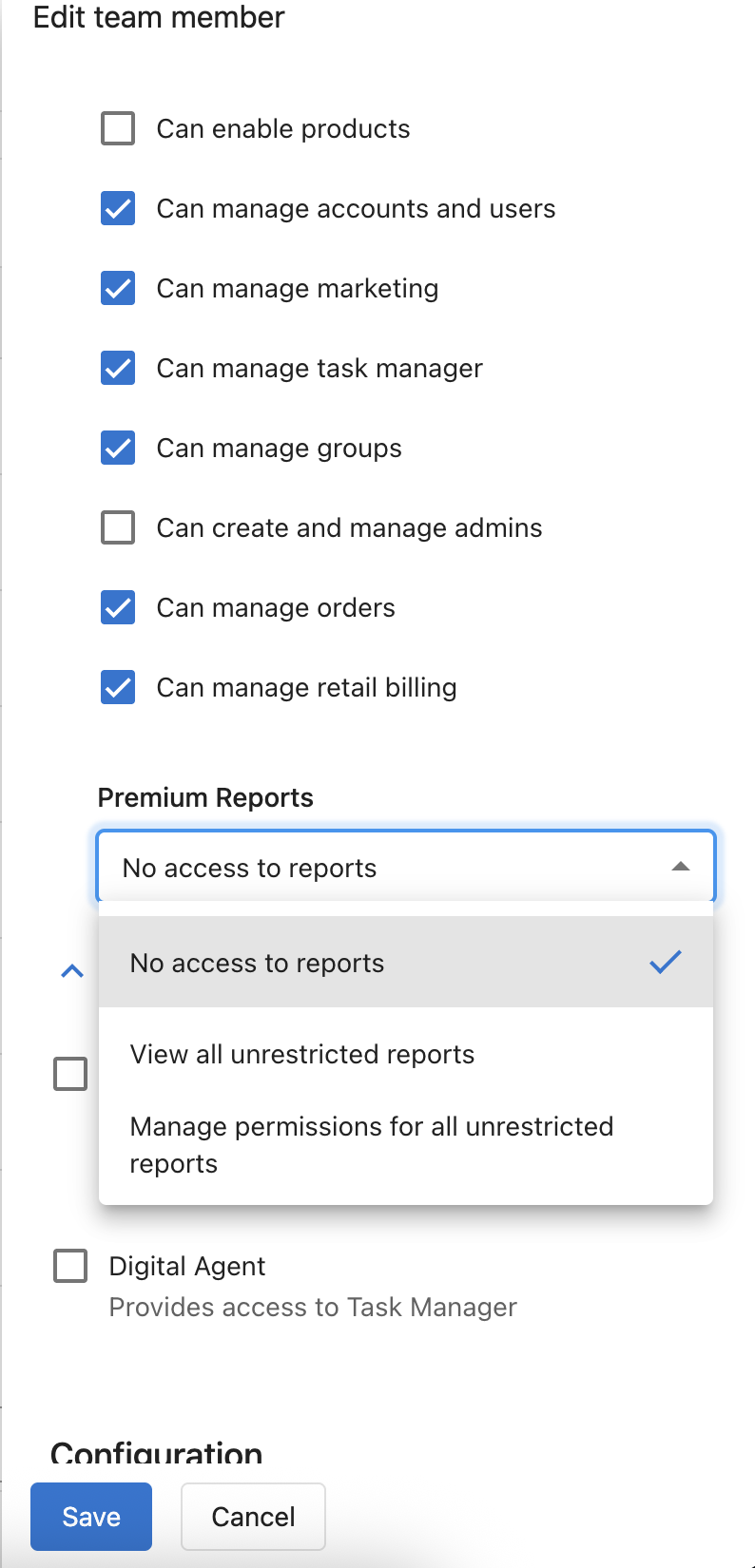
The three options
| Option | What the user can do |
|---|---|
No access to reports | Cannot open Premium Reports. |
View all unrestricted reports | Can open any report that is shared with the whole team. Cannot change who has access. |
Manage permissions for all unrestricted reports | Can open any report shared with the whole team, and can change its per-report sharing settings. Required to grant other users access to reports. |
"Unrestricted reports" are reports that have not been locked down to specific people. See How the two layers work together below.
Who can change this setting
Editing another team member's Premium Reports permission follows the same rules as editing any other admin permission in My Team: the editor must be an admin with the Can create and manage admins permission.
Defaults and limitations
- This dropdown is only available for team members who have the admin role. Salespeople and other non-admin team members cannot be granted access to Premium Reports.
- New admins are created with
View all unrestricted reportsby default. - The dropdown is disabled for admins whose market access is restricted to specific markets. To grant Premium Reports access, the admin must have access to
All markets.
Changing this dropdown takes effect the next time the user loads Premium Reports.
Layer 2: Per-report sharing
Once an admin has team-wide access, you can further restrict each individual report using per-report sharing, similar to how Google Docs and Confluence pages can be shared.
Where to find it
Open any Premium Report, then either:
- Click the lock icon in the report toolbar, or
- Click the three-dot menu in the top right and choose
Edit permissions
The lock icon also indicates the report's current sharing mode at a glance: a red lock means the report is restricted to specific people.
The three sharing modes
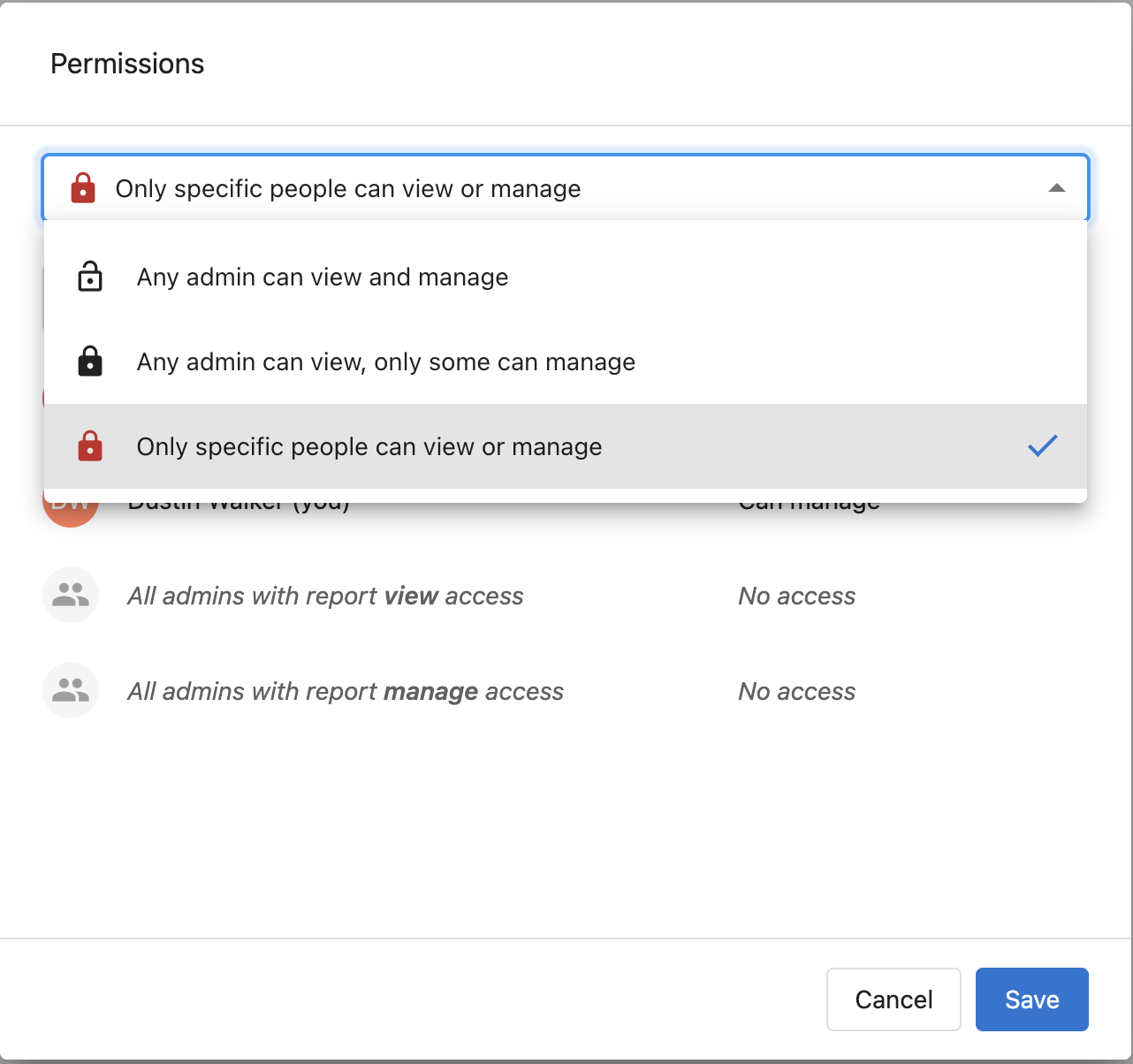
| Mode | Who can view | Who can manage permissions |
|---|---|---|
Any admin can view and manage | Any admin with View or Manage permissions | Any admin with Manage permissions |
Any admin can view, only some can manage | Any admin with View or Manage permissions | Only the specific people listed |
Only specific people can view or manage | Only the specific people listed | Only the specific people listed with Can manage |
The first two modes leave the report unrestricted: any admin who has team-wide access can open it. The third mode makes the report restricted: even admins with team-wide access cannot open it unless they are listed.
Adding specific people
When the mode is Any admin can view, only some can manage or Only specific people can view or manage, you can add individual users to the access list.
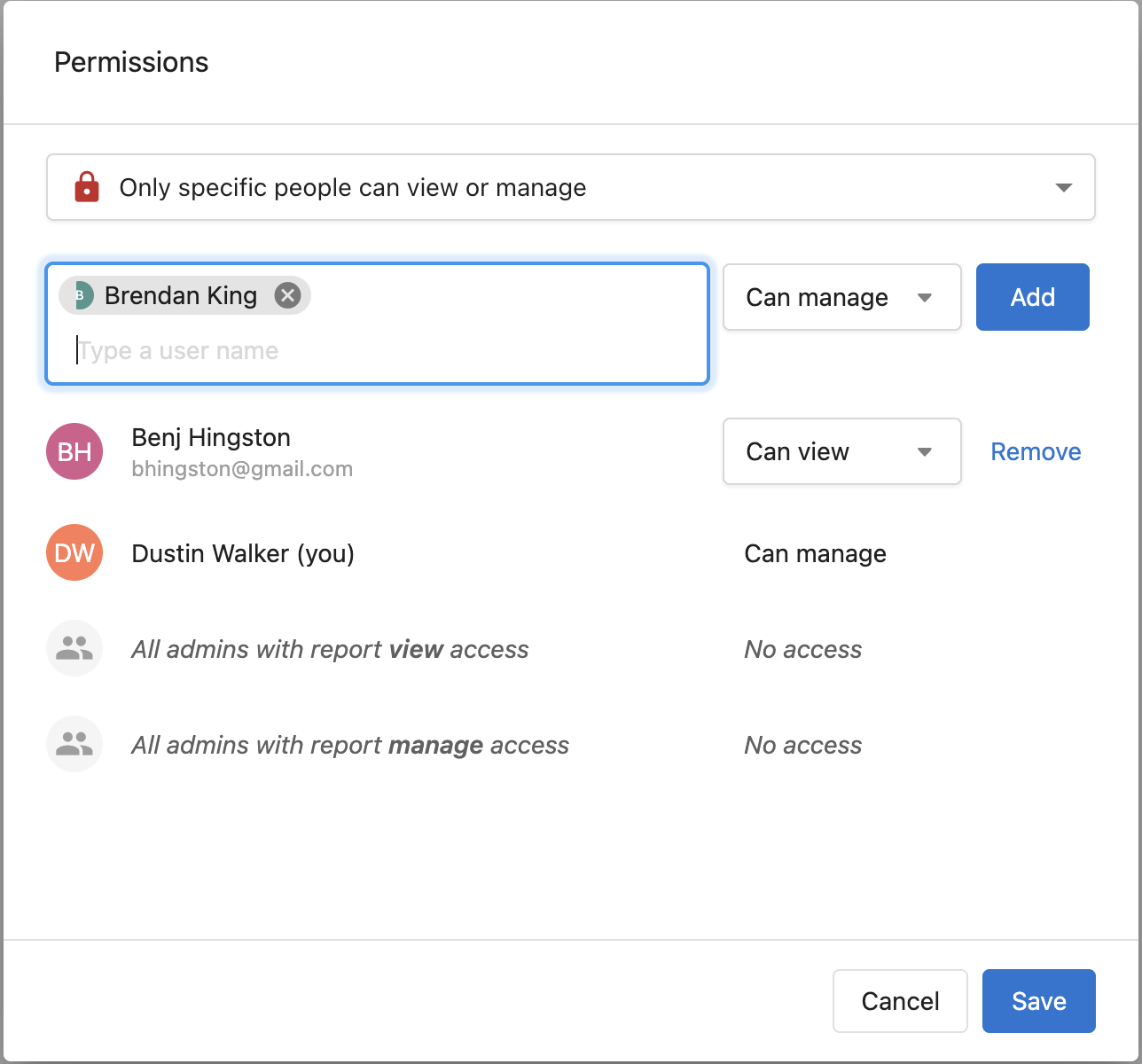
- Type a team member's name in the
Type a user namefield - Pick an access level:
- Can view: the user can open the report
- Can manage: the user can open the report and change its sharing settings
- Click
Add - Click
Saveto apply
Repeat to add more users. Use Remove beside an existing entry to revoke access.
You are always added to the access list with Can manage when you save, so you cannot accidentally lock yourself out of a report.
The "All admins with report ... access" rows
Two rows always appear at the bottom of the access list:
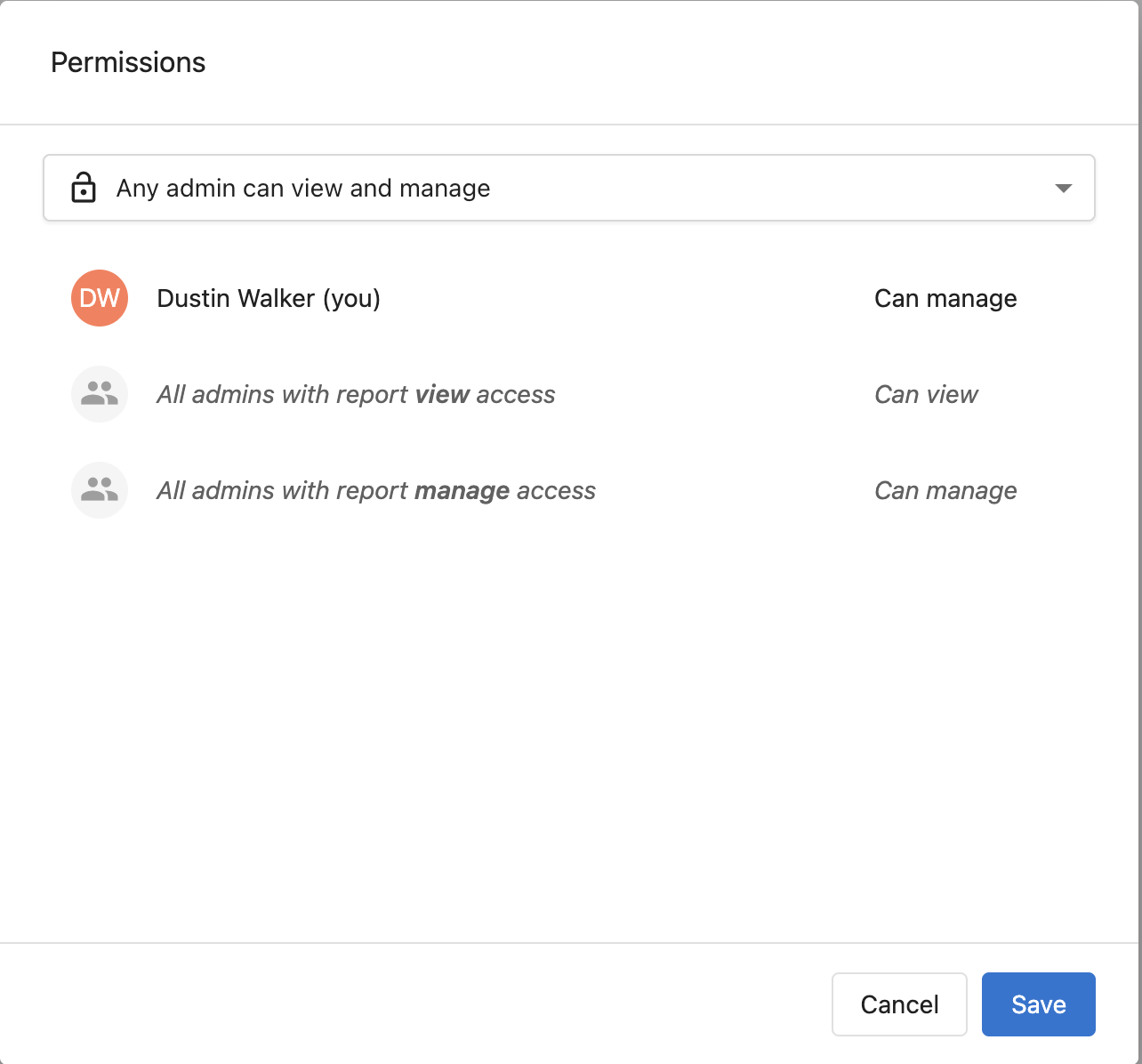
All admins with report view access: represents every admin whose team-wide permission isView all unrestricted reports.All admins with report manage access: represents every admin whose team-wide permission isManage permissions for all unrestricted reports.
Their effective access depends on the sharing mode:
| Sharing mode | All admins with view access | All admins with manage access |
|---|---|---|
| Any admin can view and manage | Can view | Can manage |
| Any admin can view, only some can manage | Can view | Can view |
| Only specific people can view or manage | No access | No access |
These rows let you see at a glance what the rest of your team can do without listing each admin individually.
How the two layers work together
A user can open a Premium Report only if both of the following are true:
- Team-wide: Their My Team permission is
View all unrestricted reportsorManage permissions for all unrestricted reports. - Per-report: Either the report's sharing mode is
Any admin can view and manageorAny admin can view, only some can manage(making it "unrestricted"), or they are listed by name on the report's access list.
To change a report's sharing settings, a user must also have Can manage on that specific report, either through the Any admin can view and manage mode plus the Manage permissions team-wide permission, or by being listed explicitly with Can manage access.
Troubleshooting
Q: I'm trying to add a teammate to a report and they appear greyed out with "Does not have access to reports".
A: That teammate's team-wide Premium Reports permission is set to No access to reports. Before you can grant them access to a specific report, update their My Team permission to at least View all unrestricted reports.
Q: The Premium Reports dropdown is greyed out in My Team.
A: The admin you are editing is restricted to specific markets. Premium Reports requires access to All markets. Update their market access first, then set the Premium Reports permission.
Q: A team member can open a report but can't change its sharing settings.
A: Either their team-wide permission is set to View all unrestricted reports (which is view-only) or the report's mode is Any admin can view, only some can manage or Only specific people can view or manage and they aren't listed with Can manage. Add them explicitly with Can manage, or change their team-wide permission to Manage permissions for all unrestricted reports if appropriate.
Related articles
- Premium Reports overview – Getting started with Premium Reports
- Financial reports – Billing and accounts receivable analytics
- Sales performance reports – Sales activity and pipeline analysis
- Operations reports – Account connections and automation monitoring