Conversations
What is Conversations in Multi-Location?
For partners using Conversations AI Pro or Premium to manage communication across multiple locations, the Multi-Location Conversations feature offers a streamlined solution. Multi-Location Conversations aggregates all conversations from various accounts into a single Conversations. This enables teams to efficiently handle customer communication via Google Business Messages, Facebook, Instagram, SMS, and Web Chat conversations, all within one centralized platform.
Key features
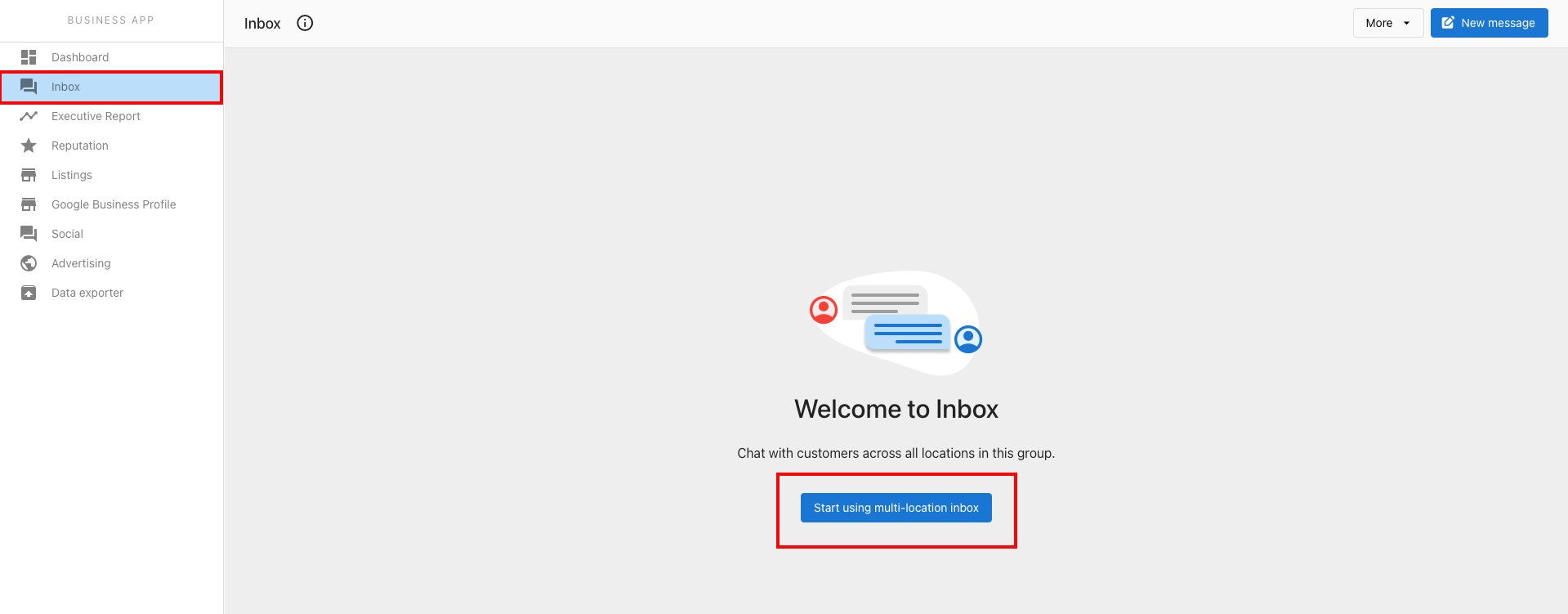
Easy setup: You can opt-in to Multi-Location Conversations by clicking the Start using multi-location conversations button. This action pulls past and future conversations from all accounts within the group into a single, easy-to-access Conversations.
Cross-channel messaging: Multi-Location Conversations supports communication across all available channels, including Web Chat (Pro), Email, Lead Capture Forms, SMS (Pro), Google Business Messages, Facebook, and Instagram.
Closing and opening conversations: Conversations can be "closed" within Multi-Location Conversations, reflecting the status across single-location accounts as well.
Mobile-friendly: Multi-Location Conversations is designed to be mobile-friendly, allowing you to stay connected and respond to messages on the go.
For teams managing communications across multiple locations, we recommend bookmarking the Multi-Location Conversations and keeping it open throughout the day to ensure prompt responses to incoming messages.
Setting up AI-assisted web chat for franchise websites
For brands and franchises with one main website, the multi-location web chat widget lets you add a single widget where visitors choose their location and chat with that location's own AI Chat Receptionist. Each conversation, contact, and lead stays with the right location.
You can also use these approaches, depending on your setup:
- A unique web chat widget on each location's website — best when every location has its own website and team. This keeps separate lead and contact databases for each location.
- A single "HQ" widget — franchises with a centralized team can designate a single-location account as the "HQ" and install that account's web chat widget to manage leads centrally.
How to use Multi-Location Conversations
- Navigate to the desired multi-location group.
- Click
Conversations. This is where you will be able to access a unified view of all conversations from all accounts within the group. - Select
Start using multi-location conversationsto get started.
Frequently asked questions
How long does it take for all conversations to load after clicking "Start using multi-location conversations"?
The loading time varies depending on the number of accounts and conversations being aggregated. It can take a few seconds to a few minutes. There is no notification for completion, so checking back after a few minutes is recommended.