How do I set up the AI web chat widget on my website?
To add the AI web chat widget to your website, go to Conversations → More → Conversations Settings in Partner Center, click Manage widgets, and create a New Web Chat. Then use Embed in the widget's menu to copy the installation code. As a Vendasta Partner, you have access to this AI-powered lead capture widget for your own website at no cost. The video below shows the installation.
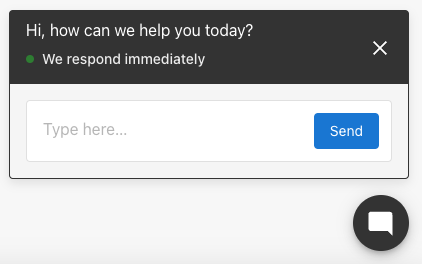
This widget is similar to the Conversations AI version you can sell to your customers. Once installed on your website, the AI assistant acts as a helpful first responder to website visitors, answers questions, gathers contact information and delivers new leads into your CRM.
Multi-location websites
If you or your clients run a brand or franchise with one main website that covers many locations, use the multi-location web chat widget instead. It adds a single widget where visitors choose their location and chat with that location's own AI Chat Receptionist, so every conversation and lead stays with the right business.
Learn how to set it up in Multi-location web chat widget.
Create and manage web chat widgets
You can run more than one web chat widget and assign a different AI employee to each — for example, a sales widget on your pricing page and a support widget on your help page.
- In Partner Center, go to
Conversations→More→Conversations Settings. The page opens on the Web Chat card.Administration→Conversations Settingsreaches the same page. - On the Web Chat card, click Manage widgets to open the Web Chat configuration page. This page lists every widget along with its Assigned Employees, Status, and Widget type.
- Click New Web Chat to create a widget, then give it a Widget name to identify it internally.
From the Web Chat configuration page you can also manage existing widgets using the ⋮ menu on each row:
- Edit: change the widget's AI employee, messages, or appearance
- Embed: copy the installation code for your site
- Delete: remove a widget you no longer use
The System widget is the built-in Chat Receptionist widget and can't be deleted. Its ⋮ menu offers only Edit, with no Embed option, so to get an embeddable widget you need to create a New Web Chat. Widgets you create yourself are marked Standard.
Assign an AI employee
Each web chat widget is handled by one assigned AI employee — either the ready-to-use Chat Receptionist or a custom AI employee you've built.
- Open the widget from the Web Chat configuration page (click its name, or use the
⋮menu and choose Edit). - In the AI employee card, click Select employee.
- In the Select employee dialog, choose the Chat Receptionist or one of your custom AI employees, then click Ok.
- Click Configure on the AI employee card to adjust that employee's knowledge, personality, or capabilities.
- Click Next to save the widget.
A widget can have only one AI employee at a time, but the same employee can be assigned to multiple widgets. If a widget shows a No assigned employee warning, assign one before installing it. To build a specialized employee, see Creating Custom AI Employees.
How do I create a link that opens the web chat widget?
Widget actions allow you to create direct links that automatically open the web chat widget with predefined messages. This is perfect for email campaigns, landing pages, support pages, or any scenario where you want to direct visitors to start a chat with a specific message.
The web chat widget must be installed on the page for these actions to work.
Action Types
There are two types of widget actions you can configure:
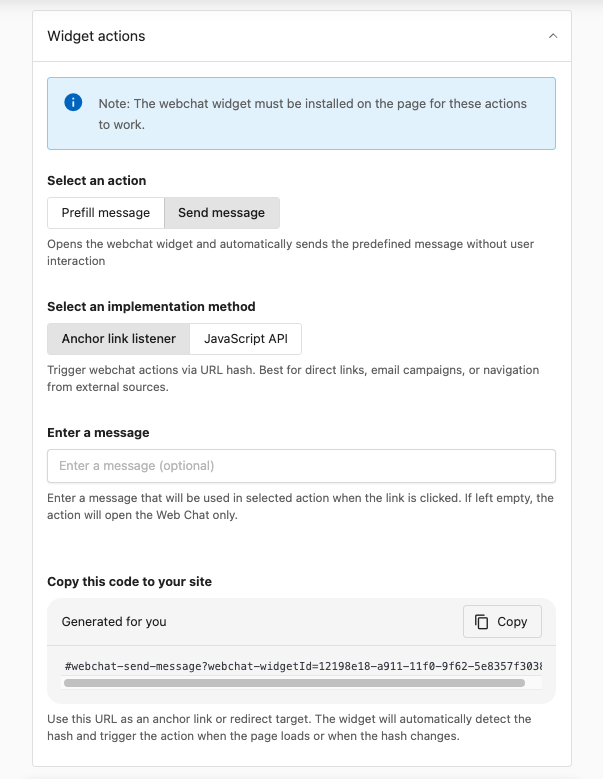
- Prefill message: Opens the widget and pre-fills the message field with your predefined text. The visitor must click Send to actually send the message.
- Send message: Opens the widget and automatically sends the predefined message without requiring any user interaction. This is ideal for immediate engagement.
Implementation methods
You can trigger widget actions using two methods:
Anchor link listener (recommended for most use cases):
- Best for: Direct links, email campaigns, navigation from external sources
- Uses URL hash format:
#webchat-send-message?webchat-widgetId={widget-id}or#webchat-prefill-message?webchat-widgetId={widget-id} - The widget automatically detects the hash when the page loads or when the hash changes
JavaScript API:
- Best for: Custom integrations, dynamic content, programmatic triggering
- Allows you to trigger actions programmatically from your own JavaScript code
Configuration steps
- In Partner Center, go to
Conversations→More→Conversations Settings, open the Web Chat configuration page, then open Widget Actions - Select an action type: Prefill message or Send message
- Select an implementation method: Anchor link listener or JavaScript API
- Enter an optional message that will be used when the link is clicked
- Copy the generated code and use it as an anchor link or redirect target
The generated code will look like: #webchat-send-message?webchat-widgetId=fedf2e7a-30fb-11f0-941a-ea112a20
Use cases
- Email campaigns: Include a "Chat with us" link that opens the widget with a message like "I'm interested in your services"
- Landing pages: Add CTAs that open chat with context-specific messages
- Support pages: Create links that open chat with pre-filled support questions
- Product pages: Enable visitors to ask about specific products with pre-filled inquiries
Frequently asked questions
Why can't I find the embed code for the System widget?
The System widget is the built-in Chat Receptionist widget and has no Embed option. Create a New Web Chat from the Web Chat configuration page, then use Embed in its ⋮ menu to copy the code.
Can I have more than one web chat widget?
Yes. Create a widget for each purpose, like sales on your pricing page and support on your help page, and assign a different AI employee to each.
Can one widget use more than one AI employee?
No. A widget has one assigned AI employee at a time, but the same AI employee can be assigned to multiple widgets.
How do I share a link that opens the chat with a message?
Use Widget Actions to generate a link with a Prefill message or Send message action, like #webchat-send-message?webchat-widgetId={widget-id}. The widget must be installed on the page the link opens.