How do I set up and manage subscription billing?
What is subscription management?
Subscription management in Partner Center Commerce creates retail subscriptions when you activate products and bills your clients automatically on a recurring schedule. You can edit prices, cancel subscriptions, and add or remove products in Commerce → Subscriptions.
Subscription billing is a recurring billing model where customers are billed regularly (monthly, or yearly) to continue accessing products and services. Every activated product or service creates equivalent subscriptions for both partner-to-Vendasta transactions (wholesale subscriptions) and partner-to-client transactions (retail subscriptions).
Why use subscription management?
Subscription billing gives you the following:
Key benefits
- Automated Invoicing: Recurring billing generates customer invoices from orders
- Customizable Sale Prices: Override default store prices and sell at negotiated customer-level prices with automatic recurring billing
- Personalized Invoice Scheduling: Customize payment terms, due dates, payment methods, and memo notes on invoices
- Financial Visibility: View costs and retail revenue per client account in one place
- Subscription Control: View, update, or cancel client subscriptions
- Preview Next Invoice: See upcoming client invoices before they're sent
How do I set up subscription billing?
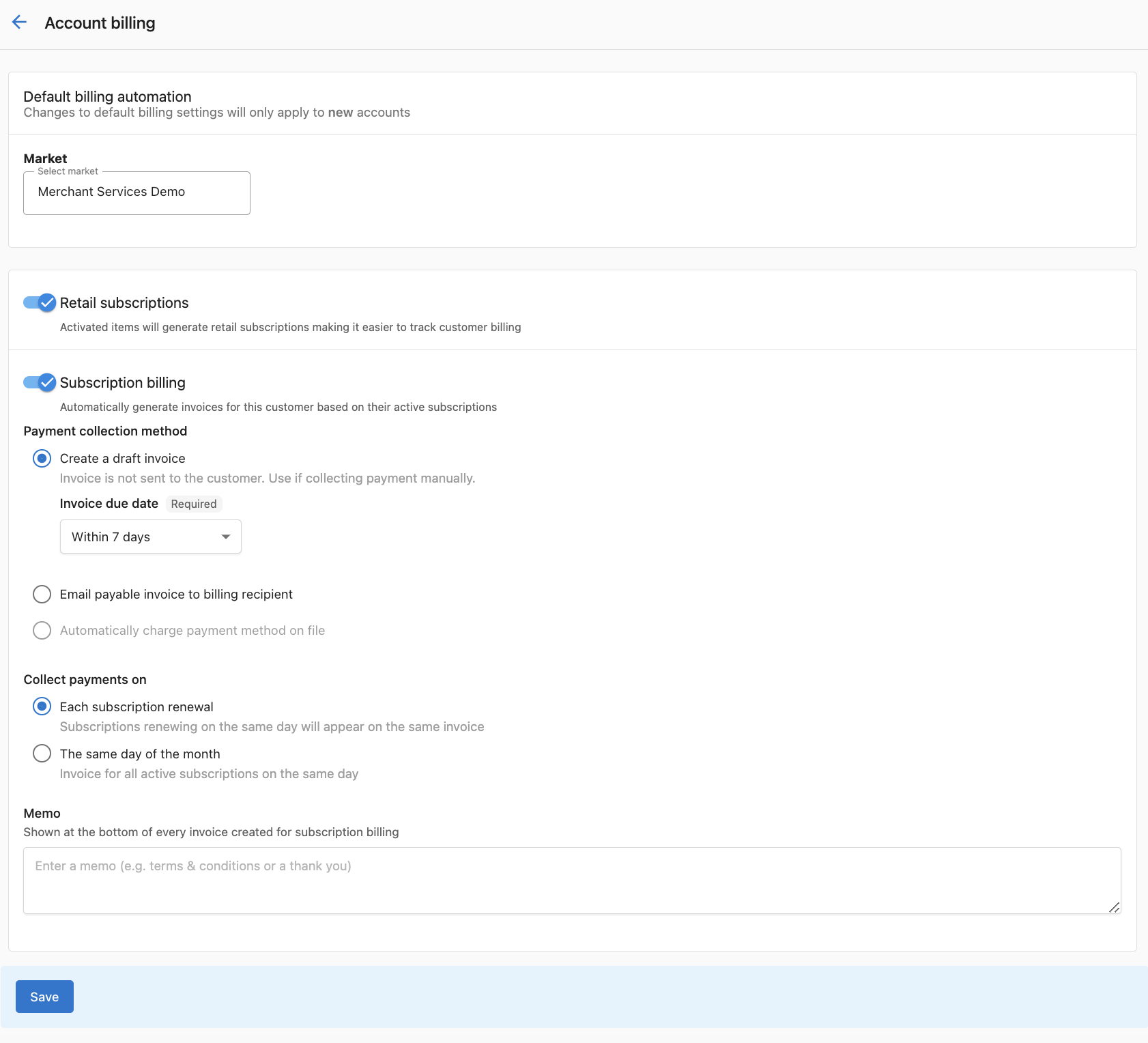
Option 1: Default settings for all new accounts
Configure default settings that apply to all accounts created after saving. Existing accounts can be configured individually.
-
Enable Retail Subscriptions: Toggle theRetail Subscriptionsbutton toONto ensure a subscription is created every time you activate a product -
Enable Subscription Billing: Toggle theSubscription billingbutton toONto turn on customer invoicing (optional) -
Setup Payment Collection:Don't bill, just track revenue: Creates subscriptions and tracks revenue without generating customer invoicesCreate a draft invoice: Creates the invoice and saves it as a draft for manual sendingEmail payable invoice to billing recipient: Generates and emails the invoice to the customer for payment
-
Configure Subscription Renewal: Invoices are sent at 3:00 PM UTC on renewal days. Subscriptions sharing a renewal day will be consolidated into one invoice -
Set Default Renewal Date: Align all subscriptions to have the same renewal day so they appear on the same invoice -
Add Default Memo: Enter a default note added to all invoices generated from subscriptions -
Click
Saveto apply settings to all newly created accounts
Option 2: Account-level billing settings
Configure billing settings for individual customer accounts:
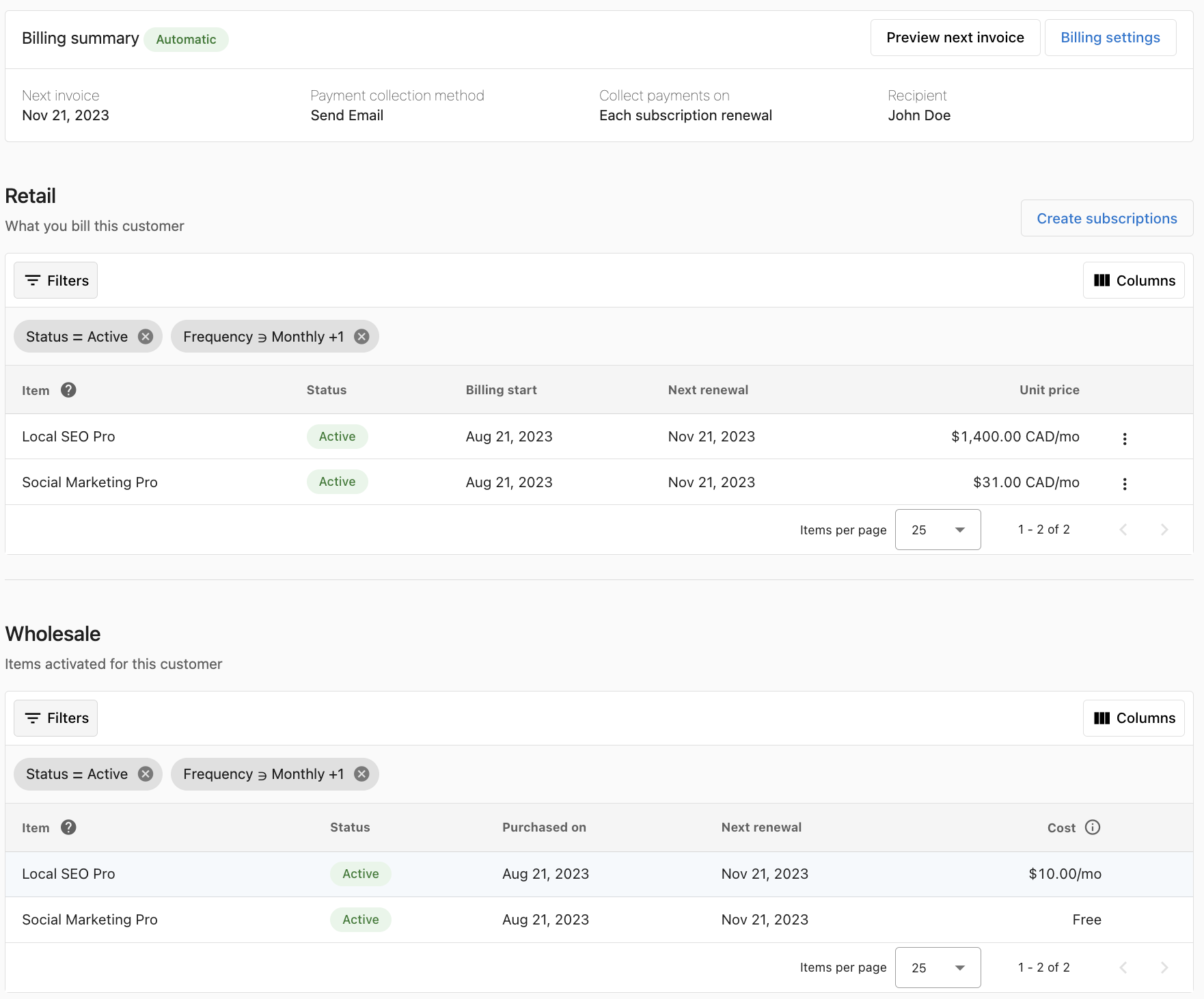
- Navigate to the customer account in Partner Center
- Click
Subscriptionsin the top panel - Click
Billing Settingsin the top right corner Enable Retail Subscriptions: Toggle ON to create subscriptions when activating productsEnable Subscription Billing: Toggle ON to turn on customer invoicingSetup Payment Collection Options:Don't bill, just track revenue: Tracks recurring revenue without generating customer invoicesCreate a draft invoice: Manual invoice sendingEmail payable invoice to billing recipient: Automatic email to customerAutomatically charge payment method on file: Automatic credit card charging (requires a saved payment method, since if none is on file, invoices default to email only)
A payment method must be added to the account before enabling automatic charging. If no payment method is on file, invoices will default to email-only delivery.
-
Configure Collection Timing:Each subscription renewal: Invoice on product renewal daySame day of the month: Consolidate all renewals into one monthly invoice
-
Add Account Memo: Custom note for this account's invoices -
Click
Saveto apply settings to this account only
How do I manage existing subscriptions?
Billing settings overview
When viewing a subscription, billing information displays the configuration specified when creating the subscription. You may need to edit this information for updated credit cards or payment method changes.
Default settings
By default, subscriptions are billed automatically using the pre-configured payment processor on the first day of the billing cycle.
Account-level settings
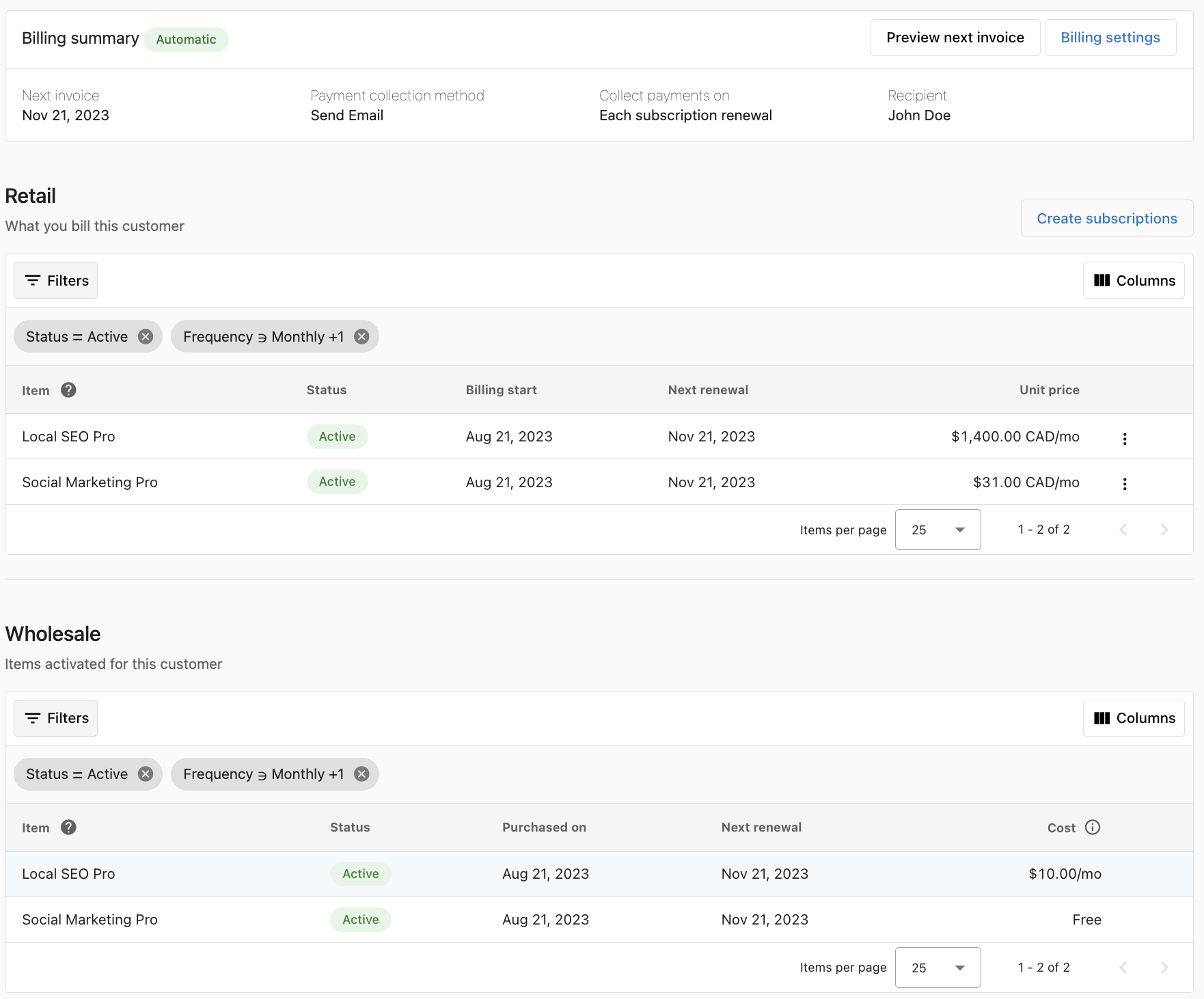
Configure specific settings for handling subscriptions at the account level.
How do I edit subscription prices?
You can edit subscription prices at any time. The platform displays when new prices take effect - changes do not apply to the current billing cycle.
Changing a product's price in your catalog does not automatically update existing active subscriptions. To apply a new price to an existing subscription, you must edit the subscription directly using the steps below. New subscriptions created after the catalog price change will reflect the updated price automatically.
To edit a subscription price:
- Find the subscription in
Commerce→Subscriptions - Click on the subscription you want to modify
- Click the
EDIT PRICEbutton next to the current price - Enter the new subscription price in the relevant fields
- Click
SAVE
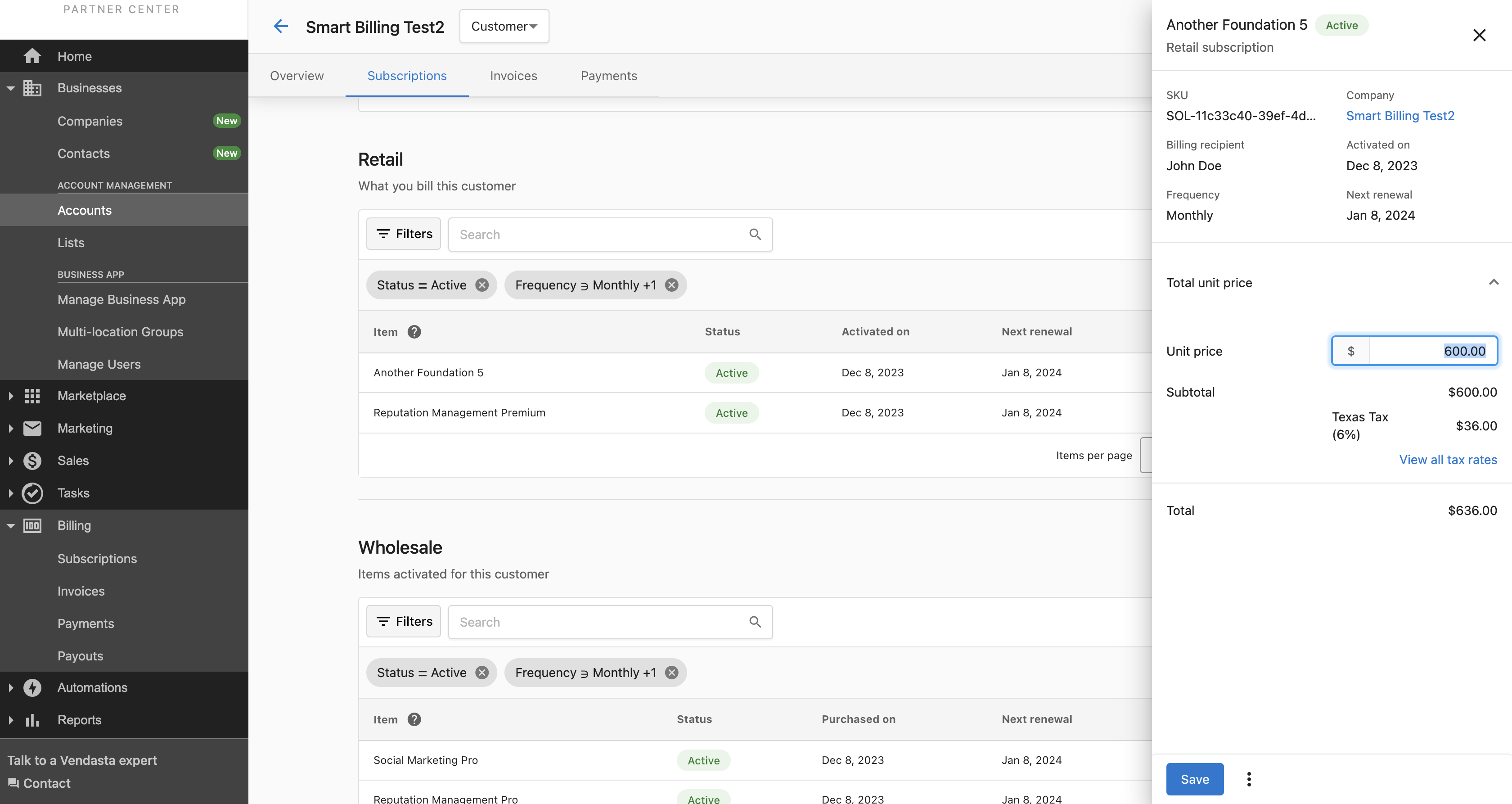
A price change icon will appear next to the price, indicating that a price change will occur on the next billing cycle.
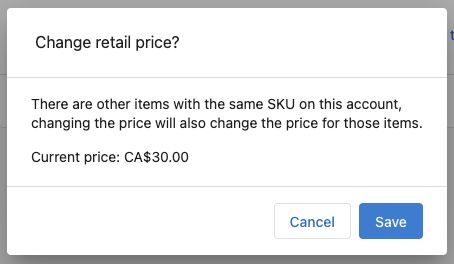
If a product can be activated more than once on an account, pricing changes to one retail subscription will be applied to the others.
How do I cancel subscriptions?
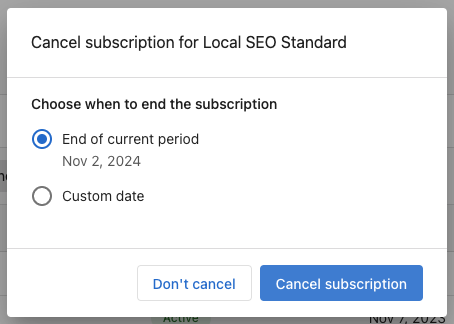
You can cancel subscriptions at any time with two options:
Cancel at end of period
Allows the subscription to remain active until the end of the current billing cycle.
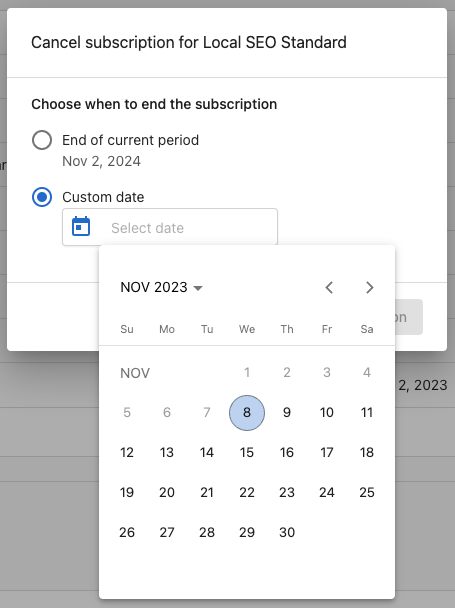
Cancel with custom date
Specify a specific date when the subscription should end.
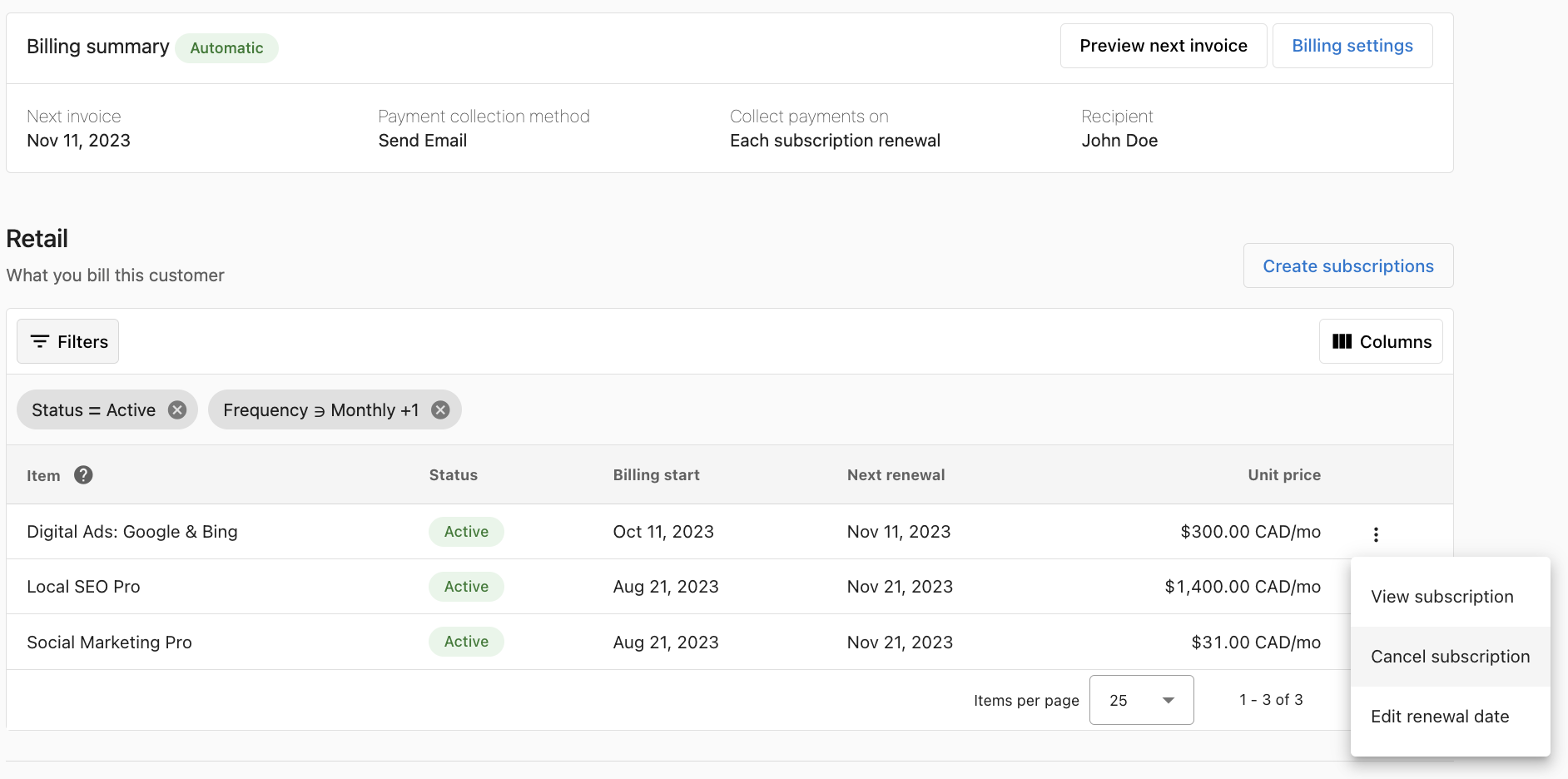
To cancel a subscription:
- Go to the kebab menu (⋮) on the retail subscription you wish to cancel
- Select
Cancel Subscription - Choose cancellation timing (end of period or custom date)
- Select which products to cancel (allows partial cancellation)
- Confirm the cancellation
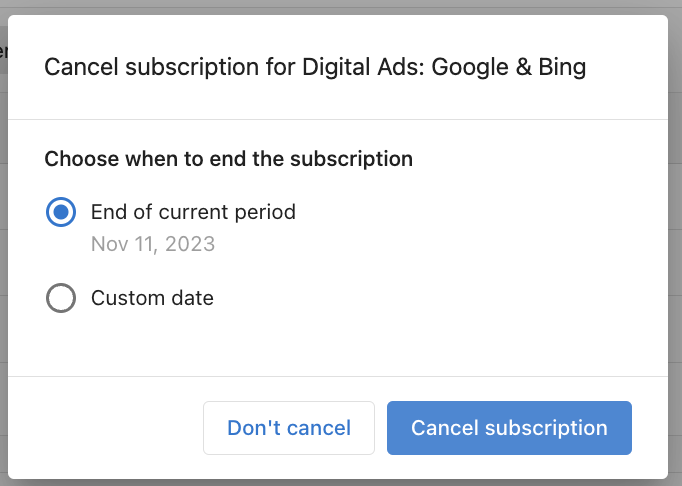
When cancelling a subscription, you can select which products to cancel, allowing you to keep some products active while cancelling others.
How do I add products to subscriptions?
To add products to an existing subscription:
- Navigate to the subscription in
Commerce→Subscriptions - Click on the subscription you want to modify
- Click
ADD PRODUCTS - Select the additional products to add
- Configure the product settings as needed
- Click
SAVE
Newly added products will be prorated for the remaining time in the current billing cycle.
How do I remove products from subscriptions?
To remove products without cancelling the entire subscription:
- Navigate to the subscription in
Commerce→Subscriptions - Click on the subscription you want to modify
- Find the product you wish to remove
- Click the menu icon (three dots) next to the product
- Select
Remove - Confirm the removal
Removing products follows the same cancellation rules as cancelling subscriptions - you can choose to remove the product at the end of the billing period or on a specific date.
Frequently asked questions
If I sell a package, does my client get one invoice or several?
Items in a package that share a billing frequency are billed together, so a package of monthly products produces a single monthly charge for the package total rather than one charge per product.
Packages support mixed frequencies, and items on different cycles bill on their own cycles. A package containing monthly products and a yearly product produces the monthly charge every month and the yearly charge once a year. The retail subscription reflects each item's own billing cycle.
The subscription view lists every product separately, which can look like several charges. Check the next invoice amount rather than the product list to see what the client will actually be billed.
If a client has products that were activated on different dates and you want everything to land on one invoice, set Use a specific renewal date in your billing settings. See Getting started with subscriptions and client billing.
Who can use subscription billing?
All partners on the Vendasta platform can use retail subscriptions to manage their customer billing whether or not they have merchant services enabled. You can track recurring revenue on every account you sell to.
How do I receive payment from my customer?
Retail subscriptions will generate invoices for your customers according to the billing settings you have set up for the account. Payment is collected based on your chosen payment collection method:
- Draft invoices: You manually send invoices to customers
- Email invoices: Customers receive invoices by email and can pay online
- Automatic charging: Payment methods on file are automatically charged
How do I sell custom products?
For custom products, add them to your store in the platform:
- In Partner Center, go to
Marketplace→Products - Click
Create Productin the top right corner - After the product is created, add it to an order or activate it for your customer
What happens with product version upgrades and downgrades?
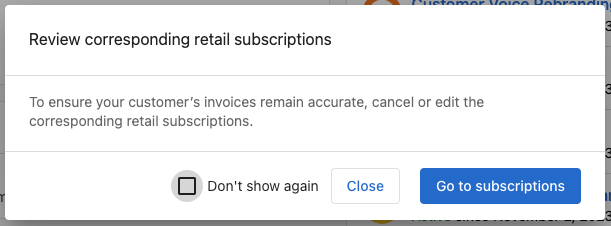
Each version creates its own retail subscription. You need to cancel the older version so it's not added to your customer's upcoming invoice.
Refer to the subscription cancellation steps above for how to cancel a subscription.
What should I do when product activation fails or orders are rejected?
When products in an order fail to activate due to failed payment, vendor rejection, etc., the created retail subscription needs to be manually cancelled so they are not added to the customer invoice.
Refer to the subscription cancellation steps above for how to cancel a subscription.
Will subscription billing stop my recurring invoices?
No. Recurring invoices are not impacted by subscription billing. However, make sure you are not double billing your client on the same products with retail subscriptions and recurring invoices.
I use "bill by active" - how does subscription billing impact me?
The "Bill by active" billing option supports subscription billing and all its features. Your customer billing is not impacted, and you get these features:
- Retail subscription prices are displayed
- Retail subscriptions can be managed (edit price, cancel subscription)
- Upcoming invoices can be previewed
- The wholesale subscriptions section provides full cost and revenue context
With subscription billing, make sure to stop billing your customer when you cancel a product or service by following the subscription cancellation steps.
How do I change the price of a retail subscription?
The unit price of a retail subscription is the amount the customer will be billed every billing period. The unit price can be edited while the subscription is active, and changes apply to all subsequent billing periods.
- Open the retail subscription you'd like to edit by clicking the row or selecting
View subscriptionin the kebab menu - Click the unit price of the retail subscription
- Enter the new price and click save
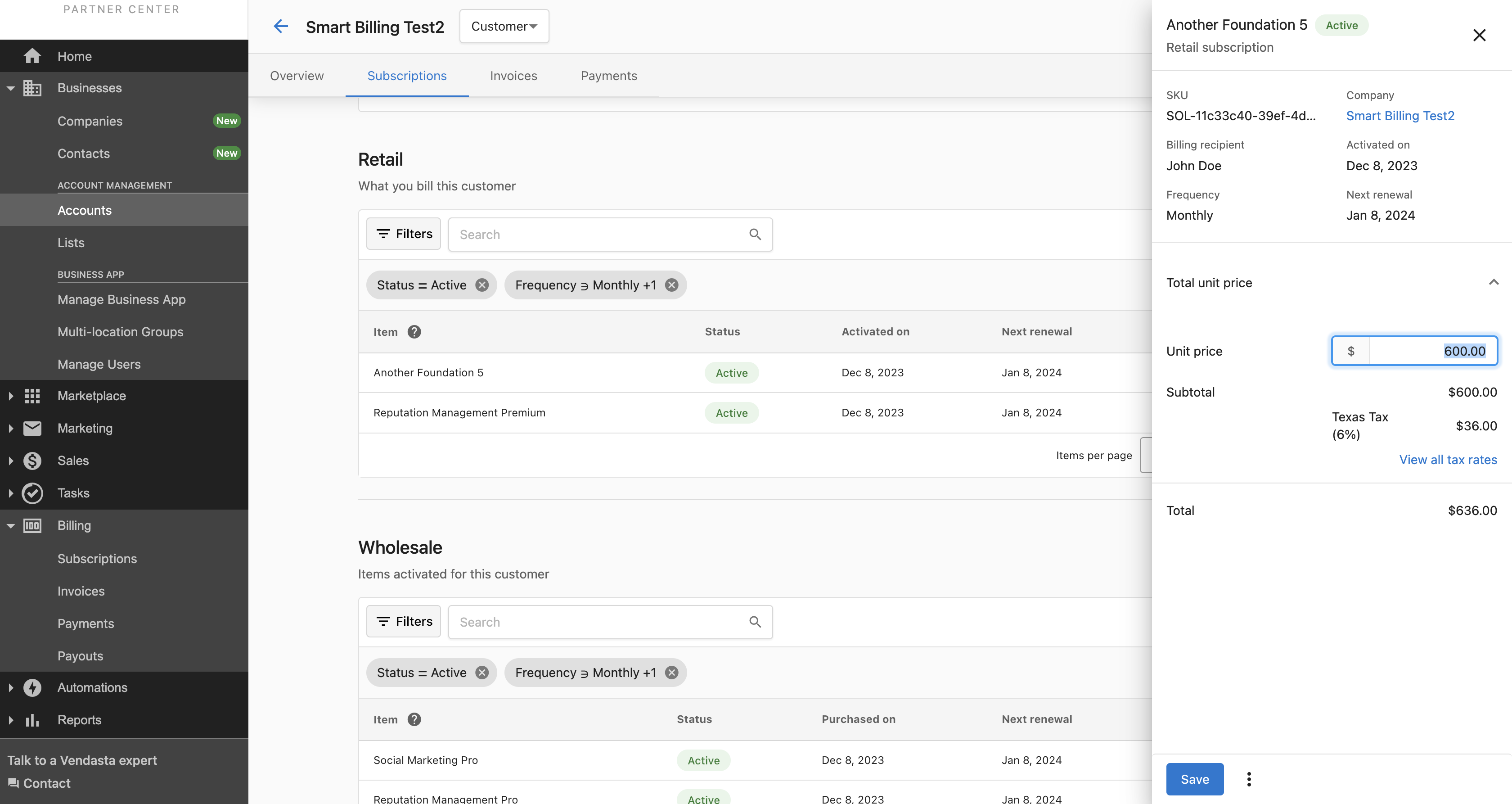
If a product can be activated more than once on an account, pricing changes to one retail subscription will be applied to the others.
I cancelled a product - how do I stop billing my client?
You can cancel the retail subscription on a product or service to stop billing your client. The status will change to Inactive. All other Active subscriptions will continue to generate invoices.
Follow the subscription cancellation steps in the management section above.
When does the first billing charge occur for a new subscription?
Subscriptions do not charge in the creation month. The first automatic charge occurs on the next renewal date after the subscription is created.
For example, if you create a subscription on March 15 with a monthly renewal, the first automatic charge will be on April 15.
To bill your customer immediately in the creation month, manually issue an invoice from the subscription.
What happens when a subscription trial ends?
Trial subscriptions do not automatically convert to paid subscriptions when the trial period ends. Once the trial expires, services will no longer be available to the customer unless you manually upgrade to a paid plan.
To continue service after a trial, upgrade the subscription before or when the trial ends.
Creating a trial subscription does not require a credit card on file, making it easy to start a trial without payment information.
Are there limits on subscription quantities?
Subscriptions support quantities from 1 to 99 units per subscription. For larger orders, adjust the unit price to reflect the full order value and create a single subscription.
What are the Free tier limitations for subscriptions?
Partners on the Free tier have limited access to subscription features:
- Pricing: Retail pricing only, no wholesale discount pricing available
- SMS messaging: Businesses associated with a Free Partner account cannot claim an SMS number or send messages via Business App
- White-label customization: You cannot apply or manage white-label settings on the Free tier. If you had white-labeled products active before a downgrade, they will remain as-is but cannot be modified until you upgrade
To access these features again, upgrade to a paid subscription tier by contacting your Vendasta representative.
If your account has been suspended or sent to collections, it may have been automatically downgraded to the Free tier. Contact your Vendasta representative to discuss upgrading to a paid plan.
Important notes
- Subscription renewal invoices are sent at 3:00 PM UTC on renewal days
- Subscriptions sharing a renewal day will be consolidated into one invoice
- Price changes do not apply to the current billing cycle
- Newly added products are prorated for the remaining billing cycle time
- Product removals follow the same timing rules as subscription cancellation
- Default settings apply only to newly created accounts after saving
- Account-level settings override default settings for specific accounts
- New subscriptions do not charge in the creation month: the first automatic charge occurs on the next renewal date
- If no payment method is on file, invoices default to email-only delivery