How do I connect integrations in Business App?
What are Integrations?
Integrations in Business App connect your clients' external accounts, such as Google Business Profile, Google Analytics, Facebook, and QuickBooks, from Administration → Integrations. Connected accounts supply Executive Report data and can trigger automated review requests.
Dozens of other business tools can also connect, so data is shared in one place and workflows run automatically instead of being managed across separate platforms.
Why are Integrations Important?
Connecting business accounts is a key step in getting value from Business App and related services. Integrated accounts provide the data that shows return on investment and enables automation. Key benefits include:
- Centralized data management - All business metrics and information in one location
- Automated workflows - Review requests, data sync, and customer communications happen automatically
- Improved analytics - Executive Report and Marketing Funnel powered by real business data
- Time savings - Eliminates manual data entry and platform switching
- Better customer experience - Automated touchpoints and personalized communications
- ROI tracking - Clear metrics demonstrate service value and business growth
What can you do with integrations?
Core Connection Types
- Google Services: Business Profile, Analytics, Search Console
- Social Media Platforms: Facebook, Instagram, LinkedIn, X
- Business Management Tools: QuickBooks, HubSpot, various CRM systems
- Industry-Specific Software: Legal practice management, field service tools
- API-Based Integrations: Custom connections using API keys
- SSO-Based Integrations: Single sign-on enabled third-party applications
Integration Capabilities
- Automated Data Sync: Customer information, transactions, and business activities sync automatically
- Review Request Automation: Trigger review requests based on completed jobs or services
- Analytics Integration: Business data feeds into Executive Report and Marketing Funnel
- Workflow Automation: Connect business events to marketing and communication workflows
- Single Sign-On: Access integrated applications without separate logins
How do I set up integrations?
How do I access integrations?
-
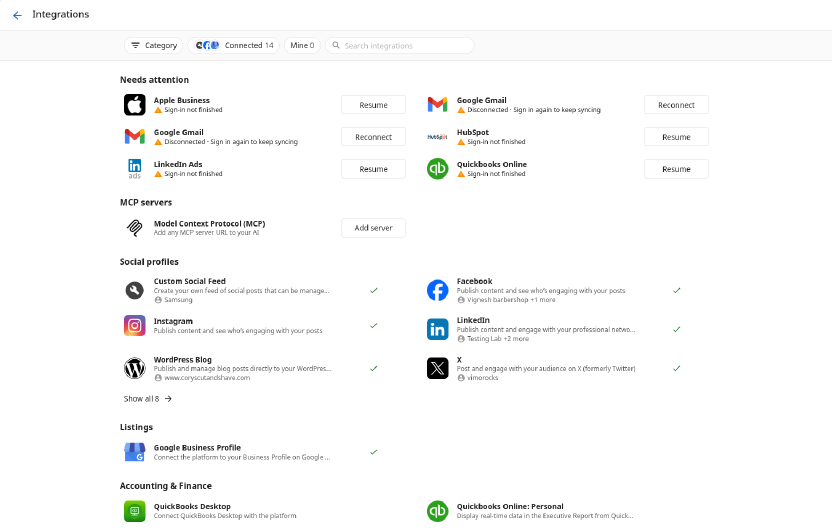
Navigate to Integrations
- In Business App, go to
Administration→Integrations - Every integration shows on one page — there's no separate Browse or Manage tab
- In Business App, go to
-
Understanding the layout
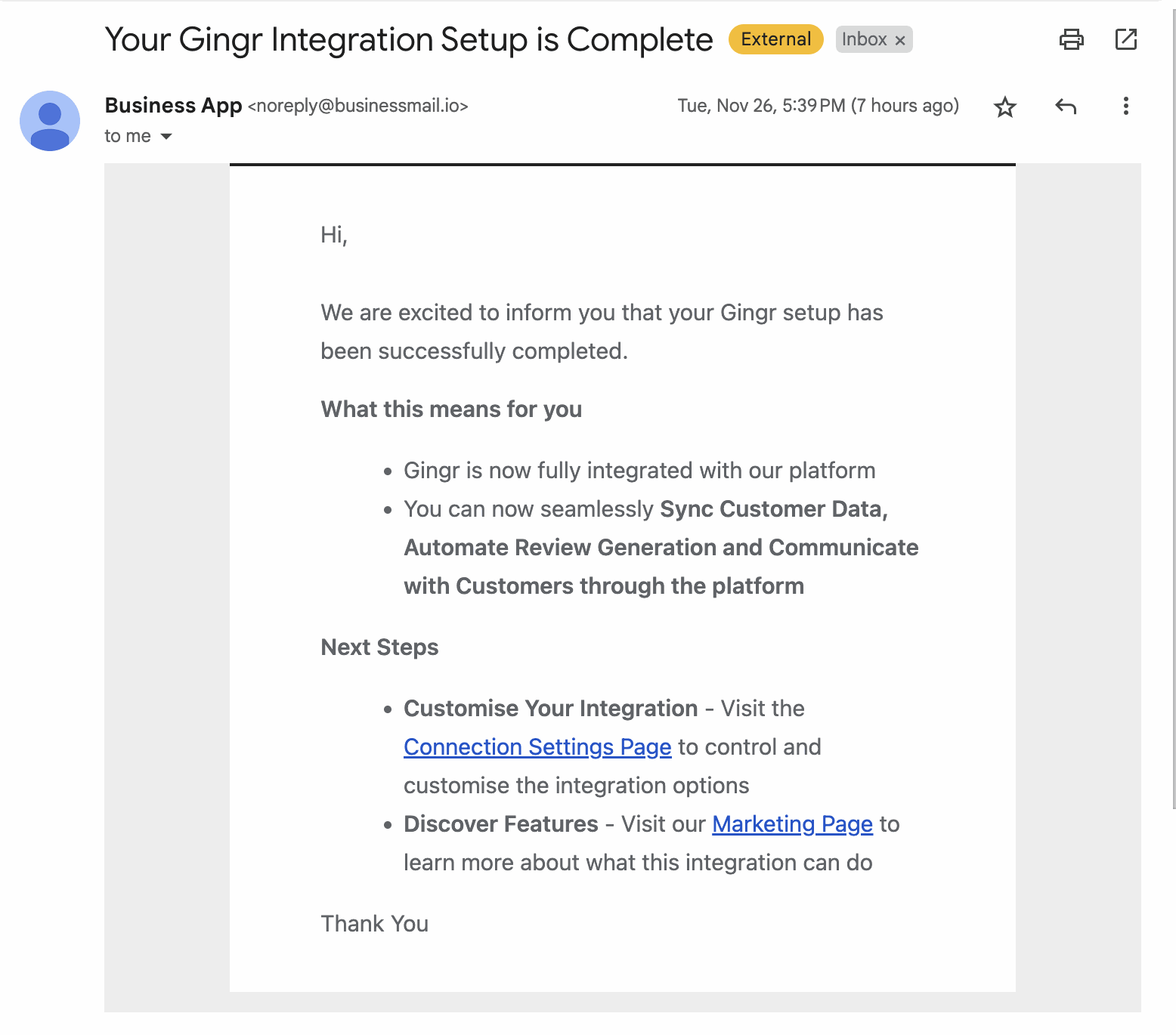
- Needs attention: broken connections come first, with Reconnect or Resume and the reason shown right on the row
- MCP servers: use Connect MCP in this section to connect a public MCP server — see How do I connect a public MCP server? below
- One section per category: each shows six integrations, connected ones first, with Show all for the rest
- Rows with more than one account: working accounts share one row (for example "amanda@… +2 more"), with an Add button to connect another
How do I connect a public MCP server?
A business can connect any tool that has a public MCP server to Business App. Add the server's URL, sign in, and give its capabilities to an AI Employee — there's no need to wait for a native integration.
Connect the MCP server:
- In Business App, go to
Administration→Integrations. - In the MCP servers section, click Connect MCP.
- Enter the public MCP URL.
- Give the integration a name.
- Choose how to sign in: API key or OAuth.
- Enter the API key, or sign in and approve access for OAuth.
- The new integration card appears on the Integrations page.
Give it to an AI Employee:
- Go to
AI Employeeand open the AI Employee to configure. - Add the capability from the MCP integration you just connected.
- Save. Chat with the AI Employee and it will use that capability.
Each connected MCP server shows up as its own integration card on the Integrations page.
Only public MCP URLs work — private or local servers aren't supported. Tool quality depends on the third-party MCP server; Vendasta doesn't control or support external servers.
How do I filter and search integrations?
- Category: narrow the list to one category
- Connected: show only integrations you're connected to
- Mine: show only the connections you made yourself
- Search: looks at integration names, descriptions, and category names
The filters and categories you choose are kept in the page link, so you can copy the link and send a filtered view to someone else. Opening an integration and going back returns to the same filtered view.
How do I connect more than one account to an integration?
A business can connect more than one account to the same integration — for example, two Gmail inboxes or two Shopify stores.
- On a connected row, select Add to connect another account, up to the integration's limit.
- If none of the existing accounts work, a separate Connect row appears instead.
- If you connected a second account before this layout existed, it wasn't lost — it was always connected, and now appears on the row (or in Needs attention if it needs fixing).
To see who connected an account, open the integration — this moved from the list to the integration's own page.
How do I set up the Google Business Profile connection?
-
Locate Google Business Profile Integration
- On the Integrations page, find the Google Business Profile card (search or filter by Category)
- Click on the card to view integration details
-
Connect Your Account
- Click Connect button
- Sign in to your Google account when prompted
- Grant necessary permissions for Business App access
- Confirm connection authorization
-
Verify Connection Status
- A green check on the Google Business Profile row means it's connected
- Connection enables Executive Report data and review management
How do I set up the QuickBooks integration?
-
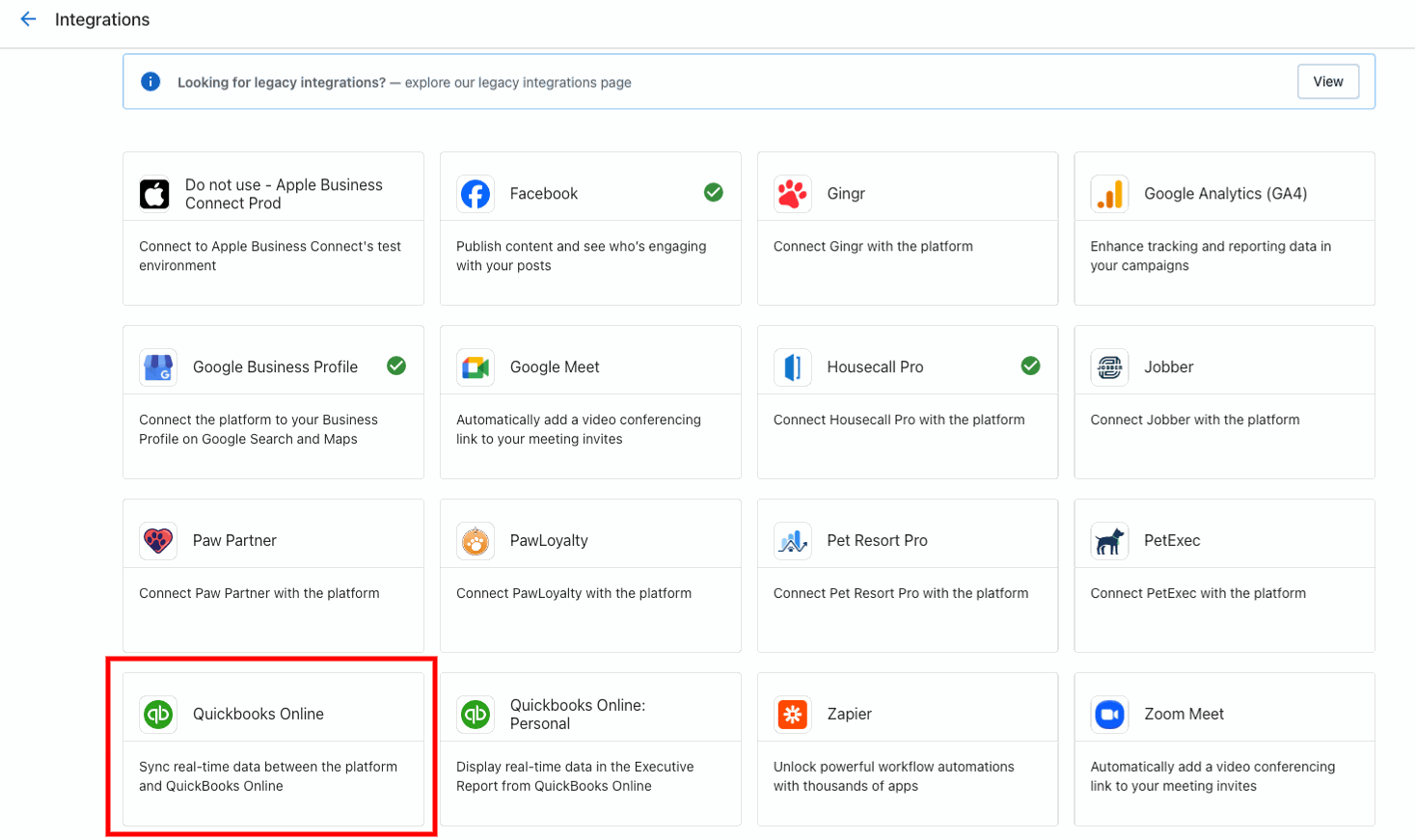
Find QuickBooks Integration
- On the Integrations page, locate the QuickBooks card (search or filter by Category)
- Click Learn more to open marketing page
-
Initiate Connection Process
- Click Connect button on marketing page
- Complete pre-connect form with business information
- Submit form to proceed to QuickBooks authorization
-
Complete QuickBooks Authorization
- Enter QuickBooks credentials on sign-in page
- Select or create QuickBooks company
- Allow Business App to connect to QuickBooks
- Confirm permissions and complete setup
-
Manage QuickBooks Integration
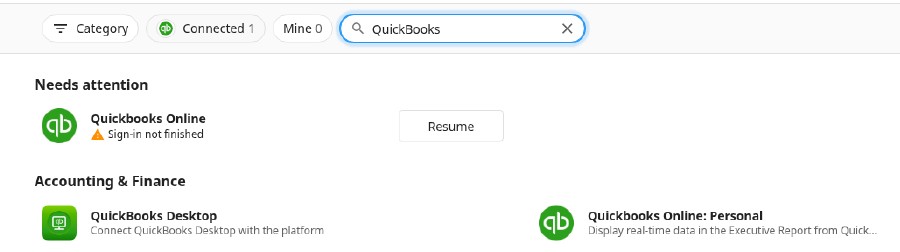
- Use the Connected filter on the Integrations page to find the QuickBooks row
- Access QuickBooks data through Business App navigation
- QuickBooks information appears in Executive Report
Important Note: Users must log in to Business App directly to connect QuickBooks. Partners cannot impersonate users for this connection. Only the connecting user can see and interact with QuickBooks data.
How do I connect LinkedIn Ads?
-
Find the LinkedIn Ads integration card
- Go to
Administration→Integrations - Locate the LinkedIn Ads integration card (search or filter by Category)
- Open the integration to view its marketing page
- Go to
-
Start the connection flow from the marketing page
- Click Connect or Add Connection (based on the integration prompt)
- Complete any required pre-connect form
-
Authorize and complete setup
- Sign in to LinkedIn when prompted
- Review and approve the requested permissions
- Finish the connection flow
-
Verify and configure the connection
- Use the Connected filter on the Integrations page to find the LinkedIn Ads row
- Confirm it shows a green check
- Click the row to open Connection Settings and manage configuration
How do I set up SSO-based integrations?
-
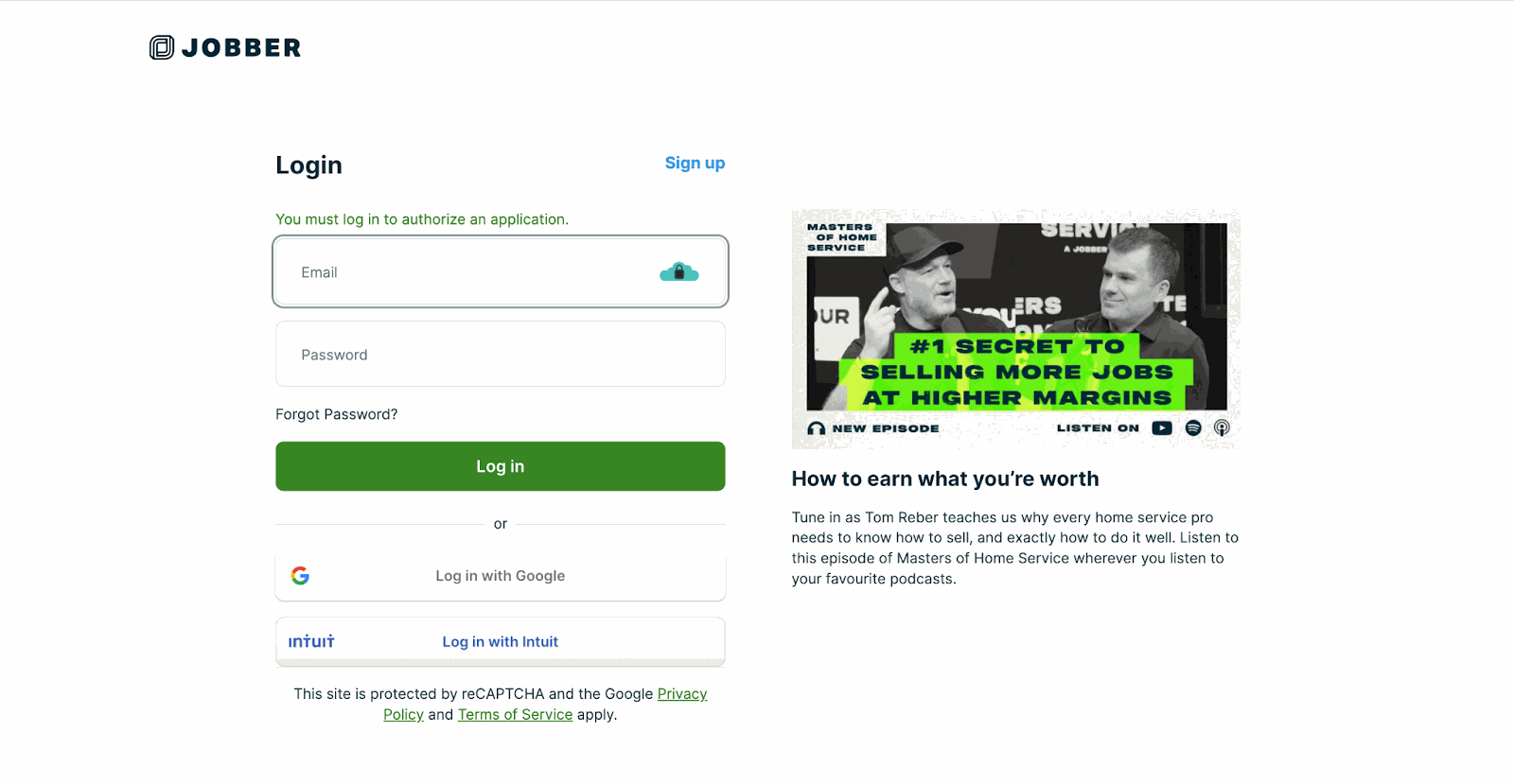
Browse Available SSO Integrations
- Review applications on the Integrations page
- Each application displays marketing page with features and benefits
- Look for applications marked as "SSO-Based"
-
Initiate SSO Connection
- Click Connect button on application marketing page
- Complete any required pre-connect forms
- Follow Single Sign-On prompts
-
Complete SSO Authorization Process
- Create new account with third-party service OR
- Connect to existing account
- Provide authorization for data sharing
- Confirm permissions and complete setup
-
Manage SSO Connections
- Use the Connected filter on the Integrations page to view connected applications
- Rows display for each integrated application
- Marketing pages show "Connected" tag for active integrations
How do I set up API-key based integrations?
-
Find API-Key Integrations
- Look for integration cards marked "API-Key Based"
- Click on integration to view marketing page
- Review features, pricing, and requirements
-
Add API-Key Connection
- Click Add Connection button on marketing page
- Enter API key or credentials from third-party service
- Configure connection settings as required
- Save connection configuration
-
Monitor Connection Status
- A green check on the row means the integration is connected
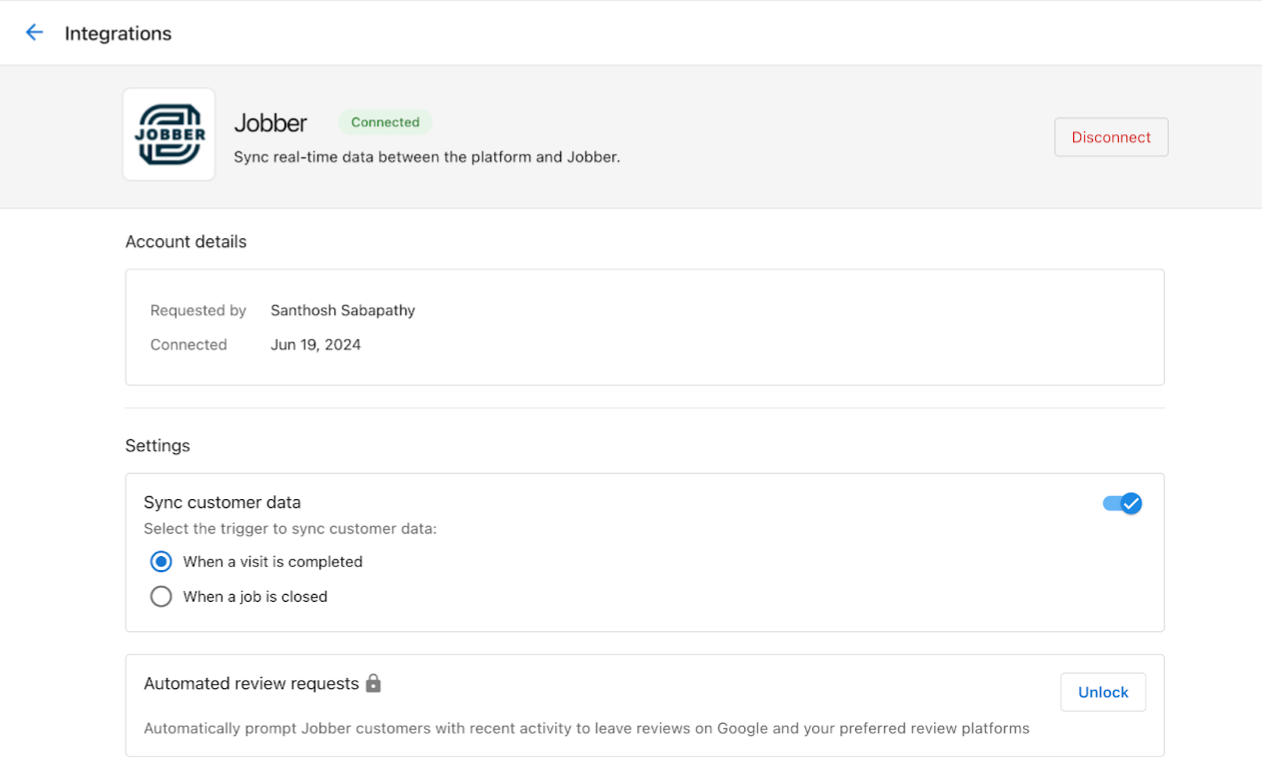
- Unfinished or broken connections are listed in Needs attention at the top of the Integrations page, with the reason and an action:
- Resume, for example "Sign-in not finished"
- Reconnect, for example "Disconnected · Sign in again to keep syncing"
How do I configure data sync and automated review requests?
-
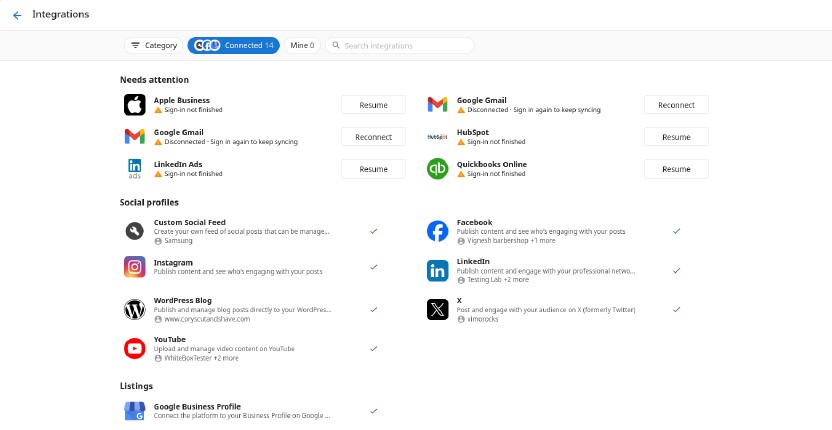
Access Connection Settings
- Use the Connected filter on the Integrations page to find the service
- Click on the row for the integrated service
- Access Connection Settings page
-
Enable Data Sync
- Toggle on Data Sync feature
- Choose triggering events (e.g., "Visit Completed" or "Job Completed")
- Configure sync preferences for customer data
- Save data sync settings
-
Set Up Automated Review Requests
- Requirement: Reputation AI Premium subscription
- Enable automated review request option
- Configure trigger events for review requests
- Set timing for review request delivery
-
Benefits of Data Sync and Review Automation
- Data Sync: Customer information automatically updates in Business App
- Review Requests: Automatic requests sent after job completion
- Complete view: Full customer interaction history
- Improved Reputation: Consistent review collection process
How do I connect Facebook?
Requirements:
- The Business App user must be an Admin on the Facebook page they are connecting.
- The user must log in directly to Business App — partners cannot complete this connection via impersonation.
Steps:
- In Business App, go to
Administration→Integrations. - Find the Facebook card (search or filter by Category) and click Connect.
- Sign in to Facebook and grant the requested permissions.
How to remove a Facebook connection:
You cannot remove a Facebook connection from within Integrations directly. To remove it:
- Go to the product powered by the Facebook connection (e.g., Reputation AI).
- Find the connected Facebook page listing.
- Select Remove this match to disconnect the page.
How do I connect WhatsApp?
Requirements:
- The business must have a payment method on file in Meta Business Platform before WhatsApp can be connected.
- WhatsApp uses the same Meta Business account as Facebook.
Steps:
- Go to
Administration→Integrationsand find WhatsApp (search for it or filter by Category). - Click Connect and follow the Meta authorization flow.
- If the connection drops, go to the same card and click Reconnect, then re-authorize through Meta.
How do I connect LinkedIn?
Requirements:
- The Business App user must have Superadmin (Admin) privileges on the LinkedIn Page they want to connect — Page Admin access is not sufficient.
Steps:
- Go to
Administration→Integrationsand find the LinkedIn card (search or filter by Category). - Click Connect and sign in to LinkedIn.
- Select the page to connect and authorize.
If the connection fails, verify that the user holds Superadmin-level access on the LinkedIn Page in LinkedIn's settings.
How do I set up the OctoTable integration?
Requirements:
- An OctoTable account with RixAPI enabled.
Steps:
- In OctoTable, search for RixAPI and enable it.
- Locate the Property ID in OctoTable — it's needed to complete the connection.
- In Business App, go to
Administration→Integrationsand find the OctoTable card (search or filter by Category). - Click Connect, then enter the Property ID on the pre-connect form.
- Click Add Connection to complete setup.
OctoTable connections use a shared, pre-configured Client ID and Secret. Only a Property ID is required to connect — there are no separate Client ID or Secret fields to fill in.
How do I set up the Google Analytics connection?
-
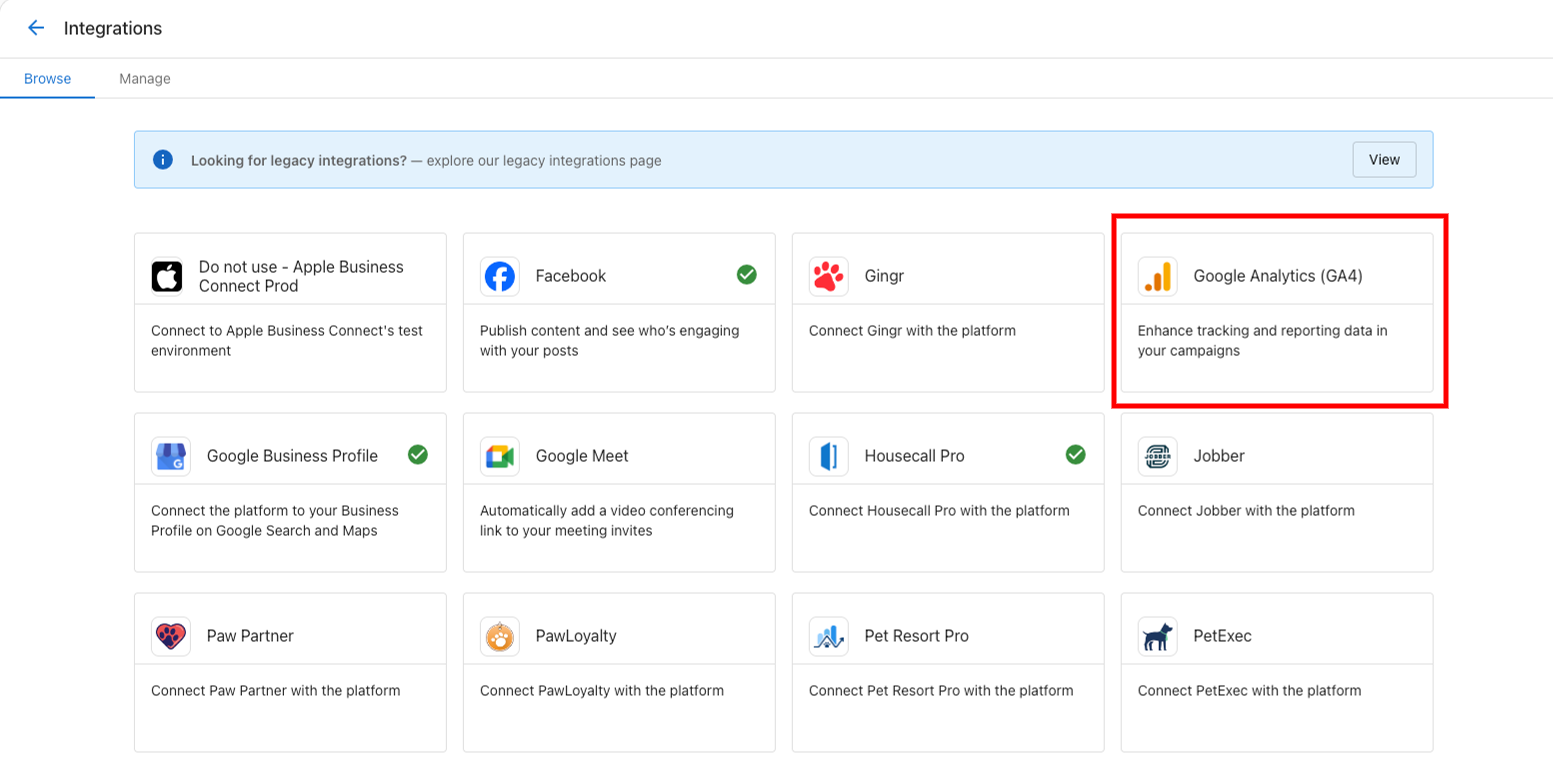
Access Google Analytics Integration
- Navigate to
Administration→Integrations - Click GA4 connection card
- Navigate to
-
Connect Google Analytics 4
- Marketing page opens for GA4 integration
- Click Add Connection to begin setup
- Follow Google authorization process
- Select appropriate GA4 property for connection
How do I set up vendor-managed integrations?
-
Access Vendor Integration Portal
- Navigate to Business App Administration
- Click Vendor Integrations tab
-
Connect Available Integrations
- Browse available vendor integrations
- Each shows vendor name, logo, and description
- Click Connect button for desired integration
-
Complete Authorization Process
- Popup window opens with third-party login
- Enter credentials for third-party service
- Review and approve requested permissions
- Window closes automatically when complete
-
Manage Vendor Integrations
- View connected integrations in Installed Integrations tab
- Disconnect integrations if needed
- Monitor integration status and performance
How do I troubleshoot and manage integrations?
Connection Troubleshooting
- Invalid API Key: Verify key accuracy and expiration status
- Permission Issues: Ensure API key has necessary permissions
- Service Downtime: Check third-party service status
- Authorization Problems: Re-authorize connection if needed
Integration Best Practices
- Regular Monitoring: Check connection status periodically
- Permission Management: Review and update permissions as needed
- Data Quality: Ensure accurate information in connected systems
- Security: Use strong authentication for all integrations
- Documentation: Keep track of connected services and their purposes
Supported Integration Examples
- Field Service: Jobber, Housecall Pro
- Legal Practice Management: Clio
- Accounting: QuickBooks Online
- CRM: HubSpot (two-way sync of Contact and Company records)
- Social Media: Facebook, Instagram, LinkedIn
- Analytics: Google Analytics 4, Google Search Console
- Review Platforms: Google Business Profile integration
- Restaurant Management: OctoTable
Frequently Asked Questions
Why can't I connect QuickBooks when impersonating a user?
QuickBooks integration requires the actual Business App user to log in directly. Partners cannot impersonate users to complete this connection. Only the user who connects QuickBooks can see and interact with the QuickBooks data in Business App.
Why is the Facebook connection failing or showing a loading error?
Facebook connection issues are most often caused by insufficient page permissions. The Business App user must be a Facebook Page Admin — not just an editor or analyst. Try the following:
- Confirm Admin access on the Facebook page in Facebook Business Settings.
- Clear your browser cache and cookies, or try connecting in an incognito window.
- Disconnect any existing Facebook connection, then reconnect.
How do I remove a Facebook connection from Business App?
You cannot remove a Facebook connection from Integrations directly. Instead, go to the product that uses the Facebook connection (e.g., Reputation AI), find the Facebook page listing, and select Remove this match to disconnect it.
Why can't I connect WhatsApp in Business App?
WhatsApp requires a payment method on file in Meta Business Platform before the connection can be authorized. If payment is not set up, the Meta authorization flow will block the connection. Add a payment method in Meta Business Manager, then retry the WhatsApp connection.
What permissions do I need to connect a LinkedIn account?
The user connecting LinkedIn must hold Superadmin (Admin) privileges on the LinkedIn Page — standard Page Admin access is not sufficient. Verify the permission level in LinkedIn's Page settings before attempting to connect.
General tips for fixing a connection that won't complete
If a social or third-party connection fails to load or authorize:
- Clear browser cache and cookies, then retry.
- Use an incognito/private window to rule out cached session issues.
- Verify permissions — many connections require specific admin roles on the external platform (see the platform-specific sections above).
- Disconnect and reconnect — open the integration and disconnect the existing connection, then reconnect fresh.
What's the difference between SSO and API-key integrations?
SSO integrations use Single Sign-On for access without separate logins, while API-key integrations require manual entry of API credentials. SSO integrations typically offer more automated features and easier management.
Do I need Reputation AI Premium for automated review requests?
Yes, sending automated review requests through integrations requires a Reputation AI Premium subscription. Without this subscription, the review request option will be locked in Connection Settings.
How do I know if my integration is working properly?
A green check on the row means it's connected. A broken connection shows up in Needs attention at the top of the Integrations page, with Reconnect or Resume and the reason right on its row.
Can I disconnect an integration after setting it up?
Yes, you can disconnect integrations at any time. Use the Connected filter on the Integrations page to find the integration, open it, and click the Disconnect button. Confirm when prompted.
What data gets synced when I connect an integration?
Data sync varies by integration but typically includes customer contact information, transaction details, job completion status, and other relevant business activities. Check Connection Settings for specific sync options.
How long does it take for connected data to appear in Business App?
Most integrations sync data in real-time or within a few minutes of the triggering event. Some integrations may have longer sync intervals depending on the third-party service's API limitations.
Can I connect multiple accounts from the same service?
Yes. A business can connect more than one account to the same integration — for example, two Gmail inboxes or two Shopify stores. On the connected row, select Add to connect another account, up to the integration's limit.
What should I do if an integration stops working?
First, check Needs attention at the top of the Integrations page and select Reconnect or Resume if the row shows there. Ensure your credentials are still valid and that the third-party service is operational. Contact support if issues persist.
Are there additional costs for integrations?
Most integrations are included with Business App, but some may require specific subscriptions (like Reputation AI Premium for automated review requests). Check the integration marketing page for pricing details.
Do I need a Client ID and Secret to connect OctoTable?
No. Business App uses a shared, pre-configured connection for all OctoTable accounts. Only a Property ID is required to connect.
What is RixAPI?
RixAPI is the name OctoTable uses for the API that must be enabled in an OctoTable account before connecting to Business App.
Where did the Manage tab go?
Everything is on one page now. Turn on the Connected filter to see only what you've connected, or Mine to see only the connections you made.
I connected a second account before and it wasn't on the list. Is it lost?
No. Those accounts were always connected; the integrations page only showed one. They now appear on the row, and in Needs attention if they need fixing.
Can I send someone a link to just one category of integrations?
Yes. Pick the category and any other filters, then copy the page link. Whoever opens it sees the same view.
The page says connections couldn't load. What do I do?
Select Retry. While connections can't load, the page hides the Connected and Mine filters and doesn't show Connect buttons, so you won't see a false "not connected" state.
Is the Integrations page different in Business App and Partner Center?
No. Business App and Partner Center share the same Integrations page.
Can I connect a private or local MCP server?
No. Only public MCP URLs work with Connect MCP — private or local servers aren't supported.
What happens after I connect an MCP server?
The MCP server appears as its own integration card on the Integrations page. To use it, go to AI Employee, open the AI Employee to configure, and add the capability from the MCP integration you just connected.
Who supports the tools an MCP server provides?
Tool quality depends on the third-party MCP server. Vendasta doesn't control or support external servers.