Campaigns Overview
Campaigns in Business App let your clients run email and SMS marketing from one place. The base plan includes email sending (10,000 emails per month by default), and SMS requires an add-on.
Clients can create campaigns from scratch or from templates, add email or SMS steps, use AI to generate content, and send to filtered contact lists.
Why use Campaigns?
- Email and SMS in one place: Build multi-step campaigns that mix email and SMS (SMS add-on required for text messaging).
- Templates and AI: Start from ready-made templates or generate copy with AI.
- Targeted sends: Choose time zone, send days, and filter contacts so the right message reaches the right audience.
- Integrated with Business App: Campaigns live alongside contacts, Conversations, and automations.
How do I track campaign sending limits?
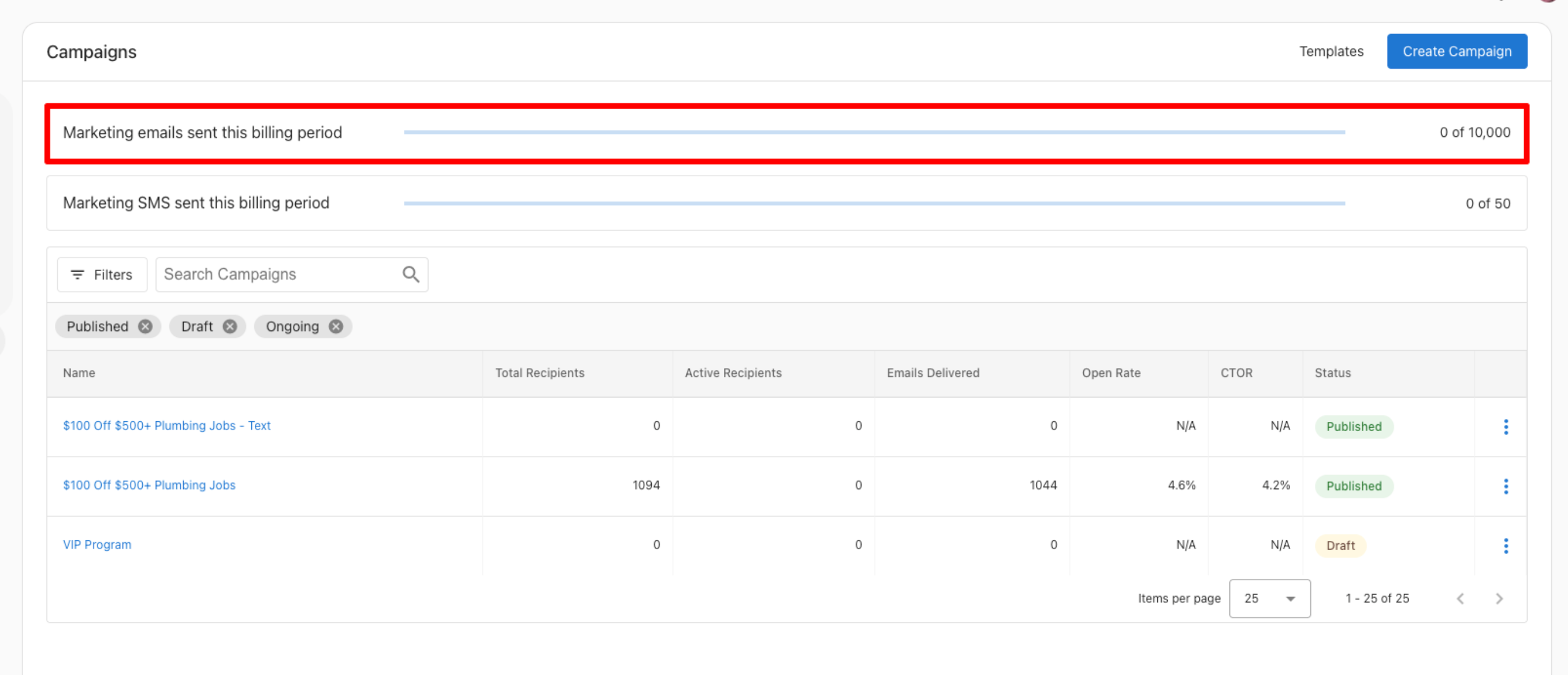
At the top of the Campaigns page you'll see two counters showing how much of your monthly allotment has been used for the current billing period:
- Marketing emails sent this billing period — tracks email usage against your monthly limit (e.g. 0 of 10,000)
- Marketing SMS sent this billing period — tracks SMS usage if you have an SMS add-on enabled (e.g. 0 of 50)
Both counters reset at the start of each billing period.
How do I create and send a campaign?
Step 1 — Go to Business App → Campaigns → Create Campaign. Give your campaign a name and select Create.
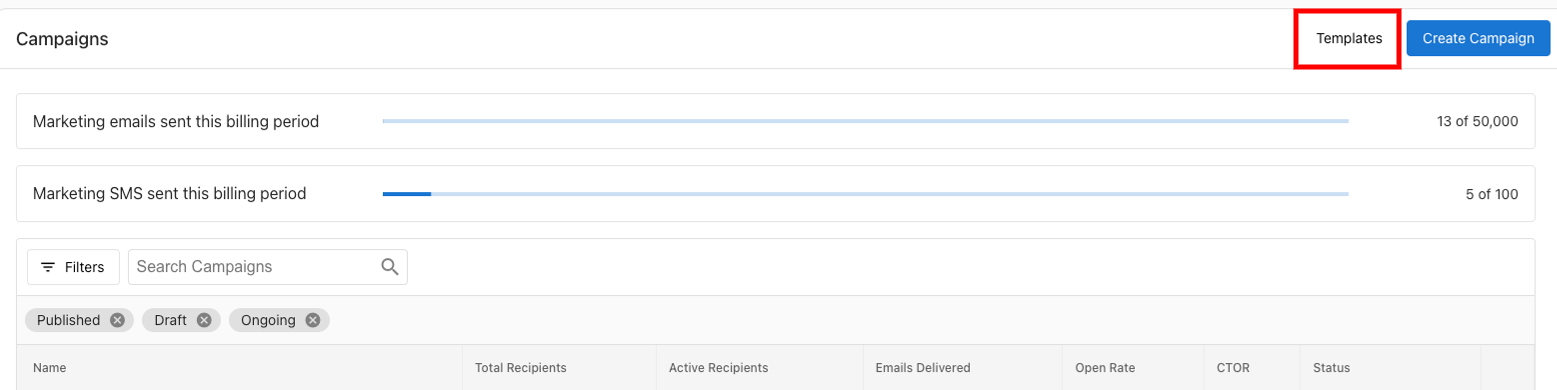
Or: In the Templates section, choose a template to start from.
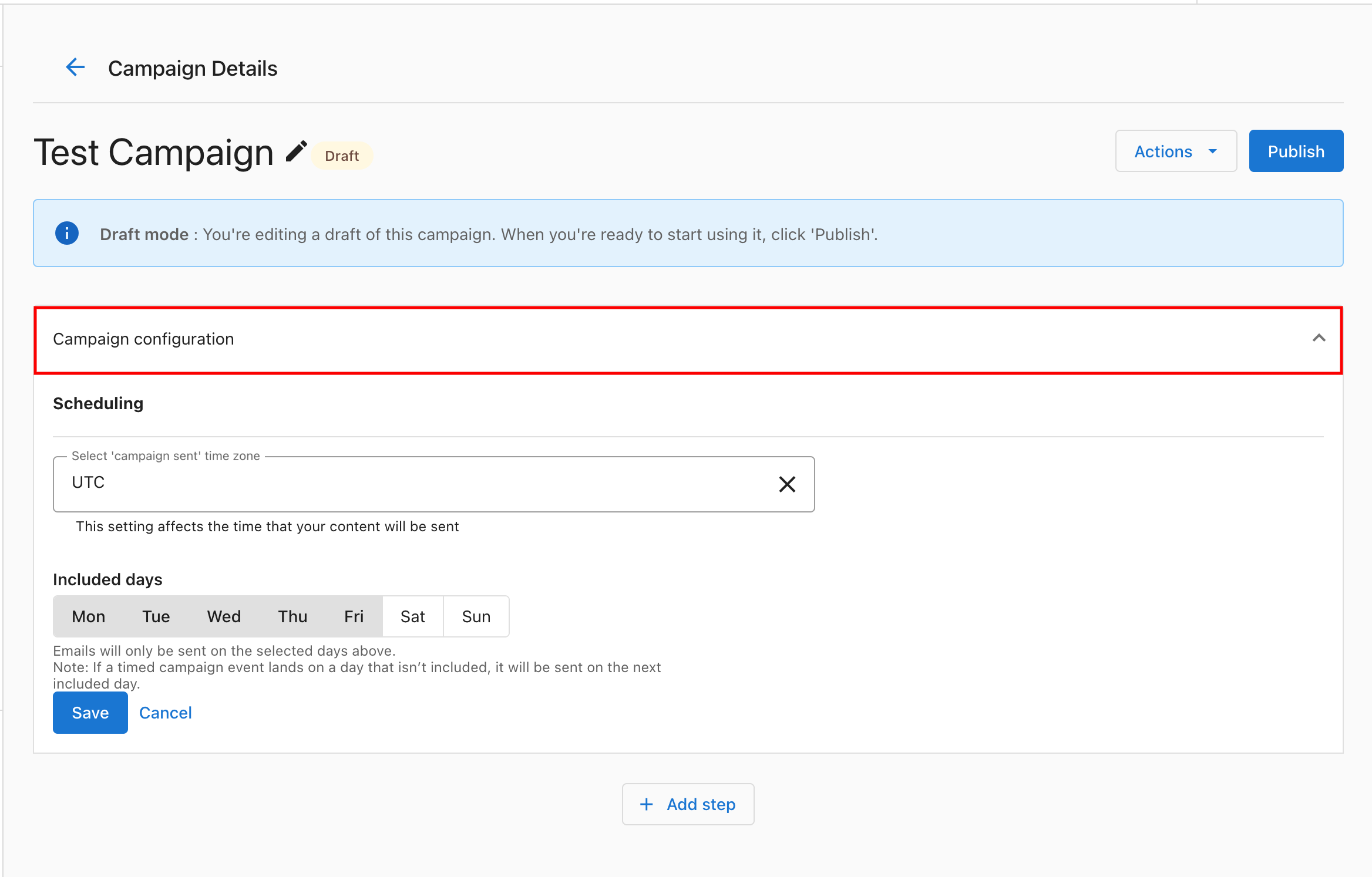
Step 2 — Configure your campaign. Set the time zone and choose which days emails are sent.
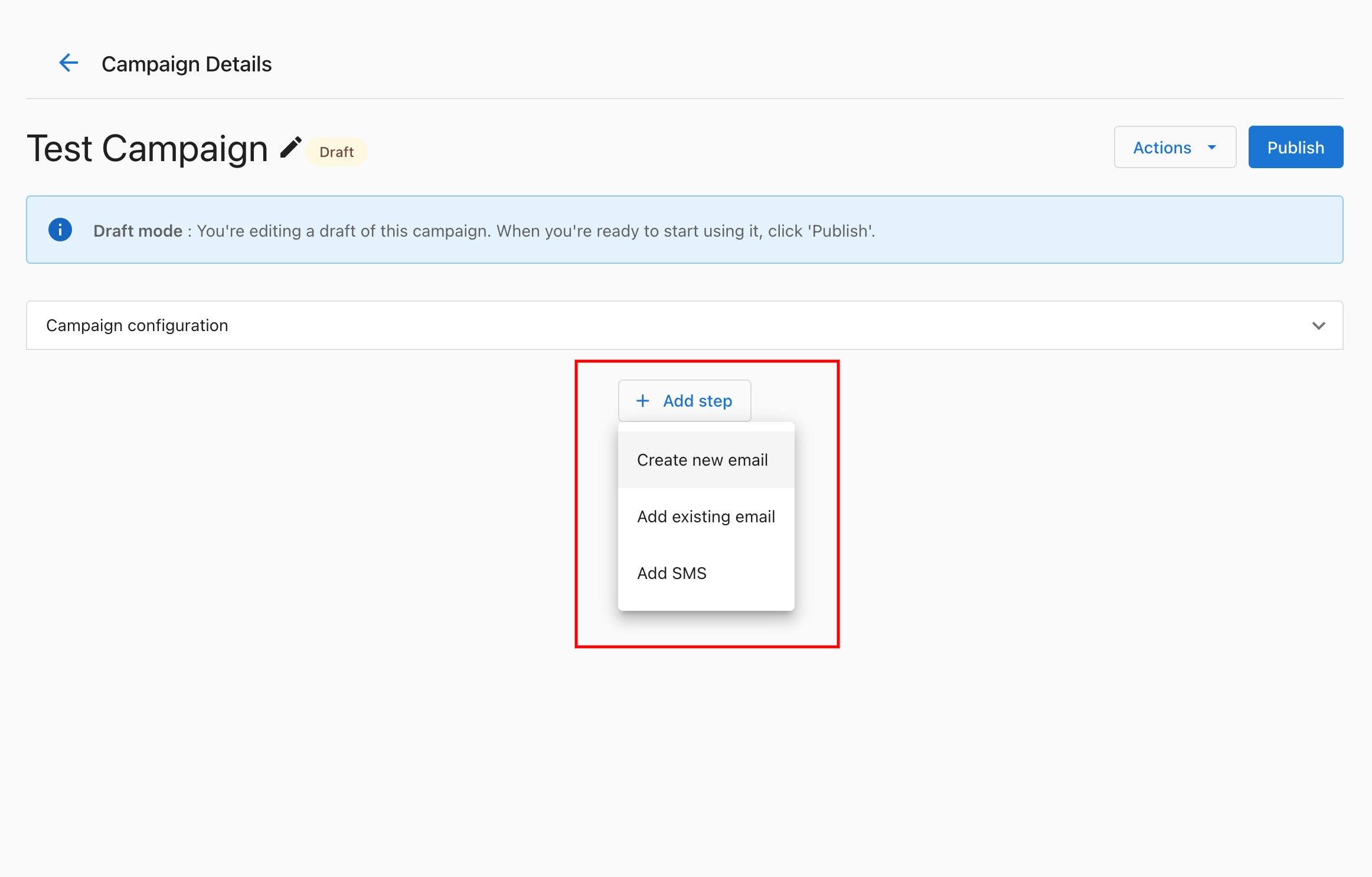
Step 3 — Click Add Step to add an email (write your own, use a template, or use AI) or add SMS.
Step 4 — Create your email. You can use AI to generate email content.
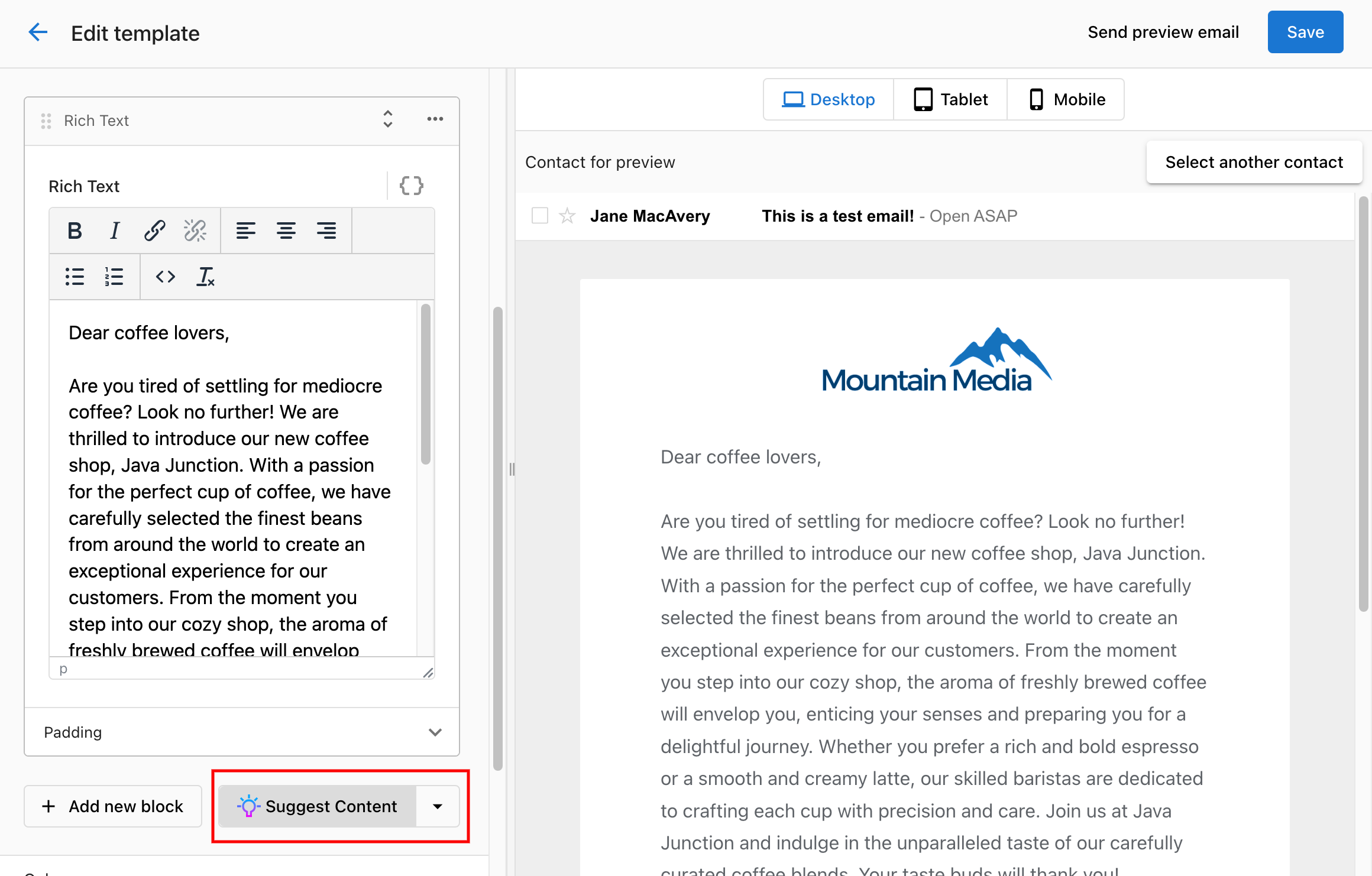
Step 5 — When you're ready, click Publish to start your campaign.

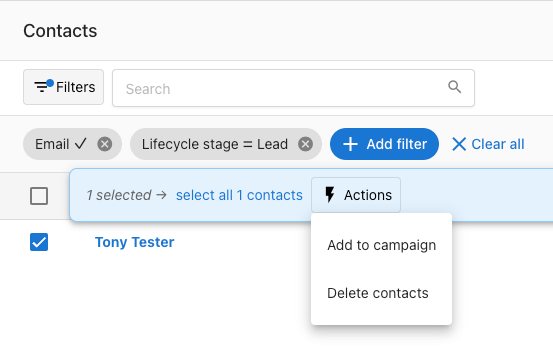
To send your campaign, go to the Contacts tab. You can add filters and send only to contacts that match your criteria.
Get started
- Open Campaigns —
Business App→Campaigns→Create Campaign(or start from Templates). - Create a campaign — Name it, set time zone and send days, then Add Step for email or SMS.
- Send — Use the Contacts tab to choose recipients (with filters if needed), then publish and send.
The base Email & SMS Marketing plan includes email (e.g. 10,000 emails/month). To send SMS campaigns, clients need an SMS add-on (available in the United States and Canada).
More on campaigns
- SMS campaigns: SMS add-on, creating and setting up SMS campaigns (one-time or recurring), audience selection, scheduling, and compliance.
Troubleshooting campaigns
"Some contacts cannot be added to this campaign"
This error occurs when a campaign uses dynamic fields (e.g., a personalization variable like {{first_name}}) and one or more contacts are missing a value for that field. Contacts with missing values are excluded.
How to fix it:
- Remove or make optional the dynamic field from the email step, or
- Update the affected contacts in the CRM to fill in the missing field values before adding them to the campaign.
Campaign shows "Ongoing" but no emails are being delivered
- Confirm that recipients were actually added — open the campaign and check the Contacts tab to verify the contact list is populated.
- Check that contact email addresses are valid (no obvious formatting errors).
- Confirm the campaign has at least one published email step.
Email delivery delays (deferred emails)
Emails may be deferred rather than sent immediately if the receiving mail server temporarily rejects them. This is a normal part of email delivery — the sending system retries automatically. Deferred emails are not failures; they typically deliver within a few hours. No action is needed unless an email remains undelivered for more than 24 hours.
Featured templates not loading
If the templates gallery appears blank or fails to load, check whether the account has complete business profile information, particularly the business name, address, and phone number (NAP). Missing NAP data can prevent template rendering.
How to fix: Go to Business App → Administration → Business Profile and ensure all required fields are filled in.
Image upload errors
Supported image formats for campaigns are JPEG and PNG. If an upload fails:
- Confirm the file is a
.jpgor.png(not.webp,.gif,.heic, etc.) - Keep file size under 5 MB
- Try re-saving the image in an image editor and re-uploading
Restarting a published campaign with the same contact list
Published campaigns cannot be re-sent to the same list directly. To send again:
- Open the campaign and click Duplicate (or use the three-dot menu → Copy campaign).
- Add your contacts to the new copy.
- Publish the copy.
Frequently asked questions
Can you export campaign activity from Email & SMS Marketing in Business App?
No. Campaign activity can only be viewed in Business App. Open a campaign and click the number under Recipients to open the campaign activity table.
How many emails can a business send per month?
You can send up to 10,000 emails per month by default. You can purchase an additional email-sending limit in increments of 1,000 or 10,000 as an add-on.
Do I need an SMS add-on to use SMS in Email & SMS Marketing?
Yes. To send SMS messages in Email & SMS Marketing, an SMS add-on is required. SMS add-ons are only available in the United States and Canada.
What is the daily SMS limit for Campaigns Pro on the low-volume A2P submission type?
The low-volume A2P submission type limits a single business to 6000 SMS segments per day. A long message can consume multiple segments, so the number of messages you can send in a day may be lower than 6000 when messages are longer than one segment.
How do the sending counters reset?
The Marketing emails sent this billing period and Marketing SMS sent this billing period counters at the top of the Campaigns page show usage against your monthly limit. Both counters reset at the start of each billing period.
Can I send a published campaign again to the same contact list?
Not directly. Duplicate the campaign (or use the three-dot menu → Copy campaign), add your contacts to the new copy, and publish it.
Why were some contacts not added to my campaign?
When a campaign uses dynamic fields and a contact is missing a value for that field, that contact is excluded. Remove or make optional the dynamic field, or fill in the missing values in the CRM before adding the contacts.
Why haven't my campaign emails been delivered yet?
Emails can be deferred when the receiving mail server temporarily rejects them, and the sending system retries automatically. Deferred emails typically deliver within a few hours, so no action is needed unless an email stays undelivered for more than 24 hours.
What image formats can I use in campaigns?
Campaigns support JPEG and PNG images. Keep each file under 5 MB.