How do I connect integrations in Business App?
What are Integrations?
Integrations in Business App connect your clients' external accounts, such as Google Business Profile, Google Analytics, Facebook, and QuickBooks, from Administration → Integrations. Connected accounts supply Executive Report data and can trigger automated review requests.
Dozens of other business tools can also connect, so data is shared in one place and workflows run automatically instead of being managed across separate platforms.
Why are Integrations Important?
Connecting business accounts is a key step in getting value from Business App and related services. Integrated accounts provide the data that shows return on investment and enables automation. Key benefits include:
- Centralized data management - All business metrics and information in one location
- Automated workflows - Review requests, data sync, and customer communications happen automatically
- Improved analytics - Executive Report and Marketing Funnel powered by real business data
- Time savings - Eliminates manual data entry and platform switching
- Better customer experience - Automated touchpoints and personalized communications
- ROI tracking - Clear metrics demonstrate service value and business growth
What can you do with integrations?
Core Connection Types
- Google Services: Business Profile, Analytics, Search Console
- Social Media Platforms: Facebook, Instagram, LinkedIn, X
- Business Management Tools: QuickBooks, HubSpot, various CRM systems
- Industry-Specific Software: Legal practice management, field service tools
- API-Based Integrations: Custom connections using API keys
- SSO-Based Integrations: Single sign-on enabled third-party applications
Integration Capabilities
- Automated Data Sync: Customer information, transactions, and business activities sync automatically
- Review Request Automation: Trigger review requests based on completed jobs or services
- Analytics Integration: Business data feeds into Executive Report and Marketing Funnel
- Workflow Automation: Connect business events to marketing and communication workflows
- Single Sign-On: Access integrated applications without separate logins
How do I set up integrations?
How do I access integrations?
-
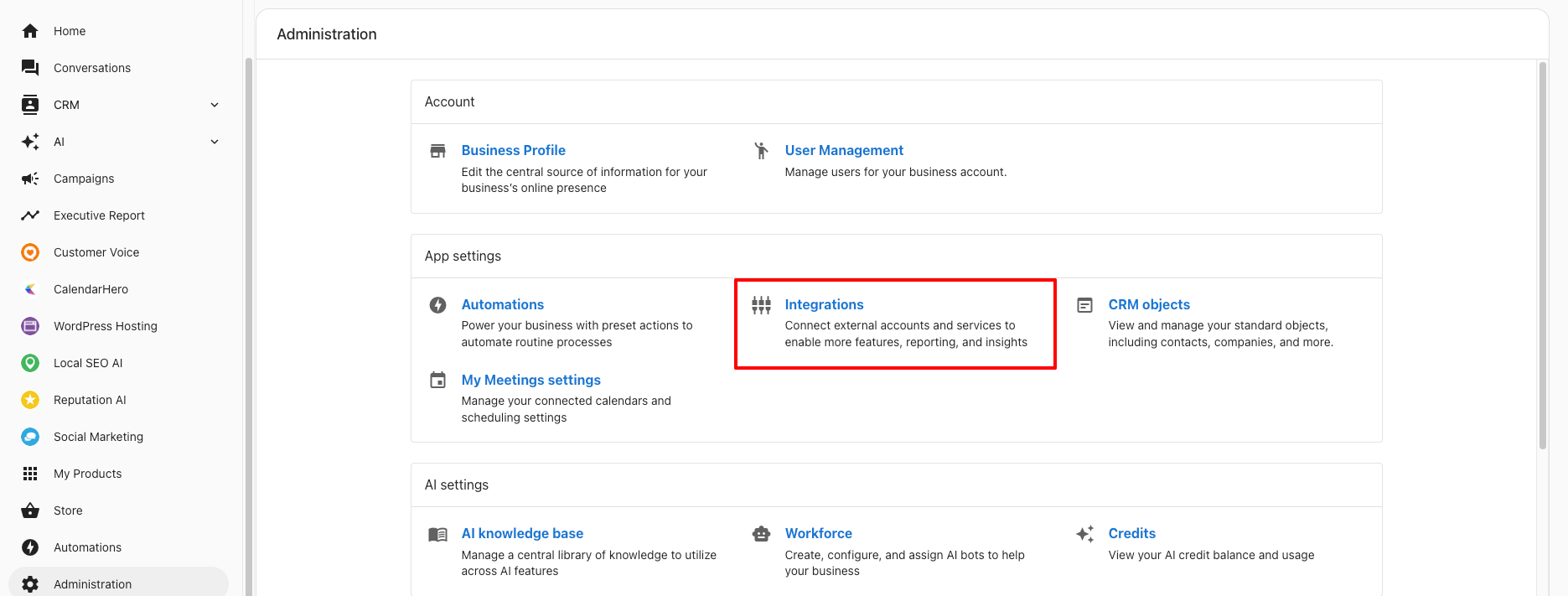
Navigate to Integrations
- In Business App, go to
Administration→Integrations - Toggle between Browse and Manage tabs as needed
- In Business App, go to
-
Understanding the Interface
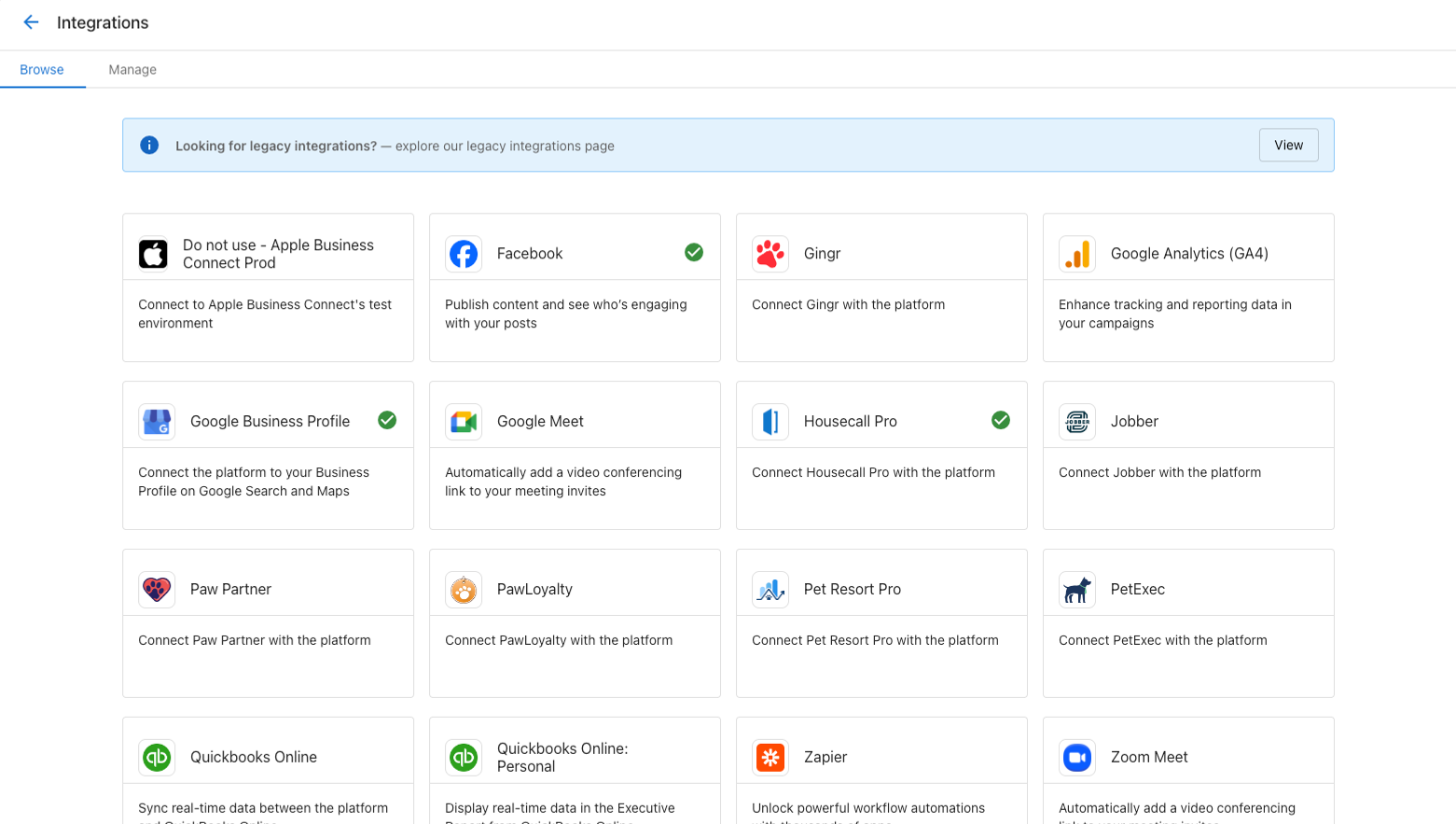
- Browse Tab: Discover and connect new integrations
- Manage Tab: View and configure existing connections
- Connection Cards: Display integration status and options
How do I set up the Google Business Profile connection?
-
Locate Google Business Profile Integration
- In Browse tab, find Google Business Profile connection card
- Click on the card to view integration details
-
Connect Your Account
- Click Connect button
- Sign in to your Google account when prompted
- Grant necessary permissions for Business App access
- Confirm connection authorization
-
Verify Connection Status
- Check Manage tab for Google Business Profile connection card
- Green checkmark indicates successful connection
- Connection enables Executive Report data and review management
How do I set up the QuickBooks integration?
-
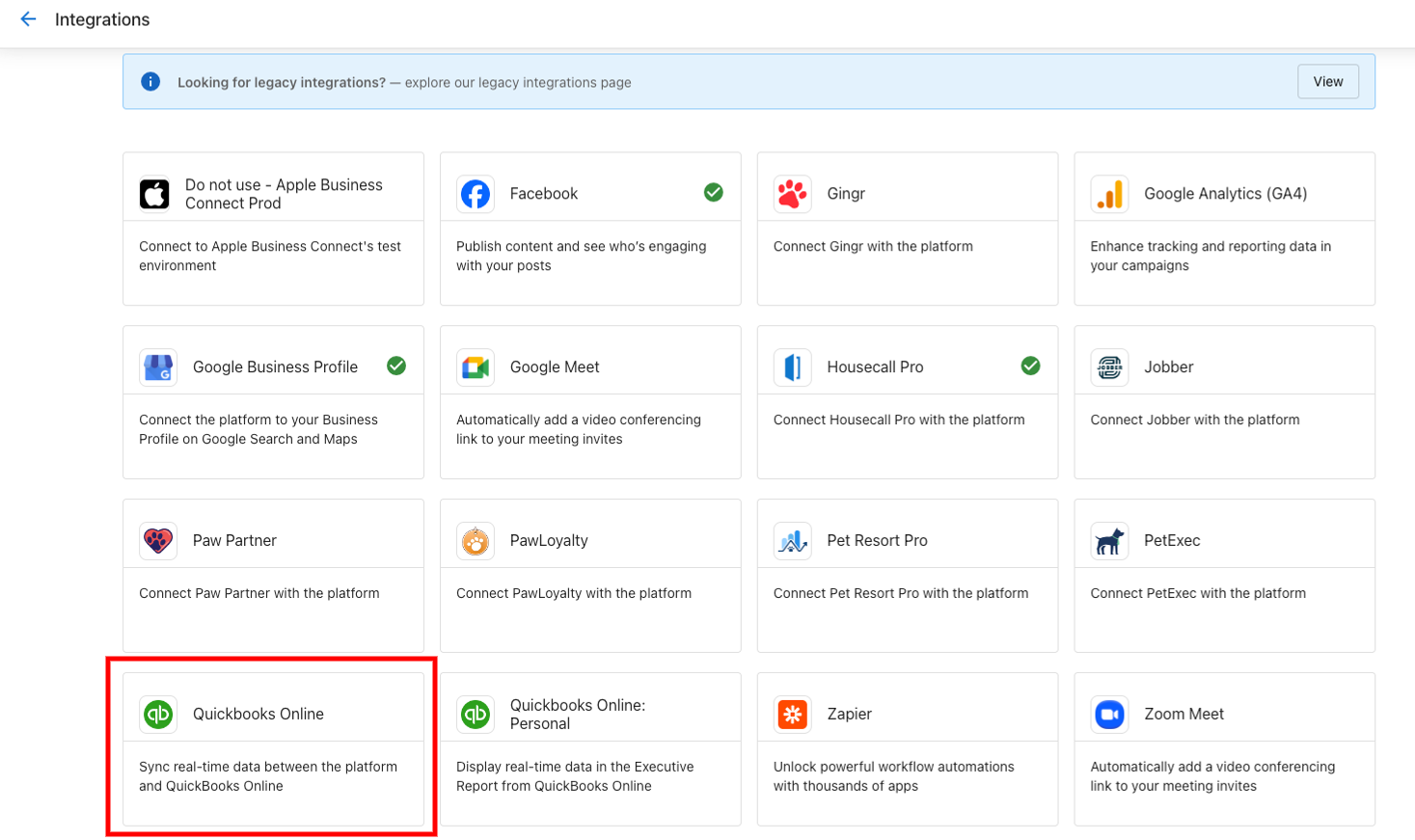
Find QuickBooks Integration
- Navigate to Browse tab in Integrations
- Locate QuickBooks integration card
- Click Learn more to open marketing page
-
Initiate Connection Process
- Click Connect button on marketing page
- Complete pre-connect form with business information
- Submit form to proceed to QuickBooks authorization
-
Complete QuickBooks Authorization
- Enter QuickBooks credentials on sign-in page
- Select or create QuickBooks company
- Allow Business App to connect to QuickBooks
- Confirm permissions and complete setup
-
Manage QuickBooks Integration
- View connection status in Manage tab
- Access QuickBooks data through Business App navigation
- QuickBooks information appears in Executive Report
Important Note: Users must log in to Business App directly to connect QuickBooks. Partners cannot impersonate users for this connection. Only the connecting user can see and interact with QuickBooks data.
How do I connect LinkedIn Ads?
-
Find the LinkedIn Ads integration card
- Go to
Administration→Integrations→Browse - Locate the LinkedIn Ads integration card
- Open the integration to view its marketing page
- Go to
-
Start the connection flow from the marketing page
- Click Connect or Add Connection (based on the integration prompt)
- Complete any required pre-connect form
-
Authorize and complete setup
- Sign in to LinkedIn when prompted
- Review and approve the requested permissions
- Finish the connection flow
-
Verify and configure from Manage
- Open the Manage tab in Integrations
- Confirm the LinkedIn Ads connection card shows as connected
- Click the connection card to open Connection Settings and manage configuration
How do I set up SSO-based integrations?
-
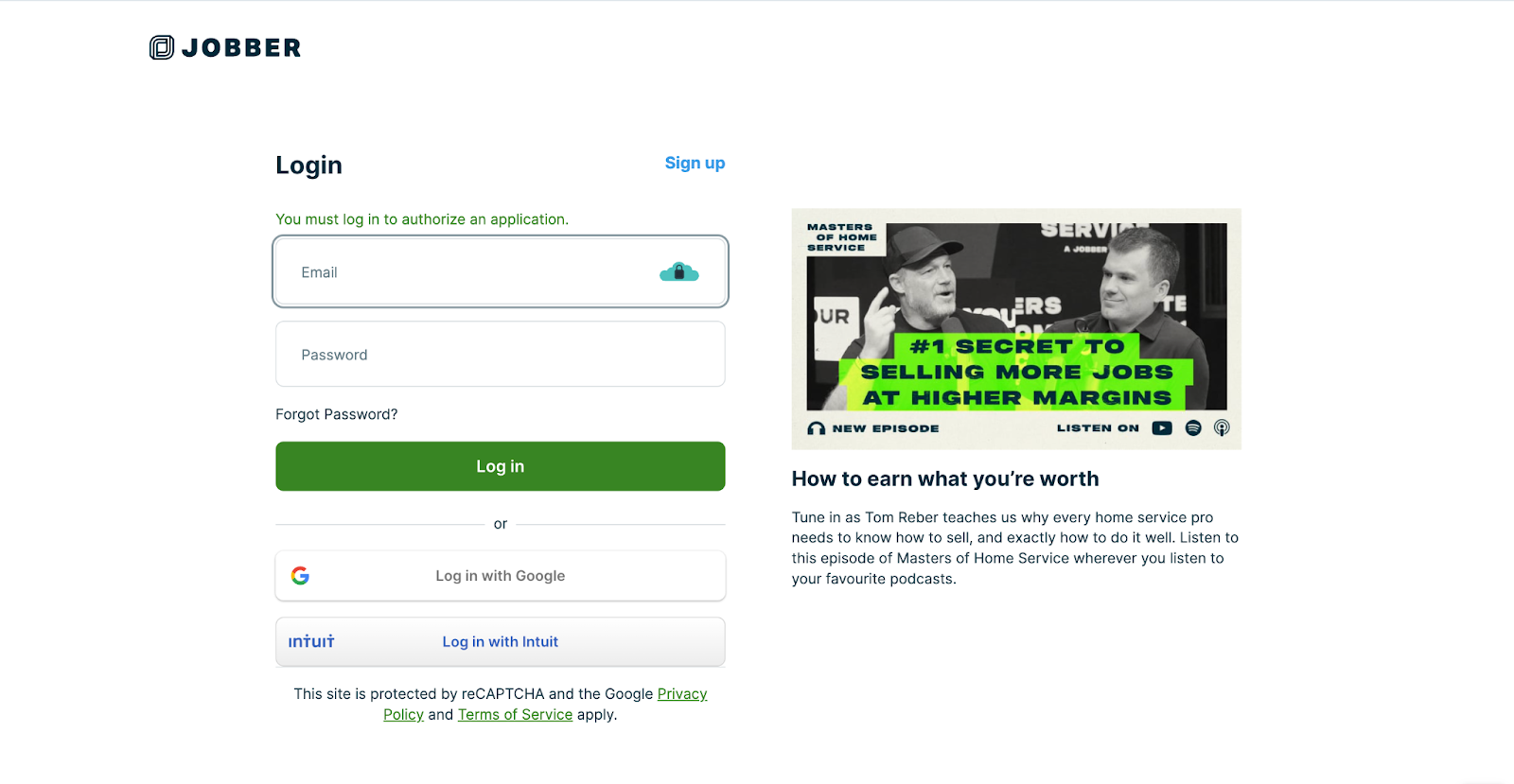
Browse Available SSO Integrations
- Review applications on the Integrations page
- Each application displays marketing page with features and benefits
- Look for applications marked as "SSO-Based"
-
Initiate SSO Connection
- Click Connect button on application marketing page
- Complete any required pre-connect forms
- Follow Single Sign-On prompts
-
Complete SSO Authorization Process
- Create new account with third-party service OR
- Connect to existing account
- Provide authorization for data sharing
- Confirm permissions and complete setup
-
Manage SSO Connections
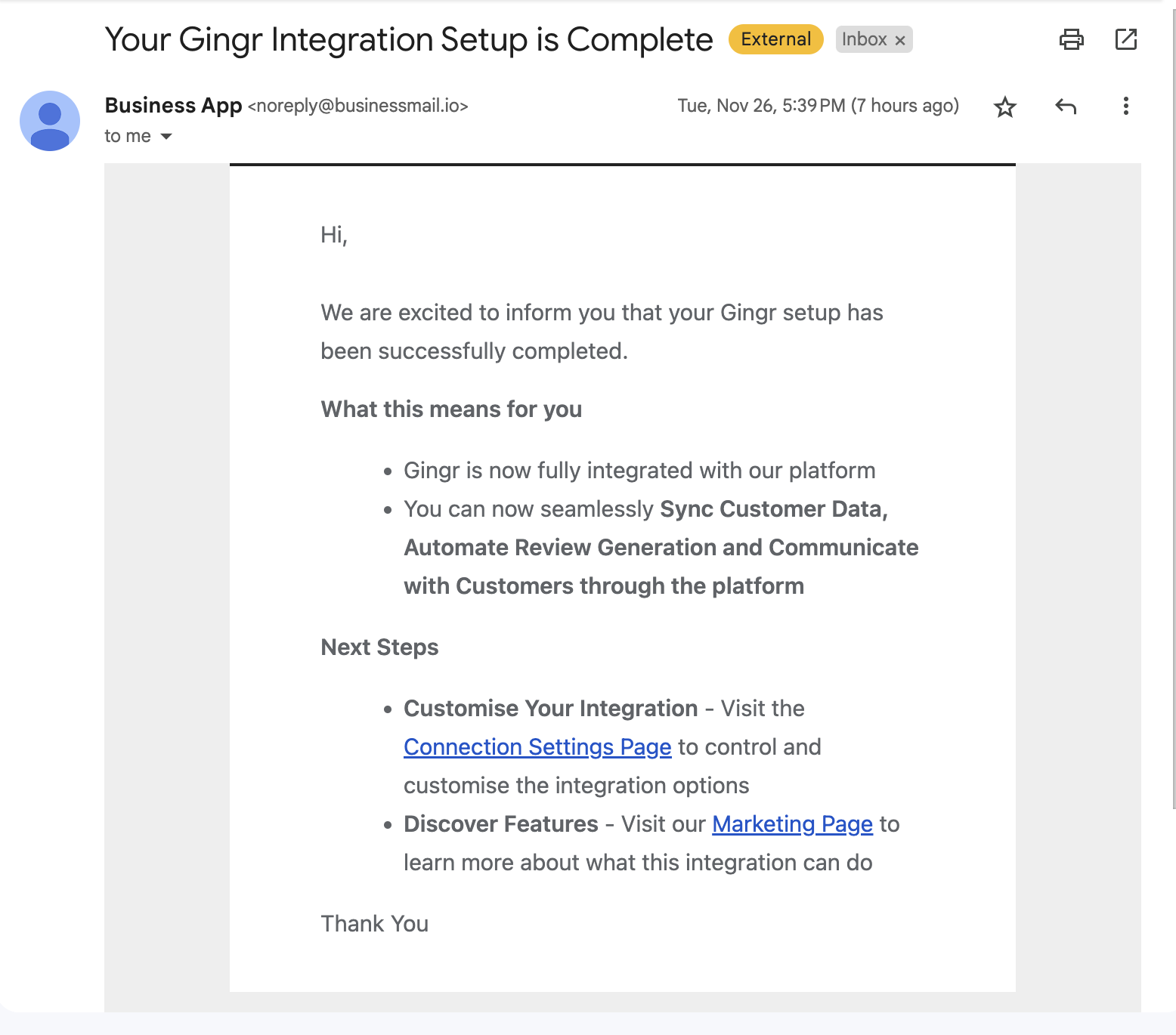
- View connected applications in Manage tab
- Connection cards display for each integrated application
- Marketing pages show "Connected" tag for active integrations
How do I set up API-key based integrations?
-
Find API-Key Integrations
- Look for integration cards marked "API-Key Based"
- Click on integration to view marketing page
- Review features, pricing, and requirements
-
Add API-Key Connection
- Click Add Connection button on marketing page
- Enter API key or credentials from third-party service
- Configure connection settings as required
- Save connection configuration
-
Monitor Connection Status
- Check the Integrations page for status indicators:
- Connected: Integration working properly
- Connection Issue: Problem requiring attention
- Pending: Connection in progress
How do I configure data sync and automated review requests?
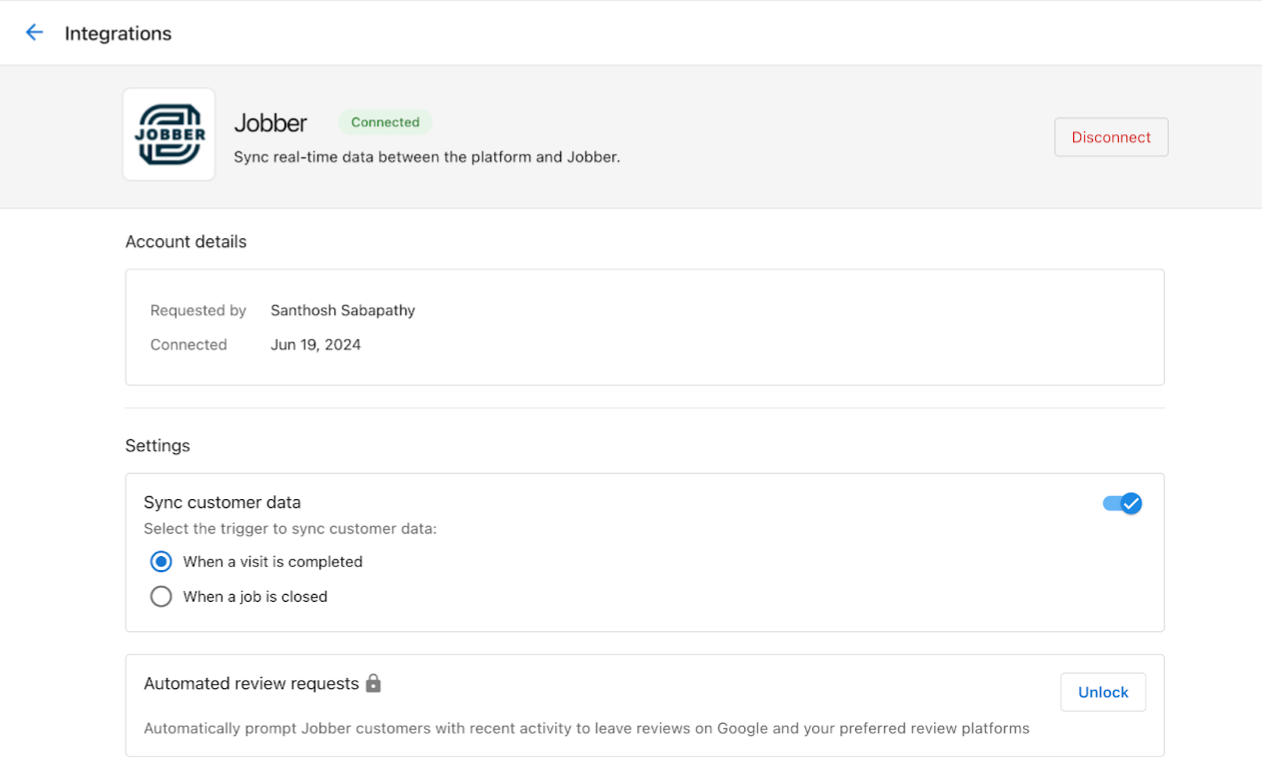
-
Access Connection Settings
- Navigate to Manage tab in Integrations
- Click on connection card for integrated service
- Access Connection Settings page
-
Enable Data Sync
- Toggle on Data Sync feature
- Choose triggering events (e.g., "Visit Completed" or "Job Completed")
- Configure sync preferences for customer data
- Save data sync settings
-
Set Up Automated Review Requests
- Requirement: Reputation AI Premium subscription
- Enable automated review request option
- Configure trigger events for review requests
- Set timing for review request delivery
-
Benefits of Data Sync and Review Automation
- Data Sync: Customer information automatically updates in Business App
- Review Requests: Automatic requests sent after job completion
- Complete view: Full customer interaction history
- Improved Reputation: Consistent review collection process
How do I connect Facebook?
Requirements:
- The Business App user must be an Admin on the Facebook page they are connecting.
- The user must log in directly to Business App — partners cannot complete this connection via impersonation.
Steps:
- In Business App, go to
Administration→Integrations→Browse. - Find the Facebook card and click Connect.
- Sign in to Facebook and grant the requested permissions.
How to remove a Facebook connection:
You cannot remove a Facebook connection from within Integrations directly. To remove it:
- Go to the product powered by the Facebook connection (e.g., Reputation AI).
- Find the connected Facebook page listing.
- Select Remove this match to disconnect the page.
How do I connect WhatsApp?
Requirements:
- The business must have a payment method on file in Meta Business Platform before WhatsApp can be connected.
- WhatsApp uses the same Meta Business account as Facebook.
Steps:
- Go to
Administration→Integrations→Browseand find the WhatsApp card. - Click Connect and follow the Meta authorization flow.
- If the connection drops, go to the same card and click Reconnect, then re-authorize through Meta.
How do I connect LinkedIn?
Requirements:
- The Business App user must have Superadmin (Admin) privileges on the LinkedIn Page they want to connect — Page Admin access is not sufficient.
Steps:
- Go to
Administration→Integrations→Browseand find the LinkedIn card. - Click Connect and sign in to LinkedIn.
- Select the page to connect and authorize.
If the connection fails, verify that the user holds Superadmin-level access on the LinkedIn Page in LinkedIn's settings.
How do I set up the OctoTable integration?
Requirements:
- An OctoTable account with RixAPI enabled.
Steps:
- In OctoTable, search for RixAPI and enable it.
- Locate the Property ID in OctoTable — it's needed to complete the connection.
- In Business App, go to
Administration→Integrations→Browseand find the OctoTable card. - Click Connect, then enter the Property ID on the pre-connect form.
- Click Add Connection to complete setup.
OctoTable connections use a shared, pre-configured Client ID and Secret. Only a Property ID is required to connect — there are no separate Client ID or Secret fields to fill in.
How do I set up the Google Analytics connection?
-
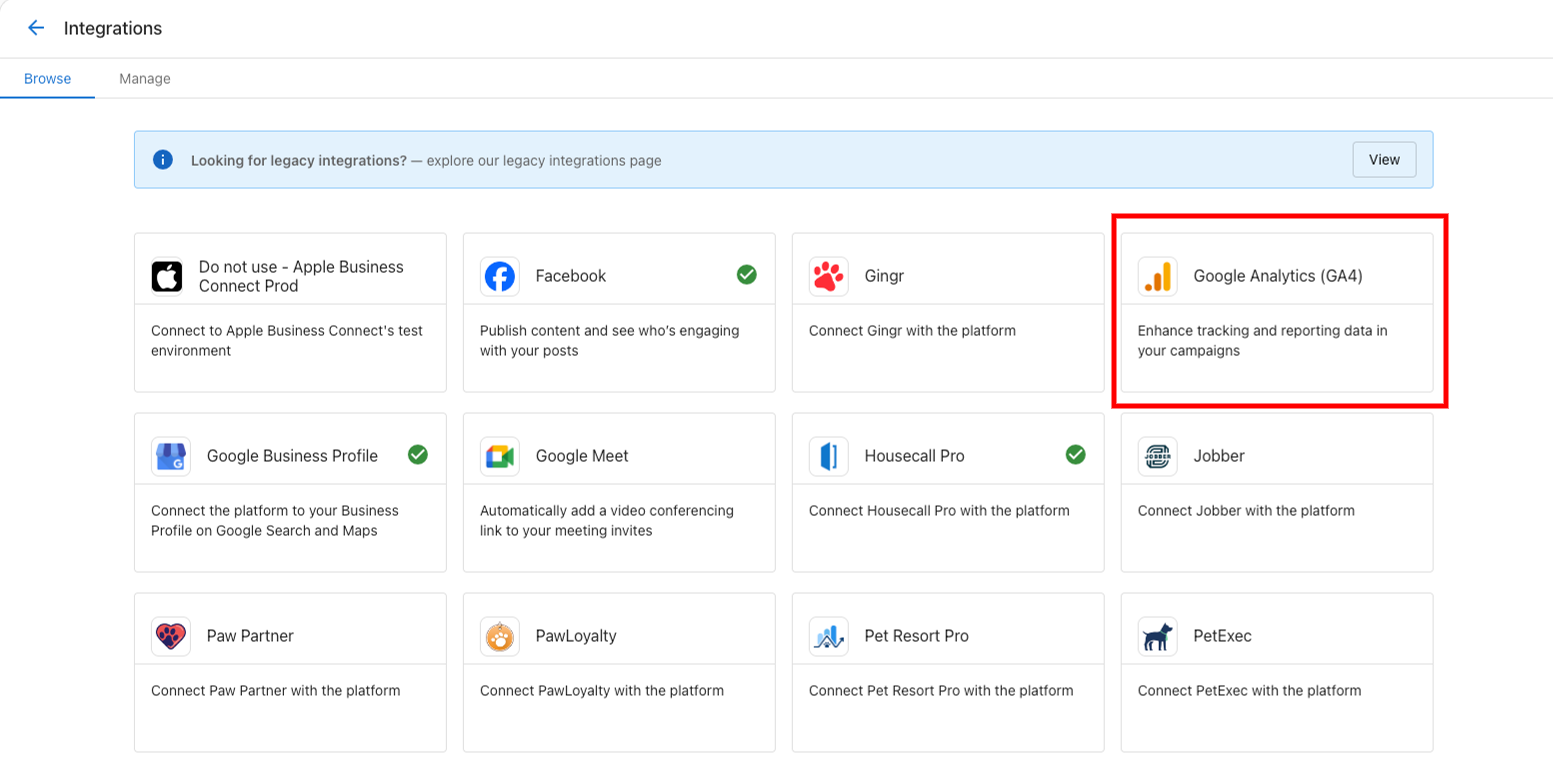
Access Google Analytics Integration
- Navigate to
Administration→Integrations - Click GA4 connection card
- Navigate to
-
Connect Google Analytics 4
- Marketing page opens for GA4 integration
- Click Add Connection to begin setup
- Follow Google authorization process
- Select appropriate GA4 property for connection
How do I set up vendor-managed integrations?
-
Access Vendor Integration Portal
- Navigate to Business App Administration
- Click Vendor Integrations tab
-
Connect Available Integrations
- Browse available vendor integrations
- Each shows vendor name, logo, and description
- Click Connect button for desired integration
-
Complete Authorization Process
- Popup window opens with third-party login
- Enter credentials for third-party service
- Review and approve requested permissions
- Window closes automatically when complete
-
Manage Vendor Integrations
- View connected integrations in Installed Integrations tab
- Disconnect integrations if needed
- Monitor integration status and performance
How do I troubleshoot and manage integrations?
Connection Troubleshooting
- Invalid API Key: Verify key accuracy and expiration status
- Permission Issues: Ensure API key has necessary permissions
- Service Downtime: Check third-party service status
- Authorization Problems: Re-authorize connection if needed
Integration Best Practices
- Regular Monitoring: Check connection status periodically
- Permission Management: Review and update permissions as needed
- Data Quality: Ensure accurate information in connected systems
- Security: Use strong authentication for all integrations
- Documentation: Keep track of connected services and their purposes
Supported Integration Examples
- Field Service: Jobber, Housecall Pro
- Legal Practice Management: Clio
- Accounting: QuickBooks Online
- CRM: HubSpot (two-way sync of Contact and Company records)
- Social Media: Facebook, Instagram, LinkedIn
- Analytics: Google Analytics 4, Google Search Console
- Review Platforms: Google Business Profile integration
- Restaurant Management: OctoTable
Frequently Asked Questions
Why can't I connect QuickBooks when impersonating a user?
QuickBooks integration requires the actual Business App user to log in directly. Partners cannot impersonate users to complete this connection. Only the user who connects QuickBooks can see and interact with the QuickBooks data in Business App.
Why is the Facebook connection failing or showing a loading error?
Facebook connection issues are most often caused by insufficient page permissions. The Business App user must be a Facebook Page Admin — not just an editor or analyst. Try the following:
- Confirm Admin access on the Facebook page in Facebook Business Settings.
- Clear your browser cache and cookies, or try connecting in an incognito window.
- Disconnect any existing Facebook connection, then reconnect.
How do I remove a Facebook connection from Business App?
You cannot remove a Facebook connection from Integrations directly. Instead, go to the product that uses the Facebook connection (e.g., Reputation AI), find the Facebook page listing, and select Remove this match to disconnect it.
Why can't I connect WhatsApp in Business App?
WhatsApp requires a payment method on file in Meta Business Platform before the connection can be authorized. If payment is not set up, the Meta authorization flow will block the connection. Add a payment method in Meta Business Manager, then retry the WhatsApp connection.
What permissions do I need to connect a LinkedIn account?
The user connecting LinkedIn must hold Superadmin (Admin) privileges on the LinkedIn Page — standard Page Admin access is not sufficient. Verify the permission level in LinkedIn's Page settings before attempting to connect.
General tips for fixing a connection that won't complete
If a social or third-party connection fails to load or authorize:
- Clear browser cache and cookies, then retry.
- Use an incognito/private window to rule out cached session issues.
- Verify permissions — many connections require specific admin roles on the external platform (see the platform-specific sections above).
- Disconnect and reconnect — remove the existing connection in the Manage tab, then reconnect fresh.
What's the difference between SSO and API-key integrations?
SSO integrations use Single Sign-On for access without separate logins, while API-key integrations require manual entry of API credentials. SSO integrations typically offer more automated features and easier management.
Do I need Reputation AI Premium for automated review requests?
Yes, sending automated review requests through integrations requires a Reputation AI Premium subscription. Without this subscription, the review request option will be locked in Connection Settings.
How do I know if my integration is working properly?
Check the Manage tab in Integrations for status indicators. Green checkmarks or "Connected" status indicate proper functionality. Red indicators or "Connection Issue" status require attention.
Can I disconnect an integration after setting it up?
Yes, you can disconnect integrations at any time. Go to the Manage tab, find the integration you want to disconnect, and click the Disconnect button. Confirm when prompted.
What data gets synced when I connect an integration?
Data sync varies by integration but typically includes customer contact information, transaction details, job completion status, and other relevant business activities. Check Connection Settings for specific sync options.
How long does it take for connected data to appear in Business App?
Most integrations sync data in real-time or within a few minutes of the triggering event. Some integrations may have longer sync intervals depending on the third-party service's API limitations.
Can I connect multiple accounts from the same service?
This depends on the specific integration. Some services allow multiple account connections, while others limit you to one connection per Business App account. Check the integration documentation for details.
What should I do if an integration stops working?
First, check the connection status in the Manage tab. Try disconnecting and reconnecting the integration. Ensure your credentials are still valid and that the third-party service is operational. Contact support if issues persist.
Are there additional costs for integrations?
Most integrations are included with Business App, but some may require specific subscriptions (like Reputation AI Premium for automated review requests). Check the integration marketing page for pricing details.
Do I need a Client ID and Secret to connect OctoTable?
No. Business App uses a shared, pre-configured connection for all OctoTable accounts. Only a Property ID is required to connect.
What is RixAPI?
RixAPI is the name OctoTable uses for the API that must be enabled in an OctoTable account before connecting to Business App.