CRM Objects
CRM objects in Partner Center let you add custom fields to contacts, companies, orders, products, projects & tasks, accounts, users, and your custom objects so you can store business-specific data. Define fields in Administration → Data management → CRM objects, then fill them by import, the API, or manual editing, and use them to segment marketing and automate sales.
What are custom fields?
Custom fields let you create unique fields for the information that matters to you on CRM objects like contacts, companies, orders, products, projects & tasks, accounts, users, and custom objects. You can then segment and personalize marketing, automate sales processes, and fulfill work with less effort.
Why use custom fields?
Different businesses need different data. Custom fields let you define only what you use day to day. For example:
- Send a "starter" campaign to dental offices with fewer than 100 patients and an "established" campaign to those with more
- Store a user's favorite football team for sales icebreakers
- Automatically assign a salesperson or team to an account based on estimated revenue
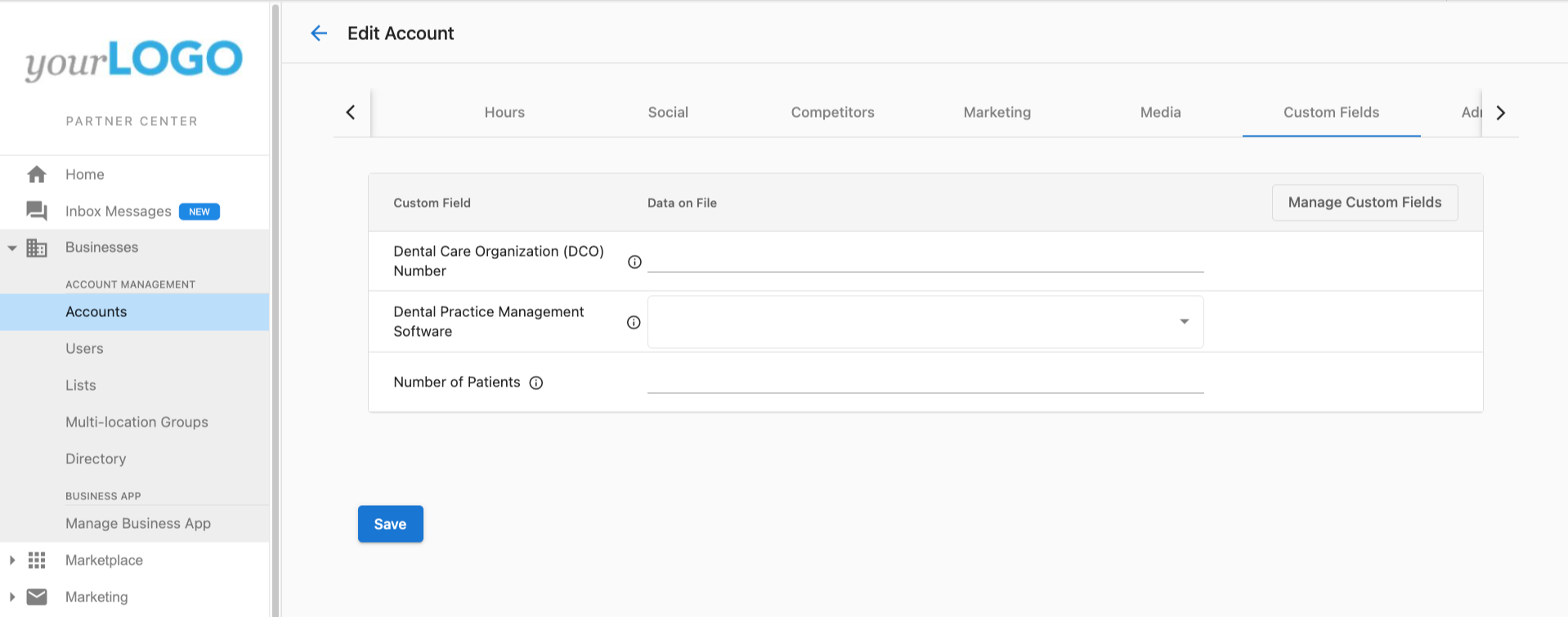
How custom fields work
Define fields first
Before you can store data, define the field in Partner Center → Administration → Data management → CRM objects. Choose which object type the data belongs to from the left list (Contacts, Companies, Orders, Products, Projects & Tasks, Accounts, Users, or your custom objects). For example, "number of hotel rooms" fits on an account, not on individual users.
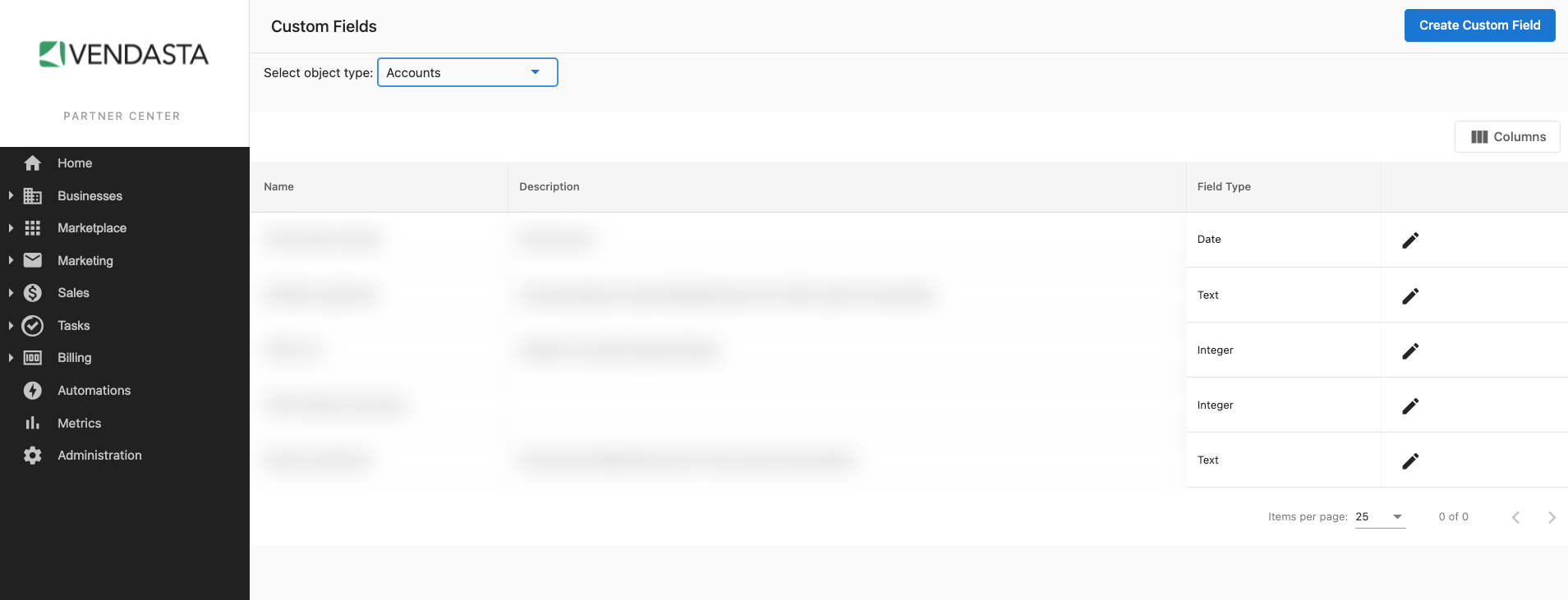
Click the Create field button to open the creation panel. You'll need to select the Object (required), enter a Field name (required), optionally set an External Identifier, add a Field description, choose the Field type (required), and optionally mark the field as read-only using the "Mark field as read-only" checkbox.
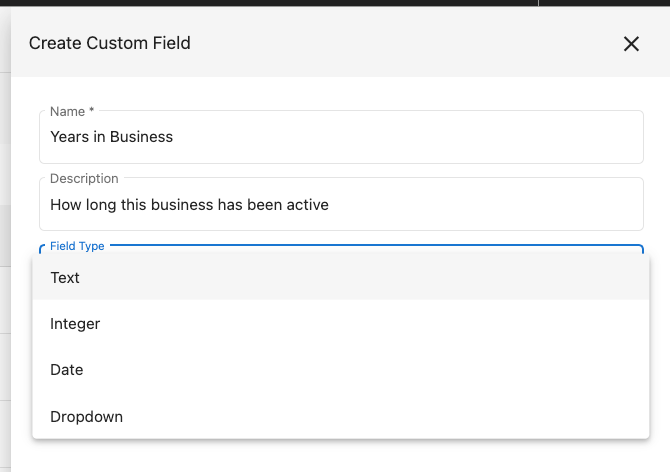
What field types can I use?
| Field type | Example names | Example values | Automation filter types |
|---|---|---|---|
| Text | favorite dog breed, last event type, first content download | golden retriever, basketball, rule book | Is any value, Is missing, Contains, Does not contain, Is one of, Is not one of |
| Integer | number of employees, customer touchpoint score, number of locations | 4, -2, 100 | Less than or equal to, Equals, Greater than |
| Date | birthday, best single-day sales date, manually remove-by | Aug 13, 1991, Feb 14, 2022, Mar 22, 2233 | After, Before |
| Dropdown | service level, initially purchased package, call priority | Silver, Gold, Platinum | Is, Is not |
| Currency | preferred monthly budget, average revenue per customer, external spend | USD 1000, CAD 10.50, THB 50000 | Less than or equal to, Greater than |
How do I fill in custom field data?
You can fill custom fields:
- In bulk by importing an account list
- Via Vendasta's public API
- By editing records manually where the fields appear
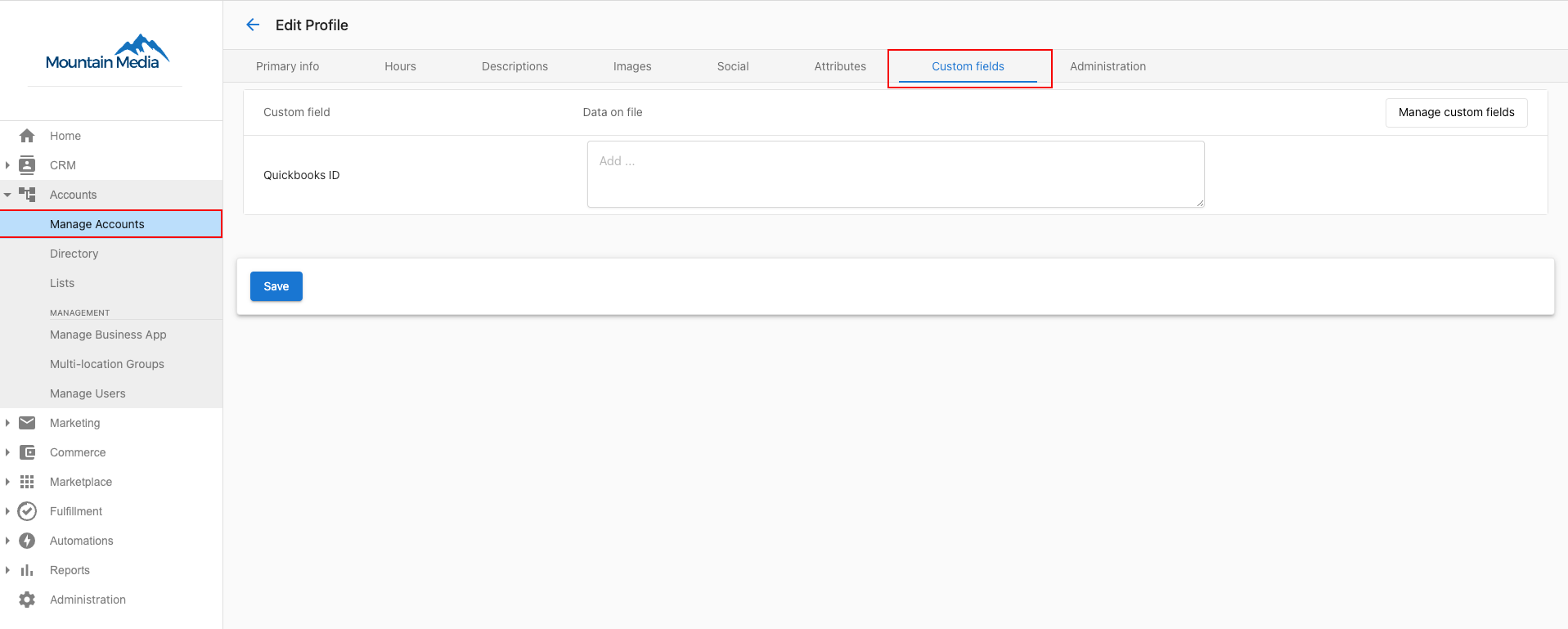
How do account fields and company fields sync?
Custom fields can be created for different object types. When working with accounts and companies, sync behavior differs in an important way:
- Account fields sync bidirectionally with linked company records — updates on the account appear on the company, and vice versa.
- Company fields do not sync down to accounts — data entered on a company's custom fields will not appear on linked account records.
If you need data to flow between accounts and companies, define the field as an account field.
How do I archive a duplicate field?
If you have created duplicate custom fields, archive the extras to keep your field list clean:
- Go to
Partner Center→Administration→Data management→CRM objects - Select the object from the left list (e.g., Contacts, Companies, Accounts)
- Search for the duplicate field
- Click ⋮ next to the field name
- Select Archive
Archived fields are hidden from new records but their data is retained.
How do I organize how fields appear on records?
Creating a field controls what you can store. A field layout controls where it shows up. Group related fields into named sections, reorder them, choose how ungrouped fields are sorted, and hide fields you don't use without deleting their data.
To edit a layout, go to Partner Center → Administration → Data management → CRM objects, select an object from the left list, and click Organize layout.
See Field layouts for the full guide.
Frequently asked questions
Can custom fields created in Partner Center be used in Business App?
No. Custom fields created in Partner Center are for use in Partner Center only. To have custom fields on accounts in Business App, create them in Business App → Administration → CRM Objects for each account.
Is there a character limit for the field description?
Yes. The limit is 4000 characters.
Why don't my company-level custom fields appear on accounts?
Company fields and account fields sync differently. Company fields do not sync down to account records. If you need data to appear on both the account and the company, create the field as an account field — account fields sync bidirectionally with linked companies.
How do I create a custom field?
Go to Partner Center → Administration → Data management → CRM objects and choose the object type the data belongs to from the left list (Contacts, Companies, Orders, Products, Projects & Tasks, Accounts, Users, or your custom objects). Click Create field, then select the Object, enter a Field name, and choose the Field type.
Can I hide custom fields I don't use on CRM records?
Yes. Go to Partner Center → Administration → Data management → CRM objects, select an object from the left list, and click Organize layout. You can hide fields you don't use without deleting their data, and you can also group and reorder fields.
Can I fill in custom fields in bulk?
Yes. You can fill custom fields in bulk by importing an account list or through Vendasta's public API. You can also edit records manually where the fields appear.
How do I remove a duplicate custom field?
Archive it. Go to Partner Center → Administration → Data management → CRM objects, select the object from the left list, search for the field, click ⋮, and select Archive. Archived fields are hidden from new records, but their data is retained.
Can I edit built-in CRM fields?
No. Built-in CRM fields are fixed. Add custom fields for the objects you need (for example contacts or companies) under Data management, then use those fields in records, filters, and imports.
Can I import spreadsheet values into custom fields?
Yes. Create the custom fields first, then use the Data management upload template so spreadsheet columns map to those fields. Built-in fields stay read-only for structure; custom fields are what you extend and import into.
Why does bulk updating a custom field say the field is not supported?
Check the field type. A String list field accepts multiple values, so Set value in a bulk update would overwrite them, and the update is blocked. If the field is meant to be a single choice from a few options, create it as a String field with those options instead.