How do I set the retail price for product upgrades?
To set a custom retail price for a product upgrade in Partner Center, go to Marketplace → Products, open the product, click the Product Info tab, and click Edit next to the edition under Retail price. Until you set a price, Business App shows the Pro edition MSRP.
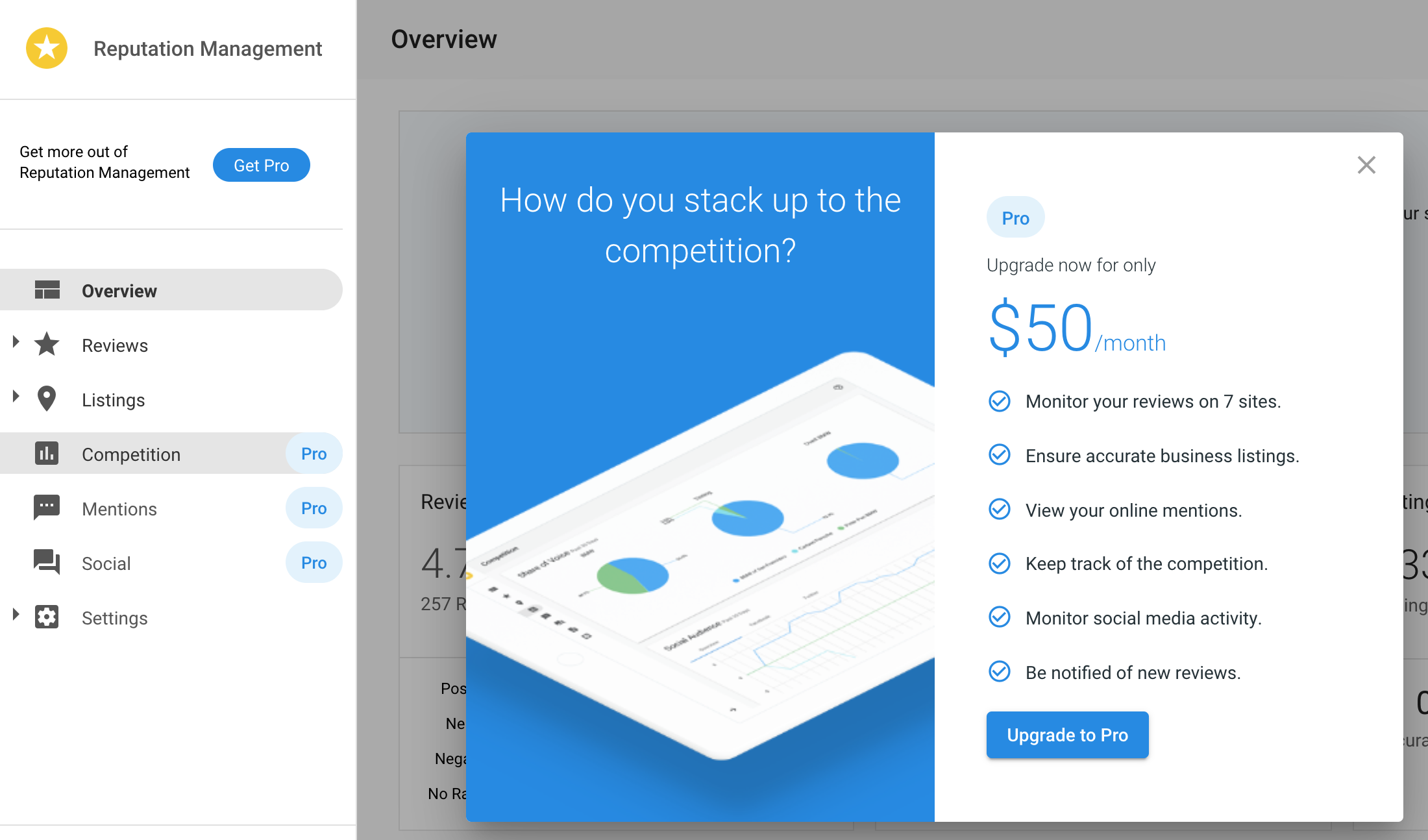
When a customer clicks on a Pro feature in Business App, they are prompted to upgrade from the Standard edition to the Pro edition. Business App displays the Pro edition MSRP by default. This article explains how to set a custom retail price and how to reset it back to the default.
How do I set a retail price?
The steps are the same for all products. The only difference is which product to search for in step 2.
- Go to
Marketplace→Products. - Search for and click the product you want to price:
- Reputation AI, Customer Voice, Website, Social AI: search by product name
- Advertising Intelligence: search for Advanced Reporting
- Local SEO (Citation Builder): search for Citation Builder
- Local SEO (Listing Sync): search for Listing Sync
- Click the
Product Infotab. - If applicable, select a
Market. - Under
Retail price, expand the edition you want to price (for example,Pro) and clickEdit. - Enter the
Setup feeandRetail price, and select aBilling period. - Click
Save.
The currency comes from your Public Store Settings. To change it, click the Public Store Settings link at the top of the Retail price section.
The new price will appear in Business App when customers click an upgrade button.
How do I reset a retail price to the default MSRP?
To revert a custom price back to the default MSRP:
- Go to
Marketplace→Products. - Search for and click the product.
- Click the
Product Infotab. - If applicable, select a
Market. - Under
Retail price, expand the edition and clickEdit. - Click
Reset to MSRP. The price resets right away, so you don't need to clickSave.
Frequently asked questions
Why does Business App show the MSRP as the upgrade price?
Business App displays the Pro edition MSRP by default. Set a custom retail price in Marketplace → Products to show your own price instead.
How do I find Local SEO or Advertising Intelligence products to price?
In Marketplace → Products, search for Citation Builder or Listing Sync for Local SEO, and Advanced Reporting for Advertising Intelligence.
How do I change my retail price back to the default?
Open the product in Marketplace → Products, click the Product Info tab, expand the edition under Retail price, and click Edit. Click Reset to MSRP. The price resets right away.
How do I change the currency for a retail price?
The retail price currency is set in your Public Store Settings. Click the Public Store Settings link at the top of the Retail price section to change it.
Where does my custom retail price appear?
The price appears in Business App when customers click an upgrade button for a Pro feature.