Create user lists and bulk import users
User lists make it easy to import, view, and manage large lists of users at once. You can bulk import users with a CSV file from the User lists tab.
How to import users via CSV
Go to Partner Center → Accounts → Lists, select the User lists tab, and click Import List. This opens the Import Users wizard, which has three steps: Upload CSV file, Add to user list, and Review import.
Step 1: Upload CSV file
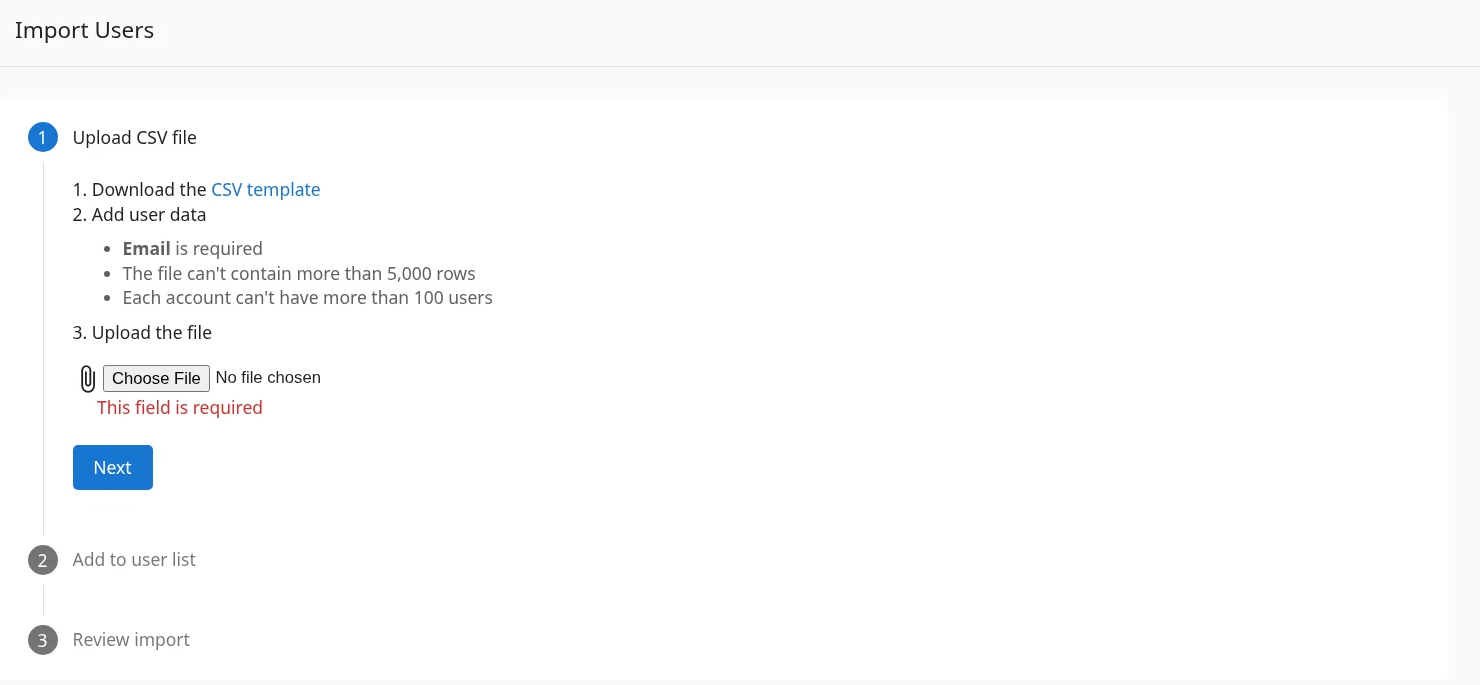
If this is your first time importing users, download the CSV template to ensure you have the correct formatting. You can also use a previously exported user list as a template.
Open the template in a spreadsheet program like Excel or Google Sheets and fill in the required fields:
email: The user's email address (required)first_name: User's first namelast_name: User's last namejob_title: User's position or job titledepartment: User's departmentaddress: User's physical addresscity: User's cityregion: User's state/provincecountry: User's countrypostal_code: User's zip/postal codephone: User's phone number
Only the email is required, but adding additional information will help you better segment and target your users. The file can contain a maximum of 5,000 rows, and each account can have a maximum of 100 users.
- On
Upload CSV file, clickChoose Fileand select your CSV. - Click
Next.
Step 2: Add to user list
Choose Select an existing list, Create a new list, or Skip, then click Next.

Step 3: Review import
Review the CSV file, total import, and list name. Optionally select Update existing users, then click Finish. The import may take a few minutes. You receive a notification when the import is complete.

Troubleshooting import errors
Common CSV format issues
- Invalid email format: Ensure all email addresses follow the standard format (e.g., user@domain.com)
- Duplicate emails: Each email address should appear only once in your CSV
- Special characters: Some special characters may cause import errors
- Incorrect column headers: Make sure your column headers match exactly with the template
What to do if your import fails
- Download the error report (if available)
- Fix the identified issues in your CSV file
- Try importing again
Best practices for user lists
- Keep lists organized by creating clear naming conventions
- Regularly update your lists to maintain accuracy
- Use tags and custom fields to further segment your users
- Export your lists periodically as a backup