How do I receive notifications for review response approvals?
To receive Vendasta Services review response approval emails, add the person as a user on the account in Partner Center, then enable the Review, Review Response, and Review Response Approval instant email notifications for Reputation AI.
Vendasta Services review response services for Reputation AI can include an optional approval process for responses to negative reviews. Users can receive email notifications with the proposed responses.
To receive these email notifications, you must add the respective person as a user to the account in Partner Center and configure the applicable user notifications.
How do I configure user notifications?
Reputation AI must be active on the account.
-
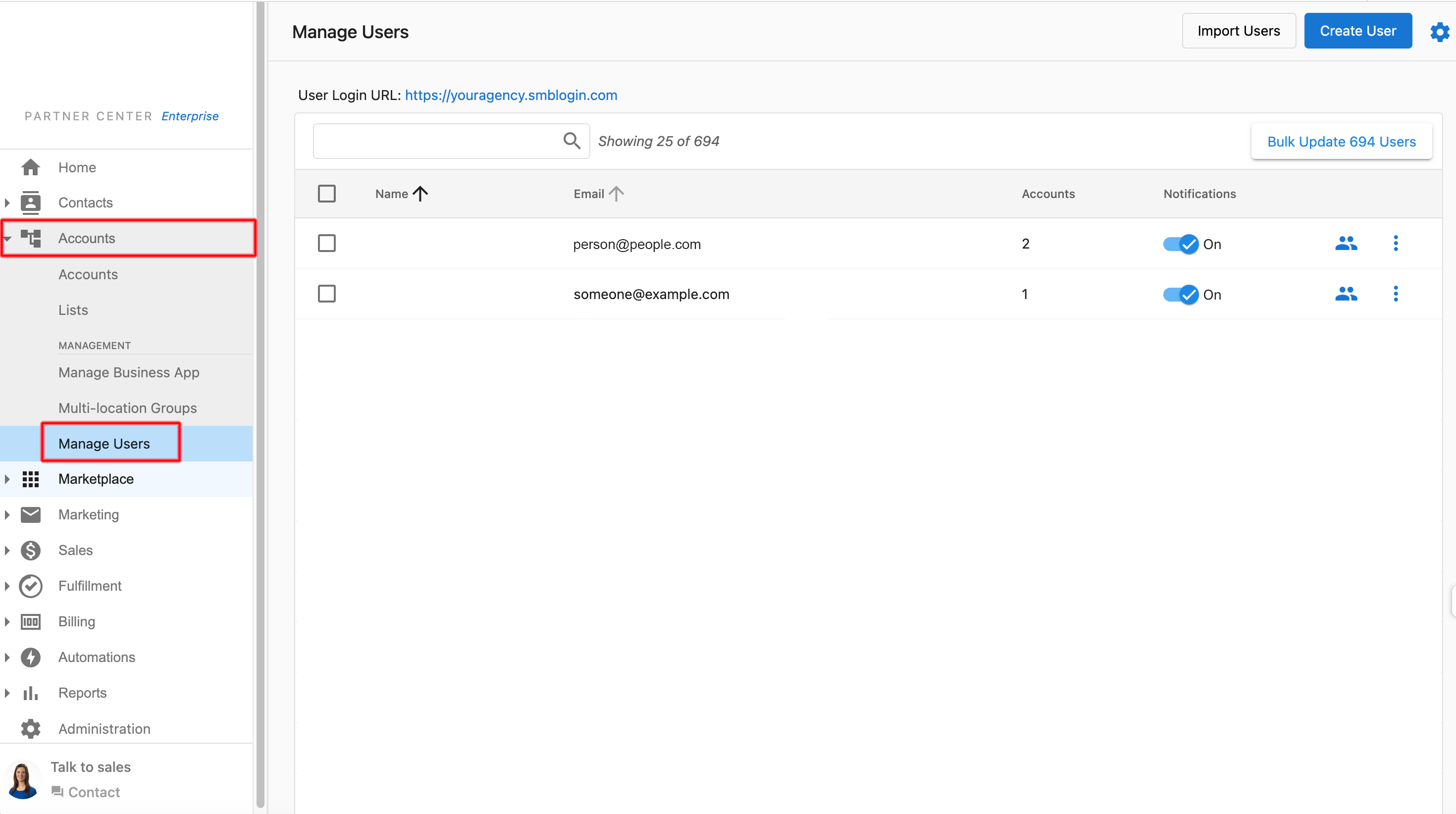
In Partner Center, click on
Accounts→Manage Users.
-
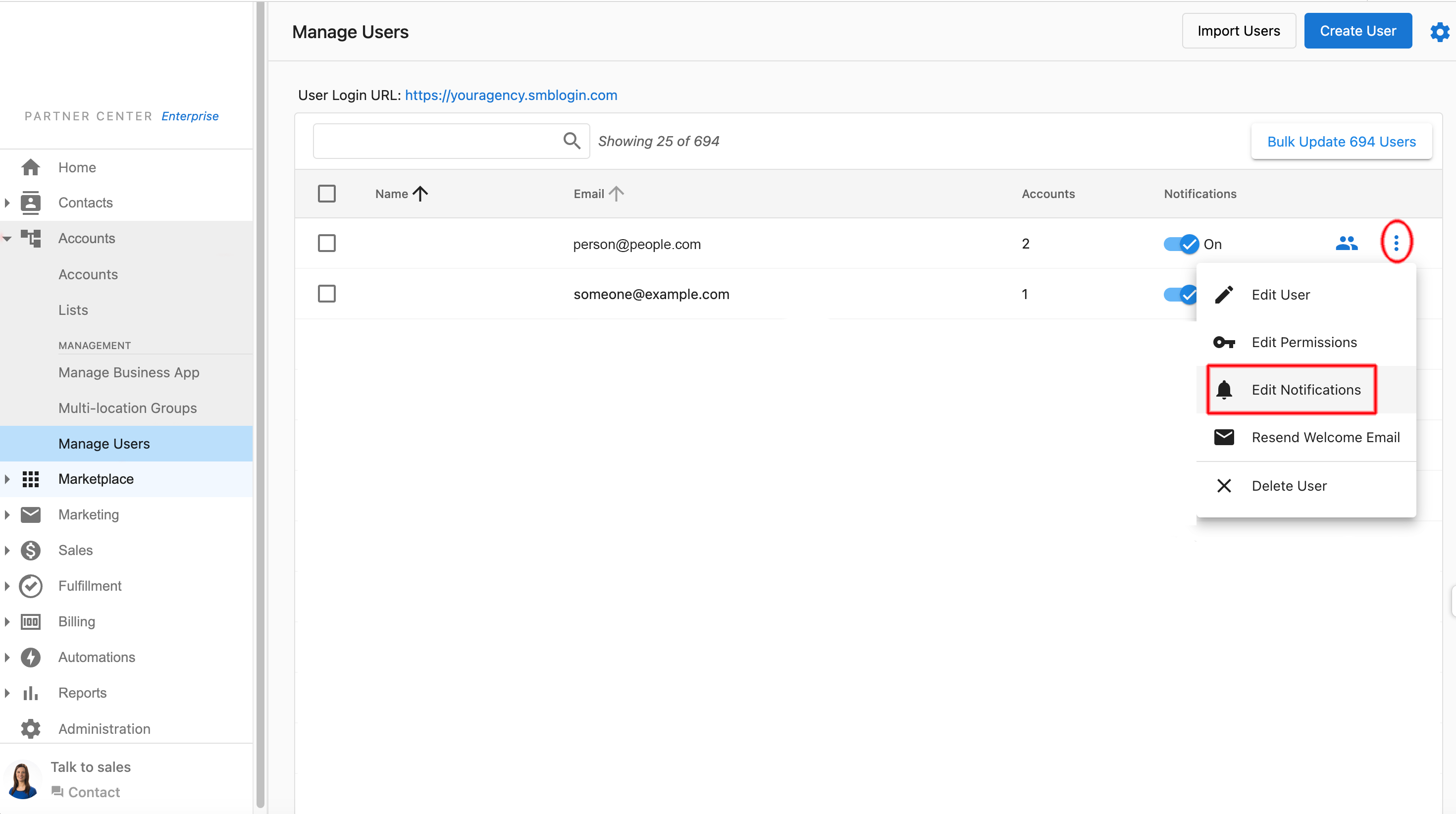
Next to the applicable user, click the 3 dots, then
Edit Notificationsfrom the drop-down menu.
-
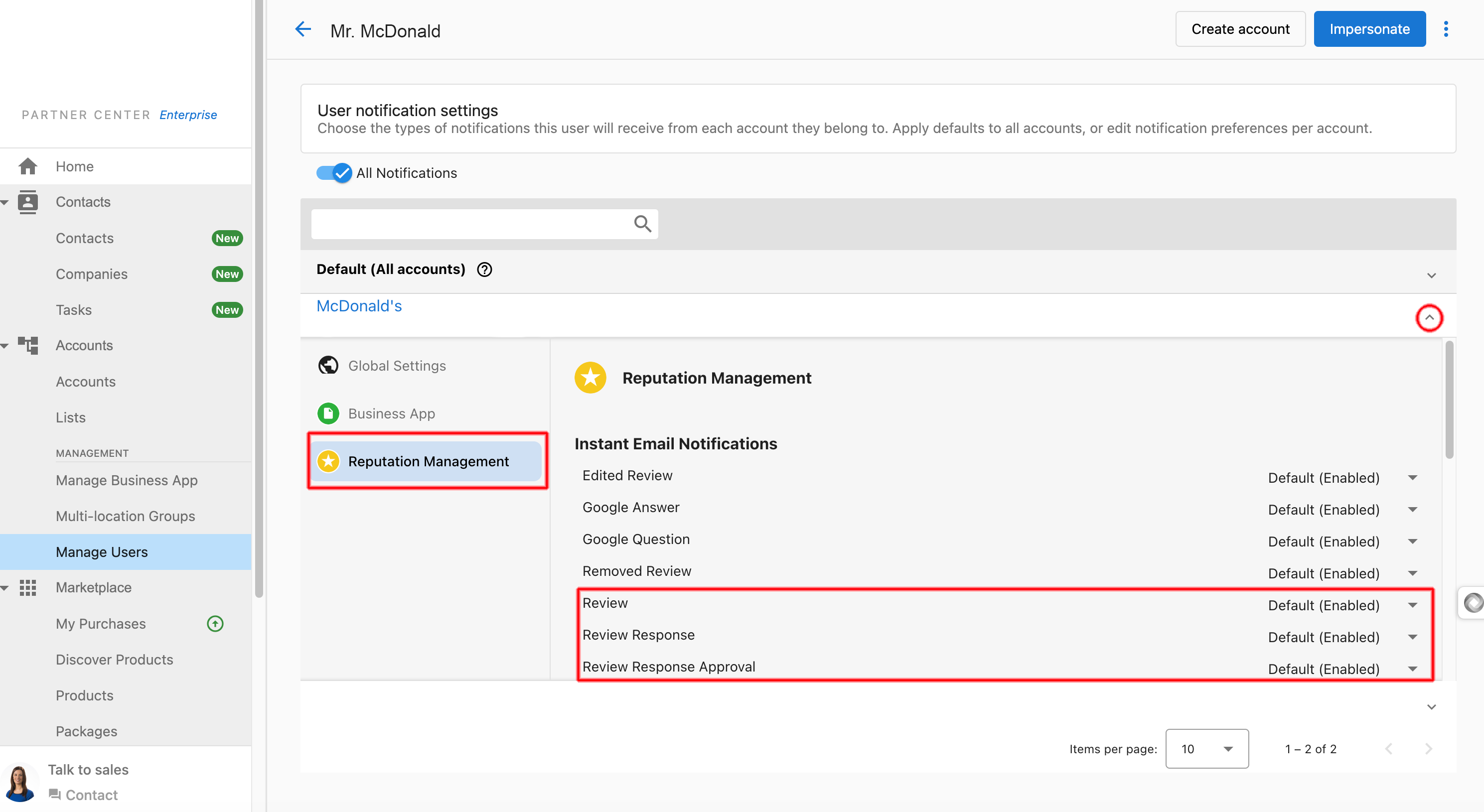
You see a list of accounts that the user has been added to. Click on the drop-down arrow next to the applicable account to expand the notifications list.
- Click on
Reputation AIto display the notifications associated with the Reputation AI platform.
- Click on
-
When you first add a user to an account, all of the notifications for that user/account will be enabled by default. Ensure that the following
Instant Emailnotifications are enabled:ReviewReview ResponseReview Response Approval
With these notifications enabled, the user will receive email notifications when there is a review response that requires their approval, such as a response to a negative review. The email will look like this:
Subject: New Review Response Approval for Business Name
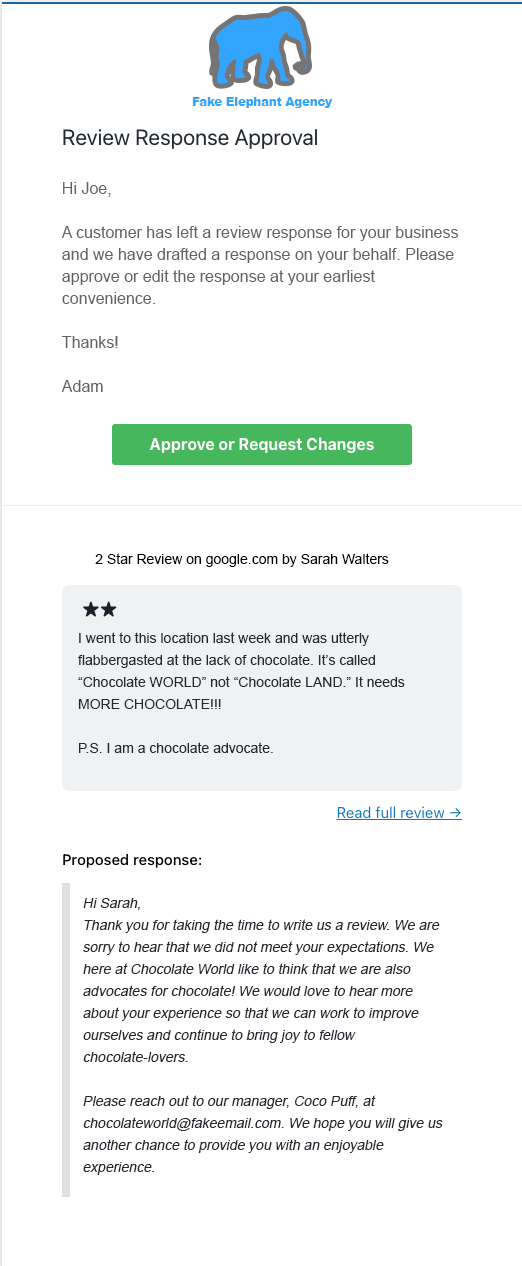
The user can click Approve or Request Changes within the email to be redirected to the platform, where they can provide feedback on the review response directly to the fulfillment team.
Frequently asked questions
Does the person approving responses need to be a user on the account?
Yes. To receive review response approval emails, the person must be added as a user to the account in Partner Center, with the applicable user notifications enabled.
Does Reputation AI need to be active on the account?
Yes. Reputation AI must be active on the account for its notifications, including review response approvals, to be available.
Which notification settings should I check?
In Accounts → Manage Users, click the 3 dots next to the user, then Edit Notifications. Expand the account, click Reputation AI, and make sure the Review, Review Response, and Review Response Approval instant email notifications are enabled.
Are review notifications enabled by default for new users?
Yes. When you first add a user to an account, all of the notifications for that user and account are enabled by default.
How does a user approve a proposed review response?
The user clicks Approve or Request Changes in the approval email. This opens the platform, where they can approve the response or send feedback directly to the fulfillment team.