Home Overview
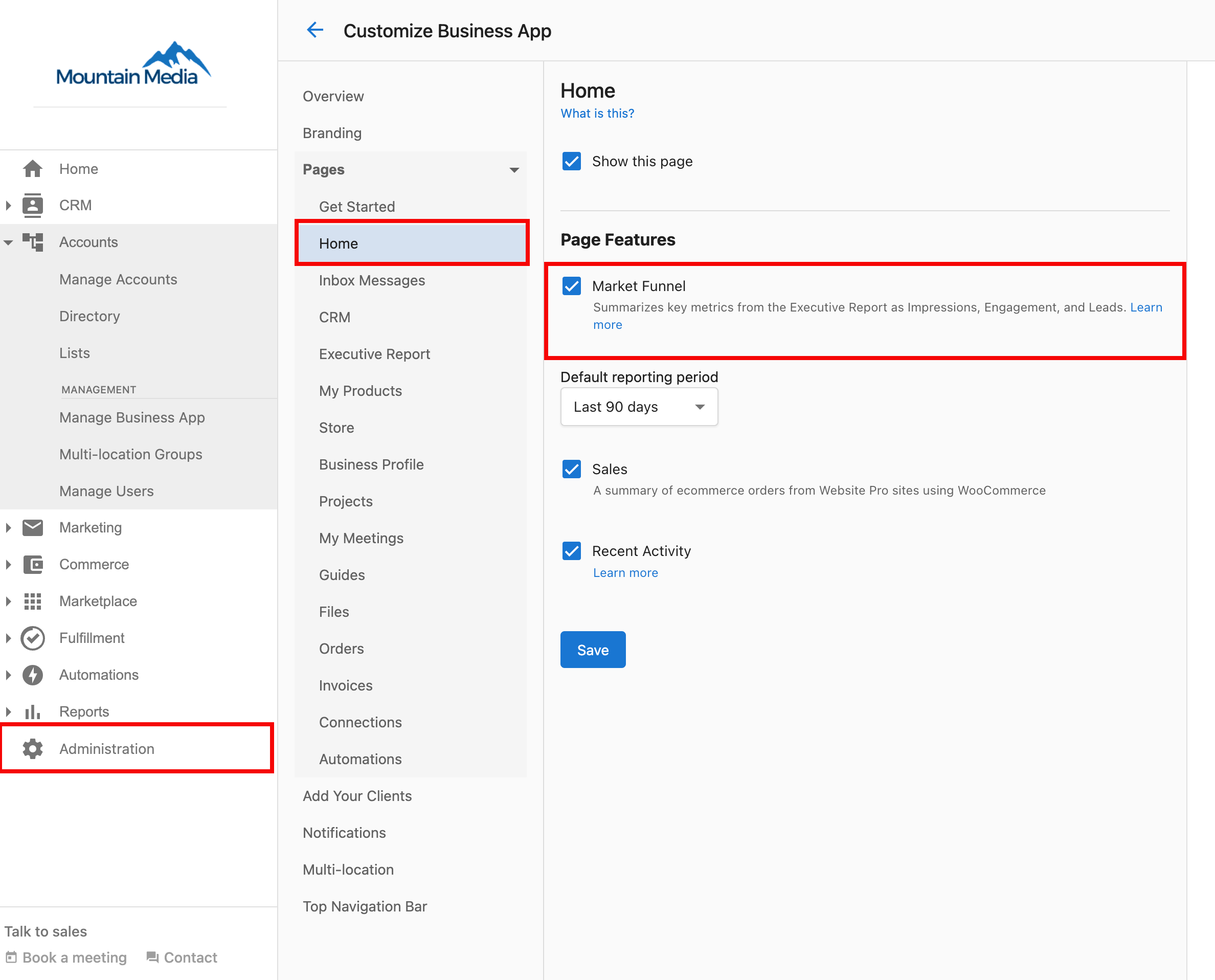
The Business App Home page is the dashboard your clients see first when they log in, with key metrics, recent activity, and quick access to key features. You control which Home cards appear at Administration → Customize Business App → Pages → Home in Partner Center.
What clients see
- Key Metrics: Performance data organized into Impressions, Engagement, and Leads
- Recent Activity: Live feed of messages, calls, and customer interactions
- Business Profile: Quick access to location info and profile management
- Products & Services: Available offerings and store integration
- Next steps: A setup checklist for new users, alongside the AI work summary and recommended product cards
How do I customize the Home page?
Navigate to Partner Center → Administration → Customize Business App → Pages → Home to control:
- "AI has done the work" card: Show/hide the AI work summary
- "Recommended for your business" cards: Show/hide the product upgrade cards
- "Next steps" card: Show/hide the setup checklist
- Marketing Funnel: Toggle key metrics display
- Recent Activity: Show/hide activity feed
- Sales Summary: Display ecommerce order summaries
- Default Reporting Period: Set timeframe for metrics
Marketing Funnel
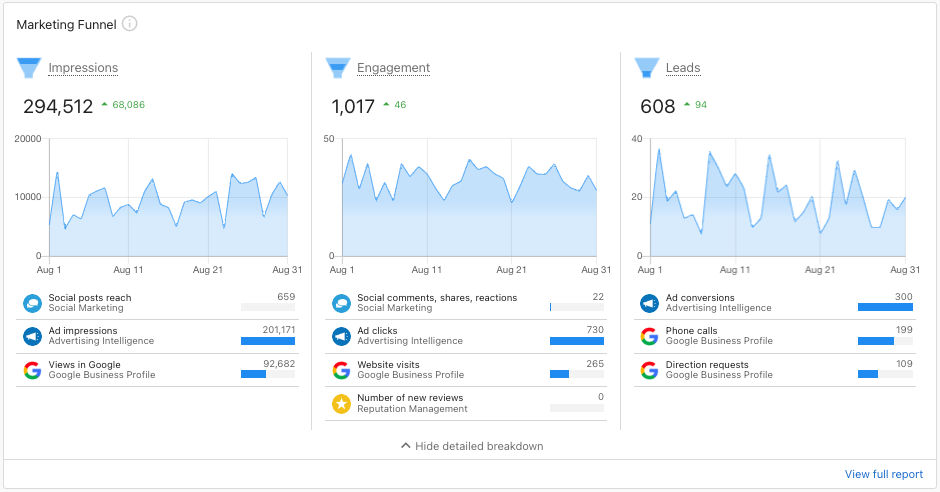
The Marketing Funnel displays key metrics from the Executive Report in three categories, helping your clients see how their marketing efforts drive business results.
How it works
The Marketing Funnel organizes performance data into:
- Impressions: Views of online content (Google Business Profile views, social media reach)
- Engagement: Interactions with business content (website visits, reviews, calls)
- Leads: New prospects from multiple sources (phone calls, SMS, forms, automations)
This gives clients a clear view of their marketing performance without needing to dig into detailed reports.
Customization options
Partners can control the Marketing Funnel display and configure:
- Default Reporting Period: Set timeframe (e.g., Last 90 days)
- Show/Hide Feature: Toggle the entire Marketing Funnel section
- Metrics Selection: Choose which metrics to display
How do I turn off the Marketing Funnel?
To disable the Marketing Funnel:
- Go to
Partner Center→Administration→Customize Business App - Navigate to
Pages→Home - Uncheck
Marketing Funnel - Click
Save
Invite team member
The Invite team member option allows your clients to invite additional team members.
How do I invite a team member?
- Log into Business App.
- From the Home page, select
Invite team memberon the top right of the page. - Enter the first name, last name, and email address of the team member you want to invite.
- Click
Send invite.
The invited team member will receive an email with instructions to join and access the Business App account.
Frequently asked questions
How do I hide cards on the Business App Home page?
Go to Partner Center → Administration → Customize Business App → Pages → Home. You can show or hide the AI work summary, Recommended for your business, Next steps, Marketing Funnel, and Recent Activity cards.
What does the Marketing Funnel show?
The Marketing Funnel shows key metrics from the Executive Report in three categories: Impressions, Engagement, and Leads.
How do I change the default reporting period on the Home page?
Set Default Reporting Period at Partner Center → Administration → Customize Business App → Pages → Home, for example Last 90 days.
How do my clients invite a team member from the Home page?
In Business App, they select Invite team member on the top right of the Home page, enter the team member's first name, last name, and email address, and click Send invite. The invited team member receives an email with instructions to join.
Related
- Setup Guide - Complete guide to Business App setup and features