Store sharing & embedding
Your Marketplace store is a customer-facing storefront where prospects can discover solutions, compare options, and purchase. Share it via website embed, direct links, or within marketing campaigns.
Store sharing overview
Use the Public Store for a standalone, embeddable store that integrates with your customer management. Share it via website embed, direct links, or within marketing campaigns.
Embed your store on your website
- Navigate to
Partner Center→Marketplace→Manage Store→Public Store - Choose an embedding version:
Store with sign-in– Includes customer authentication optionsStore without sign-in– Streamlined experience without authentication UIStore without sign-in and top bar– Minimal interface for simple website integration
- Copy the embed code snippet
- Paste it into your website's HTML editor
Benefits
- New products and packages automatically appear on your website
- Store content appears as part of your website
- Theme settings ensure brand consistency
- Choose the best integration method for your site design
Remove the "Sign In" button when embedding
If you want to hide the Sign In button on the embedded Public Store:
- Go to
Partner Center→Marketplace→Manage Store→Public Store - Under Embed Code, select
Store without sign-in(orStore without sign-in and top barfor a minimal header) - Copy the updated code and replace any previously embedded version on your website
Share a direct link
- Navigate to
Partner Center→Marketplace→Manage Store→Public Store - Copy the
Share URL: a direct link to your standalone store - Distribute via email signatures, social media, marketing campaigns, or direct customer communication
Find your standalone store URL at Partner Center → Marketplace → Manage Store → Public Store → Copy Share URL.
Multi-market store management
For partners using Markets to serve different customer segments, choose which market's store appears on your website using the Market Selector in Marketplace → Manage Store.
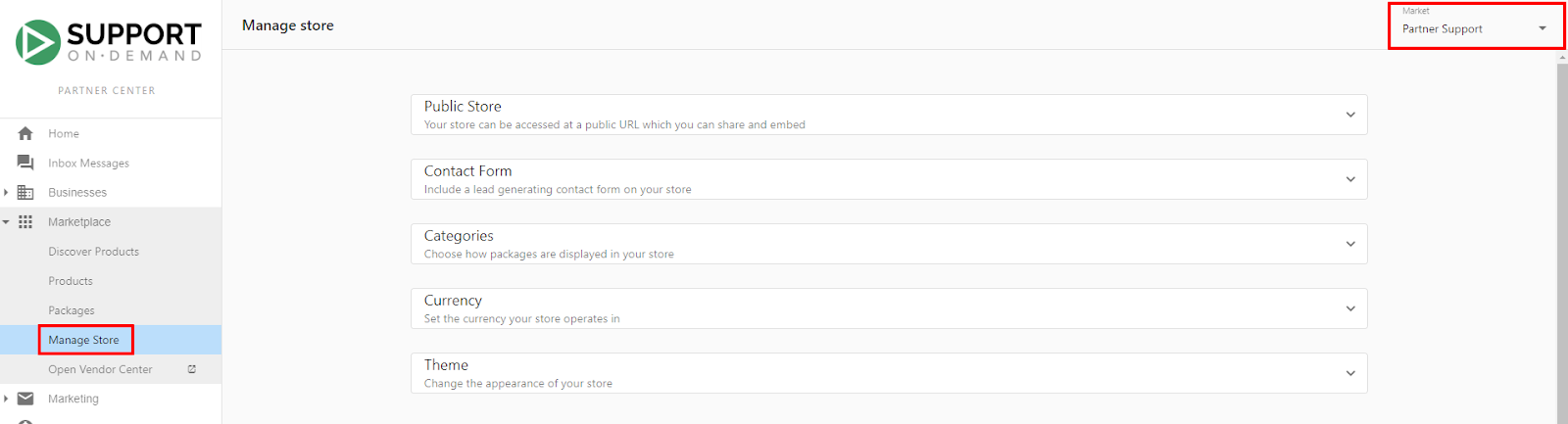
Public Store and Business App synchronize: packages visible in Public Store also appear in Business App for the selected market.