Discover Products
What is Discover Products?
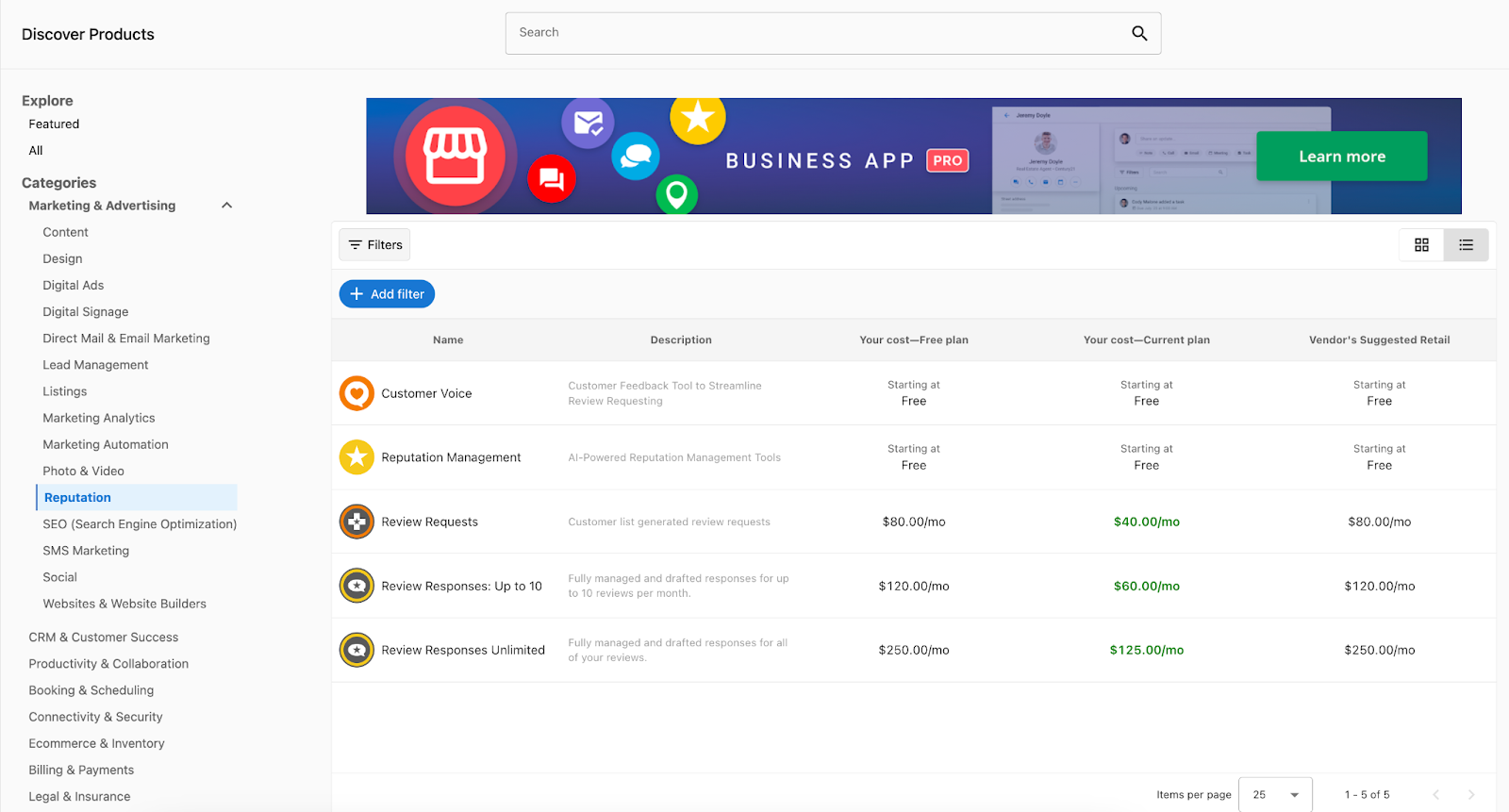
Discover Products, at Marketplace → Discover Products in Partner Center, is where you find, evaluate, and enable products to sell to your clients. You can filter the catalog, compare wholesale cost with suggested retail price, and click Start Selling to add a product to your store.
Why is Discover Products important?
Discover Products helps you research and compare products:
- Find and compare products with filters and search
- See wholesale costs vs. suggested retail prices to evaluate margins
- Open detailed marketing pages with complete product information
- Start selling with one click
What's included with Discover Products?
Product discovery
- Browse 250+ curated marketplace products
- Filter by category, country, pricing strategy, billing frequency, and vendor
- Search for specific solutions
- View curated collections (top, new, trending, best-sellers, seasonal)
Product evaluation
- Detailed marketing pages with features and benefits
- Screenshots and supporting files (brochures, case studies, documentation)
- Edition comparisons and pricing per tier
- FAQs and vendor contact information
- Country availability information
Instant enablement
- One-click product activation with
Start Sellingbutton - Automatic inclusion of all editions and add-ons
- Immediate availability in your store's ALL category
- Automatic currency conversion and multi-market distribution
How do I use Discover Products?
Browse all products
- Open
Partner Center→Marketplace→Discover Products - Clear the default
Vendor is Vendastafilter chip. Until you do, you only see Vendasta's own products rather than the full catalog - View the All page with product names, descriptions,
Your cost(wholesale), and suggested retail prices - Use the dropdown to compare tiers and evaluate profit margins
Explore featured collections
- Switch to Featured tab
- Browse curated collections:
- Top products
- New releases
- Trending solutions
- Best-sellers
- Seasonal recommendations
Filter and search products
- Filter by category: Select broad categories, then refine with subcategories
- Add additional filters: click
Add filter, choose the filter, pick a value, then clickApply. Available filters include:- Country: Filter by regional availability
- Pricing Strategy: Subscription, one‑time, freemium
- Billing Frequency: Monthly, yearly, custom
- Vendor: Narrow to specific providers, for example
Add filter→Vendor→Vendasta Services→Apply
- Use search: Enter keywords to find specific solutions
Suggest products
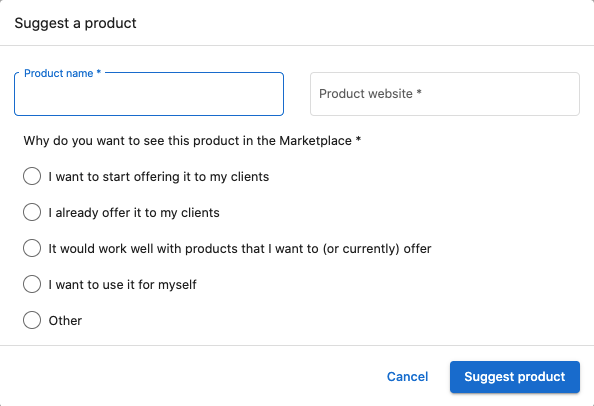
If you don't find what you need, use the "Suggest a product" feature to request additions to the marketplace.
Product marketing pages
Each product has a marketing page with detailed information:
Product information
- Features and benefits
- Key selling points
- Technical requirements
- Integration capabilities
- Real-world use cases
Editions & pricing
- Side-by-side edition comparisons
- Pricing across all tiers
- Feature differences
- Upgrade/downgrade paths
Screenshots & files
- UI screenshots
- Brochures and case studies
- Documentation
- Video content
FAQs
- Implementation details
- Billing clarifications
- Support and troubleshooting
Contact information
- Vendor sales and support details
- Email addresses and phone numbers
- Escalation paths
- Regional availability
How do I start selling a product?
Enable products with one click
- Browse or search in Discover Products
- Click Start Selling on a product
- Product is added at suggested retail price with all editions and add-ons included
- Product appears automatically in:
- ALL category of your public store
- All configured markets (if using Markets)
Manage enabled products
Go to Partner Center → Marketplace → Products to:
- View performance: Active accounts, growth metrics, market visibility, trends
- Configure settings: Retail pricing, white-label branding, upgrade paths, free trials, team access, add-ons
Store integration
Use Partner Center → Marketplace → Manage Store to:
- Preview your store appearance
- Adjust visual settings and branding
- Configure sharing and embedding options
- Set up contact forms
- Organize categories
Currency and pricing
- Automatic conversion: Suggested retail available in USD, CAD, and AUD
- Custom pricing: Override suggested prices, set market-specific pricing, configure promotions
- Currency settings: Set conversion rates in
Manage Store→Currency
Customer purchase experience
Edition selection
Product details pages include product information, an Editions & Pricing tab for comparison, and a Buy it Now path into the shopping cart.
Purchase options
- Add to Shopping Cart (standard checkout)
- Contact Sales (lead form)
- External URL (redirect)
How do I stop selling a product?
Stop selling a product
- Go to
Marketplace→Productsand open the product - Click Stop Selling and confirm
Impact:
- Packages containing it are archived
- Existing sales orders continue
- It’s removed from new order creation and store display
- Existing activations continue: accounts that already have the product activated keep it
Best practices
Product selection
- Start with products that complement your existing services
- Consider your target market's most common needs
- Evaluate profit margins at your current subscription tier
- Test products with small customer segments before full rollout
Store organization
- Group related products into logical categories
- Use clear, customer-friendly product descriptions
- Maintain consistent pricing strategies across similar products
- Regularly review and update product offerings
Customer education
- Leverage product marketing materials for sales conversations
- Share relevant case studies and documentation with prospects
- Use FAQs to proactively address common concerns
- Provide clear information about product capabilities and limitations
Frequently asked questions
What countries are supported in the Marketplace?
Product availability varies by country depending on the specific product. There are two easy ways to check if a product is available in your desired country:
-
Product Page Method: Navigate to
Partner Center→Marketplace→Discover Products, search for the product, and view the "Available In" section on the right side of the product page. -
Filter Method: Use
Partner Center→Marketplace→Discover Products→Explore All→+ Add filterto filter products by country availability.
For custom products, you can change country availability in Vendor Center → Products → Product info → Country availability.
Where can I find Product and Package IDs?
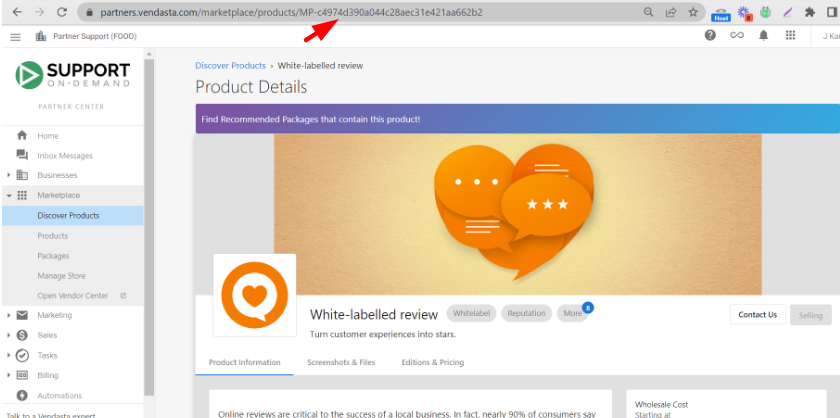
Product ID can be found in two locations within the page URL:
-
Discover Products: Go to
Partner Center→Marketplace→Discover Products, search and select the product, then click to view marketing materials. The Product ID is the alphanumeric portion at the end of the URL starting with MP (example: MP-QQF46WQ8W4TXTD8CBX8P6X7XBV4KBNW4). -
Products Section: Under
Marketplace→Products, select a product. The Product ID appears in the page URL starting with MP.
Package IDs are located within Marketplace → Packages. When you select a package, the URL contains a portion starting with SOL-{letters and numbers}, which is the package ID (example: SOL-620466a2-ea3f-4cb3-9cd7-26c2a8f3e539).
Can products be disabled once they're enabled?
Yes, products can be disabled by navigating to Partner Center → Marketplace → Discover Products, search and select the product, then scroll to the bottom of the product details page to find the "Stop Selling" button.
Please note: The product will no longer appear in your Public Store or Business App. Packages containing this product will be archived. Admins will not be able to activate or add the product to a package. Salespeople will not be able to add the product to an order. Orders containing the product will not be fulfillable. Accounts that already have the product activated keep it. The product only disappears from your store and can't be activated again.
Why do I only see Vendasta products in Discover Products?
Discover Products applies a Vendor is Vendasta filter chip by default. Clear that filter chip to see the full catalog.
How do I request a product that isn't in the Marketplace?
Use the "Suggest a product" feature on the Discover Products page to request additions to the marketplace.
What purchase options do customers see for a product?
Customers can see Add to Shopping Cart (standard checkout), Contact Sales (lead form), or External URL (redirect).
Why is a product I used to sell no longer in Discover Products?
Products can be renamed, discontinued, or replaced by newer offerings, and availability can vary by plan, market, and subscription tier. Try searching by a different name or browsing by category. If you still can't find it, contact Vendasta Support with the product name and your account details.
How should I evaluate third-party Marketplace products?
Filter by vendor category (Vendasta-owned, Vendasta services, or other vendors), open the product page for capabilities and any vendor demo or intro link, and use that vendor team for product-specific questions. Recommended packages are a starting point; confirm what is included before you position the offer.
Troubleshooting
Can't find a product in Discover Products
If you expect to see a product that isn't appearing, there are a few common reasons:
- Not enabled for your account: Some products are only available on specific plans or account configurations.
- Product has been renamed: Products can be renamed over time. Try searching by a different name or browsing by category.
- Product discontinued or replaced: Some products are retired or superseded by newer offerings.
- Market or subscription restrictions: Availability can vary by market and subscription tier.
If you still can't find the product, contact Vendasta Support with the product name and your account details. A support agent can confirm whether the product is available for your account, has been renamed, or requires a different plan.
Conclusion
Discover Products gives you access to a catalog of vetted solutions you can add to your service offerings. Use the filtering and search tools to find and enable the right products for your business and customers.