How do I update email settings?
To update email settings in Partner Center, go to Marketing → Email settings, set your sender name, reply address, and sender domain, then add the SPF, DKIM, and DMARC records to your DNS so your Campaigns emails are less likely to be flagged as spam.
Update the following settings to help your email campaigns pass spam filters and reach your prospects.
To prevent emails from being sent on someone's behalf unintentionally, email service providers check the digital records of incoming mail. These records—including Sender Policy Framework (SPF), Domain Keys Identified Mail (DKIM), and Domain-based Message Authentication, Reporting & Conformance (DMARC)—act as digital handshakes agreeing to send an email on someone's behalf. You can prevent your emails from being flagged as spam by updating your Domain Name System (DNS) record with the correct SPF, DKIM, and DMARC entries. Updating these entries creates an agreement between Vendasta and your domain and allows us to send email campaigns on your behalf.
To update email campaign settings:
- Go to
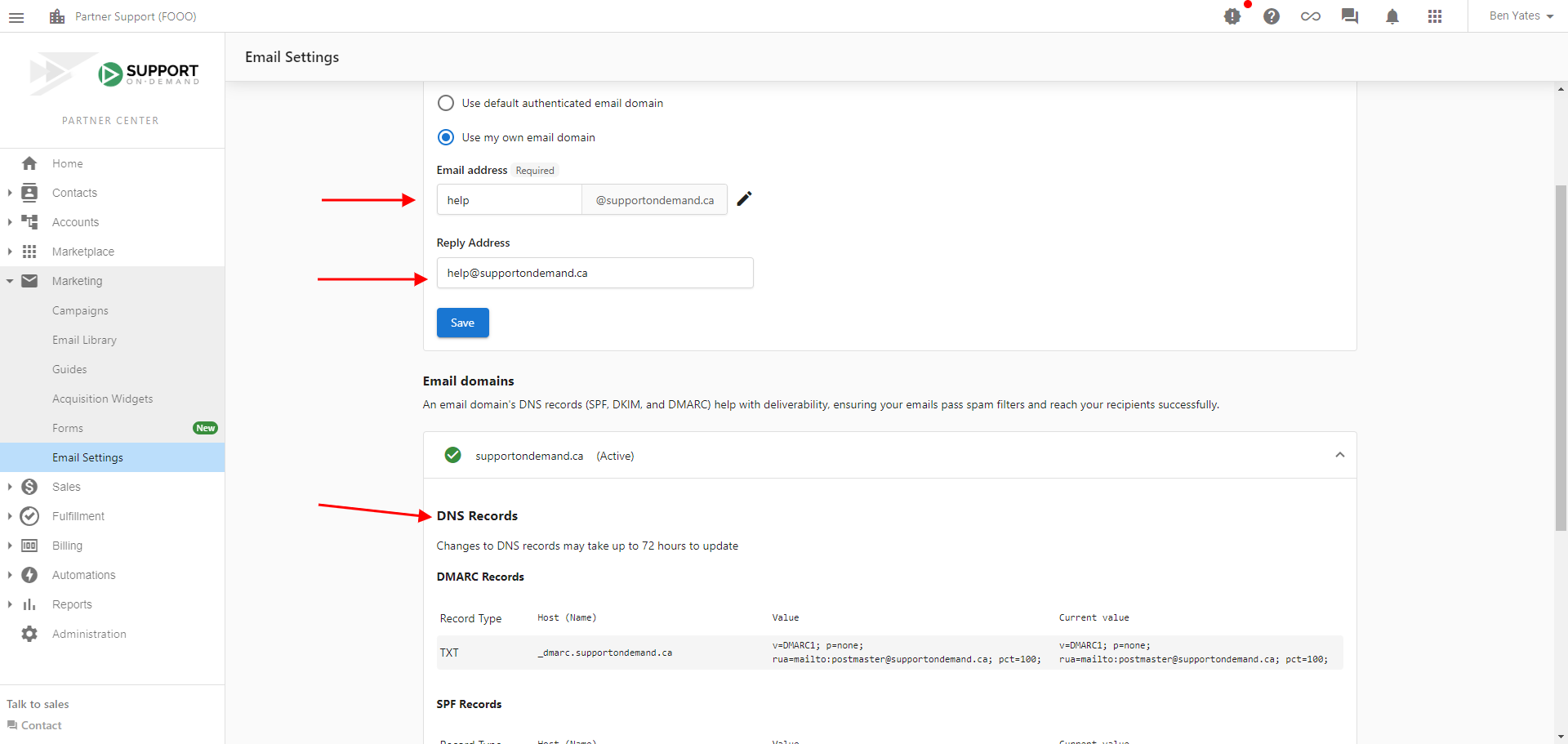
Partner Center→Marketing→Email settings. The page has three stacked cards:Sender and reply settings,Advanced email settings, andEmail domains. - In the
Sender and reply settingscard, setSender nameandReply Address, then selectSaveon that card.remarqueNote: When a salesperson is assigned to an account, the salesperson's email address and name is used instead of these settings.
- In the
Advanced email settingscard, setSender domain(chooseUse my own email domainto send from your own domain) andEmail address, then selectSaveon that card.attentionEach card has its own
Savebutton. Saving one card does not save the other, so press both. - In the
Email domainscard, check the four records under your domain: one SPF (TXT), two DKIM (CNAME), and one DMARC (TXT). Each row has aCurrent valuecolumn showing the value found at your DNS host, orNot foundin red if it has not been detected. The domain's own row header carries the overall status, and aDomain authorization requiredbanner stays on the page until every record lands. - For each record showing
Not found, update your DNS record with the correct entry. For assistance, you can contact your DNS service provider.
These settings drive Campaigns and other integrated services. Emails sent through Conversations are not affected.
Update settings
How do I keep my emails from being flagged as spam?
Setting Vendasta as a trusted service provider does not guarantee that emails will not be flagged as spam. To ensure your emails are delivered successfully, check the content and subject lines of your emails. Make sure to avoid:
- Colored text
- Text in all caps
- Attachments
- Exclamation marks
- Promotional words and phrases (such as "make money," "save money," "cheap," and "act now")
- Profanity and explicit content
These may cause your emails to be flagged as spam.
If you do not own a custom domain, consider purchasing one through a domain registrar such as GoDaddy. You can use your custom domain to create and maintain a professional email address.
Frequently asked questions
How do I change the sender name and reply address on my emails?
Go to Partner Center → Marketing → Email settings. In the Sender and reply settings card, set Sender name and Reply Address, then select Save on that card. When a salesperson is assigned to an account, the salesperson's name and email address are used instead.
Which DNS records do I need to add to authorize my domain?
Add one SPF (TXT) record, two DKIM (CNAME) records, and one DMARC (TXT) record at your DNS host. The Email domains card shows Not found in red for any record that hasn't been detected yet. For help adding records, contact your DNS service provider.
Do these settings affect emails sent through Conversations?
No. These settings drive Campaigns and other integrated services. Emails sent through Conversations are not affected.
Does authorizing my domain guarantee my emails won't go to spam?
No. Setting Vendasta as a trusted service provider does not guarantee that emails will not be flagged as spam. Check the content and subject lines of your emails and avoid colored text, all caps, attachments, exclamation marks, promotional phrases, and profanity.
Why didn't my changes save?
Each card on the Email settings page has its own Save button. Saving one card does not save the other, so select Save on both the Sender and reply settings and Advanced email settings cards.