How do I send my first SMS message with Conversations AI in Business App?
To send your first SMS message with Conversations AI, open Business App → Conversations AI, click the prompt to start sending messages, enter the customer's phone number, and send your message. US-based businesses must register their business before sending.
The SMS messaging feature is only available if you are located in Canada or the United States.
SMS messaging is included in the Conversations AI Pro and Premium products, or can be purchased as a standalone product if you do not require the use of the AI-assisted lead capture widget.
How do US-based businesses get ready to send SMS?
US-based businesses must register their business before sending a message.
Registration can take a few weeks. Once registered, you receive a notification and can send your first message.
How do I send my first SMS message?
To send your first SMS message,
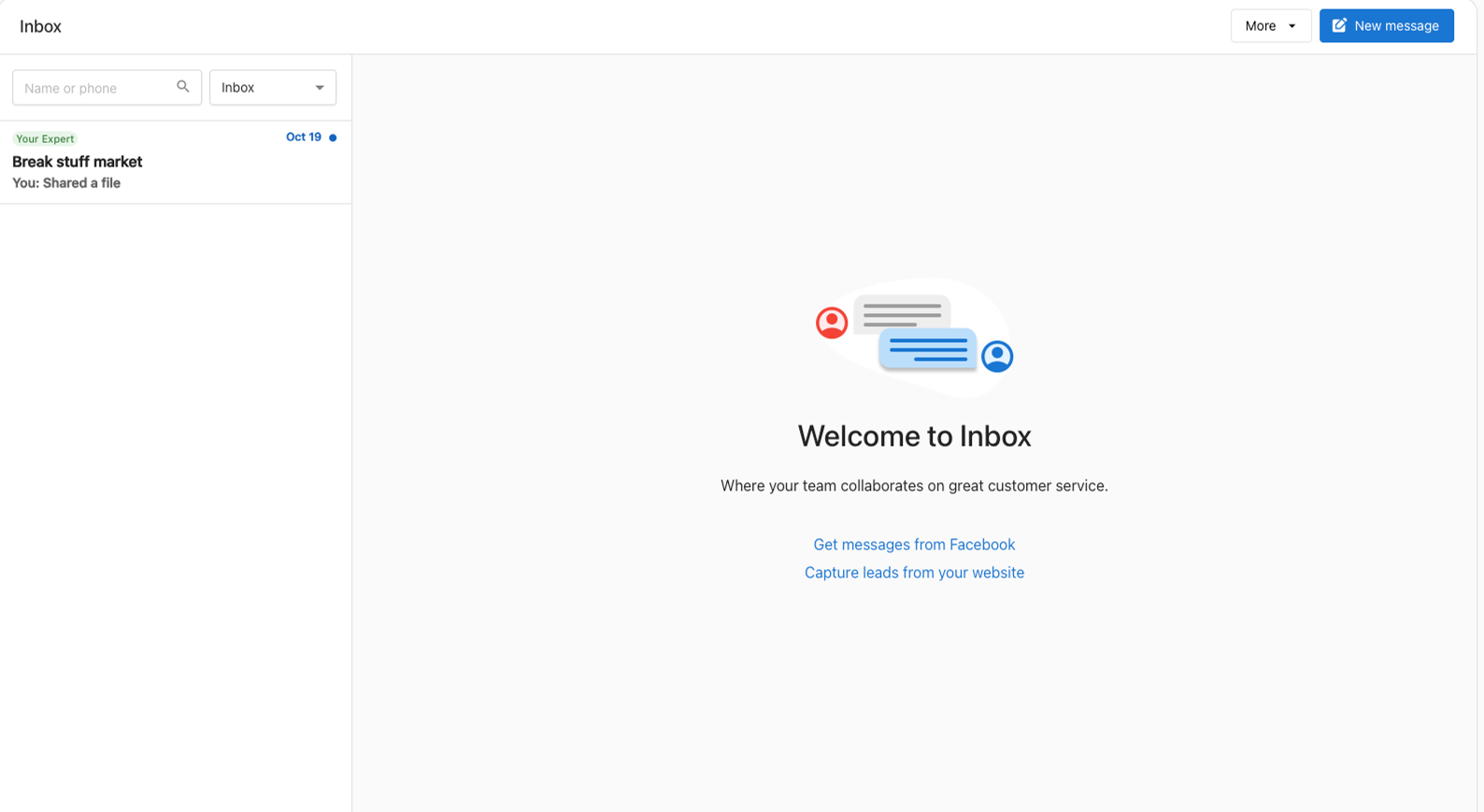
- Open
Business App→Conversations AI. - Click on the prompt to start sending messages.
- Type in the phone number of the customer. The input field will automatically correct the phone number to match our phone number format. Ex: +1 (555) 555-5555.
- Type a message and send it.
How do I add customer phone numbers?
When messages are sent from Conversations AI, contacts are automatically created in the contacts in Business App.
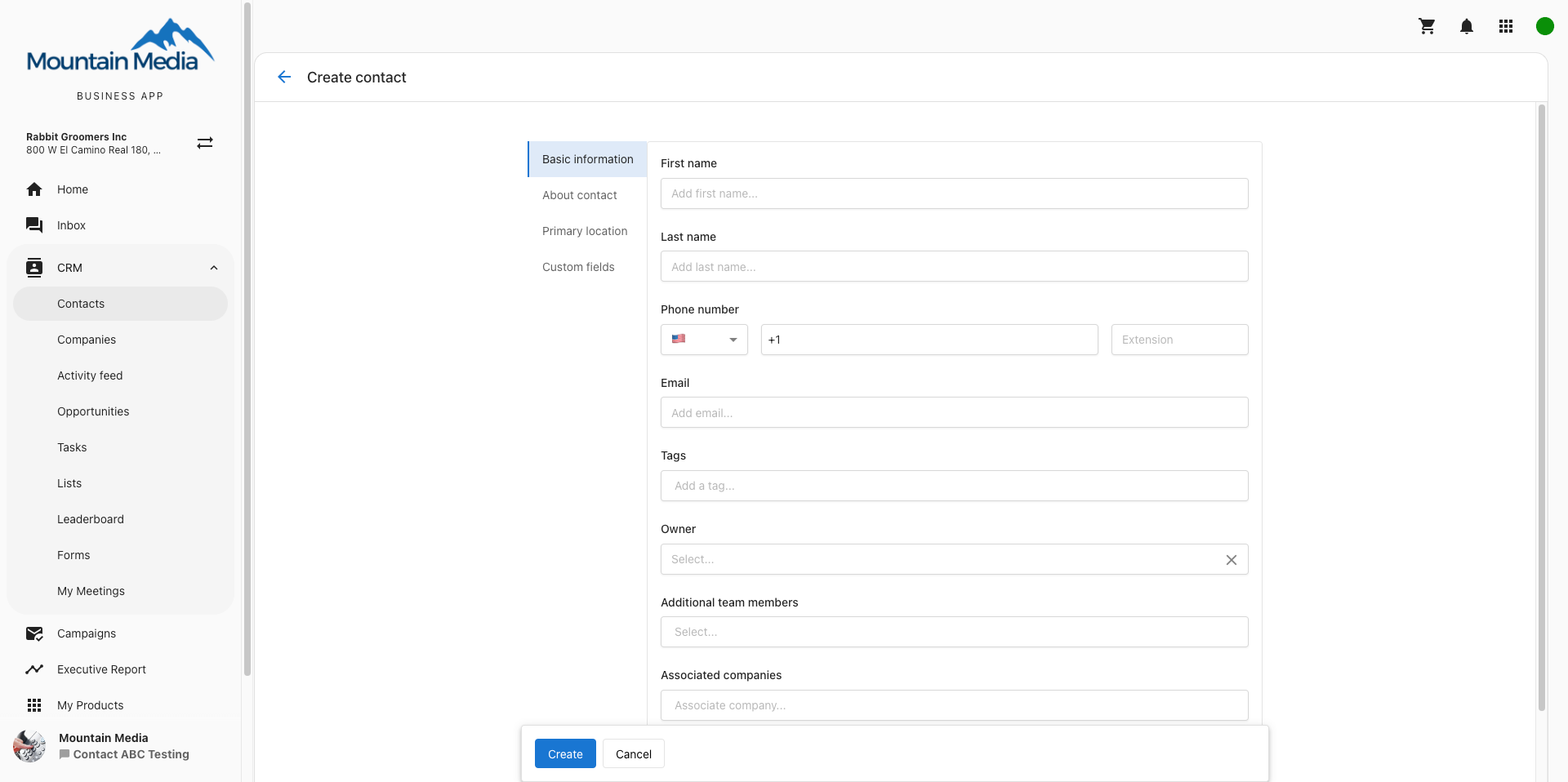
To manually add phone numbers in Business App, navigate to CRM → Contacts from the left-hand menu. Here you can add new contacts. You can also bulk import customers from this page.
How many messages can your client send to their customers?
With Conversations AI Pro or Premium, or the individual SMS product, accounts can send and receive unlimited one-by-one SMS messages to customers. Each carrier limits the number of messages sent and received per day. For example, up to 2,000 SMS segments and MMS can be sent per day to customers on T-Mobile.
What phone number is used to send out messages?
The business is assigned an available SMS number based on the business's address. The business can share this number with customers and will receive text and MMS messages sent to it. Calls cannot be received at this number.
My client cannot click on Conversations AI. How can I turn this on?
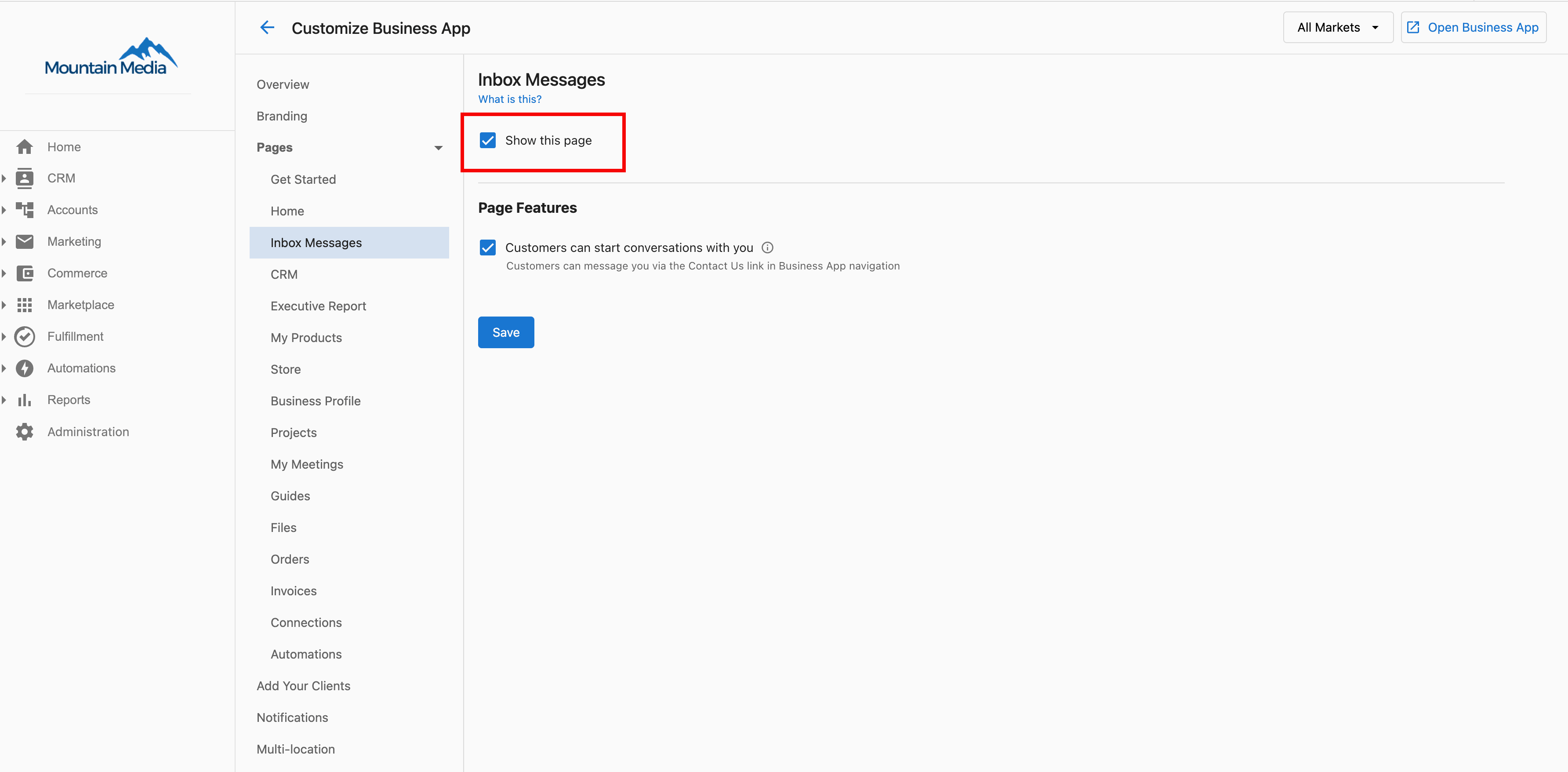
There is a setting titled Display Conversations AI Tab in Partner Center → Administration → Customize Business App → Conversations AI Messages. Check the Show this page box.
Frequently asked questions
Why is SMS Configuration missing for a Conversations AI Pro account in some countries?
SMS Configuration appears only in markets where SMS is supported: Canada and the United States. Accounts in other countries do not show the setting.
Does Conversations AI Pro include unlimited SMS?
With Conversations AI Pro or Premium, or the individual SMS product, accounts can send and receive unlimited one-by-one SMS messages to customers. Each carrier limits the number of messages sent and received per day. For example, up to 2,000 SMS segments and MMS can be sent per day to customers on T-Mobile.
Can I get SMS without Conversations AI Pro?
Yes. SMS can be purchased as a standalone product if you do not require the AI-assisted lead capture widget.
What phone number does the business use to send SMS?
The business is assigned an available SMS number based on the business's address. The business can share this number with customers and receives text and MMS messages sent to it. Calls cannot be received at this number.
How long does SMS registration take for US businesses?
Registration can take a few weeks. Once registered, you receive a notification and can send your first message.
Why can't my client see Conversations AI in Business App?
Go to Partner Center → Administration → Customize Business App → Conversations AI Messages and check the Show this page box for the Display Conversations AI Tab setting.