Task Manager Integration
With fulfillment integrations and event-generated tasks and projects, task manager users can automatically generate both tasks and projects to scale their fulfillment team. Each time a specific product is purchased, a project can be created or generate tasks based on events such as reviews, mentions, or listings. A Task Manager Integration will standardize your fulfillment process for a product by automating project and task creation in Task Manager.
How does the Task Manager integration work?
When task generation settings and fulfillment integrations are toggled on, tasks and projects automatically generate within Task Manager. These settings are turned on at a product or service level within Vendor Center and generated when that product is ordered in Partner Center. A task manager integration can create projects/tasks in your Task Manager or the Reseller's Task Manager.
How to set up a Task Manager integration
Navigate to Vendor Center > [Choose product] > Integration > Task Manager Integration > Toggle Integrate with Task Manager ON
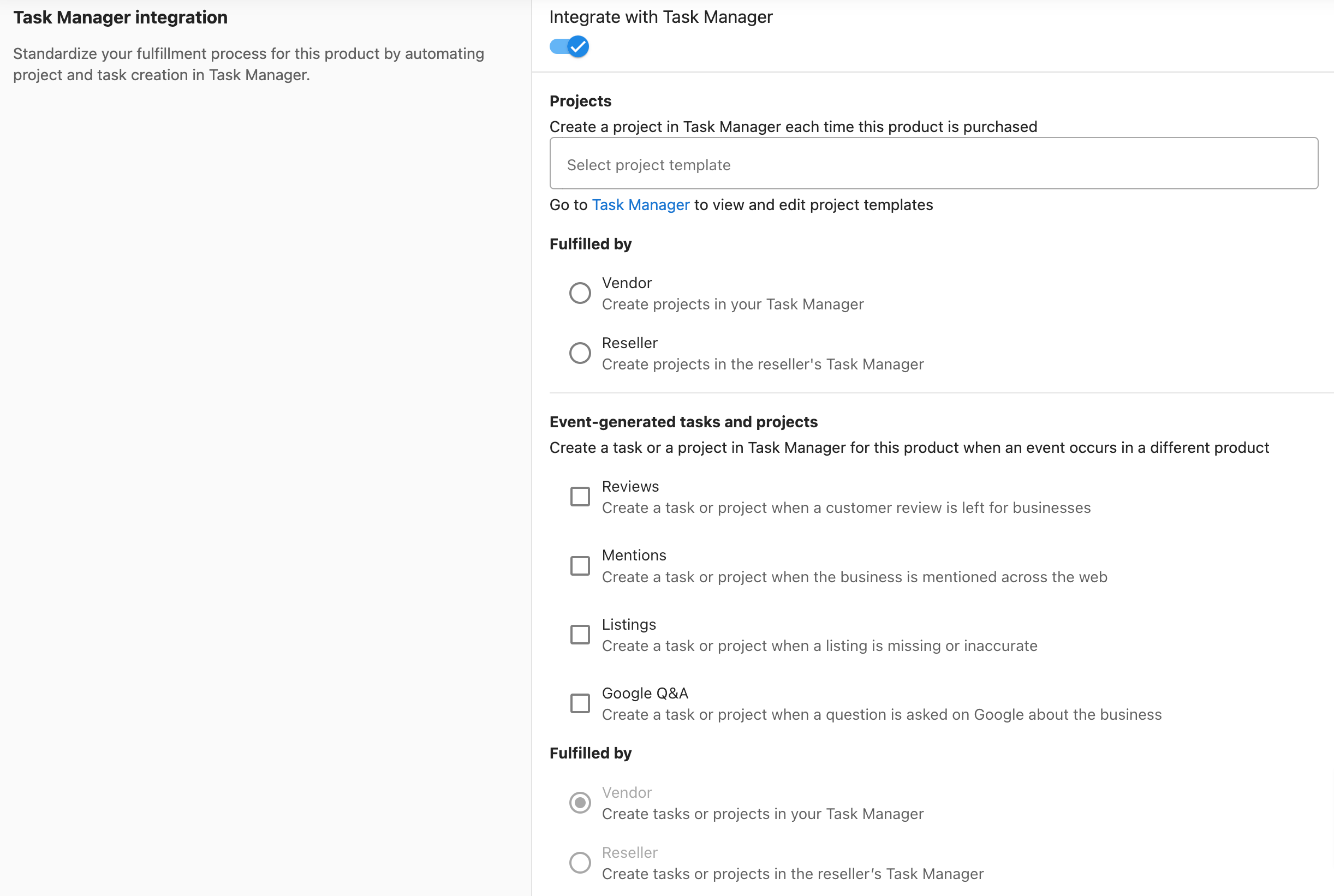
Projects
A project is automatically created every time your product is purchased. Use this to standardize fulfillment so every sale kicks off the same workflow using a project template.
- Navigate to Vendor Center > [Choose product] > Integration > Task Manager Integration > Toggle Integrate with Task Manager ON
- Select an existing project template, or create a new one in Task Manager. This template will be used to generate a project each time the product is purchased.
- Select who the project is fulfilled by:
- Vendor - Create projects in your Task Manager
- Reseller - Create projects in the reseller's Task Manager
Event-generated tasks and projects
Unlike project-based fulfillment, event-generated tasks and projects are triggered by external events rather than a purchase. When something happens in another product — such as a new review, a web mention, or an inaccurate listing — a task or project is automatically created so your team can respond.
-
Navigate to Vendor Center > [Choose product] > Integration > Task Manager Integration > Toggle Integrate with Task Manager ON
-
Create a task or a project in Task Manager for this product when an event occurs in a different product
-
Select any of the following options for event-generated tasks and projects
- Reviews - Create a task or project when a customer review is left for businesses
- Mentions - Create a task or project when the business is mentioned across the web
- Listings - Create a task or project when a listing is missing or inaccurate
-
Select who the project is fulfilled by
- Vendor - Create projects in your Task Manager
- Reseller - Create projects in the reseller's Task Manager