Tasks
Tasks in the Vendasta CRM, at CRM → Tasks in Partner Center, track sales activities like follow-ups so they're completed on time. You can create tasks from contact or company records or the task table, and work through several at once with a task workflow.
Why use tasks?
Tasks keep your follow-ups organized so activities aren't forgotten, and they give you clear accountability and progress tracking across your sales process. You can create tasks from CRM records, opportunities, or manual entry.
What's included
- Multiple task creation methods from CRM records, opportunities, and manual entry
- Task workflow feature for guided completion of multiple tasks in sequence
- Integration with contact and company profiles
- Automated task creation capabilities
- Progress tracking and completion status monitoring
Get started
-
Navigate to tasks
- Access tasks through various CRM sections
- Use task creation from contact or company records
-
Create your first task
- Go to
CRM→ContactsorCRM→Companies - Click into a specific record to create associated tasks
- Go to
-
Use task workflows for efficient completion
- Select multiple tasks and start a guided workflow
- Let the system navigate you through each associated profile
- Complete, reschedule, or skip tasks using the top navigation bar
-
Manage and complete tasks
- Track task progress and completion status
- Use tasks to maintain consistent sales activities
Task creation methods
You can create tasks in Vendasta in multiple different ways:
- From CRM records: Create tasks directly from contact or company profiles
- From opportunities: Generate tasks associated with specific opportunities
- Manual creation: Add standalone tasks for general sales activities
How do I create a sales task?
You can create tasks in Vendasta in multiple different ways:
Create tasks from a CRM record
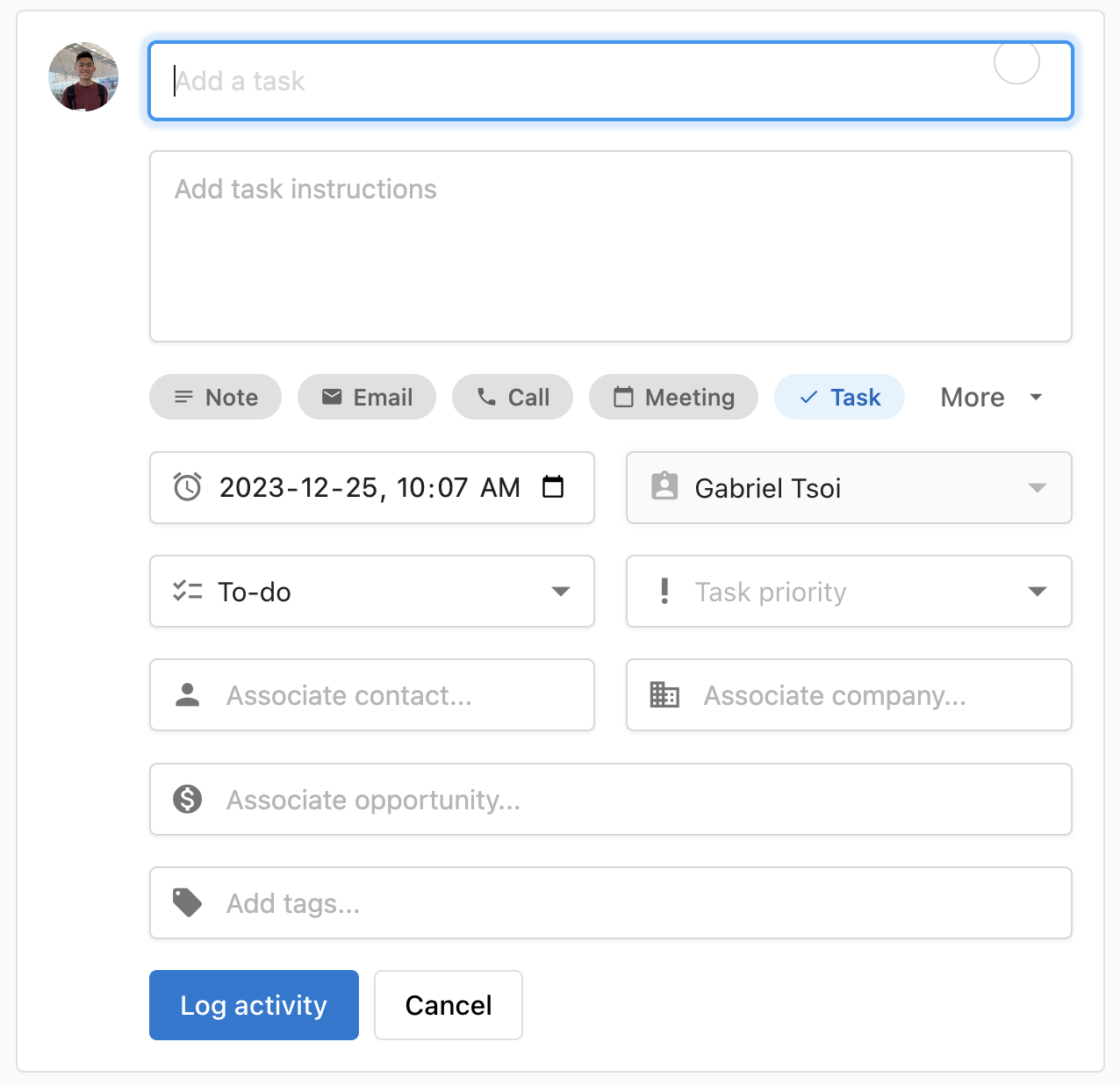
Navigate to your record:
- Contact: In
Partner Center, go toCRM→Contacts - Company: In
Partner Center, go toCRM→Companies
After you are on the record's table:
- Click the name of the record to open it
- Click the
Taskchip under theShare an update...box in the activity composer - Enter the task details (title, description, due date, assignee, task type, task priority, and optionally associate the task with a contact or company)
- Click
Create taskto submit
Create tasks from the task table
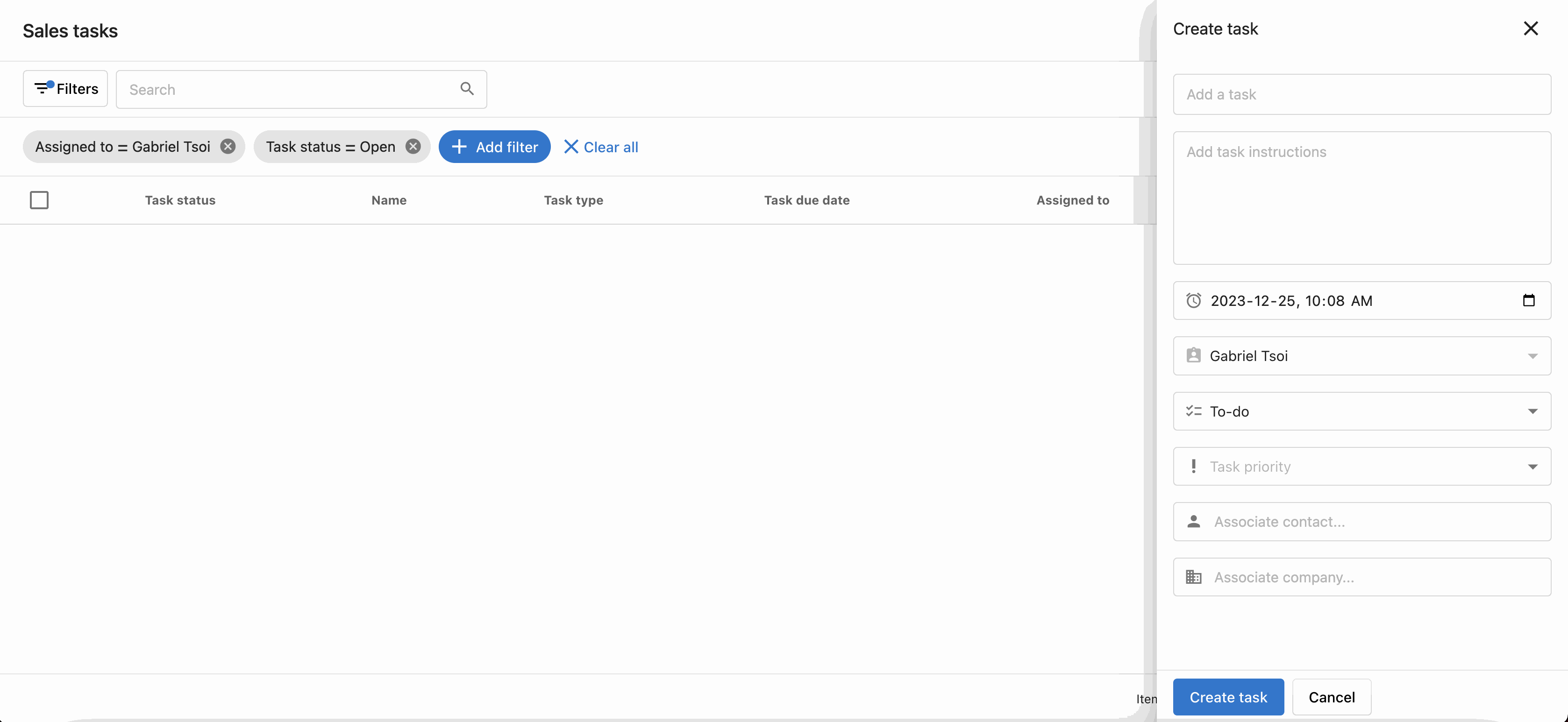
Navigate to Partner Center → CRM → Tasks
- Click
Create task - Fill out the task details
- Click
Create task
Task workflow - Guided task completion
The task workflow feature provides a guided experience for completing multiple tasks efficiently. This tool automatically navigates you through each task's associated contact or company profile, allowing you to complete, reschedule, or skip tasks in a streamlined workflow.
How do I start a task workflow?
-
Navigate to the Tasks page
- Go to
Partner Center→CRM→Tasks - View your list of pending tasks
- Go to
-
Select tasks to complete
- Choose one or multiple tasks you want to work on
- Use checkboxes to select the tasks you want to include in the workflow
-
Start the workflow
- Click the
Start N task(s)button at the top right (the count reflects the number of selected tasks) - The system will begin the guided workflow process
- Click the
Workflow navigation experience
Once you start a task workflow, the system automatically guides you through each selected task:
Automatic navigation:
- System navigates to the contact or company profile page associated with each task
- Tasks are processed in the order you selected them
- Context about the task appears at the top of each profile page
Top bar task controls: During the workflow, you'll see a top navigation bar with options for each task:
Complete: Mark the task as finished and move to the next oneReschedule: Set a new due date and move to the next taskSkip: Skip this task for now and move to the next one
Progress tracking:
- See which task you're currently on in the sequence
- Track how many tasks remain in the workflow
- System automatically moves to the next task after each action
Benefits of using task workflows
Increased efficiency:
- No need to manually navigate between different contact/company pages
- Streamlined process reduces time spent switching between tasks
- Context is automatically loaded for each task
Improved completion rates:
- Guided experience reduces the likelihood of forgetting tasks
- Batch processing makes it easier to complete multiple tasks
- Clear progress tracking maintains momentum
Better organization:
- Process related tasks together for better context
- Maintain focus on task completion without distractions
- Systematic approach to daily task management
Best practices for task workflows
Task selection strategy:
- Group related tasks together (e.g., all follow-up calls)
- Prioritize urgent or high-impact tasks first
- Consider grouping tasks by contact/company for better context
Workflow preparation:
- Review task details before starting the workflow
- Ensure you have necessary information or materials ready
- Block uninterrupted time for workflow completion
During workflow execution:
- Use the
Completeoption when tasks are fully finished - Use
Reschedulefor tasks that need more time or information - Use
Skipsparingly - only when tasks are no longer relevant
Task workflow tips
- Start with smaller batches: Begin with 3-5 tasks to get comfortable with the workflow process
- Use context effectively: Take advantage of having the full contact/company profile available during task completion
- Update task notes: Add relevant information while completing tasks to maintain good records
- Plan your workflow: Review and organize your tasks before starting the workflow for maximum efficiency
Task management benefits
Sales tasks help you keep track of your sales activities in the CRM, ensuring that important follow-ups and activities are completed on time. This systematic approach to task management improves sales consistency and helps maintain momentum throughout your sales process.
Default task filters
When you open the Tasks page, it loads with two filters applied by default:
- Assigned to: The currently logged-in user
- Task status: Open
This means you'll only see your own open tasks by default. If you or a team member can't find a task, the first step is to check whether these default filters are hiding it. Click an active filter to clear or change it.
Custom saved views
You can save your own filter combinations as named views so you don't have to re-apply them each time.
How do I create a custom view?
- Go to
Partner Center→CRM→Tasks. - Apply the filters you want to save, for example, all open tasks regardless of who they're assigned to.
- Click
Edit views. - Enter a name for the view and save it.
How do I use a saved view?
Saved views appear as named tabs at the top of the Tasks page. Click any tab to instantly load that view's filters.
Custom views are per-user. Each team member saves and manages their own views. Views you create are not visible to other users.
Frequently asked questions
What is a sales task in the CRM?
Sales tasks help you keep track of your sales activities in the CRM, so important follow-ups and activities are completed on time. You can create them from contact or company records, from opportunities, or manually from the task table.
Why can't I see my tasks?
The Tasks page loads with two default filters: Assigned to the currently logged-in user and Task status Open. Tasks assigned to someone else or already closed are hidden until you clear or change those filters. Click an active filter to clear or change it.
How do I save a custom view of my tasks?
Go to Partner Center → CRM → Tasks, apply the filters you want, click Edit views, then enter a name for the view and save it. Saved views appear as named tabs at the top of the Tasks page.
Can other team members see the task views I save?
No. Custom views are per-user, so each team member saves and manages their own views.
How do I work through several tasks in a row?
Select the tasks on Partner Center → CRM → Tasks, then click the Start N task(s) button at the top right. The workflow opens each task's contact or company profile in turn, and you can Complete, Reschedule, or Skip each one from the top bar.